- Published on
A Complete Guide to the Git Repository URL
- Authors

- Name
- Gabriel
- @gabriel__xyz
A Git repository URL is the unique address for your code project hosted on a server like GitHub or GitLab. It's the critical link that lets you and your team clone, push, and pull code, acting as the central coordination point for all your work.
What Is a Git Repository URL and Why Does It Matter
Think of a Git repository URL as the street address for your entire coding project. It’s the simple but essential piece of information Git needs to find and connect with your code on a remote server. Without it, your local copy of the project is just an isolated folder, unable to sync up with the central hub where your team collaborates.
This URL is the lifeline for any modern development team. It enables developers across the globe to push their latest work, pull updates from others, and keep everyone's code perfectly in sync. This remote location is what we call the origin.
The Central Library Analogy
To make this crystal clear, let's imagine your project is a massive, constantly evolving book collection housed in a central library.
- The Git Repository URL: This is your library card. It’s what grants you access to the entire collection.
- Cloning the Repository: This is like checking out a complete copy of every book for the first time. You use the URL to get your own local version of the project.
- Pushing Changes: After writing a new chapter or fixing some typos, you "push" your work back to the library, updating the master collection for everyone else.
- Pulling Updates: When a teammate adds a new section, you "pull" their changes to make sure your local copy stays current with the library's official record.
This whole system, powered by the Git repository URL, makes sure every contributor is working from the most up-to-date version of the project. It prevents the chaos of developers accidentally overwriting each other's work and establishes a single source of truth.
A Git repository URL acts as the definitive pointer to a remote codebase, turning a collection of local files into a synchronized, collaborative project. It's what makes distributed version control possible.
The Foundation of Collaboration and Automation
The URL is more than just an address; it's the key that unlocks powerful workflows. Every time you run git clone, git pull, or git push, Git is using this stored URL under the hood to talk to the remote server. If you're just starting out, you can learn more about these foundational commands by exploring how to get started with Git for version control.
The URL you use also determines how you authenticate with the remote server. The two primary methods are:
- HTTPS: An easy-to-use method that works everywhere. It typically requires a username and password or, more securely, a Personal Access Token (PAT).
- SSH: A more secure and convenient method for frequent contributors. It uses a cryptographic key pair, which saves you from entering credentials over and over again.
Understanding the role and structure of a Git repository URL is the first step toward mastering distributed development and building efficient, collaborative pipelines.
Decoding Git URL Formats: HTTPS vs. SSH
When you go to clone a repository from GitHub or GitLab, you’re immediately faced with a choice: use an HTTPS URL or an SSH URL? It might seem like a technical detail, but your choice here affects your daily workflow, security, and even where you can work from.
Think of it this way: both URLs point to the same code, but they’re like different doors into the same building. One is a public entrance that requires a quick ID check every time, while the other is a private, key-card entrance for authorized staff.
The HTTPS URL: The Universal Key
The HTTPS URL is the most common and straightforward way to access a Git repository. It’s the one that looks just like a regular web link, and it’s incredibly easy to get started with. You just copy the URL and git clone.
Because it uses the same protocol as your web browser, it works almost anywhere you have an internet connection. This makes it a lifesaver when you're behind a strict corporate firewall that might block other connection types.
To authenticate, you'll use your username and password or, much more securely, a Personal Access Token (PAT). This makes it a great choice for cloning public projects or for developers who only contribute occasionally and don't want the hassle of setting up SSH keys.
An HTTPS URL for a GitHub project looks like this:
https://github.com/your-username/your-repository-name.git
This format is simple, universal, and requires zero initial setup on your local machine.
The SSH URL: The Developer's Fast Lane
On the other hand, the SSH URL is built for developers who are constantly pushing and pulling code. Think of it as a dedicated, high-security key to your personal workshop. Instead of typing credentials over and over, you set up an SSH key pair on your computer just once.
This cryptographic key proves your identity to the server automatically and securely every time you connect. While it does take a few minutes to set up, the payoff is a much faster, password-free workflow that’s widely considered more secure than password-based authentication. It's the go-to method for most active developers.
SSH provides a secure and convenient connection by using a cryptographic key pair for authentication. This eliminates the need to repeatedly enter your username and password, creating a smoother development workflow.
An SSH URL has a different structure, starting with git@ and using a colon instead of a slash after the domain:
git@github.com:your-username/your-repository-name.git
So, which one should you use? The decision usually comes down to convenience versus setup. This decision tree visualizes the simple logic behind choosing either HTTPS or SSH for accessing a Git project.
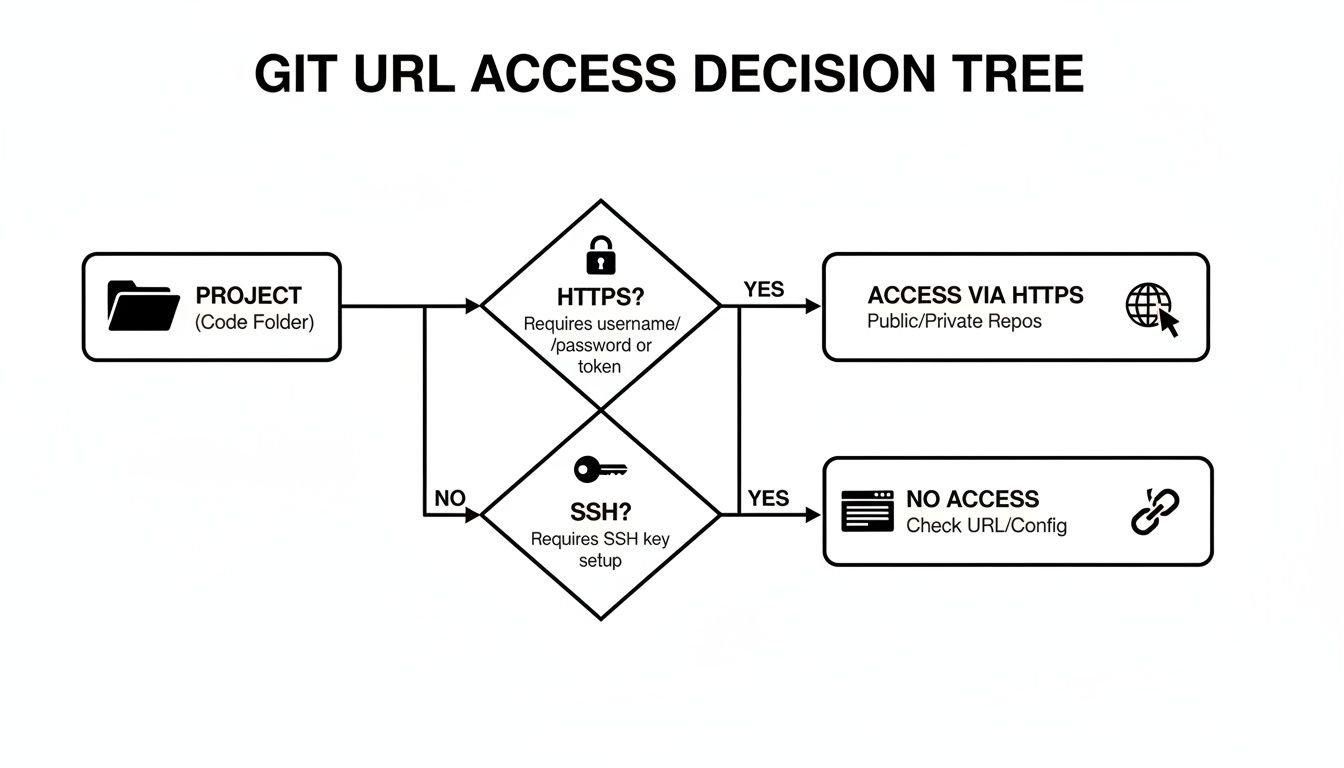
The flowchart shows that your choice really hinges on whether you need a quick, universal access method (HTTPS) or a more secure, convenient one for frequent contributions (SSH).
A Practical Comparison of HTTPS and SSH Git URLs
Here’s a side-by-side look at the features, authentication, and best use cases for HTTPS and SSH to help you decide which is right for you.
| Feature | HTTPS URL | SSH URL |
|---|---|---|
| Authentication | Username/password or Personal Access Token (PAT). | SSH key pair (private/public keys). |
| Setup | None required. Works out of the box. | One-time setup of generating and adding keys. |
| Convenience | Less convenient for frequent pushes; requires credentials. | Highly convenient; no password needed after setup. |
| Security | Secure, especially with PATs and 2FA. | Generally considered more secure; no credentials sent over the network. |
| Firewall Friendliness | Works almost everywhere, as it uses the standard web port (443). | Can be blocked by strict firewalls that close the SSH port (22). |
| Best For | Cloning public repos, infrequent contributions, or firewalled environments. | Daily development, frequent pushes/pulls, and automated scripts. |
Ultimately, both URL formats point to the same code, just with different doors to get there. For organizations with advanced security or on-premise needs, you might encounter specific setups; for a deeper dive, you can explore details about solutions like GitHub Enterprise Server.
Alright, now that we've broken down the different URL formats, let's get our hands dirty. A Git repository URL is just a string of text until you know where to find it and which commands to plug it into.
Luckily, the major hosting platforms like GitHub, GitLab, and Bitbucket make finding your URL incredibly simple.

You just need to look for a big button, usually labeled "Code" or "Clone." One click, and you'll get a dropdown with the HTTPS and SSH addresses ready to be copied.
Finding the URL on Common Platforms
The process is almost identical across the board, whether you're using GitHub, GitLab, or Bitbucket.
- On GitHub: Head to the main page of your repository. You can't miss the green < > Code button. Clicking it reveals a dropdown where you can easily copy the HTTPS, SSH, or GitHub CLI URL.
- On GitLab: Go to the repository's project page and look for a blue Clone button on the right. The dropdown gives you both "Clone with SSH" and "Clone with HTTPS" options.
- On Bitbucket: From the repository's main page, click the Clone button in the top-right. A panel slides out with the full
git clonecommand, URL included, ready for you to copy.
Once you have that URL, you can put it to work with a few fundamental Git commands.
Using the URL with Core Git Commands
That copied URL is the magic key for three essential operations that connect your local machine to the remote server.
1. git clone [URL] Creating a Local Copy
The git clone command is your starting point. Think of it as a high-tech copy machine that downloads the entire project—history and all—from the remote URL and sets up a perfect, ready-to-use version on your computer.
git clone git@github.com:your-username/your-project.git
This one command does two crucial things: it downloads all the project files and automatically configures a remote connection named origin for you.
2. git remote add origin [URL] Linking an Existing Project
But what if you already started a project locally and now you want to back it up on a service like GitHub? That's where git remote add comes in. You're telling your local repository, "Hey, this new URL is your home on the internet."
git remote add origin https://github.com/your-username/new-repo.git
This command simply establishes the connection—it doesn't move any files yet. It just sets up the origin link so you're ready to run your first git push.
Pro Tip: The name
originis just a standard convention, not a requirement. You can name your remotes anything you like, which is super useful when collaborating on multiple forks of the same project. A common pattern isgit remote add upstream [original-repo-url].
3. git remote set-url origin [URL] Updating a Project's Address
Projects move. Maybe you're migrating to a different Git host, or maybe the repository was moved to a new organization. The git remote set-url command lets you update the address for an existing remote like origin.
git remote set-url origin git@github.com:new-organization/migrated-project.git
This seamlessly repoints your local repository to its new home. Your future git pull and git push commands will go to the right place without any disruption to your workflow.
Mastering Git Authentication with SSH Keys and PATs
Securely connecting to a git repository url is a daily task for every developer, but the days of using simple passwords are long gone. Today, we rely on two main methods for secure authentication: SSH keys and Personal Access Tokens (PATs). Knowing which one to use—and why—is key to a smooth and secure workflow.
This move away from passwords isn't just a best practice; it's a requirement. Platforms like GitHub have deprecated password authentication for command-line operations to stop credentials from being accidentally leaked or stolen.
SSH Keys: The Developer's Gold Standard
Think of an SSH key as a secure digital keycard for your code. It's made up of a cryptographic key pair: a private key that never leaves your machine and a public key that you upload to your Git provider like GitHub or GitLab.
When you run a command using an SSH URL, Git uses this key pair to verify your identity without ever asking for a password. Once you've set it up, you can git push and git pull all day without interruption, which is why it's the gold standard for daily development.
SSH keys provide a durable and highly secure method for authentication. By eliminating passwords from your daily workflow, you significantly reduce the risk of credential theft and simplify your interaction with remote repositories.
The setup is a one-time effort that pays off in long-term convenience:
- Generate Your Key Pair: Run a command like
ssh-keygen -t ed25519 -C "your_email@example.com"in your terminal. - Add the Key to Your SSH Agent: This loads your key so Git can find and use it automatically.
- Upload the Public Key: Copy the contents of your public key file (like
id_ed25519.pub) and add it to your account settings on GitHub or GitLab.
With these steps done, you can clone and interact with your repositories using their SSH URL, completely password-free.
Personal Access Tokens: The Automation Powerhouse
While SSH keys are perfect for your personal development machine, they aren’t a good fit for automated systems like CI/CD pipelines or one-off scripts. That’s where Personal Access Tokens (PATs) come in. A PAT is like a limited-use, revocable API key for your account.
You can generate a PAT with specific permissions (scopes) and set an expiration date. For instance, you could create a token that only has read-only access to repositories and expires in 30 days. This makes PATs the perfect choice for:
- CI/CD Pipelines: Giving a build server secure, limited access to clone a repository.
- Third-Party Apps: Granting a tool access to your repos without handing over your password.
- One-Off Scripts: Automating tasks that need to interact with a repository.
This level of secure automation is critical in today's development world. GitHub alone hosts over 420 million total repositories and supports more than 100 million active developers. In an ecosystem this massive, managing notifications from every git repository url can become impossible. Tools like PullNotifier use PATs to securely read repository data, consolidate pull request updates, and slash review delays by up to 90%—a huge efficiency gain, especially since 90% of Fortune 100 companies use GitHub. You can learn more about these trends in the latest GitHub statistics.
Troubleshooting Common Git URL Errors
Sooner or later, every developer runs into a cryptic error when dealing with a git repository url. It’s a rite of passage. These issues can be frustrating, but they’re almost always a quick fix once you know what to look for. Think of this section as your first-aid kit for the most common Git URL headaches.

Instead of roadblocks, view these errors as learning moments. Once you understand why they happen, you’ll be much better at preventing them down the road.
Repository Not Found
The classic repository not found error is probably the one you'll see most often. It’s Git’s polite way of saying, “I looked where you told me to, but there’s nothing there.” This almost always comes down to a few simple slip-ups.
First, check for typos. A single misplaced letter in the username or repository name is the number one culprit. Go back and double-check the address you copied from your Git hosting provider.
Next, think about permissions. This error is a dead giveaway that you might be trying to clone a private repository without being authenticated. Make sure you’re logged into the correct account and that you've actually been granted access to that repo.
Finally, confirm you're even using the right URL. It's surprisingly easy to grab an HTTPS link when you meant to use SSH, or to accidentally copy the URL from a personal fork instead of the main project repository.
Key Takeaway: The 'repository not found' message is rarely the server’s fault. It's almost always a local problem: a typo in the URL, the wrong permissions for a private repo, or simply using the wrong address entirely.
Permission Denied (publickey)
When you see permission denied (publickey), Git is telling you the SSH handshake failed. You knocked on the server’s door with your SSH key, but the server had no idea who you were. This is a pure authentication failure and is specific to the SSH URL format.
Here's how to fix it:
- Check if Your SSH Key Is Loaded: Run
ssh-add -lin your terminal. If you get a "Could not open a connection to your authentication agent" message or an empty list, your SSH agent isn't running or doesn't have your key loaded. - Add Your Key: If it's missing, start the agent with
eval "$(ssh-agent -s)"and then add your key, for example:ssh-add ~/.ssh/id_ed25519. - Confirm the Key on Your Git Provider: Log into your GitHub, GitLab, or Bitbucket account and make sure the public key on your machine matches the one you've uploaded in your settings.
HTTPS Authentication Failures
If you’re using an HTTPS URL and get hit with an authentication error, the problem is with your credentials—almost certainly your Personal Access Token (PAT).
For starters, check if your PAT is still valid. Most tokens are created with an expiration date for security reasons. If it's expired, you'll need to generate a new one.
Also, make sure your PAT has the correct scopes (permissions). A token generated with only read:user permissions won't let you push code. To get full read/write access to a repository, your token needs the repo scope.
Managing Repository URLs in Teams and Automation
Once a project grows beyond just you, the humble git repository url becomes more than just an address. It’s the central hub connecting your team and all the automated systems that build, test, and ship your code. Getting a handle on these URLs in team and automation pipelines is key to keeping things secure and moving fast.
Outside of your local machine, that repository URL is a core part of any Continuous Integration/Continuous Deployment (CI/CD) pipeline. These automated workflows need to clone your repository to run tests or create build artifacts, but they can't just log in with a username and password. This is where your authentication strategy becomes critical.
Secure Authentication for Automation
Hardcoding passwords or your personal SSH keys into build scripts is a huge security mistake. Instead, modern pipelines use temporary, limited credentials tied to the Git repository URL.
- Deploy Keys: These are SSH keys that grant access to a single repository. They’re perfect for letting a specific build server clone project code with read-only access, without exposing any actual user accounts.
- Scoped Personal Access Tokens (PATs): For automation that uses HTTPS, a PAT is like a secure, one-time password you can revoke at any time. You can create a token with minimal permissions (like read-only access) and a set expiration date, which dramatically limits the damage if it ever gets exposed. You can learn more about creating these automated workflows in our guide to reusable GitHub Actions.
Using these methods means your automated systems get the access they need without putting developer credentials at risk. The URL tells the system where to go, and the token or deploy key provides a safe, temporary way to get in.
Streamlining Team Collaboration with URLs
In a team, the Git repository URL isn't just a link to code—it's a link to a shared workspace. But as a team gets bigger, the constant noise from pull requests, comments, and status checks can quickly lead to notification fatigue and slow down review cycles.
The real challenge at scale isn't just accessing the code via its URL; it's managing the human communication around that code. An unmanaged firehose of notifications can slow a team down more than any technical bottleneck.
This is where connecting your repository to your communication tools really shines. By linking a specific Git repository URL to a tool your team already uses, you can turn a simple address into an engine for efficiency. For example, tools like PullNotifier let you map repositories directly to specific Slack channels.
This integration turns the repository URL into a clean, streamlined workflow:
- A developer opens a pull request.
- PullNotifier sees the event is tied to that repository's URL.
- It automatically posts a single, consolidated message in the right team Slack channel.
- Reviewers get tagged, and all the updates that follow—CI checks, approvals, comments—show up in one neat thread.
This approach stops the inbox chaos and keeps the entire code review process visible and actionable, right where your team already communicates. It directly solves the human side of version control, making the git repository url the foundation for a much more productive and organized development cycle.
Frequently Asked Questions About Git Repository URLs
Even after you've got the basics down, a few questions about Git repository URLs always seem to crop up in day-to-day work. Here are some quick answers to the most common ones you'll run into.
Can a Git Repository Have Multiple URLs?
Yes, absolutely. A single local repository can be connected to multiple remote repositories, and each one gets its own unique URL. This is a common setup if you need to push code to a primary repository (usually called origin) and a personal fork.
You can manage these different remotes with the git remote command. For instance, you could add a new remote called upstream with git remote add upstream [URL]. This lets you pull updates from the main project while pushing your own work to your fork.
Can I Change a Repository URL After Cloning?
Of course. You can easily change a remote's URL. This comes in handy when a project moves to a different host—like from Bitbucket to GitHub—or gets transferred to a new organization.
The most direct way to do this is with the
git remote set-urlcommand. It lets you update the web address for an existing remote likeoriginwithout messing up your workflow.
For example, to point your origin remote to a new location, you’d run this:
git remote set-url origin git@github.com:new-org/new-repo.git
After that, any git push or git pull commands for origin will automatically use the new URL.
What Happens If I Use the Wrong URL Protocol?
If you use the wrong protocol, Git will simply fail to connect. You won't break anything in the repository, but your command will throw an error.
For example, if you try pushing to an HTTPS URL when your machine is only set up for SSH, you'll likely get an authentication failure. Git will tell you something's wrong, and you can just correct the URL or your authentication method and try again.
Tired of notification chaos from all your Git repositories? PullNotifier integrates with GitHub to send clean, threaded pull request updates directly to Slack. Cut through the noise and accelerate your code reviews. Get started for free at pullnotifier.com.