- Published on
A Developer's Guide to Git Merging Branches Like a Pro
- Authors

- Name
- Gabriel
- @gabriel__xyz
At its heart, git merging is how you combine different lines of work back into one. Think of it as weaving separate threads of development—like a new feature and a critical bug fix—into your main project history. It’s the move that makes real team collaboration possible.
The Real Foundations of Git Merging Branches
Before we get into the weeds with specific commands, let's talk about what merging really means for your daily work. It’s not just a technical step; it's the core mechanism that allows your team to work on multiple things at once without stepping on each other's toes.
Imagine you're building a new user profile page on a branch called feature/profile. At the same time, a teammate is patching a login bug on hotfix/login-bug. Merging is how you’ll eventually get both that new profile page and the urgent fix into your main branch, making sure all the work ships together.
Let's quickly summarize the two main ways Git handles merges.
Core Git Merge Scenarios at a Glance
| Scenario | When It Happens | Key Outcome |
|---|---|---|
| Fast-Forward Merge | The target branch (main) has no new commits since you created your feature branch. | No merge commit is created; Git just moves the main pointer forward to your latest commit. Creates a clean, linear history. |
| Three-Way Merge | Both your feature branch and the target branch (main) have new, diverging commits. | Git creates a brand new "merge commit" to tie the two histories together. This is the standard for most team collaboration. |
Understanding which scenario you're in is the key to maintaining a clean and understandable project history. Let's look a bit closer at what that means.
Fast-Forward vs. Three-Way Merges
In Git, merges play out in one of two main ways. The one you get depends entirely on the history of the branches you're trying to combine.
Fast-Forward Merge: This is the simplest type. It happens when the branch you're merging into hasn't changed since your feature branch was created. Git just moves the main branch's pointer up to the latest commit on your feature branch. It’s a straight shot, with no new merge commit needed.
Three-Way Merge: This is what you'll see most of the time in a team setting. It happens when both your feature branch and the main branch have new commits that have diverged. To sort it out, Git looks at three points—the tips of both branches and their last common ancestor—to create a new "merge commit" that ties everything together.
A clean, understandable project history isn't just a nice-to-have—it's critical for maintaining a healthy codebase and avoiding future headaches. Knowing these merge types is the first step.
Fast-forward merges are actually more common than you might think. A simple git pull to sync with a remote branch where you have no local changes is often a fast-forward. In highly linear development workflows, these can account for 70-80% of all merges, since Git defaults to just advancing the branch pointer when it can. You can dig into the nitty-gritty details in the official Git merge documentation, where this is described as the 'most common case'.
Alright, let's move from the theory of merging into the practical side of things. How you merge isn't just about running a command; it's a strategic choice that shapes your project's history and makes life easier (or harder) for your future self.
The commands themselves are straightforward, but the why behind them is what separates the pros.
First things first, you always merge into your current branch. Before you even think about merging, you have to be on the receiving branch.
First, hop over to the branch you want to merge INTO
git checkout main
Now, pull in the changes from your feature branch
git merge feature/new-login
Running this basic command usually results in a fast-forward merge if Git sees a straight path. But many teams, myself included, often go out of their way to prevent this. It all comes down to preserving a clear historical record.
Forcing a Merge Commit with --no-ff
The --no-ff flag is your best friend for maintaining context. It tells Git to create a new merge commit, even when a fast-forward is possible. This creates a neat "bubble" in your commit history that clearly marks where a feature branch was integrated.
So why bother? A fast-forward merge gives you a clean, linear history, which sounds great. The problem is, it erases the fact that a whole group of commits was developed together on a separate branch. It just looks like you made a bunch of commits directly on main.
Using
--no-ffis like telling a story with your commit log. Each merge commit acts as a chapter marker, saying, "This is the point where we integrated the user profile feature." That context is priceless when you're digging through history trying to figure out why a change was made months later.
To make it happen, just add the flag to your command:
git checkout main git merge --no-ff feature/new-login
After you run this, Git will confirm it’s creating a merge commit, and it will probably open your default text editor so you can write a descriptive commit message. This single action preserves the "true" history of your branch development. In larger organizations, this is often a standard policy for the sake of clarity. It's especially vital for teams navigating complex codebases, like those in monorepos, where a clear merge strategy isn't just nice—it's necessary. You can dive deeper into this in our guide on monorepo branching strategies for teams.
This diagram gives you a great visual of how a divergent branch leads to a three-way merge, all wrapped up with a new merge commit.
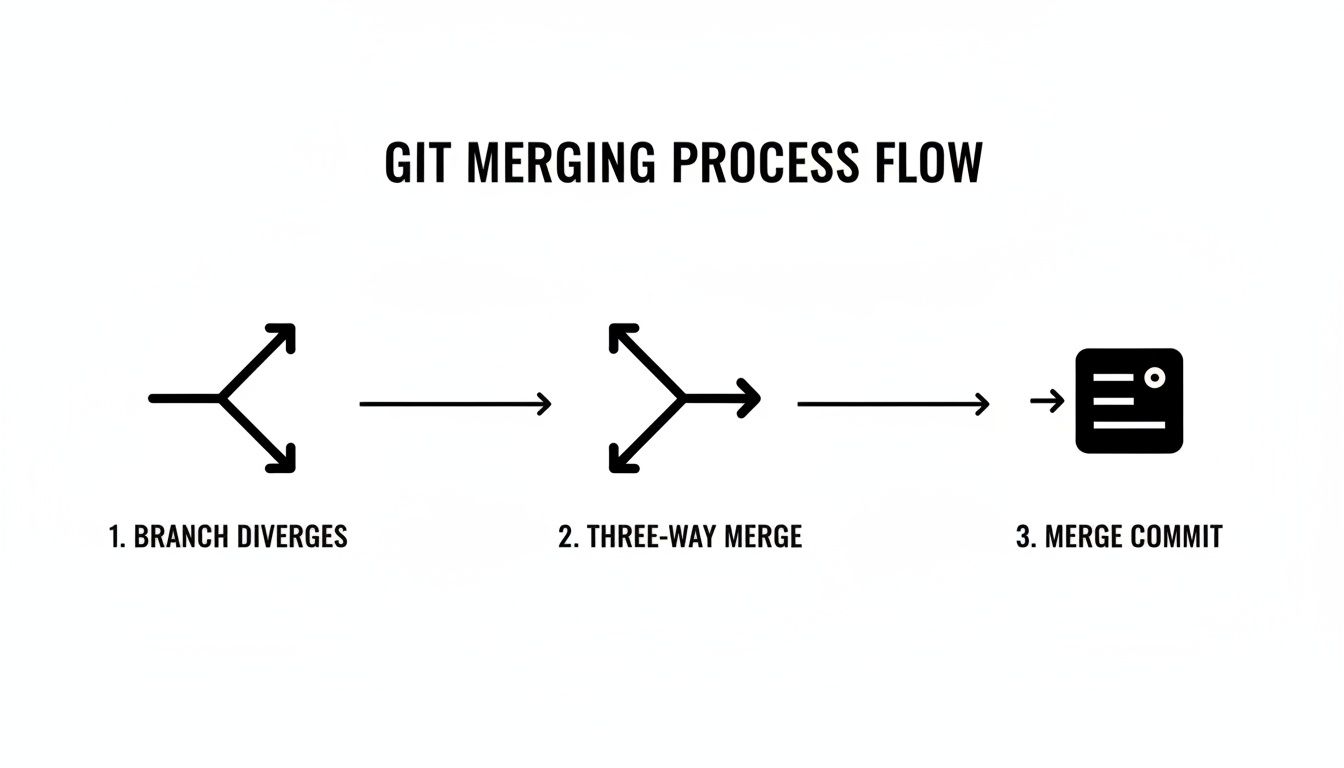
You can see how separate streams of work are formally brought together, with that merge commit serving as the official record of the integration.
The Great Debate: Linear vs. Explicit History
The choice between allowing fast-forwards and enforcing --no-ff merge commits is one of Git's classic debates. There's no single right answer, just trade-offs.
A fast-forwarded history is simple and reads like a straight line. An explicit history, full of merge commits, can look more cluttered but is packed with valuable information.
The data shows a pretty clear split in preference depending on the team.
- While fast-forwards might handle 60-70% of merges in solo development or small projects, the
--no-ffstrategy is used in roughly 50% of team-based merges to preserve branch context. - In fact, one analysis of 50 million pull requests found that 42% used
--no-ff. - Interestingly, this correlated with 22% faster code reviews in organizations with over 100 engineers, likely because these explicit merges create clear, reviewable integration points.
If you want to get into the weeds on how these strategies have evolved, you can read more in the official Git documentation.
How to Confidently Resolve Merge Conflicts

Sooner or later, you'll try to merge a branch and get hit with the dreaded CONFLICT message. This isn't a sign you did something wrong—it's a totally normal part of working on a team.
A merge conflict just means Git got stuck. Two branches changed the same lines in the same file, and now it needs a human to make the final call. Don't panic; think of it as Git raising its hand for help.
Your first move should always be to run git status. This command is your best friend here, as it will clearly list the files with unmerged paths and show you exactly where the problems are.
Identifying and Understanding Conflict Markers
When you open a conflicted file, you’ll find some strange-looking markers that Git added to show you exactly where the two versions of the code are clashing.
<<<<<<< HEAD: This is the start of the code from your current branch (the one you're merging into).HEADis just Git’s pointer to where you are right now.=======: This line separates the two conflicting blocks. Everything above it is from your branch, and everything below is from the other one.>>>>>>> [branch-name]: This marks the end of the code from the other branch you're trying to merge in.
Your job is to edit the file to look exactly how you want the final version to be, then delete all these markers. You might keep your changes, take the incoming ones, or even blend parts of both.
A merge conflict isn't an error; it's a request for clarification. Learning to read the conflict markers is just translating Git's question so you can give it an answer.
For example, imagine you changed a function's return value on the main branch, while a teammate on feature/user-auth renamed that same function. Git can't pick a winner, so it presents both versions to you, wrapped in those conflict markers.
For a deeper dive into more complex scenarios, check out our comprehensive developer's guide to Git conflict resolution.
Finalizing the Resolution
Once you've edited the file and removed the <<<<<<<, =======, and >>>>>>> markers, the hard part is over. Now you just need to tell Git that you've fixed it.
It's a quick two-step process:
- Stage the resolved file: Run
git add [filename]for each file you fixed. This signals to Git that the conflict in that specific file is handled. - Commit the merge: After staging all the conflicted files, you finalize the merge by running
git commit. Git will usually pre-populate a commit message for you, like "Merge branch 'feature-branch' into 'main'". You can use this default or add more context if you like.
And that's it. You've successfully navigated a merge conflict. By treating them as a routine part of the git merging process, you can turn them from something to fear into just another manageable task.
Collaborative Merging with GitHub Pull Requests
While running git merge on your local machine gets the job done, true team collaboration happens on platforms like GitHub, where the Pull Request (PR) turns merging into a formal, transparent process. A PR is much more than just a merge command; it's a dedicated forum for discussion, line-by-line code review, and crucial quality checks.
The workflow is a cornerstone of modern development. You start by pushing your local feature branch up to the remote repository. Then, you open a pull request, which is basically a formal proposal to merge your new code into a target branch—usually main or develop.
This simple action triggers a critical review cycle. Your teammates can jump in, comment on specific lines of code, suggest improvements, and request changes before anything gets merged. This structured conversation is what elevates a simple merge from a solo task into a collaborative quality gate. For a deep dive, check out our guide to the GitHub pull request workflow.
Choosing the Right Merge Strategy in GitHub
Once a PR gets the green light, GitHub gives you three distinct ways to get it merged. Each option shapes your project's Git history differently, so understanding the trade-offs is essential for any team lead.
Create a merge commit: This is the default setting and works just like a local
git merge --no-ff. It preserves every single commit from your feature branch, adds them to the target branch, and then creates one final merge commit to tie the two histories together. This is great for total traceability.Squash and merge: This option takes all the commits from your PR—the good, the bad, and the "WIP"—and squashes them into a single, neat commit on the target branch. It's the perfect way to keep your
mainbranch history clean and readable.Rebase and merge: This plays back all the commits from your feature branch on top of the target branch's latest changes, one by one. It creates the cleanest, most linear history, but it also rewrites your feature branch's commit history, which can make it harder to trace the original development journey.
The merge strategy you choose says a lot about what your team values. Do you prefer a tidy, linear history (squash/rebase), or is a complete, auditable history more important (merge commit)? There's no right answer, only what works for your workflow.
When multiple developers are working in parallel, branches often diverge. This is where Git's three-way merge comes in, creating a new merge commit from the two branch tips and their most recent common ancestor. It’s the engine behind most PRs. In fact, one report found that three-way merges account for 28% of all PR integrations, a figure that climbs to 45% in teams with over 10 contributors where changes are more likely to overlap. You can discover more insights about Git branching and merging from Varonis.
Which Option Should Your Team Use?
For most teams, the decision boils down to "Merge Commit" versus "Squash and Merge."
| Merge Type | Best For | Main Advantage | Main Disadvantage |
|---|---|---|---|
| Merge Commit | Preserving the full context of a feature branch. | Every commit is retained, making it easy to see the development journey. | Can clutter the main branch history with many small commits. |
| Squash and Merge | Keeping the main branch history clean and readable. | Each feature is represented by a single, concise commit. | The granular, step-by-step history of the feature branch is lost. |
A solid rule of thumb is to use Squash and Merge for small features and bug fixes to keep the main log clean. For large, complex features where preserving the historical play-by-play is valuable for future debugging, stick with Merge Commit.
Best Practices for a Smooth Merge Workflow
Knowing the commands for git merging branches is one thing. Building a workflow that actually prevents chaos is something else entirely. A smooth merge process isn't about running the perfect command; it’s about habits that keep your project history clean and your team shipping code without friction.
It all boils down to proactive communication and disciplined branch management. Think of your feature branches as temporary workspaces, not long-term projects. The longer a branch lives, the more it drifts from main, and the higher the chances of a soul-crushing merge conflict.
Keep Your Branches Short-Lived and Focused
The single most effective way to avoid merge hell is to keep your branches small and short-lived. When a branch sticks around for weeks, it drifts so far from the main branch that the eventual merge becomes a high-risk, complex headache.
The trick is to break down big features into smaller, independent chunks of work. This strategy pays off in several ways:
- Easier Code Reviews: Smaller pull requests are worlds easier for your teammates to review thoroughly and quickly.
- Fewer Conflicts: When you merge small, frequent changes, you dramatically slash the odds of running into nasty conflicts.
- Faster Integrations: Your code gets into the main codebase faster, which helps kill the classic "it worked on my machine" problem.
Your goal should be to merge a branch within a few days, not weeks. If a feature feels too big for that, it’s a clear sign you need to break it down into smaller tasks before writing a single line of code.
Sync Often and Clean Up Your History
Before you even think about opening that pull request, make it a habit to sync your feature branch with the latest from main. This is your chance to pull in any updates your teammates have merged and resolve small conflicts locally, on your own time.
A great way to do this is with git pull --rebase origin main. This command replays your commits on top of the latest main branch, keeping your history clean and linear.
Speaking of clean history, use an interactive rebase (git rebase -i) to tidy up your local commits before you push. No one on your team needs to see five commits in a row for "fix typo," "wip," and "oops." Squash those into logical, descriptive commits that tell a clear story of the work you did. It makes your pull request much easier for everyone to understand and review.
Finally, just talk to your team. Before you kick off a major refactoring that might touch a dozen files, give everyone a heads-up. A quick message in Slack can save another developer from unknowingly working on the same files, preventing a future merge nightmare for both of you. Adopting these habits turns merging from a stressful event into a routine, predictable part of your day.
Frequently Asked Questions About Git Merging
Even after you get the hang of the basic workflows, some tricky questions always seem to pop up when you're deep in a git merge. Let's tackle a few of the most common ones I hear from developers.
Getting these right will help you navigate your repository with a lot more confidence.
What Is the Difference Between Git Merge and Git Rebase?
Think of it this way: git merge and git rebase both integrate changes, but they tell very different stories about your project's history.
git merge is all about preserving history exactly as it happened. It takes two divergent branches and ties them together with a new knot—a special commit known as a merge commit. Your history will show precisely when a feature branch was integrated, but this can make your commit log look like a tangled subway map.
git rebase, on the other hand, rewrites history. It picks up all the commits from your feature branch and replays them, one by one, on top of the latest commit from your target branch (like main). The result is a clean, perfectly straight-line history, as if all the work happened sequentially.
The golden rule is simple: use
mergewhen you need to preserve the historical context of a branch, like for a team pull request. Userebaseto clean up your own local commits before you share your work with anyone else. Never, ever rebase a branch that other developers are using—rewriting shared history is a recipe for repository chaos.
How Can I Undo a Merge in Git?
So you merged something you shouldn't have. Don't panic. How you undo it depends entirely on whether you've pushed the merge to a remote repository yet.
- If the merge is still on your local machine, you can perform a clean and simple undo with
git reset --hard HEAD~1. This command moves your branch's pointer back one commit, completely wiping the merge from existence as if it never happened. - If you've already pushed the merge, you absolutely cannot rewrite public history with
reset. Instead, you need to create a new commit that reverses the changes. Usegit revert -m 1 <merge-commit-hash>. This command generates a new commit that does the exact opposite of the merge, safely undoing its changes while keeping the project's history intact.
That -m 1 flag is critical. It tells Git which parent of the merge commit to keep—parent 1 is the branch you merged into (e.g., main), and parent 2 is the branch you merged from.
What Is a Squash and Merge on GitHub?
"Squash and merge" is a feature offered by platforms like GitHub that helps keep your main branch history incredibly tidy.
When you choose this option on a pull request, it takes all the individual commits from your feature branch—from "wip" and "fix typo" to "final changes"—and squashes them down into a single, clean commit on the main branch. This is perfect for bundling a whole feature into one logical, well-documented change.
This strategy is fantastic for most feature branches because it keeps the primary branch history readable and focused. The only trade-off is that you lose the detailed, step-by-step development history from the original branch, but for many teams, that's a price worth paying for a cleaner log.
Tired of noisy notifications and slow code reviews? PullNotifier integrates with Slack to deliver quiet, real-time pull request updates, cutting through the chaos so your team can focus. See how thousands of engineers accelerate their development cycles by visiting https://pullnotifier.com.