- Published on
Explore jira in slack: Boost your workflow and collaboration
- Authors

- Name
- Gabriel
- @gabriel__xyz
Connecting Jira and Slack is about more than just hooking two apps together. It’s about creating a direct pipeline from your project management tool straight into your team's daily communication hub. This simple connection lets you get real-time issue updates, create new tickets right from a conversation, and manage your work without ever leaving Slack.
Why Integrating Jira and Slack Is a Game Changer
Let's be clear: connecting Jira and Slack isn't just about getting another notification. It's about fundamentally rewiring how your team interacts with their work every single day. The biggest win here is the massive reduction in context switching—that mental tax your team pays every time they have to jump between different apps.
Think about it. Instead of pausing a conversation in Slack, opening a new browser tab, hunting for the right Jira project, and finally updating a ticket, they can do it all right where the discussion is happening. It’s a small change that makes a huge difference.
This creates a unified command center for everything project-related. A quick brainstorming message can become a trackable Jira ticket with a couple of clicks. A critical bug update pops into the right channel automatically, so the right people see it instantly. No more checking emails or refreshing a Jira board just in case.
Eliminate Wasted Time and Boost Focus
Every minute spent toggling between apps is a minute stolen from focused, deep work. This isn't just a minor annoyance; it adds up to a real financial cost. On average, context-switching eats up about 2 hours per developer every week.
For larger companies with over 800 developers, that lost time translates into a staggering $1.19 million in annual savings when a solid Jira-Slack integration is in place. You can dive deeper into the data on these productivity savings from Fivewalls.
This integration shifts your workflow from a reactive, tab-shuffling mess into a proactive, centralized system. It gives your team the power to act on information the moment it appears, which directly speeds up your project velocity and makes daily collaboration feel effortless.
Centralize Your Project Communication
By bringing Jira's functionality into Slack, you build a single source of truth for all your project discussions and updates. This simple move ensures everyone, from developers to product managers, is always on the same page.
Here’s a look at the official Jira Cloud app for Slack, which makes this all possible.
As you can see, you get rich notifications packed with key details like issue status, priority, and assignee. Better yet, it includes action buttons so you can transition the ticket or add a comment right there. This kind of immediate visibility and interactivity is what makes the integration so incredibly valuable for fast-moving teams.
Connecting Jira and Slack The Right Way
Kicking off the official Jira and Slack integration is pretty simple, but getting it right for your team takes a little thought. The real goal here isn't just to add another notification stream to the pile; it's to build a smart, seamless bridge between where work is managed and where conversations happen. Get this foundation right, and you'll set the stage for some seriously efficient workflows.
Your first move is to install the official Jira Cloud app from the Slack App Directory. This is a quick process where you'll authorize your Slack workspace and Atlassian account, giving the two platforms the permissions they need to talk to each other securely. Once that's done, the real work begins: deciding which Jira projects should feed into which Slack channels.
Choosing the Right Channel Structure
Figuring out where your Jira notifications will live is a make-or-break decision. You've got a few ways to play this, and each has its own perks. For instance, a development team might want all ticket updates—from creation to deployment—piped directly into their main project channel, like #proj-phoenix-dev.
On the other hand, a product management channel (#product-updates) might only care about notifications when a feature is moved to "Ready for QA." This selective approach is key. It makes sure every team sees only what's relevant to them, which is the best way to prevent everyone from muting the channel.
The core principle is simple: map your projects to channels based on your team's communication habits. Don't force a new workflow; instead, bring the project updates directly into the conversations that are already happening.
This visualization shows the ideal flow. A conversation in Slack sparks an idea, which is quickly turned into a trackable Jira ticket, and then targeted updates are sent right back to that same channel.
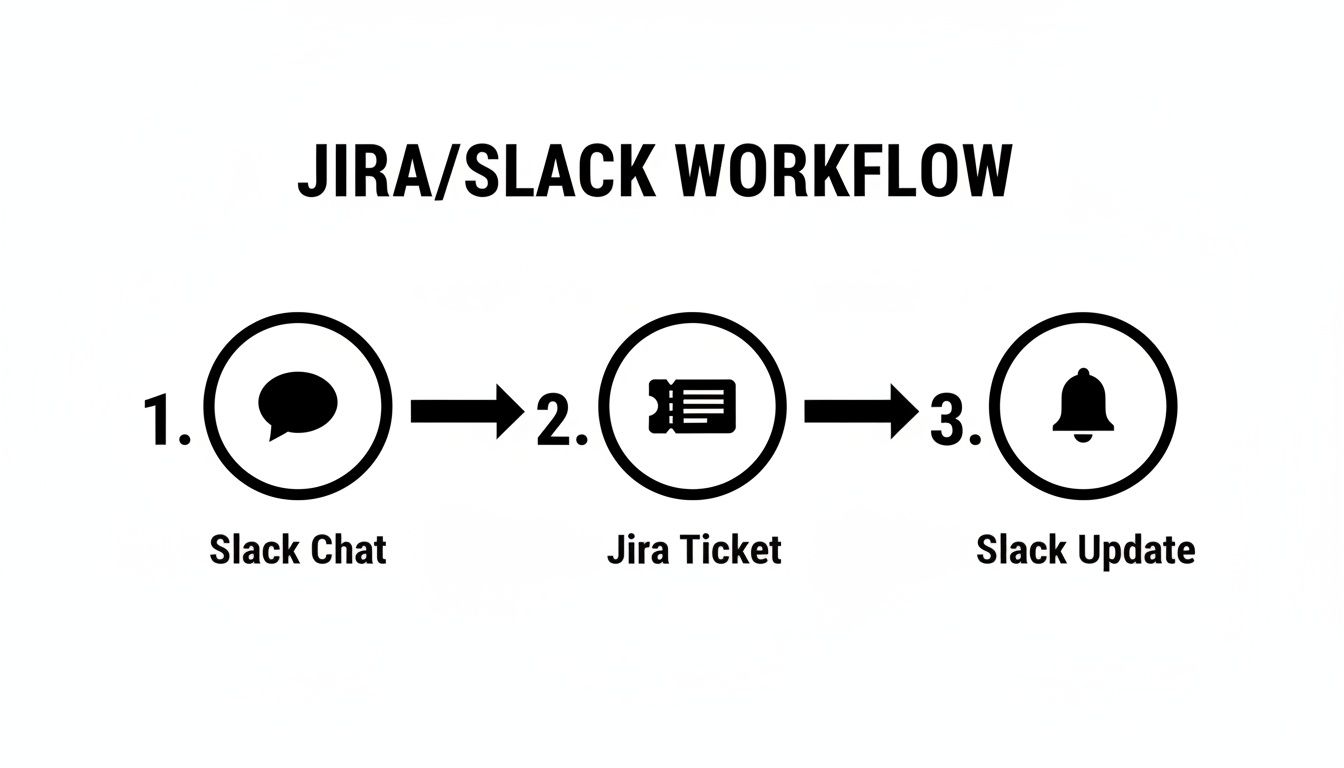
It’s a closed-loop process. Ideas don’t get lost in the shuffle, and stakeholders who were part of the original discussion always know what’s going on.
Initial Connection and Configuration
Once you've picked a channel, connecting it is as simple as a single slash command. Just head to your chosen Slack channel and type /jira connect. This will pop open a dialog where you can pick the Jira Cloud project you want to link to that channel.
After you've linked a project, you'll be prompted to set up your first subscription. This is where you tell the integration which events should trigger a notification. You can always start broad and then tighten things up later, but even the initial setup is surprisingly powerful.
Here are a few common starting points I’ve seen work well for different teams:
*   **Engineering Teams:** Notify the channel whenever an issue is created or when a priority is bumped to **"Highest"** or **"High."**
*   **Support Teams:** Send an alert when a customer-reported bug is transitioned to **"Done"** or when a developer adds a new comment.
*   **Project Managers:** Get updates when an epic's status changes or when a ticket in the current sprint gets blocked.
Connecting dev tools to Slack has become standard practice for modern software teams. If your stack includes other version control systems, you might find our guide on how to integrate GitLab with Slack useful for building a similarly organized workflow. Building these connections is fundamental to creating a central hub for all development activity.
How to Customize Notifications and Beat Alert Fatigue
Hooking up Jira and Slack is the easy part. But if you just leave it at that, you're setting your team up for failure. A raw, unfiltered feed of every single ticket update is a recipe for disaster, creating a constant stream of noise that quickly trains everyone to ignore the channel completely.
The real goal is to turn that firehose of information into a curated, high-signal feed that actually prompts action, not annoyance.
Your secret weapon here is the /jira connect command. It lets you build custom subscriptions right inside your chosen Slack channel. Instead of accepting the default "tell me everything" setting, you can use Jira Query Language (JQL) to create laser-focused rules for what your team sees. This is what separates a distracting integration from a genuinely productive one.
Building Your First Smart Filter
Let's say you lead a frontend team. Your channel, #frontend-dev, really doesn't need a play-by-play of every backend ticket's journey through the workflow. That's just noise. To fix this, you can build a subscription that only surfaces issues relevant to your squad.
It's pretty straightforward. Just type /jira connect in your channel and opt to create a new subscription. When it asks for a filter, that's your cue to use JQL. For instance, to only see tickets for the "Phoenix" project that have the "Frontend" component, you'd use this:
project = "Phoenix" AND component = "Frontend"
Just like that, you've cut out a massive source of irrelevant chatter. Now, the team only gets jira in slack notifications for tickets they're actually working on, making the channel instantly more valuable.
The goal isn't just to see Jira tickets in Slack; it's to see the right Jira tickets. A well-crafted JQL filter ensures every notification is relevant, actionable, and delivered to the people who need to see it.
Practical JQL Recipes for Common Scenarios
You can get incredibly specific with your filters to match your team's unique workflow. These aren't just theoretical ideas; they're battle-tested JQL queries that teams use every single day to stay focused. Think of them as recipes for a calmer, more productive Slack environment.
Here are a few examples you can copy and adapt:
- Alert on High-Priority Bugs: Get an immediate heads-up when a critical bug is created for your project.
project = "Phoenix" AND issuetype = "Bug" AND priority = "Highest" - Track Code Review Status: Notify the channel when a developer's work is ready for another pair of eyes.
project = "Phoenix" AND status = "In Review" AND assignee = currentUser() - Monitor Blocked Tickets: Raise visibility on issues that are holding up progress for the current sprint.
status = "Blocked" AND sprint in openSprints()
This level of customization isn't just for Jira, either. Smart teams apply the same thinking to their version control systems. In fact, you can see this philosophy in action by exploring strategies for using GitHub Actions to send targeted Slack notifications, which also helps cut down on alert fatigue. By fine-tuning these alerts, you empower your team to focus on what actually matters—shipping great software.
Here's a quick cheat sheet with some of the most useful JQL filters I've seen teams rely on to create high-value notifications in their Slack channels.
Common JQL Filters for Smarter Slack Notifications
| Notification Goal | JQL Filter Example |
|---|---|
| New Critical Issues | project = "YourProject" AND priority = "Highest" AND created >= -1h |
| My Team's Open Bugs | project = "WebApp" AND component = "UI" AND status not in (Closed, Resolved) |
| Tickets Ready for QA | status = "Ready for QA" AND sprint in openSprints() |
| Stale/Forgotten Tickets | status = "In Progress" AND updated <= -5d |
| My Direct Mentions | text ~ currentUser() |
These are just starting points, of course. The real power comes from adapting them to fit exactly how your team works. Spend a little time crafting the right filters, and you'll transform a noisy channel into an indispensable tool.
Advanced Automation to Boost Team Efficiency

Alright, you've got your smart notifications set up, which is a fantastic start. But now it’s time to level up. Let's move beyond just seeing updates and start acting on them without ever leaving Slack. This is where your integration goes from a nice-to-have into a serious productivity booster, cutting out tedious manual steps and giving your team back precious time.
The real magic happens when you can handle common Jira tasks right from your chat window. It keeps the conversation and the work flowing without the jarring context switch. This is a core part of learning https://blog.pullnotifier.com/blog/how-to-automate-repetitive-tasks-boost-productivity-today and making your team’s workflow genuinely smoother.
Turn Conversations into Actionable Tickets
We’ve all been there. A teammate drops a great idea or flags a bug in a busy channel, and moments later, it's buried and forgotten. With the right automation, you can grab those fleeting comments and turn them into trackable Jira issues instantly.
Here are a few ways I’ve seen teams nail this:
*   **Emoji Reactions:** This is a fan favorite. Set up a rule where reacting to a message with a specific emoji (like a 🎫 ticket or a 🐛 bug) kicks off the Jira issue creation process. The form even pre-fills with the message content.
*   **Message Actions:** Just click the "More actions" menu on any Slack message and select "Create Jira issue." It’s simple and intuitive.
*   **Slash Commands:** For those who live in the command line, a quick `/jira create` command pulls up the creation form immediately.
This simple workflow ensures those drive-by requests and bug reports are captured and funneled directly into your team's backlog. Nothing slips through the cracks. If you're looking for more ideas, checking out some workflow automation examples can spark some great inspiration for your own team.
Manage Issues Without Leaving Slack
Creating tickets from Slack is powerful, but managing them is where you’ll see the biggest efficiency gains. Think about transitioning statuses, adding comments, or reassigning tickets with simple commands or by clicking a button on a notification.
For example, when a Jira notification pops up saying a ticket is "Ready for QA," your QA engineer can click a button right on that message to assign it to themselves and move it to "In Progress." The whole process takes seconds.
By enabling your team to interact with Jira tickets directly in Slack, you’re not just saving a few clicks. You’re maintaining conversational momentum and keeping everyone focused on the task at hand, rather than the tool they’re using.
Proactive Alerts with Jira Automation Rules
Now for the really advanced stuff. Using Jira's own automation engine, you can create rules that send proactive, intelligent alerts to Slack. This goes way beyond basic status updates and helps your team get ahead of problems before they escalate.
For instance, IT support teams can automate entire workflows with this. They can collect requests, process multi-level approvals, and gather feedback entirely within Slack. This kind of deep integration has been shown to slash ticket resolution times by up to two-thirds. By building rules in Jira, you can create a system that actively monitors projects and flags anything that needs attention, turning your Slack channels into a true command center.
Solving Common Integration Problems
Even the most carefully configured integration can hit a snag. When your Jira in Slack connection suddenly goes quiet, it can throw your whole team's rhythm off. The good news is that most of these issues are pretty common and the fixes are usually straightforward, so you can get back on track without too much of a headache.
One of the most frequent culprits is an expired authentication token. If notifications suddenly stop showing up, or you're getting "authentication failed" errors when you try to interact with a Jira ticket from Slack, this should be the first thing you check. The fix is often as simple as running /jira connect again to re-authenticate your Atlassian account.
Diagnosing Notification and Permission Issues
What if the connection seems fine, but certain notifications just aren't coming through? This usually points to a hiccup with your JQL filters or Jira project permissions. A small typo in a JQL query or a recent change to a project's permission scheme can silently break a subscription you rely on.
Your first move should be to review the channel's subscriptions by running /jira connect manage. Take a close look at the JQL for any mistakes. Also, make sure the user who originally set up the subscription still has the right permissions in Jira to actually see those issues. If a user loses access to a project, any subscriptions they created for it will simply stop working.
Private Slack channels are another common blind spot. For the integration to work, the Jira Cloud app has to be an actual member of that private channel. You can fix this in seconds by mentioning @Jira in the channel and following the prompt to invite it.
Resolving Connection Problems with Jira Server
If your team is running a self-hosted Jira Server or Data Center instance, troubleshooting can get a bit more involved. Network configurations are often the root cause of connection failures. For Slack's servers to talk to your Jira instance, it needs to be accessible from the public internet.
The heart of the problem is usually a firewall or a network access control list (ACL) that's blocking incoming requests from Slack. You'll need to make sure your network admins have allowed traffic from Slack's IP ranges to your Jira server's URL.
It's also essential to double-check that the application link between Jira and Slack is set up correctly and hasn't been accidentally revoked. A misconfigured link will kill all communication, making the integration look completely dead. And of course, keeping both your Jira server and the integration app updated is a simple but effective way to prevent unexpected bugs from cropping up.
By linking Jira Software with Slack, teams get real-time visibility that drastically cuts down on context switching. This tight integration can speed up data aggregation by 5 times and lead to 40-65% lower costs for analytics by eliminating manual reporting. You can find more details on these integration benefits on Improvado.io.
Got Questions About Jira and Slack? We Have Answers.
Even after you’ve got everything set up, a few questions always pop up once your team starts really leaning into the Jira and Slack integration. Getting straight answers helps everyone use the tools confidently and actually get the most out of the connected workflow. This is your quick-reference guide for the common "what ifs" and "how tos" we hear all the time.
We'll cover everything from linking one project to several channels to figuring out if you need a paid app. Let's dive in.
Can I Connect One Jira Project to Multiple Slack Channels?
Absolutely. In fact, this is one of the smartest ways to send the right information to the right people without creating a ton of noise.
You can set up unique subscriptions for the same Jira project in different channels. All it takes is the /jira connect command.
For example, your main engineering channel, #dev-team, might need the nitty-gritty on all new bugs and status changes. At the same time, you can have a separate #product-updates channel for stakeholders that only gets a ping when a feature is moved to "Done."
This approach lets you:
*   **Target notifications** to specific teams like developers, QA, or product managers.
*   **Slash the noise** by filtering out irrelevant updates for stakeholder-facing channels.
*   **Keep conversations organized** by dedicating channels to specific types of project updates.
What Is the Difference Between Official and Third Party Apps?
The official "Jira Cloud for Slack" app from Atlassian is fantastic. It’s free and covers all the core features most teams will ever need—creating issues, managing subscriptions with JQL, and handling basic ticket actions right from Slack. For many, it's more than enough.
However, paid third-party apps exist for a reason. They step in to handle more specialized or complex workflows that the official integration doesn't cover.
Think of third-party solutions as specialists. They’re built for teams with very specific needs, like advanced ITSM processes, complex approval workflows with multiple sign-offs, or the power to generate detailed reports without ever leaving Slack.
How Does the Integration Handle Jira Permissions?
This is a big one, and the answer is simple: the integration fully respects your existing Jira permissions. Your security and access controls in Jira remain the single source of truth. The Slack integration can't and won't override them.
When someone tries to do something in Slack—add a comment, transition an issue, or assign a ticket—they're doing it through their linked Jira account. If their Jira account doesn't have permission to perform that action on that specific project or issue, the action will fail in Slack.
It’s a straightforward system that ensures your carefully configured project security stays completely intact.
PullNotifier helps engineering teams streamline their code review process by sending smart, actionable pull request notifications directly to Slack. Reduce noise, cut down on review delays, and keep your development cycles moving. Learn more and get started for free at https://pullnotifier.com.