- Published on
The Top 12 Best Git Windows Client Tools for 2026
- Authors

- Name
- Gabriel
- @gabriel__xyz
In modern software development, Git is the standard for version control. But on Windows, the command line isn't the only way to manage your repositories. Choosing the right git windows client can fundamentally change your workflow, making you faster, more efficient, and less prone to errors. The ideal graphical user interface (GUI) feels like an extension of your thought process, simplifying complex operations like interactive rebasing, cherry-picking, and conflict resolution.
This guide moves beyond surface-level feature lists. We provide an in-depth comparative review of the top 12 clients available today. For each tool, you'll find a detailed analysis covering:
- Real-world performance and user experience insights.
- Strengths and weaknesses for specific development scenarios.
- Licensing costs and models (free, freemium, or paid).
- Best-use recommendations for solo developers, teams, and enterprise monorepos.
We'll also examine critical integrations, such as how each client connects with GitHub and how you can set up Slack notifications with tools like PullNotifier to improve your team's pull request cycle. Each entry includes screenshots for a clear visual impression and direct links to get you started immediately. Whether you're a developer focused on speed, an engineering manager prioritizing team consistency, or a tech lead navigating a massive monorepo, the perfect git windows client is in this list. Let's find the tool that best fits your flow and makes your daily work with Git more productive.
1. Git for Windows (includes Git Bash and Git GUI)
Before exploring any dedicated graphical user interface (GUI), every Windows developer should start with the official Git for Windows package. This isn't just a tool; it's the foundational layer that most other Git clients and IDE integrations on Windows rely upon. It provides the core Git command-line tools, along with Git Bash, a powerful Unix-like shell environment (MinTTY) that gives you access to familiar commands like ls, grep, and ssh directly within your Windows workflow.
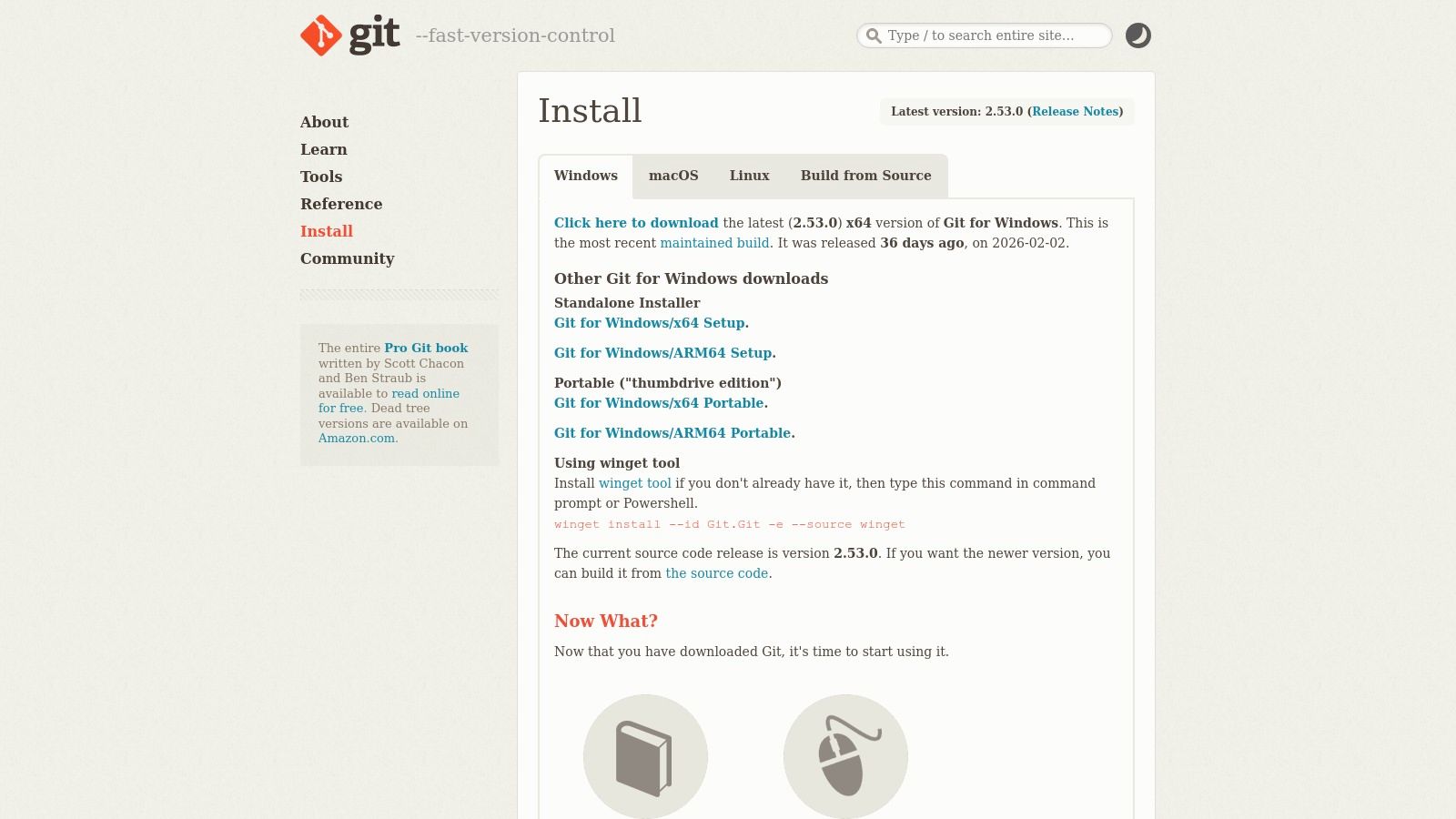
This package is the reference implementation, ensuring maximum compatibility and immediate access to the latest Git features and security patches. For newcomers, the command-line focus can present a learning curve. However, mastering the basics here is invaluable, as it provides a deeper understanding of how Git operates. If you are new to version control, you can get started with Git to build a solid foundation.
Key Features & Assessment
- Git Bash: A standout feature, providing a robust terminal experience on Windows without needing WSL. It's essential for running shell scripts and complex Git commands.
- Git Credential Manager: Securely handles authentication with services like GitHub, Azure Repos, and Bitbucket, saving you from re-entering credentials repeatedly.
- Included Git GUI: A very basic, lightweight GUI is included. While functional for simple commits and pushes, it lacks the advanced visualization and workflow features of dedicated clients.
- Performance: As a native build, it is fast and efficient. It is the performance baseline by which other clients are often measured.
Best for: Everyone. It is the essential baseline installation for any developer using Git on a Windows machine, from solo hobbyists to enterprise teams. Even if you primarily use a different GUI client, having Git for Windows installed ensures system-wide compatibility.
| Pros | Cons |
|---|---|
| Free, open-source, and updated frequently. | Included "Git GUI" is too basic for complex workflows. |
| Establishes the standard for all other Windows Git tools. | Command-line interface can be intimidating for beginners. |
| Includes the powerful Git Bash terminal. | Installation offers many configuration choices that may be confusing. |
Website: https://git-scm.com/download/win
2. GitHub Desktop
For teams deeply integrated with the GitHub ecosystem, GitHub Desktop serves as the official and most direct graphical interface. It is designed to lower the barrier to entry for version control, providing a clean and intuitive user experience that abstracts away much of the command-line complexity. This focus makes it an excellent Git Windows client for onboarding new developers, designers, or anyone less familiar with Git's inner workings.
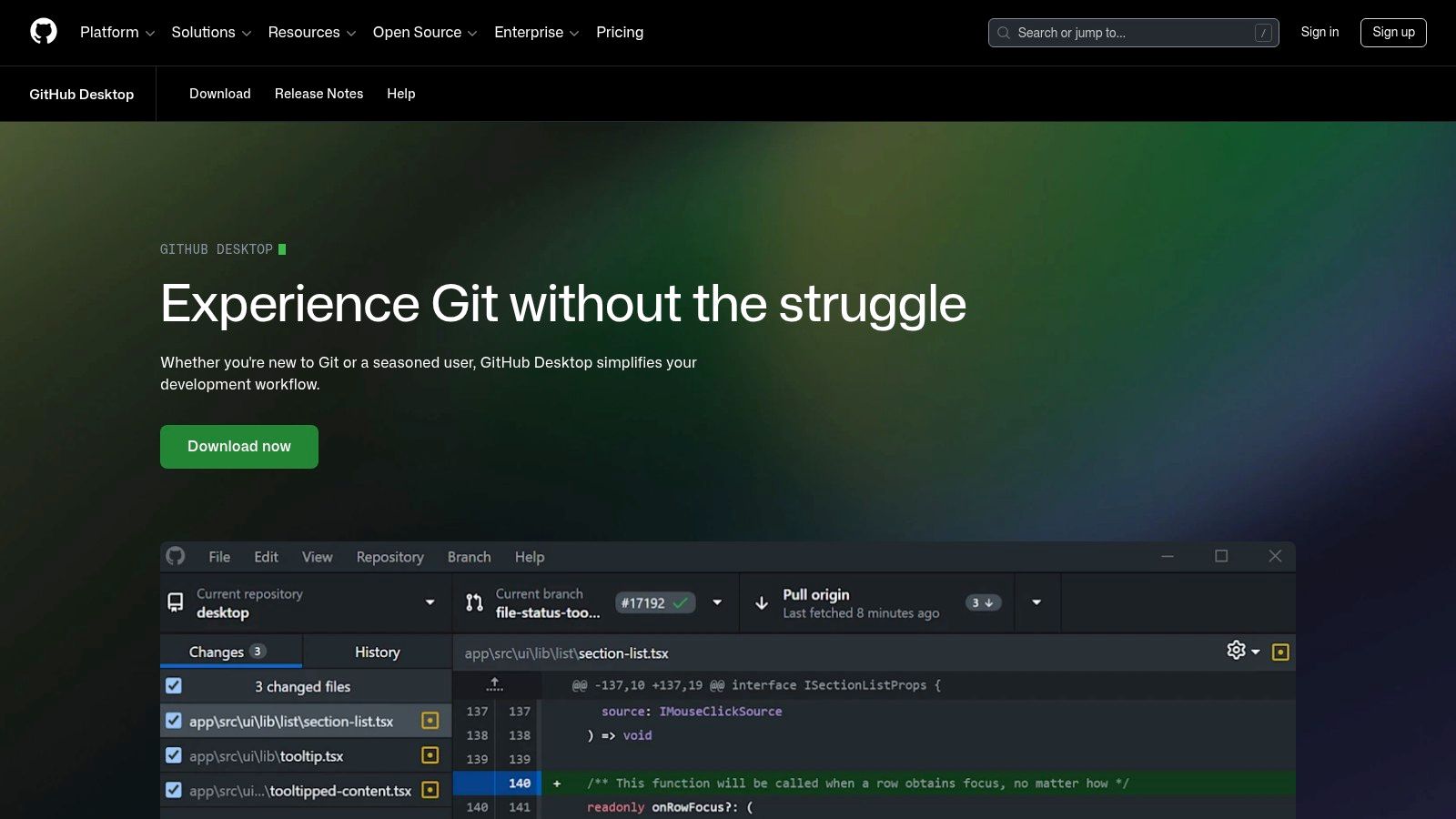
While it may lack some of the advanced features found in other clients, its strength lies in its simplicity and tight integration with GitHub.com and GitHub Enterprise. Workflows like creating pull requests, viewing CI/CD statuses, and checking out branches from open PRs are exceptionally smooth. The installation is straightforward, with options via the website, winget, or Chocolatey, making it easy to deploy across an organization.
Key Features & Assessment
- GitHub-centric Workflow: The client excels at tasks directly related to the GitHub platform, such as cloning repositories, managing pull requests, and resolving simple merge conflicts.
- Visual History and Diffs: It provides clear, side-by-side diffs for reviewing changes before a commit and a straightforward visual history graph.
- Simplified Branching and Committing: Features like co-authoring commits, amending previous messages, and cherry-picking are accessible through the UI, which is a great entry point for learning these actions.
- Authentication: Seamlessly handles authentication for your GitHub accounts, removing friction from pushing and pulling code.
Best for: Beginners, teams standardizing on GitHub, and developers who prefer a simple, focused GUI for daily commit-branch-push-PR cycles. It is the perfect companion for those who primarily work within the GitHub ecosystem.
| Pros | Cons |
|---|---|
| Free with a polished, user-friendly interface. | Intentionally limited to GitHub-centric workflows. |
| Excellent for onboarding developers new to Git. | Lacks power-user features like interactive rebase or submodules. |
| Smooth integration with GitHub pull requests and issues. | Not ideal for managing repositories on multiple hosts (e.g., GitLab). |
Website: https://desktop.github.com
3. Sourcetree
Developed by Atlassian, Sourcetree has long been a favorite, free Git GUI for both Windows and macOS. It strikes a balance between powerful features and a user-friendly visual interface, making it a significant step up from basic GUIs without the complexity of more advanced tools. Its main strength lies in its clear, graphical representation of repositories, allowing you to visualize branches, commits, and merges in an intuitive commit graph.
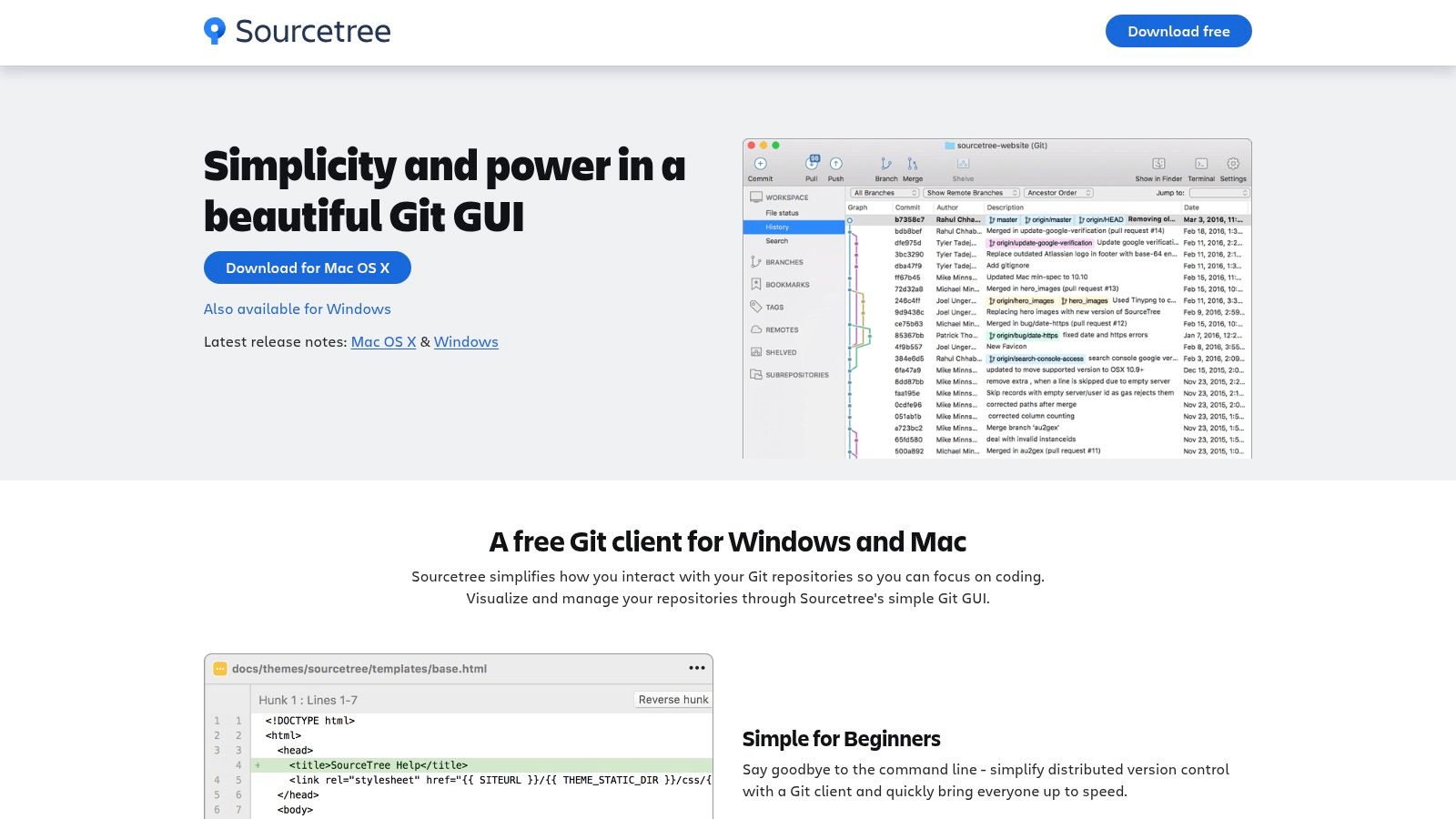
Sourcetree integrates smoothly with major hosting services like Bitbucket, GitHub, and GitLab, making it a versatile choice. It’s particularly well-regarded for its built-in support for the Git-Flow branching model, which guides teams through a structured release workflow. When crafting commits, its interactive staging area lets you select changes line-by-line, which is helpful for creating clean, atomic commits and adhering to established best practices for Git commit messages.
Key Features & Assessment
- Visual Commit Graph: An excellent, interactive log that clearly shows branching and merging history. You can interact directly with the graph to checkout branches, cherry-pick commits, and more.
- Git-Flow Integration: Out-of-the-box support for the Git-Flow workflow simplifies feature development, hotfixes, and release management for teams.
- Interactive Rebase & Staging: Provides fine-grained control over your commit history, allowing you to stage individual lines or hunks of code and easily reorder or squash commits.
- Broad Service Support: Seamlessly connects to Bitbucket (with special integrations), GitHub, GitLab, and Azure DevOps repositories.
Best for: Individual developers and teams looking for a free, full-featured git windows client that offers strong visualization and workflow support, especially those already using Atlassian products or adhering to Git-Flow.
| Pros | Cons |
|---|---|
| Free for commercial use, including enterprises. | Can feel slower or laggy on very large repositories. |
| Powerful visualization of branch history. | User interface can feel heavy compared to leaner clients. |
| Native support for the Git-Flow workflow. | Requires an Atlassian account to download and use. |
Website: https://www.sourcetreeapp.com
4. Fork
Fork has earned a dedicated following by focusing on one thing: creating a fast, clean, and productive Git client. It strikes a fantastic balance between a minimal user interface and a powerful, pragmatic feature set. Where some clients can feel bloated with excessive features, Fork delivers exactly what most developers need for day-to-day work, with an emphasis on speed and intuitive interaction that makes it a joy to use.
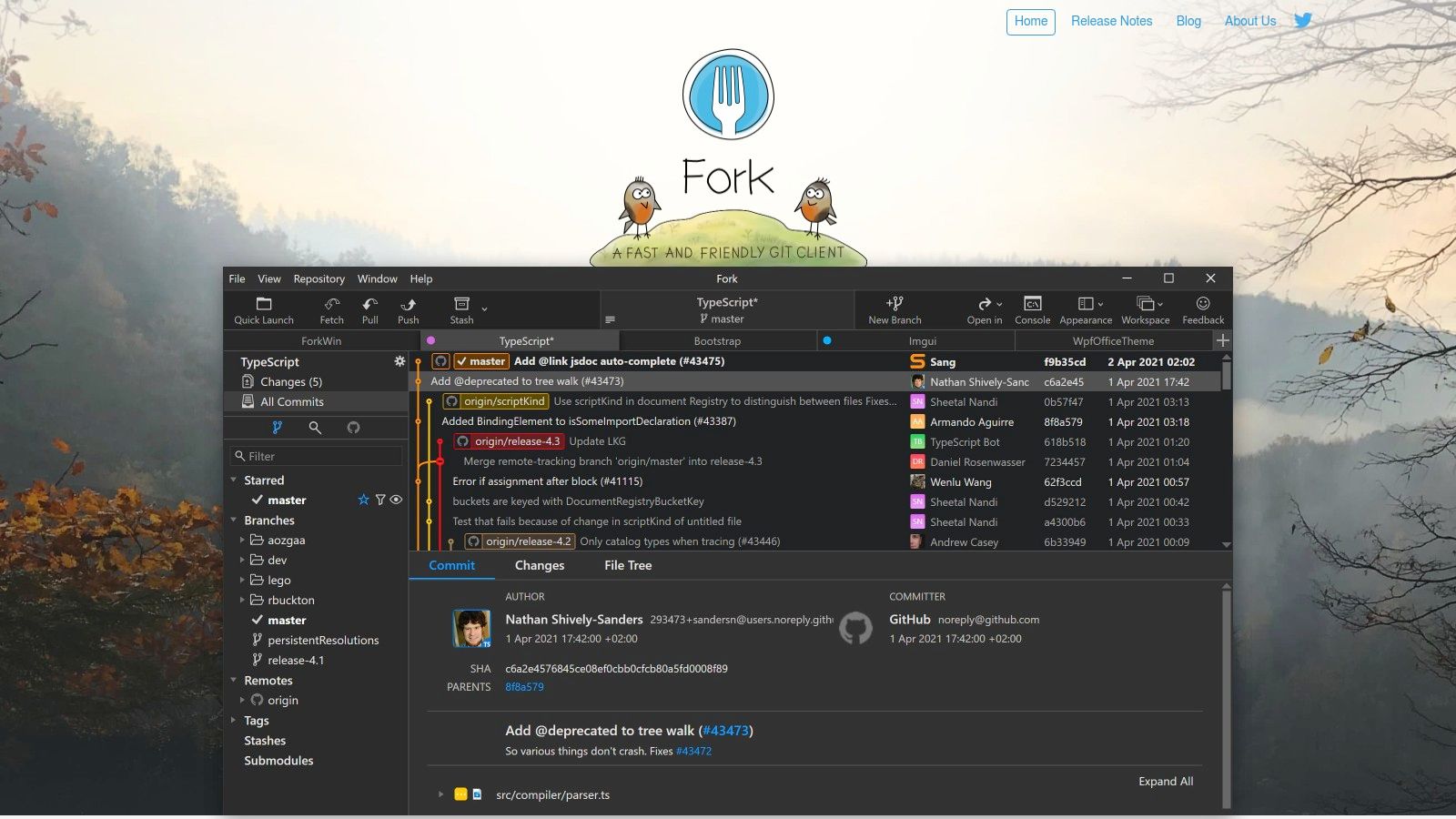
Its standout capabilities are often found in the small details, like the ability to stage individual lines of code or the remarkably straightforward interactive rebase tool. For tasks that can be cumbersome on the command line or confusing in other GUIs, Fork provides a clear, visual path. This makes it an exceptional git windows client for developers who value efficiency and a responsive workflow without sacrificing powerful functionality. The client is offered as a free evaluation with a one-time license purchase for continued use.
Key Features & Assessment
- Precision Staging: Allows you to stage changes at the file, hunk, or even single-line level, giving you complete control over crafting precise, atomic commits.
- Interactive Rebase: Features one of the most intuitive interfaces for performing complex interactive rebases, letting you easily reorder, squash, and edit commits visually.
- Conflict Resolution: The built-in merge-conflict resolver is straightforward and effective, helping you resolve issues quickly without leaving the application.
- UI Performance: The entire application is built to be fast. Navigating large repositories, viewing commit history, and staging files feel instantaneous.
Best for: Mid-level to senior developers who are comfortable with Git concepts and want a high-performance GUI to accelerate their workflow. Its interactive rebase and precise staging tools are perfect for those who maintain clean, professional commit histories.
| Pros | Cons |
|---|---|
| Extremely fast and responsive user interface. | Smaller, independent vendor with fewer enterprise features. |
| Excellent tools for interactive rebase and staging. | Not available for Linux (macOS and Windows only). |
| Simple, fair one-time license fee after evaluation. | Lacks direct integration with project management tools. |
Website: https://git-fork.com
5. Tower
Tower is a premium, professional-grade Git client that prioritizes safety, productivity, and a polished user experience for both individuals and teams. It stands out by offering powerful "undo" functionality for many common Git actions, providing a safety net that is particularly reassuring for those navigating complex repositories or learning advanced Git workflows. This focus on mistake-proofing operations makes it a reliable choice for critical projects.
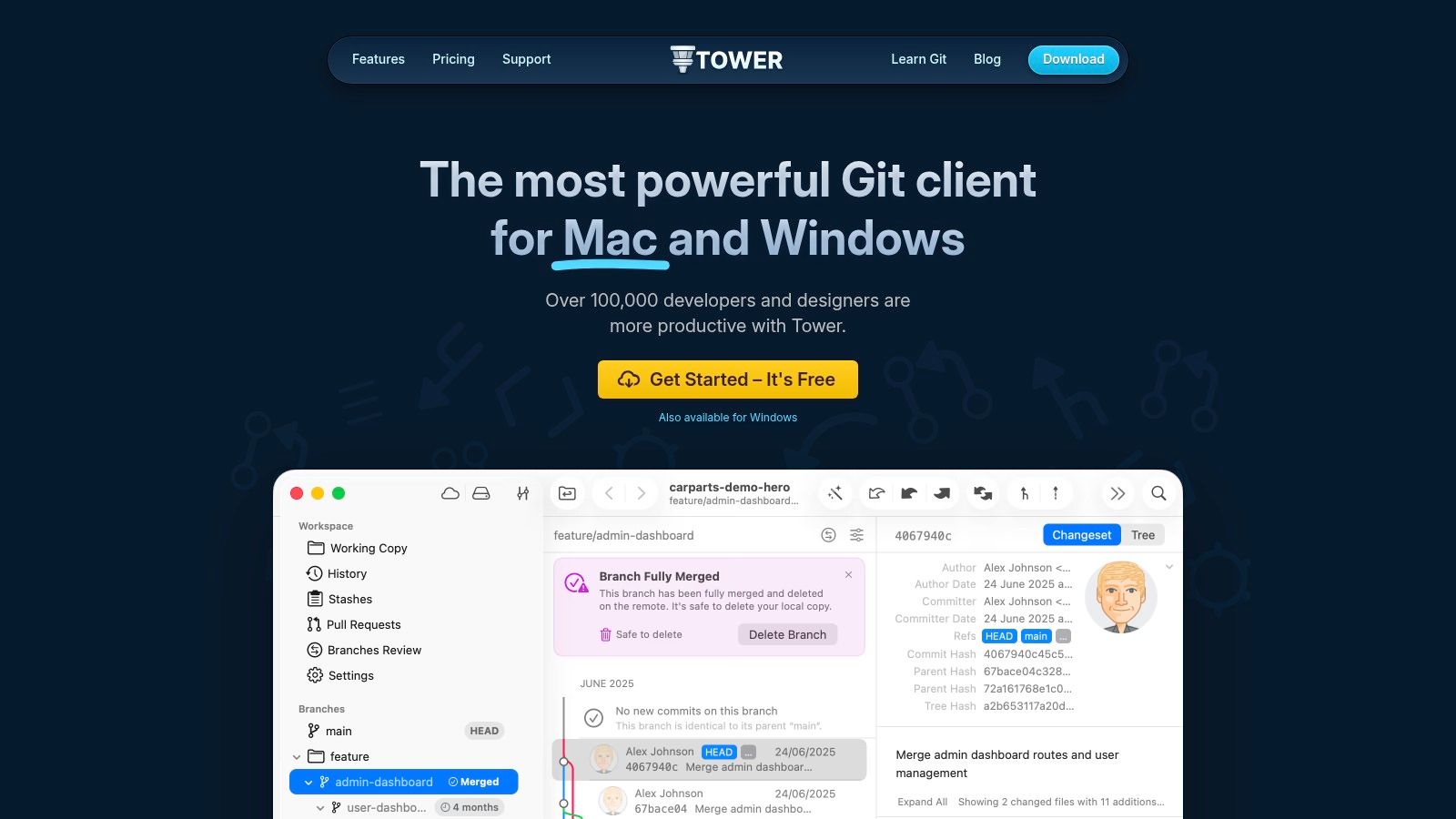
Available for both Windows and macOS, a single license covers you on all supported platforms. Tower is designed for professionals who value a clean interface and powerful integrations. It directly supports services like GitHub, GitLab, and Azure DevOps, making pull request management and code reviews an integrated part of the application. The subscription model includes all updates and access to a wealth of high-quality educational resources, which is a significant bonus for teams aiming to level up their Git skills.
Key Features & Assessment
- Undo Functionality: A defining feature. Tower allows you to easily undo actions like commits, merges, and even pushed commits (by creating a reverse commit), which reduces the fear of making irreversible mistakes.
- Services Manager: Provides deep integration with remote hosting platforms. You can create, review, comment on, and merge pull requests without leaving the application, which is a major productivity booster.
- Conflict Wizard: Offers a guided, step-by-step process for resolving merge conflicts, a task that often trips up even experienced developers on the command line.
- Team & Enterprise Features: The Enterprise plan adds SAML SSO for streamlined user management and dedicated support, catering to larger organizations with strict security requirements.
Best for: Professional developers, designers, and teams who are willing to pay a subscription for a superior user experience, advanced safety features, and powerful productivity tools. Its educational content also makes it great for teams looking to standardize their Git practices.
| Pros | Cons |
|---|---|
| Exceptional UI/UX with powerful safety nets like "Undo". | Subscription-based pricing model, which may not suit all users. |
| Excellent educational resources (videos, guides) included. | Lacks the built-in project management tools found in some competitors. |
| Cross-platform license for both Windows and macOS. | Can feel like overkill for very simple, personal projects. |
Website: https://www.git-tower.com
6. SmartGit
SmartGit has long been a favorite among professional developers who need a powerful, no-nonsense Git client for managing intricate projects. It is a mature application designed to handle large repositories, complex branching strategies, and extensive commit histories with speed and precision. Its interface is dense with functionality, targeting power users who require direct control over every aspect of their Git workflow.
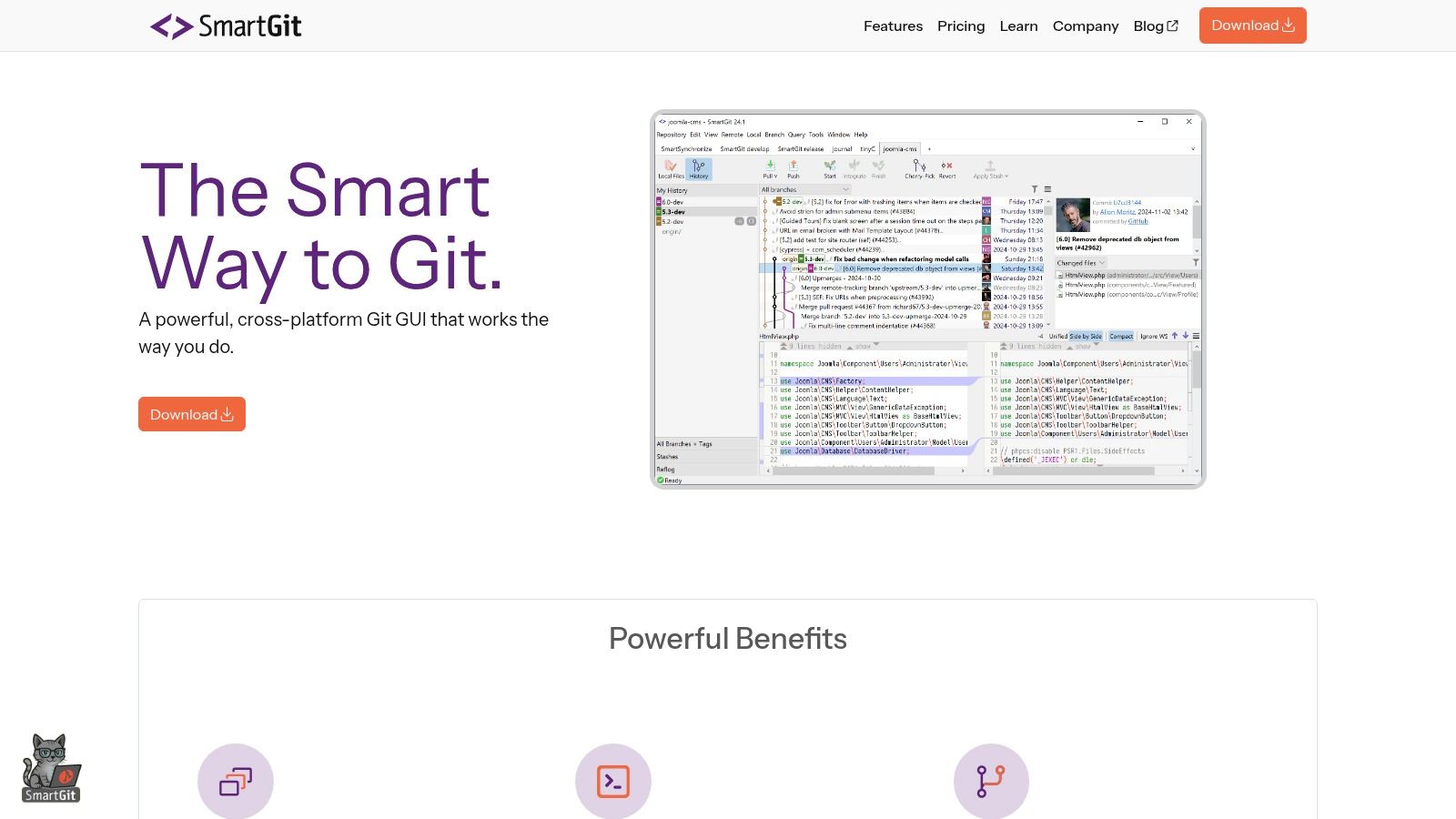
What sets SmartGit apart is its robust feature set for complex scenarios, especially its first-class support for submodules and its powerful interactive rebase tool. While the feature-rich UI can present a steep learning curve for newcomers, it becomes an indispensable asset for experienced developers. SmartGit operates on a commercial license, but offers a free license for non-commercial use, including for open-source projects, academic purposes, and charitable organizations, making its advanced tools accessible to a wide audience.
Key Features & Assessment
- Advanced Branch and History Management: The log view is incredibly detailed, offering tools for interactive rebase, cherry-picking, and reordering commits that go beyond what many other clients provide.
- Superior Submodule Support: Managing projects with submodules is a common pain point, and SmartGit excels here, providing clear, intuitive controls for updating, syncing, and committing changes across nested repositories.
- Conflict Solver: Includes a built-in, three-way merge view and conflict solver that helps you efficiently resolve merge conflicts line-by-line.
- SSH Client and Credential Management: Comes with its own SSH client, simplifying connections to remote repositories without relying on external tools.
Best for: Professional developers and teams working on large, complex codebases with submodules or complicated branching models. It is an ideal Git for Windows client for those who value function over form and need deep control.
| Pros | Cons |
|---|---|
| Extremely powerful for large, complex repositories. | User interface can feel dense and overwhelming for newcomers. |
| Excellent, best-in-class support for Git submodules. | Some advanced features require a paid commercial license. |
| Generous free license for non-commercial and open-source use. | The aesthetic is more functional than modern. |
Website: https://www.smartgit.dev
7. TortoiseGit
For developers deeply integrated into the Windows ecosystem, TortoiseGit offers a unique approach. Instead of a standalone application, it embeds Git functionality directly into the Windows File Explorer. This is a powerful concept for those who prefer to manage their files and version control in the same context, without switching to a separate IDE or dedicated client. By using context menus and icon overlays, it makes Git operations feel like a native part of the operating system.
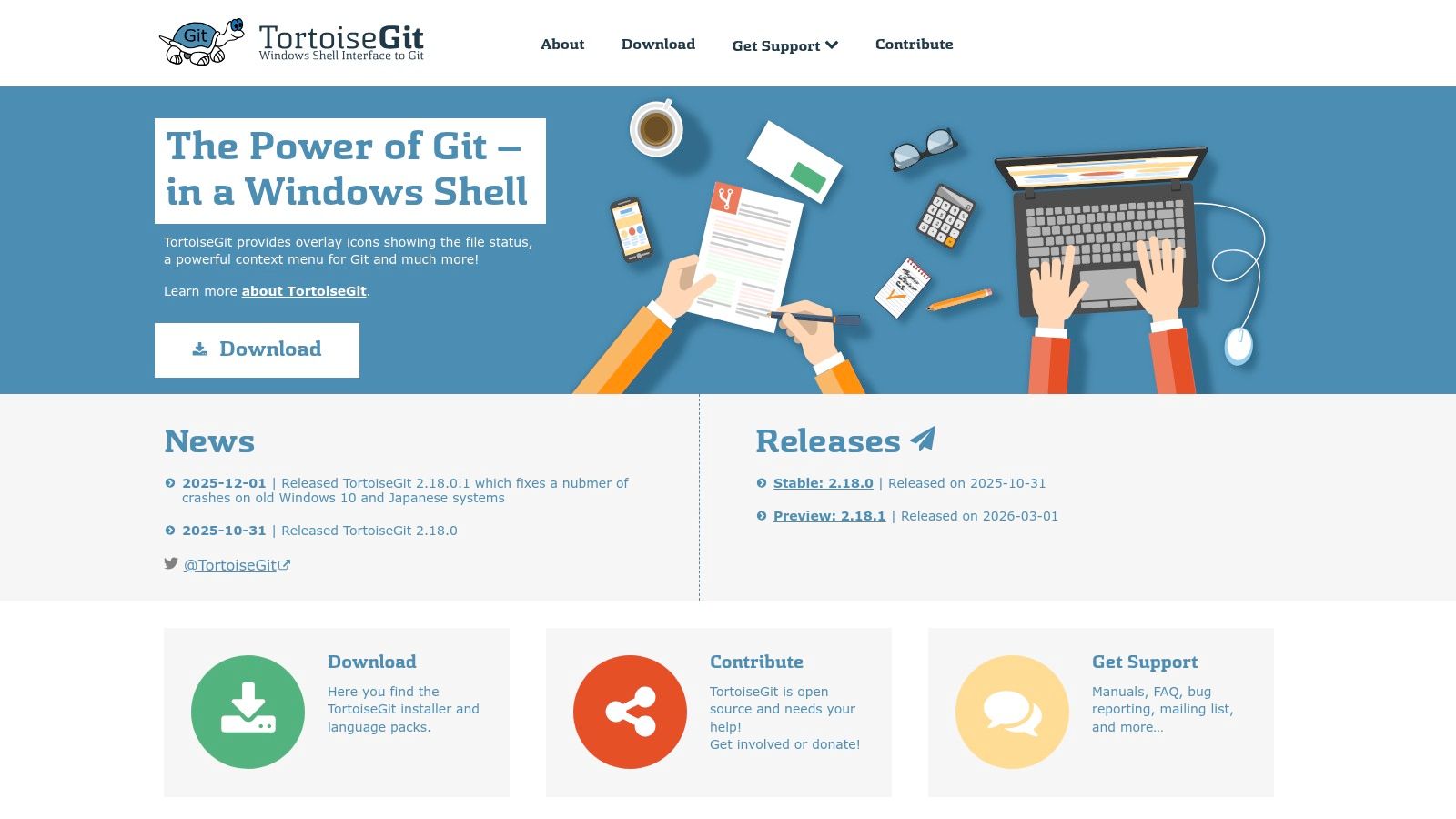
This shell integration is TortoiseGit's defining characteristic and primary advantage. You can clone, commit, push, pull, and view logs by right-clicking on a folder. The overlay icons provide immediate visual feedback on the status of your files and directories (modified, added, in conflict), which is incredibly helpful for at-a-glance assessments. This makes it a great git windows client for users who don't live inside a full-featured IDE and appreciate a visual, OS-integrated workflow.
Key Features & Assessment
- Explorer Integration: All Git commands are available via right-click context menus in File Explorer, providing a seamless and intuitive workflow.
- Icon Overlays: Instantly see the status of files and folders directly in Explorer, indicating if they are modified, unversioned, or conflicted.
- Visual Tools: Includes helpful tools like TortoiseGitMerge for resolving conflicts and TortoiseGitBlame for viewing file history line by line.
- Submodule Support: Provides robust support for managing complex projects with submodules directly from the context menu.
Best for: Developers, artists, and project managers who work extensively with files outside of an IDE and want Git operations integrated directly into their native Windows file management workflow.
| Pros | Cons |
|---|---|
| Free and open source. | User experience is very different from dedicated GUI apps. |
| Deep, native integration into the Windows shell. | Less suited for complex pull request and code review workflows. |
| No need to open a separate application for most tasks. | Can clutter the File Explorer context menu. |
Website: https://tortoisegit.org
8. Sublime Merge
From the creators of the beloved Sublime Text editor comes Sublime Merge, a Git client built with the same philosophy: speed, a keyboard-centric workflow, and a clean, responsive interface. It’s designed for developers who value performance above all else. Its primary strength lies in its lightning-fast diffing engine and the ability to stage changes line-by-line, or even by individual character, with incredible precision.
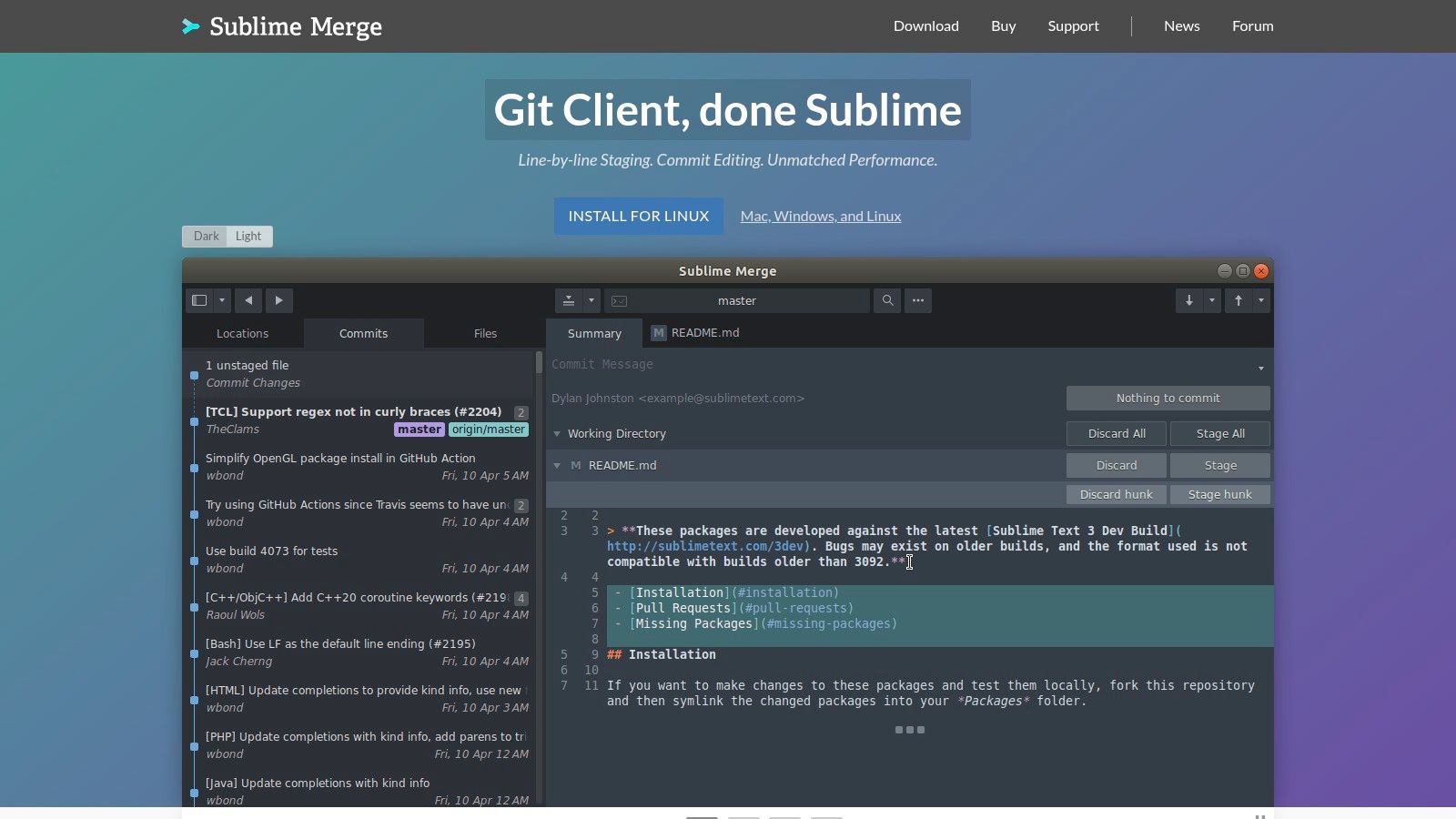
This focus on raw performance makes it an excellent git windows client for reviewing large, complex commits or untangling messy merge conflicts. If you are already a Sublime Text user, the integration is seamless, allowing you to open repositories or specific file histories directly from the editor. While it has a fully functional free evaluation mode, a personal license is required for continued use, which is a one-time purchase that includes three years of updates.
Key Features & Assessment
- Exceptional Performance: The entire UI, from searching commits to loading diffs, is exceptionally fast. It handles massive repositories with thousands of commits without slowing down.
- Three-Pane View: Its default view showing the repository, a commit, and the diff is highly effective. The integrated diff and merge tools are among the best available, offering granular control.
- Command Palette & Keybindings: True to its Sublime heritage, nearly every action can be performed via the command palette (
Ctrl+Shift+P), allowing for a powerful, mouse-free workflow for those who invest the time to learn the shortcuts. - Sublime Text Integration: Provides a "File History" and "Blame" command directly within Sublime Text, creating a tightly connected development environment for users of both products.
Best for: Developers who prioritize speed and keyboard-driven efficiency, especially current Sublime Text users. It is an ideal choice for individuals or small teams who need a powerful diff/merge tool but don't require the extensive project management features of larger platforms.
| Pros | Cons |
|---|---|
| Blazing-fast performance, even with large repositories. | License is required for continued use after evaluation. |
| Superior diffing, merging, and line-by-line staging tools. | Lacks built-in features for issue tracking or team collaboration. |
| Powerful keyboard-centric workflow and command palette. | Interface may feel too minimalist for users new to Git. |
Website: https://www.sublimemerge.com
9. Git Extensions
Git Extensions is a powerful, standalone GUI client that has been a long-standing favorite in the open-source community. It provides a comprehensive graphical interface for nearly every Git command imaginable, wrapped in a classic Windows-style UI. Its main strength lies in its deep integration with the Windows environment, including shell menu extensions in Windows Explorer and a full plugin for Visual Studio, making it a versatile choice for developers who switch between their file manager, IDE, and a dedicated Git tool.
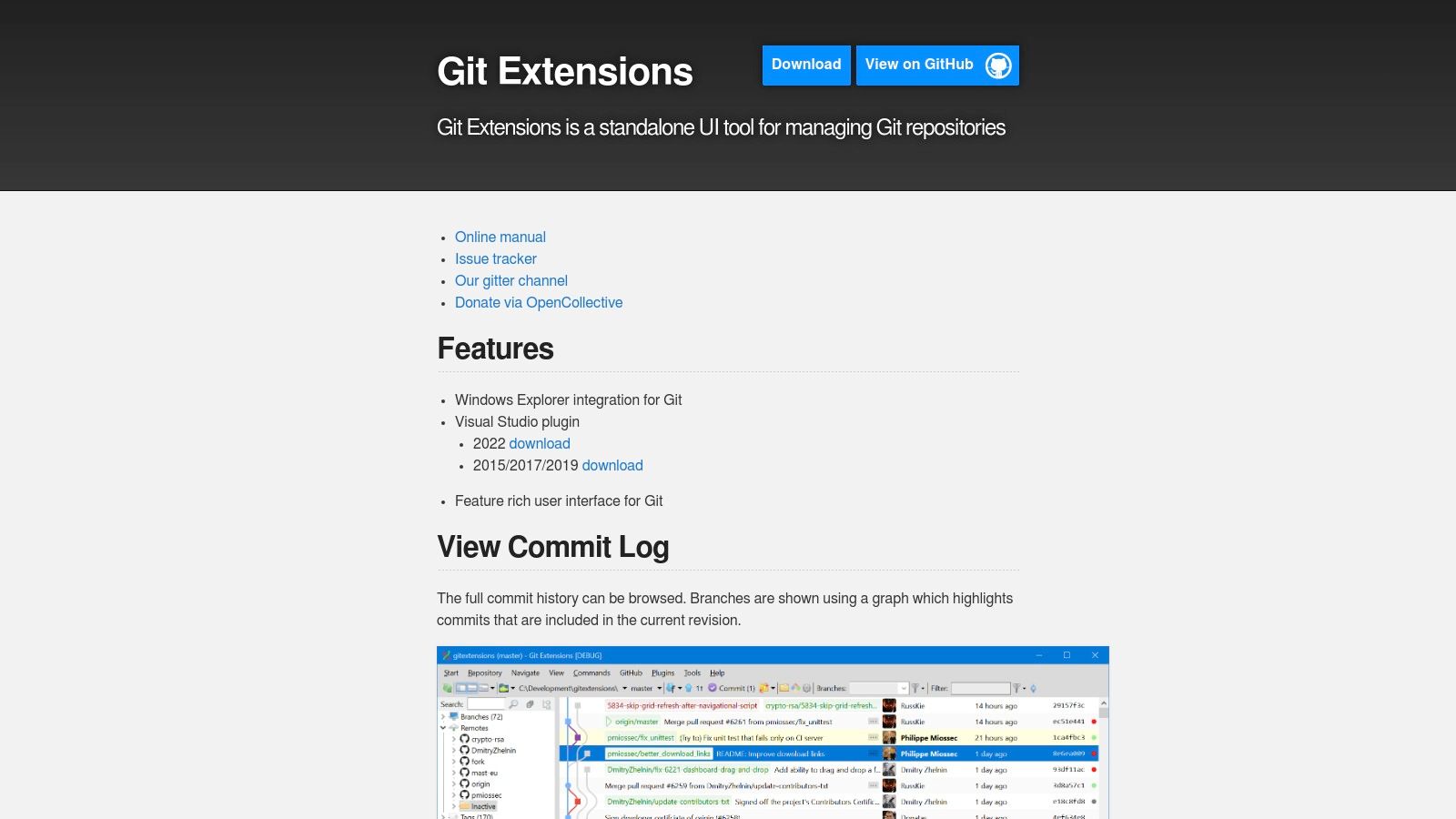
Unlike clients that are tied to a specific service, Git Extensions is completely repository-agnostic and free, driven entirely by community contributions. While its user interface may not feel as modern as some commercial competitors, it prioritizes function over form. It presents a detailed view of your repository, including branches, commit history, and the staging area, all within a single window, which many developers find efficient for complex operations.
Key Features & Assessment
- Windows Explorer Integration: Right-click menus in Explorer allow you to perform Git actions like clone, pull, and browse history directly on a folder, a highly convenient feature.
- Visual Studio Plugin: Offers deep integration within Visual Studio, providing an alternative to the IDE's built-in Git tooling.
- Complete Feature Set: Provides graphical interfaces for advanced features like rebasing, cherry-picking, submodule management, and stash handling.
- Community-Driven: As an open-source project, it benefits from active community development, although support can sometimes be less predictable than with a commercial product.
Best for: Developers who appreciate a feature-dense, traditional Windows application and want deep shell and IDE integration without any cost or vendor lock-in. It is an excellent free git windows client for those who value function over aesthetics.
| Pros | Cons |
|---|---|
| Free, open-source, and not tied to any Git provider. | User interface looks dated compared to modern alternatives. |
| Extensive feature set covering almost all Git commands. | Community-based support can vary in responsiveness. |
| Powerful integration with Windows Explorer and Visual Studio. | Might feel overly complex for users new to Git. |
Website: https://gitextensions.github.io/
10. GitKraken Desktop
GitKraken Desktop is one of the most visually appealing and feature-rich cross-platform Git clients available for Windows. It is known for its beautiful and interactive commit graph, which simplifies understanding complex repository histories and performing actions like interactive rebase or cherry-picking with simple drag-and-drop mechanics. It is part of a larger suite of developer tools, but it stands on its own as a powerful GUI.
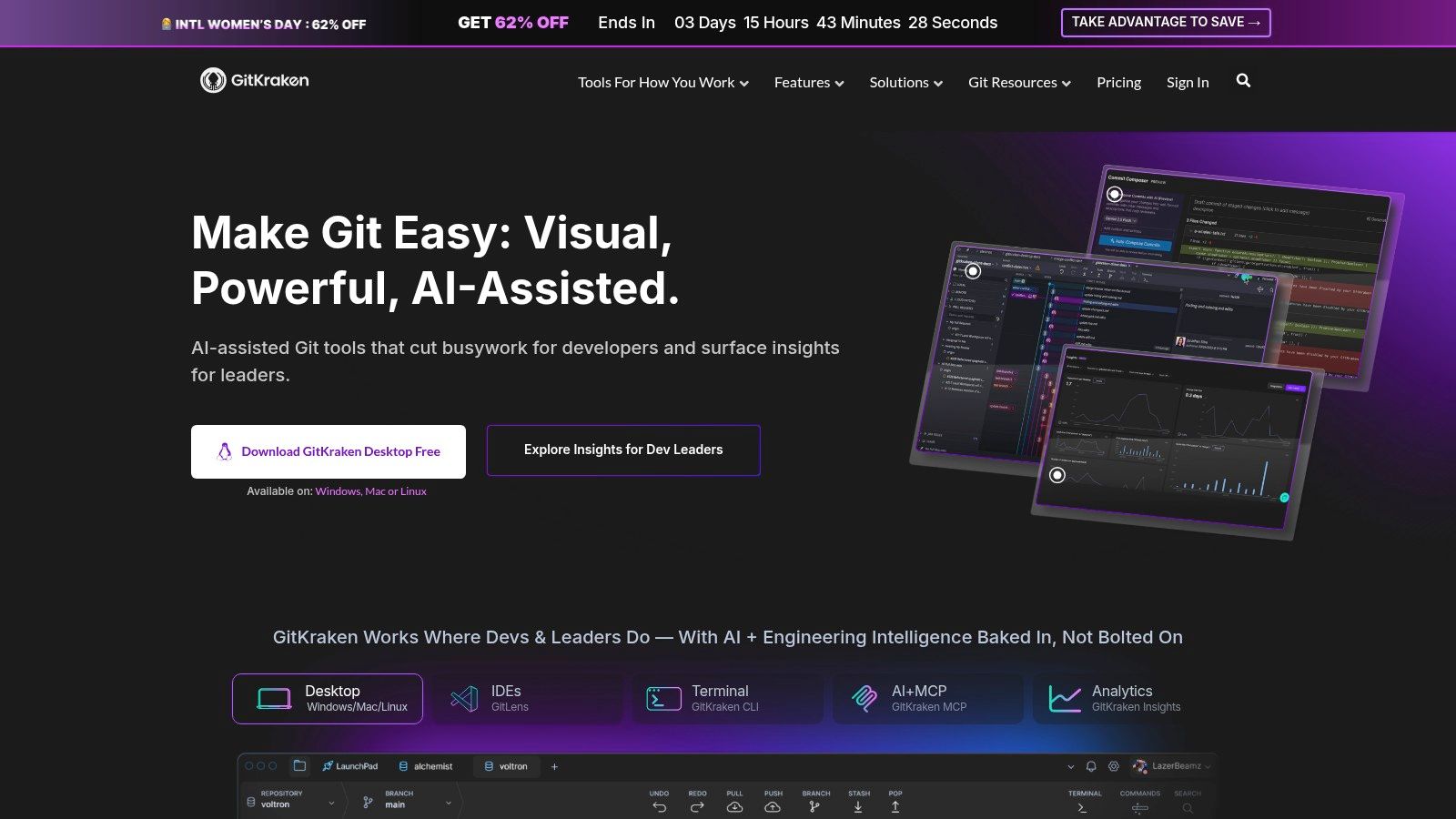
The user experience is modern and responsive, making it a popular choice for developers who prefer a strong visual aid for their version control workflow. GitKraken's built-in merge conflict tool is a significant advantage, providing a clear, side-by-side interface that often makes resolving conflicts much faster than with standard command-line tools. This git windows client aims to be a complete solution, especially for teams.
Key Features & Assessment
- Visual Commit Graph: Its core strength is the interactive graph that visualizes branching, merging, and commit history. Users can directly interact with nodes and branches to perform complex Git operations.
- Built-in Merge Conflict Tool: Offers a powerful editor to resolve merge conflicts directly within the application, saving time and reducing frustration.
- Workspaces & Tabs: Manage multiple repositories in a single window using Workspaces, or open individual repos in tabs. This is excellent for developers working on microservices or related projects.
- Integrations: Connects seamlessly with GitHub, GitLab, Bitbucket, and Azure DevOps for managing pull requests and issues. Some advanced integrations are behind a paid plan.
Best for: Visual learners, teams, and developers managing complex projects or multiple repositories. Its intuitive UI makes it accessible to beginners, while its advanced features provide depth for seasoned professionals.
| Pros | Cons |
|---|---|
| Powerful and intuitive UI for complex histories. | Core features like the merge tool are gated behind paid plans. |
| Excellent built-in merge conflict resolution tool. | Can have a heavier memory footprint than minimalist clients. |
| Multi-repo workspaces simplify managing related projects. | Pricing tiers can be complex to navigate. |
Website: https://www.gitkraken.com/git-client
11. Visual Studio Code (built-in Git + GitHub PRs & Issues extension)
While not a standalone GUI, Visual Studio Code's integrated source control has become so powerful that it functions as a primary Git client for millions of developers. Out of the box, it offers a clean interface for staging, committing, stashing, and syncing changes without ever leaving your editor. This deep integration is its main strength, as it significantly reduces context switching and keeps your focus on the code.
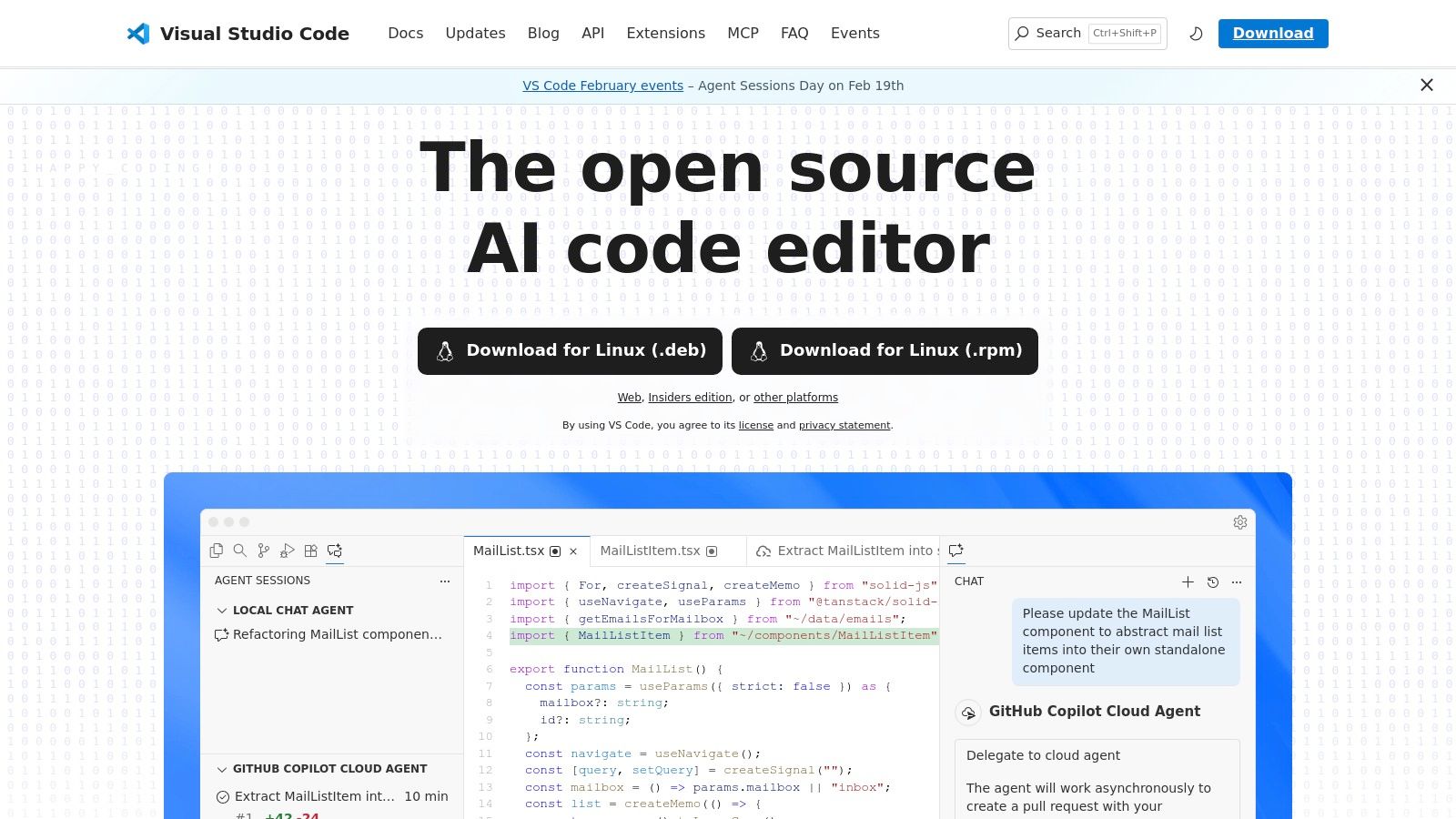
The real power of VS Code as a Git Windows client comes from its vast extension ecosystem. The official GitHub Pull Requests and Issues extension is a game-changer, allowing you to review, comment on, and approve pull requests directly within the IDE. This turns code reviews into a much more fluid part of the development process, aligning perfectly with a solid code review checklist. When paired with extensions like GitLens, which supercharges the built-in features with blame annotations and repository exploration, VS Code becomes a formidable tool.
Key Features & Assessment
- Integrated Source Control: Core Git operations (commit, push, pull, branch, stash) are built directly into the UI, making them fast and accessible.
- GitHub PR & Issues Extension: Review and manage pull requests and issues inside the editor. This feature alone makes VS Code a serious contender for developers on GitHub.
- Massive Extension Ecosystem: Tools like GitLens, Git Graph, and others can be added to create a highly customized and powerful Git workflow tailored to your specific needs.
- Unified Environment: Having your code, terminal, and Git history in one window is a major productivity boost, eliminating the need to jump between different applications.
Best for: Developers who want to manage their entire workflow-from writing code to reviewing PRs-within a single, highly extensible application. It is ideal for those who value efficiency and minimal context switching.
| Pros | Cons |
|---|---|
| Free, open-source, and supported by a massive community. | Relies on extensions for advanced features like visual graphs. |
| Reduces context switching by integrating Git into the editor. | The UI for complex merges or rebases is less intuitive than dedicated clients. |
| The GitHub extension offers an exceptional PR review experience. | Requires Git for Windows to be installed separately on the system. |
Website: https://code.visualstudio.com
12. Visual Studio (Windows) – Integrated Git tooling
For developers deeply embedded in the Microsoft ecosystem, particularly those working with .NET, C++, or other Windows-centric projects, the Git tooling integrated into Visual Studio is a first-class citizen. This isn't a separate application but a core part of the IDE experience, placing version control actions directly alongside your code editor, solution explorer, and debugging tools. This tight integration eliminates the context switching required when using an external Git client, keeping your focus entirely within the development environment.
The experience is available across all versions of modern Visual Studio, from the free Community edition to Professional and Enterprise. It provides a complete workflow, from cloning repositories and managing branches to staging changes, committing, and handling pull requests for GitHub and Azure DevOps. The solution-aware diffing is a particular strength, understanding your project structure to provide more meaningful comparisons.
Key Features & Assessment
- Deep IDE Integration: Git operations are part of the main Visual Studio interface. You can commit, create branches, and sync changes from dedicated windows that interact directly with the Solution Explorer.
- Solution-Aware Context: The diff and merge tools understand C# and other project-related file types, providing a much richer experience than a generic text comparison.
- Built-in Pull Request Management: For GitHub and Azure DevOps, you can create, review, comment on, and approve pull requests without ever leaving the IDE.
- Streamlined Debugging and History: You can easily step back through commit history, view changes, and even start a debug session from a previous commit to pinpoint when a bug was introduced.
Best for: .NET, C++, and Windows developers who spend their entire day in Visual Studio. It provides a highly efficient, integrated workflow that minimizes distractions and maximizes productivity for its target audience.
| Pros | Cons |
|---|---|
| Seamless workflow reduces tool switching and context loss. | Not a standalone client; functionality is tied to the IDE. |
| Excellent integration with GitHub and Azure DevOps. | Less ideal for non-Visual Studio projects (e.g., Node.js, Go). |
| Free with the Visual Studio Community Edition. | The best experience requires using recent Visual Studio versions. |
Website: https://visualstudio.microsoft.com
12-Way Comparison of Git Windows Clients
| Tool | Core Features | UX & Quality | Unique Selling Points | Target Audience | Price / Value |
|---|---|---|---|---|---|
| Git for Windows (Git Bash & Git GUI) | Git Bash, Credential Manager, lightweight GUI | ★★★★ — stable, reference implementation | ✨ Native Windows installer & portability | 👥 Windows devs & tooling integrators | 💰 Free |
| GitHub Desktop | Clone/PR workflows, simple commits & branches | ★★★★ — polished, low friction | ✨ Seamless GitHub PR integration | 👥 GitHub teams & newcomers | 💰 Free |
| Sourcetree | Visual commit graph, Git-Flow, staging | ★★★★ — feature-rich, mature | ✨ Visual history + enterprise deploy | 👥 Teams using Bitbucket/GitHub/GitLab | 💰 Free |
| Fork | Interactive rebase, hunk staging, conflict tools | ★★★★★ — very responsive | ✨ Fast UX for power users 🏆 | 👥 Power users seeking speed | 💰 One-time license |
| Tower | Undo safety, PR integrations, team mgmt | ★★★★★ — pro-grade UX | ✨ Undo guard rails & SSO for teams | 👥 Teams & managers | 💰 Subscription |
| SmartGit | Advanced history, submodules, conflict solver | ★★★★ — capable on large repos | ✨ Strong submodule & history tools | 👥 Professional/complex codebases | 💰 Commercial (free for OSS/academia) |
| TortoiseGit | Explorer overlays, context-menu Git ops | ★★★ — native Windows UX | ✨ Deep File Explorer integration | 👥 Windows-native, non-IDE workflows | 💰 Free (OSS) |
| Sublime Merge | Fast diffs, line staging, Sublime integration | ★★★★★ — ultra-responsive | ✨ Lightning-fast diff/merge 🏆 | 👥 Keyboard-first developers | 💰 Perpetual license option |
| Git Extensions | Standalone UI, VS & Explorer integration | ★★★ — comprehensive but classic UI | ✨ Community-driven, extensible | 👥 Mixed-IDE teams & OSS contributors | 💰 Free (OSS) |
| GitKraken Desktop | Visual graph, conflict tool, multi-repo | ★★★★ — visually powerful | ✨ Workspaces + enterprise SSO | 👥 Teams needing multi-repo workflows | 💰 Freemium → paid tiers |
| VS Code (built-in Git + GH PRs) | Built-in source control + extensions | ★★★★★ — ubiquitous & extensible | ✨ In-editor PRs via GH extension 🏆 | 👥 Developers wanting minimal context switch | 💰 Free |
| Visual Studio (Integrated Git) | Solution-aware Git, PRs, build/debug | ★★★★★ — seamless for .NET | ✨ IDE-integrated Git + tooling | 👥 .NET & Windows teams | 💰 Included with Visual Studio (editions vary) |
Streamlining Your Choice and Supercharging Your Workflow
Navigating the crowded field of Git clients for Windows can feel overwhelming, but making a deliberate choice is the first step toward a more efficient development process. As we've explored, the "best" git windows client is not a one-size-fits-all answer; it's the one that best fits your specific workflow, team structure, and personal preferences. The right tool should feel like an extension of your own thought process, removing friction rather than adding another layer of complexity.
Your decision hinges on a few core questions. Are you a command-line aficionado who simply needs better visualization for complex histories? A tool like Sublime Merge or Fork offers a fast, clean interface without abstracting away the core Git concepts. Or perhaps you're part of a large team or enterprise where standardization and onboarding are critical. In that case, the visual clarity and powerful integrations of GitKraken, the premium polish of Tower, or the universal accessibility of GitHub Desktop might be the most logical fit. For developers who live inside their editor, the powerful, integrated Git tooling within VS Code or Visual Studio often provides the most direct and context-rich experience, minimizing the need to switch applications.
Key Takeaways for Making Your Selection
Making an informed decision requires looking beyond just the feature list. Consider these factors as you finalize your choice:
- Learning Curve vs. Power: Tools like Sourcetree and TortoiseGit are approachable for beginners but can sometimes feel cumbersome for advanced operations. In contrast, clients like SmartGit or Git Extensions offer immense power but demand a greater initial time investment to master.
- Performance with Large Repositories: If you work with monorepos or projects with extensive commit histories, performance is paramount. Clients like Sublime Merge and Fork are built for speed and can handle massive repositories where others might struggle.
- Cost and Licensing: Free tools like Git for Windows, GitHub Desktop, and VS Code provide incredible value. However, the subscription fees for premium clients like Tower, GitKraken, or SmartGit often pay for themselves through superior features, dedicated support, and a more polished user experience.
- Workflow Integration: Your Git client doesn't operate in a vacuum. It’s a key part of your development environment. Its ability to integrate with your IDE, issue tracker, and communication platforms is critical. Selecting the right client is just one piece of a larger puzzle; it's one of many essential developer productivity tools that must work together to create a seamless workflow.
Beyond the Client: Automating Your Feedback Loop
Ultimately, the goal of adopting any git windows client is to accelerate your ability to write, review, and merge code. The most significant bottleneck for many teams isn't committing code; it's the dead time a pull request spends waiting for review. No matter which GUI you choose, its effectiveness is amplified when connected to an intelligent notification system.
This is where a dedicated service becomes invaluable. Instead of relying on a constant stream of noisy email or platform notifications, a smart system can deliver concise, actionable alerts directly into your team's communication hub, like Slack. By bridging the gap between your Git activity and your team's conversations, you ensure that pull requests get seen and reviewed promptly. This combination of a powerful local client and a smart, automated notification workflow keeps momentum high and clears the path for what truly matters: delivering high-quality software faster.
Ready to eliminate pull request bottlenecks and keep your team's momentum? PullNotifier integrates directly with GitHub and Slack to deliver smart, actionable PR notifications, ensuring reviews happen on time, every time. Stop waiting and start shipping by trying PullNotifier today.