- Published on
A Guide to Slack GitHub Integration
- Authors

- Name
- Gabriel
- @gabriel__xyz
Connecting Slack to GitHub is about more than just convenience. It’s about creating a central hub for your development workflow, piping crucial updates like pull requests, code reviews, and issue statuses directly into the channels where your team already lives.
Done right, this integration turns a simple chat tool into a powerful command center for your entire development pipeline, keeping everyone focused and in sync without constantly switching tabs.
Your Dev Team Is Drowning in Notifications, Aren't They?
Let's be real. The constant ping-pong between GitHub and Slack is a massive productivity killer. It’s not just the few seconds it takes to switch tabs; it’s the mental whiplash of being pulled out of deep work. Every notification breaks a developer's flow, and climbing back into that focused state takes a lot more time than anyone wants to admit.
This context-switching is like a hidden tax on your team's efficiency.
The problem gets way worse when you stick with the default integration settings. Your Slack channels quickly devolve into a firehose of unfiltered GitHub noise. Every single commit, new branch, and minor comment triggers an alert, completely burying the updates that actually need attention.
The Real Cost of All That Noise
Picture this—it happens all the time. A developer pushes a critical hotfix and opens a pull request. The notification lands in #dev-main, but it’s immediately swamped by a dozen other alerts: minor commits, comments on unrelated issues, and automated build statuses.
That important request for a code review? It’s now buried deep in the channel's history.
Hours go by. The code sits unreviewed, the deployment is blocked, and the developer is stuck in limbo, unable to move on to their next task. This isn't just an annoyance; it's a direct blow to your team's velocity and a major source of frustration.
Connecting GitHub to Slack is meant to solve this problem by bringing real-time updates to your team's collaborative space. Many teams see a productivity boost by eliminating the need to manually poll GitHub for updates. For the full picture on how the github slack integration works end to end, including the limits of the official app and the third-party tools worth knowing, our complete guide goes deeper.
A thoughtfully configured Slack GitHub integration is more than a nice-to-have—it's a foundational piece of a high-velocity engineering culture. It transforms a noisy feed into an actionable command center.
Here's what the standard GitHub app integration page looks like in Slack. It’s the first step for most teams.

This official app is the starting point for linking the two platforms, but optimizing it is where you truly start solving these daily headaches.
The difference between a default, noisy setup and a carefully optimized one is night and day. One creates chaos, while the other creates clarity and accelerates your workflow.
Default vs Optimized Integration Impact
| Feature | Default Integration Experience | Optimized Integration Goal |
|---|---|---|
| Alert Volume | High-volume, unfiltered notifications for every event. | Low-volume, context-rich alerts for critical actions only. |
| Channel Noise | A single channel becomes a dumping ground for all repository activity. | Dedicated channels for specific teams, projects, or alert types. |
| Actionability | Important PRs and review requests get lost in the noise. | Key updates are highlighted, actionable, and impossible to miss. |
| Developer Focus | Constant interruptions pull developers out of their flow state. | Developers stay focused, only receiving notifications relevant to them. |
| Team Velocity | Review cycles are delayed, blocking deployments and slowing progress. | Faster review cycles and unblocked developers lead to higher velocity. |
Ultimately, the goal isn't just to connect the tools, but to create a system that actively helps your team ship code faster and with less friction.
Alright, let's get this integration set up for success. Before you even think about connecting Slack and GitHub, a little prep work goes a long way. This is the difference between an integration that actually helps your team and one that just creates more noise.
A successful setup starts with a plan, not just clicking the "Add to Slack" button. You're building a blueprint for how your team communicates around code.

First things first, let's talk permissions. To get these two platforms talking, you’ll need admin rights in both your Slack workspace and your GitHub organization. This is non-negotiable, as the integration needs to create webhooks and pull repository data.
If you're not an admin, now's the time to chat with the person who is. Frame it as a way to speed up development cycles, not just to add another shiny app to the stack.
Strategize Your Slack Channels
Honestly, the single most critical decision you'll make is how you structure your Slack channels. The classic mistake is dumping all notifications from a repository into a generic channel like #development. This quickly turns into a firehose of updates where the important stuff gets completely buried.
Instead, take a moment to think about your team’s actual workflow. Create dedicated channels for specific activities. This simple step ensures that the right people see the right notifications, making them actionable instead of just background noise.
A well-planned channel structure is the foundation of a useful integration. The goal isn't just to see notifications, but to see the right notifications in the right context.
Here are a few channel structures I've seen work really well in practice:
#frontend-prs: A channel dedicated only to pull request updates for the front-end codebase. No distractions.#backend-deployments: A focused feed for deployment statuses and CI/CD pipeline notifications from your back-end services.#security-alerts: A high-priority, low-traffic channel for Dependabot alerts or other urgent security notifications.
With a setup like this, a front-end developer doesn’t have to wade through back-end deployment logs just to find a review request. It respects everyone’s time and focus by delivering targeted, relevant information.
Planning this out upfront is your blueprint for an integration that actually serves your team from day one. It's how you turn Slack into a streamlined command center for everything happening on GitHub.
Connecting Slack and GitHub The Right Way
Alright, let's get our hands dirty with the official GitHub app in Slack. I'll walk you through installing, authorizing, and customizing the integration so it actually works for you, not against you.
Once you get it installed and authenticated, your Slack workspace will start getting real-time updates straight from your code repositories. No more context switching.
Initial Setup Process
First things first, you need to install the GitHub app from the Slack App Directory. This kicks off the integration and will ask you which workspace you want to add it to.
Next, you'll need to authorize access. This involves logging into your GitHub account and giving the app the permissions it needs. It’s a standard, secure OAuth flow, so you’re only granting the minimum required permissions.
Once that’s done, you can start configuring notifications for a specific channel using the /github subscribe [owner/repo] command. This is where you can tailor alerts for things like pull requests, commits, or issues.
Here’s a quick visual that lays out the sequence of installation, authorization, and channel configuration.
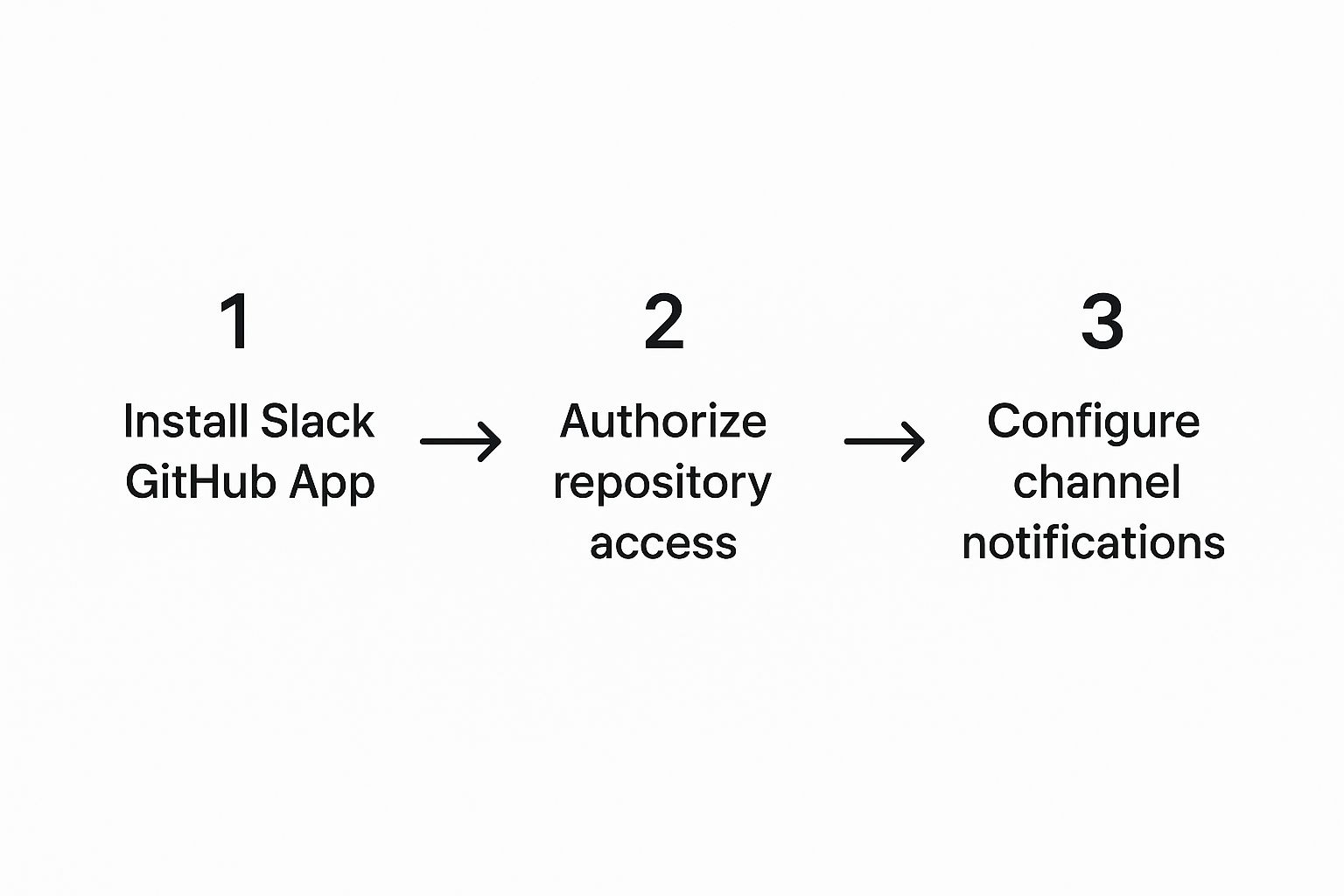
This flow really highlights how straightforward each step is and helps you see what to click next.
To get your first repository connected, just type /github subscribe [owner/repo] into the channel you want the updates in. It's that simple. This command immediately starts pushing updates right where you need them.
For example, if you subscribe to octo-org/octo-repo in your #dev-prs channel, only pull request notifications for that specific repo will show up there. This keeps teams focused on the repos that matter to them.
Linking Your First Repository
Want to track only commits? Just add a filter like commits:all. This keeps your channel clean and focused on code changes that need attention.
For pull request reviews, you can include reviews:requested to make sure reviewers get pinged immediately. A real-world example: our design team uses reviews:approved in their #design-reviews channel to cut down on noise and only see what’s been signed off on.
Given that Slack has over 40 million daily active users and over 750,000 custom integrations deployed across workspaces, integrating GitHub puts your development updates right into the ecosystem where your team already lives.
A clean, tailored Slack–GitHub integration frees teams from noisy feeds and drives much faster code review cycles.
For a deeper dive into customization, check out our guide on how to use the official GitHub Slack app and take it to the next level.
Best Practices You Need To Know
My biggest tip? Choose your channels based on team roles to prevent cross-team noise. It's a simple approach that respects everyone's focus.
- Consolidate critical repos: Funnel notifications for your most important repositories into a dedicated, low-traffic channel. This isolates urgent updates from the daily chatter.
- Use filters aggressively: Only subscribe to the events that actually matter to your team. Setting up filters for specific branches or labels is key to keeping channels clear.
- Rotate ownership: You can use PullNotifier rules to mention relevant teams or individuals. This ensures accountability and a quick response.
By dialing in these settings, you’re building a resilient workspace that scales with your projects. Your team will move faster with way fewer distractions.
Common Mistakes to Avoid
A classic mistake I see all the time is people accidentally missing the OAuth consent screen during authorization. Always double-check that the correct GitHub organization is selected before you click approve.
Another common pitfall is subscribing to a private channel without inviting the GitHub app first. If notifications aren't showing up, the first thing you should do is use /invite @github to grant it access.
- Skipping webhook verification: Make sure the webhooks are actually active in your GitHub repository settings.
- Ignoring channel naming conventions: Use clear, logical channel names to map to your repos. Don't make people guess.
These small oversights can lead to silent failures where you think everything is working, but notifications are getting dropped. A quick settings review can save you a lot of headaches down the road.
When to Use This Strategy
This setup really shines when your team is juggling multiple repositories. It centralizes all your notifications into custom-built, focused channels.
- Agile teams benefit from targeted PR alerts, which dramatically speeds up review cycles.
- Open-source maintainers can monitor community contributions much more efficiently without drowning in noise.
Basically, if you need a clean, low-noise integration that can handle a growing number of projects, this is the way to go.
Tuning Your Notifications to Cut Through the Noise
An out-of-the-box Slack GitHub integration often feels like trying to drink from a firehose. Every little event—commits, comments, new branches—floods your channels, burying the critical updates that actually need your team's attention. To make this integration work for you instead of against you, you have to get aggressive with your filters.
This is about more than just quieting the noise; it’s about giving your team its focus back. The real magic happens when you use advanced subscription commands to build a curated feed of information, turning a passive alert system into an intelligent assistant that only shows you what's important.
Subscribing With Surgical Precision
The key to all of this is mastering the /github subscribe command with specific filters. Instead of just linking a whole repository and hoping for the best, you can tell the app exactly which events you care about. This lets you set up channels with very specific jobs, making sure the right people see the right information when they need it most.
For example, you could easily create a channel that only alerts your QA team when a pull request is officially ready for testing. No more wading through draft PRs.
The goal is to shift from a high-volume, low-context notification stream to a low-volume, high-context one. This simple change can dramatically reduce context switching and accelerate your entire development cycle.
Imagine you have a #backend-prs channel, but you only want to see pull requests that are marked as ready for review. You can make that happen with a single command:
/github subscribe org/repo pulls reviews
Just like that, you've filtered out all the noise from in-progress work, showing your team only what’s immediately actionable.
Real-World Examples for Focused Channels
Let's walk through a few practical ways you can tune your notifications. Each of these examples solves a common headache for development teams.
Monitor the Main Branch: To keep a close eye on your production branch, set up a channel that only shows commits merged into
main. This is perfect for a#releaseschannel./github subscribe org/repo commits:mainTrack Review Requests: To make sure pull requests never sit idle, create a channel that pings reviewers the moment their input is requested.
/github subscribe org/repo reviewsWorkflow Notifications: If you use GitHub Actions for CI/CD, you can get alerts on workflow runs. Note that the GitHub Slack app does not support filtering by pass/fail status natively — for failure-only alerts, consider using a dedicated Slack notification step in your GitHub Actions workflow.
/github subscribe org/repo workflows
A quick reference can be handy when you're setting these up.
GitHub Subscription Command Cheatsheet
Here’s a little cheatsheet for some of the most useful /github subscribe commands you'll find yourself using.
| Command Example | What It Does | Best Used For |
|---|---|---|
/github subscribe org/repo | Subscribes to default notifications: issues, pulls, commits (default branch), releases, and deployments. Does not include reviews, comments, or workflows. | General project channels where broad visibility is needed. |
/github subscribe org/repo issues | Notifies on new or reopened issues and comments. | Creating a dedicated #bug-reports or #feature-requests channel. |
/github subscribe org/repo pulls | Notifies on new pull requests and status changes. | A #prs-for-review channel to keep the review pipeline moving. |
/github subscribe org/repo commits:main | Shows only commits pushed to the main branch. | A #releases or #deployments channel to track what's going live. |
/github subscribe org/repo reviews | Notifies on pull request review comments. | Keeping reviewers engaged and ensuring feedback is addressed quickly. |
/github subscribe org/repo workflows | Notifies on GitHub Actions workflow runs. | An #ops-alerts channel for CI/CD pipeline visibility. Note: failure-only filtering requires a custom GitHub Action step. |
/github unsubscribe org/repo | Unsubscribes from all notifications for a repository. | Cleaning up channels or removing repos you no longer need to track. |
/github unsubscribe org/repo pulls | Unsubscribes from a specific event type only. | Fine-tuning an existing subscription without removing everything. |
/github subscribe list features | Lists all active subscriptions in the current channel. | Auditing your setup to see what's active and troubleshooting missing notifications. |
/github close [issue-url] | Closes a GitHub issue directly from Slack. | Quickly resolving issues without leaving the conversation. |
/github open org/repo | Opens the repository in your browser. | Fast navigation to a repo from any Slack channel. |
These commands are just the start, but they give you a powerful toolkit for creating a focused notification environment.
This level of granular control is where the Slack GitHub integration really shines. Companies like Stripe have demonstrated how a finely tuned integration can lead to a massive increase in pull request throughput and a sharp drop in review times. By bringing actions directly into Slack and offering detailed notification controls, teams can slash information overload and keep review cycles moving faster.
For teams managing complex projects, especially those with monorepos, this gets even more critical. If that's you, check out our guide on 7 tips for managing PR notifications in monorepos for more strategies. By applying these filtering techniques, you’re not just connecting two apps; you’re building an efficient, focused communication system that helps your team ship code faster.
Advanced Workflows for Power Users

Alright, once you've dialed in your notification filters, it’s time to unlock the real power of your Slack GitHub integration. We're moving beyond just getting updates and into taking action right from your Slack channels. This is where you can turn Slack from a simple messenger into an interactive command center for your entire development pipeline.
This leap in functionality means your team can close issues, merge pull requests, or even approve deployments without ever leaving the conversation. The drop in context switching is huge, helping everyone stay focused and keep the workflow moving.
Combining Slack with GitHub Actions
The real magic happens when you bring GitHub Actions into the mix. This combo lets you build out powerful, custom automations triggered by repository events, with the results piped directly back into Slack. You’re no longer limited to pre-built notifications; you're creating bespoke, automated processes designed for your team's specific needs.
Imagine a workflow that automatically runs your test suite, spins up a preview environment, and then drops a link to that environment right in the relevant pull request channel—all from a single push. This isn't just a nice-to-have; it's a fundamental upgrade to your development ecosystem.
By connecting GitHub Actions to Slack, you're not just getting notifications; you're building a feedback loop. Your team gets immediate visibility into the entire CI/CD process, from build to deployment, right where they're already collaborating.
This setup is a game-changer for developers and DevOps engineers looking to create a tightly connected and efficient workflow. For a full walkthrough, check out our dedicated guide on using GitHub Actions to send Slack notifications.
Practical Automation Examples
Let’s get into what this actually looks like in the real world. These aren't just hypotheticals; they're battle-tested workflows that top-performing teams use every day to ship code faster and with more confidence.
Automated Release Notes: Set up a GitHub Action that triggers after a successful production deployment. It can gather all the associated pull request titles, format them into clean release notes, and post them directly to your
#releaseschannel. Stakeholders stay in the loop, no manual effort required.Staging Deployment Previews: When a new pull request is opened, an Action can build the feature branch and deploy it to a staging environment. The workflow then posts a message in Slack with a direct link to the live preview, letting product managers and QA test the changes on the spot.
Security Vulnerability Alerts: Configure an Action to run a security scanner on every push to your
mainbranch. If it finds any high-severity vulnerabilities, it can immediately post a high-priority, tagged message in your#security-alertschannel to ensure it gets immediate attention.
These are the kinds of advanced workflows that help you squeeze every drop of value from your Slack GitHub integration, turning it into the automated core of your development machine.
Common Questions About Slack and GitHub
Even with a perfectly planned setup, you might still hit a few snags. The Slack GitHub integration is a powerful tool, but small misconfigurations can sometimes cause headaches. Let's walk through some of the questions I hear all the time and get you back on track.
Most of these issues pop up regularly, but the good news is they usually have simple fixes. More often than not, the problem boils down to permissions or a simple typo in a command.
Why am I not receiving any GitHub notifications?
This is easily the most frequent issue, and it almost always comes down to one of three things.
First, double-check that you've actually subscribed to the correct repository. A simple typo in the /github subscribe [owner/repo] command is a super common culprit that will leave your channel silent.
Second, make sure the GitHub app has the right permissions inside the Slack channel itself. Private channels are especially tricky here, as they often have stricter app permission settings. The quickest fix is to invite the app directly into the channel by typing /invite @github.
Finally, take a look at your subscription settings. If you used filters to only track a specific branch or label, you will only get notifications matching those exact criteria. You can see your current subscriptions by using the /github subscribe list features command to confirm everything is set up the way you expect.
A silent integration is often a sign of a permission issue or a subscription filter that's too restrictive. Always start by checking access with /invite @github and reviewing your active subscriptions.
Can I integrate multiple repositories into one channel?
Absolutely, and this is a common setup for teams managing microservices or overseeing several related projects. You can run the /github subscribe [owner/repo] command multiple times in the same channel — once for each repository you want to link.
All notifications from these subscribed repos will then post to that single channel, creating a unified feed. Just be careful with the potential for noise. If the repositories are highly active, combining them might make it tough to track important updates. In that scenario, creating separate, dedicated channels is often a much better strategy to keep conversations organized.
How do I manage private repository notifications?
The Slack GitHub integration fully supports private repositories, but the setup depends on how the GitHub App was installed in your organization. During installation, an admin chooses whether to grant the app access to "All repositories" or "Only select repositories." If specific repositories were selected, you'll need to update the app's installation settings in GitHub to include any private repos you want to subscribe to.
If you're having trouble subscribing a channel to a private repository, check two things: first, make sure the GitHub App has been granted access to that repository in your organization's installation settings. Second, ensure the user setting up the subscription has at least read access to that specific repository in GitHub.
If that user's permissions are ever revoked from the repository, the notifications for that private repo will stop immediately. The integration strictly respects GitHub's own permission model, which is exactly what you want.
If your team uses Microsoft Teams instead of Slack, the setup is similar — see our GitHub Microsoft Teams integration guide.
Tired of notification noise and slow review cycles? PullNotifier replaces chaotic default integrations with a smart, focused system that delivers concise PR updates directly in Slack. Cut through the clutter and accelerate your team's workflow. Get started for free today.