- Published on
A Practical Guide to Mastering Jira for Slack Integration
- Authors

- Name
- Gabriel
- @gabriel__xyz
Think of connecting Jira and Slack as the modern equivalent of finally ditching scattered sticky notes for a central, digital command center. It closes the gap between talking about work and actually doing the work, turning a quick Slack message into a trackable Jira ticket with a single click.
This simple connection is all about eliminating the constant app-switching that absolutely demolishes a developer's focus and flow state.
Why Connecting Jira and Slack Is a Modern DevOps Necessity
In any fast-paced team, the biggest enemy of progress is friction. That friction shows up every time someone has to context-switch—jumping from a Slack conversation about a bug, opening a new tab, logging into Jira, finding the right project, and then manually typing out a ticket.
Each step feels small, but they add up, creating significant delays and mental drag. The whole point of the Jira-Slack integration is to get rid of that friction completely.
Instead of your tools living in separate silos, you create one unified space where work is discussed and assigned in the same breath. It elevates Slack from just a chat app into a genuine, interactive hub for managing your projects.
The True Cost of a Disconnected Workflow
When your core tools don’t talk to each other, you pay a price that goes way beyond minor inconvenience. Important requests get buried in busy channels, verbal agreements are forgotten, and the Jira board quickly becomes a stale, outdated picture of what's really happening.
This disconnect almost always leads to:
*   **Delayed Bug Fixes:** A critical bug report dropped in Slack might not become a ticket for hours, pushing back the entire fix.
*   **Reduced Developer Productivity:** Developers lose precious focus time bouncing between apps. Research shows it can take over **20 minutes** to get back into a deep work state after just one small distraction.
*   **Poor Project Visibility:** Managers can't get an accurate, real-time pulse on progress if key discussions happening in Slack aren't immediately captured in Jira.
The starting point for fixing all this is the official Jira Cloud app in Slack's directory.
This app is the gateway to linking your project management and communication, unlocking the powerful workflows we’re about to dive into.
A well-integrated toolset is more than a nice-to-have; it's a strategic move that directly impacts team efficiency and output. The benefits are clear, practical, and show up almost immediately in daily operations.
Here's a quick look at the advantages.
Jira and Slack Integration Key Benefits
| Benefit Area | Impact on Workflow | Example Scenario |
|---|---|---|
| Reduced Context Switching | Keeps developers focused by allowing them to create and update Jira tickets directly from Slack. | A developer sees a bug report in the #dev-team channel, uses a message action to create a Jira ticket, and assigns it without ever leaving Slack. |
| Increased Visibility | Provides real-time notifications on issue updates, comments, and status changes in relevant Slack channels. | The product manager sees an instant notification in the #product-updates channel when a high-priority feature moves from "In Progress" to "Ready for QA." |
| Faster Issue Resolution | Enables quick conversion of conversations into actionable tasks, ensuring nothing gets lost or forgotten. | A support agent mentions a customer-reported issue in the #support-escalations channel. A team lead immediately creates a P1 ticket from the message. |
| Improved Collaboration | Centralizes discussion by linking Jira issues in Slack, allowing teams to see context and contribute instantly. | When someone pastes a Jira link into a channel, a rich preview appears with the ticket's status, assignee, and title, letting everyone know what's being discussed. |
Connecting these two platforms fundamentally changes how work flows through a team, making processes smoother and communication clearer.
Tangible Gains from a Unified System
The benefits of a connected system aren't just theoretical—they're clear and measurable. The official partnership between Atlassian and Slack reports that 96% of technical teams save at least two hours weekly, 78% improve remote worker support, and 69% release software faster after integrating the two platforms.
For modern DevOps, seamlessly connecting tools like Jira and Slack is paramount, forming a critical part of the broader discussion on the best collaboration tools for remote teams. This isn’t just about convenience; it’s a strategic decision to build a more agile, responsive, and efficient operational model.
Getting Your Initial Connection Right
A powerful link between Jira and Slack all starts with a clean, correct setup. This first connection is the foundation for everything else, and getting it right from the jump ensures all the cool, advanced features we'll get into later will actually work.
Your journey begins in the Slack App Directory, the central hub for all integrations.
You’re looking for the official Jira Cloud app. It's super important to pick the one made by Atlassian—this guarantees you've got the best security, stability, and access to all the latest features. Once you find it, the installation is pretty straightforward, guiding you through the permissions you'll need to grant.
This is the first critical decision point for any admin. You’ll need to authenticate with both your Slack and Atlassian accounts, which is what creates the digital handshake between the two platforms. Think of it as giving both systems a key to talk to each other securely.
Workspace vs. Personal Connections
During the setup, you'll see a few options for how the integration works. You can configure connections for an entire project that post to a specific channel, or you can manage your own personal Jira notifications.
*   **Workspace Connection:** This is when an admin links a Jira project to a Slack channel (e.g., connecting the "WEB-APP" project to the `#web-dev-team` channel). This is public, visible to everyone in the channel, and great for team-wide visibility.
*   **Personal Connection:** This is all you. You can get DMs from the Jira bot about issues assigned specifically to you. It's a private setup that keeps your personal to-do list out of the noisy public channels.
Honestly, most teams I've worked with get the best results by using a mix of both. Admins should handle the main project-to-channel mappings. Then, individual team members can go in and set up their own personal alerts for a more focused experience.
The process is pretty similar to other tool integrations. If you've ever connected services before, like linking Slack with GitHub, this will feel familiar. For a deeper dive on that, you can check out our guide on how to use the official GitHub Slack app.
Pro Tip: When you're just starting, please don't connect your entire Jira instance to a dozen channels at once. My advice? Start with a single, non-critical project and a dedicated test channel. This gives you a safe sandbox to play with notification settings before you roll it out to the whole company.
This infographic really nails the shift from a siloed, disconnected process to the unified workflow you're building.
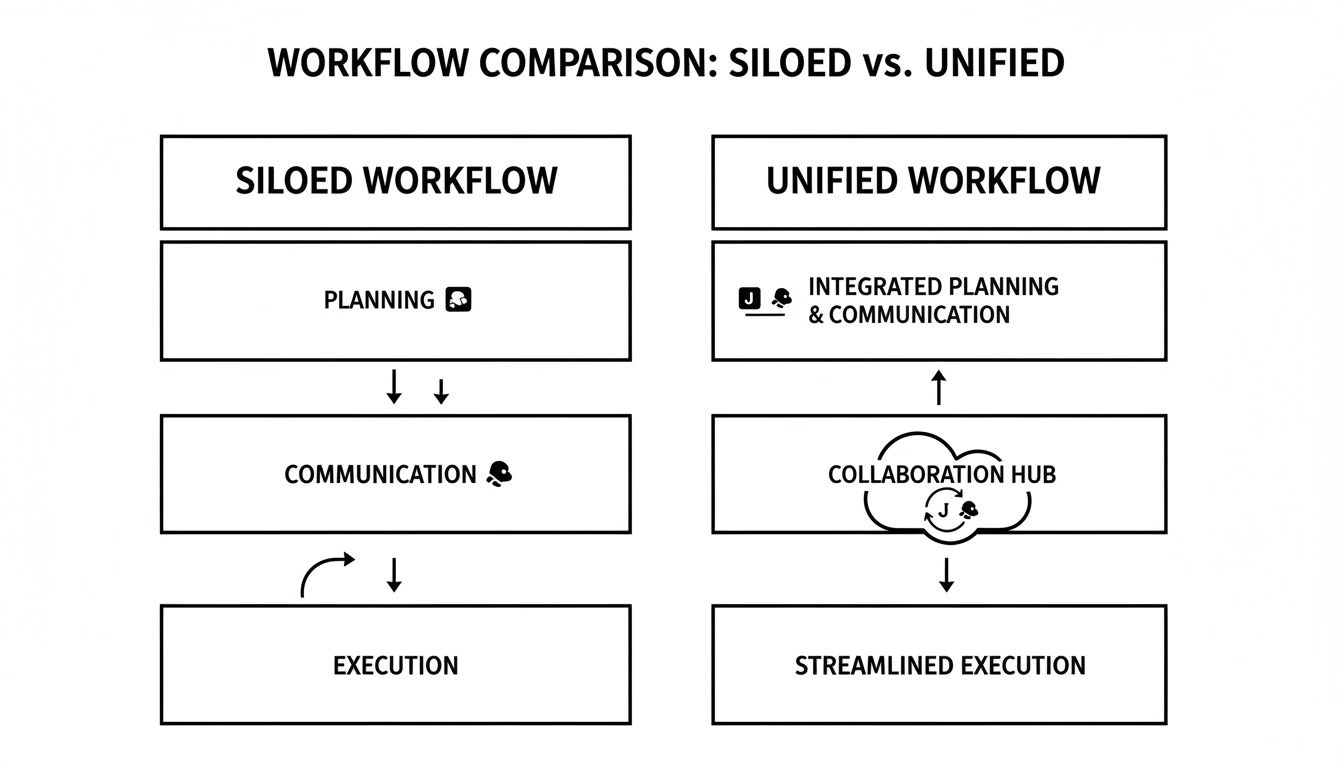
You can see how this integration tears down the walls between conversation and action, creating a continuous, collaborative loop.
Authorizing the Connection Securely
The last piece of this initial phase is authorization. Slack will ask for permission to view content and perform actions, and Jira will do the same. It's really important to review these permissions, especially if you're in a security-conscious environment.
Once you authorize everything, the Jira bot will be added to your Slack workspace. From here, the real work begins—mapping projects and customizing exactly how information flows between the tools.
With this initial setup complete, you’ve successfully built the bridge between your development tracking and your team’s communication hub. Now you're ready to fine-tune it for maximum signal and minimum noise.
Tuning Your Notifications for Signal, Not Noise

You've built the bridge between Jira and Slack. Now it's time to direct the traffic. An untuned integration is a firehose—every minor comment, status change, and field update floods your channels, creating a constant stream of noise that people quickly learn to ignore.
This is where you turn a distracting tool into a high-signal communication asset. The goal is simple: get the right information to the right people at the right time.
This starts with mapping specific Jira projects to dedicated Slack channels. Don't just dump your entire "Engineering" project into a single #engineering channel. Instead, get granular. Create specific channels like #bug-reports-urgent for critical issues or #feature-releases for deployment updates. This segmentation is your first line of defense against alert fatigue.
Mastering Filters with Jira Query Language
To truly refine your notifications, you need to get comfortable with Jira Query Language (JQL). JQL is a powerful filtering syntax that lets you create hyper-specific rules for what gets sent to Slack. Instead of getting an alert for every new ticket, you can create a rule that only pings a channel when a ticket meets your exact criteria.
Imagine you're on a support team. You don't need to know when a low-priority documentation task is created. But you absolutely need to know the second a P1-level ticket comes in.
You can do that with a simple JQL filter:
*   **For high-priority alerts:** `project = "SUPPORT" AND priority = "Highest"`
*   **For personally assigned tasks:** `assignee = currentUser()`
*   **For bugs in a new release:** `project = "WEB-APP" AND fixVersion = "2.1.0" AND type = "Bug"`
These filters are the secret to building a low-noise system. They ensure that when a notification does show up, it's immediately relevant and actionable. This level of precision is invaluable. In remote or hybrid models, where 72% of Slack users operate, Jira-Slack links have been shown to boost asynchronous communication by 19% and cut internal ticket resolution times by 23%. You can discover more insights about how teams use Slack for remote work and see the impact for yourself.
Practical Examples for Different Teams
Every team has its own definition of what's important. The beauty of the Jira for Slack integration is that you can customize it for each team's unique workflow.
For a Development Team: A dev team in the middle of a sprint might only want notifications for blockers or issues ready for their review.
*   **Channel:** `#dev-team-sprint`
*   **JQL Filter:** `project = "API" AND status = "Blocked" OR status = "In Code Review"`
For a QA Team: The QA team needs to know the moment a feature is ready for testing. No delays.
*   **Channel:** `#qa-ready-for-test`
*   **JQL Filter:** `project = "MOBILE" AND status = "Ready for QA"`
For a Product Management Team: Product managers might want a broader view, tracking new feature requests and customer-reported bugs.
*   **Channel:** `#product-feedback`
*   **JQL Filter:** `project = "PROD" AND (labels = "customer-feedback" OR type = "Suggestion")`
By dedicating a few hours to setting up thoughtful filters, you're not just organizing notifications; you're actively protecting your team's most valuable resource: their focus. A well-configured system ensures that every ping from the Jira bot is a signal worth paying attention to, not just more noise to tune out.
If you ever run into issues with alerts not appearing, it's often a permissions or configuration problem. The underlying principles are often similar across different integrations, so we offer some troubleshooting steps in our guide on how to fix GitHub Slack notifications not sending.
Managing Jira Issues Without Leaving Slack
Once you’ve got your notifications dialed in, it's time to turn Slack from a simple alert system into a full-blown command center for Jira. This is where the real magic of the Jira for Slack integration kicks in. It’s not just about seeing what’s happening in Jira; it’s about controlling it.
This is where your team’s efficiency really skyrockets. The constant shuffle between discussing a bug in Slack and then jumping over to Jira to document it? Gone. A quick chat about a new feature idea can be captured and formalized into a ticket in seconds, right from the conversation.
Turning Conversations into Actionable Tickets
The most powerful, day-one benefit is creating Jira tickets directly from a Slack message. This feature alone ensures that those brilliant ideas or critical bug reports that pop up mid-conversation never get lost in the scroll.
You can do this in two main ways:
*   **Slash Commands:** Just type `/jira create` in any channel. A dialog box will pop up, letting you fill in all the ticket details like the project, issue type, summary, and description. It’s a super fast way to get a task on the board.
*   **Message Actions:** This one is a game-changer. Hover over any Slack message, click the three-dot menu, and select "Create issue from message." It automatically pulls the message content into the ticket description, giving you instant context without any copy-pasting.
The official Jira Cloud for Slack app lets teams create, update, and track tickets right inside their channels. This massively reduces the context-switching that costs developer teams up to two hours per developer every week. For a company with over 800 developers, that's a mind-boggling $1.19 million in annual savings. You can dig into the full research on Slack's productivity impact to see the numbers for yourself.
Here you can see just how simple it is to change a ticket's status with dropdown menus inside Slack.
The real win here is the removal of friction. Moving a ticket from 'To Do' to 'In Progress' becomes a two-click action, which means your project board stays perfectly in sync with what’s actually happening.
Managing the Entire Issue Lifecycle
Creating tickets is just the start. The integration is robust enough to let you manage the entire lifecycle of an issue without ever opening a new browser tab. Most of the daily Jira grind can now happen right where your team is already talking.
This isn't just a small convenience; it’s a fundamental workflow improvement. When the path of least resistance is to keep Jira updated, the project board stops being a chore and becomes an accurate, real-time reflection of the team's work.
Here are some of the key actions you can take:
*   **Update Ticket Status:** When a Jira notification pops up in Slack, it will usually have buttons to transition the issue. A developer can click "In Review" the second they push their code.
*   **Add Comments:** Drop a comment on any Jira issue directly from Slack. This keeps the conversation centralized and documented where it belongs.
*   **Assign Issues:** Quickly assign or reassign a ticket to a teammate. No more ambiguity about who owns what.
By embedding these core Jira functions right into the conversational flow of Slack, you drastically lower the barrier to good project hygiene. This helps ensure your Jira board remains the single source of truth for your project's progress.
Automating Your Workflows Like a Pro

This is where you graduate from manual slash commands and start unlocking the real power of the Jira for Slack integration. We're talking about building smart, repeatable processes that enforce consistency across the team and save everyone from tedious administrative tasks. Let your engineers focus on engineering, not paperwork.
The secret ingredient here is Slack's built-in Workflow Builder. It's a surprisingly powerful tool that lets you create custom forms and automated sequences that kick off with simple user actions. The best part? No code required. It’s the perfect partner for your Jira integration, turning your Slack channels into structured, reliable funnels for creating tickets.
Creating a Custom Bug Reporting Form
One of the most valuable workflows you can build right now is a dedicated "Report a Bug" form. Picture this: instead of people dropping vague, unstructured messages in your #bug-reports channel, they can trigger a workflow that guides them through a simple, clean form.
This form ensures you capture all the critical details right from the start:
*   **Steps to reproduce:** A clear, step-by-step guide to triggering the problem.
*   **Environment details:** Which browser, OS, or app version is affected.
*   **Expected vs. Actual Behavior:** A simple "what should have happened vs. what did happen."
*   **Priority Level:** A dropdown menu to help classify the urgency.
Once a user hits "Submit" in Slack, the workflow springs into action. It takes that perfectly structured data and instantly creates a new ticket in the right Jira project, formatted exactly how you want it. This single automation eliminates the endless back-and-forth of asking for more details and ensures every bug report is actionable from the moment it’s created.
This kind of in-app automation is becoming standard practice. In fact, Slack's Workflow Builder usage jumped by 34% this year, with 40% of paid teams using it every week. Many of these teams are tying Jira updates directly into their automated flows to keep things moving smoothly.
Power-User Workflow Examples
Once you've got the basics down, you can start building more sophisticated workflows tailored to your team's specific needs. The sky's the limit, but here are a few ideas that deliver immediate value.
Manager's Daily Digest: Imagine a scheduled workflow that runs every morning. It can be configured to query Jira for all tickets moved to "Done" in the last 24 hours and then post a neat summary in a private
#engineering-leadschannel. This gives managers a clean, at-a-glance overview of team progress without ever having to leave Slack or build a manual report.
Weekly High-Priority Summary: Another great one is a weekly summary for team leads. You could set up a workflow to run every Friday afternoon that finds all unresolved P1 or P2 tickets and posts a list in a team channel. It’s a simple way to keep critical issues top-of-mind and spark any necessary discussions before the weekend.
These automation concepts aren't limited to just Jira and Slack. For more ideas, check out our guide on using GitHub Actions to send Slack notifications. And if you really want to push the boundaries, diving into the world of AI-powered workflow automation can open up even more sophisticated possibilities.
To give you a better idea of what's possible, here are some practical examples of how you can combine Slack's Workflow Builder with Jira to create some seriously powerful automations.
Jira Automation Ideas for Slack Workflows
| Workflow Goal | Trigger in Slack | Action in Jira | Ideal for Team |
|---|---|---|---|
| Log a New Bug | User clicks a shortcut to open a "Report Bug" form in a #bugs channel. | A new issue is created in the "Bugs" project with all form fields mapped. | All Teams |
| Request a New Feature | A user submits a form in the #feature-requests channel. | A new issue is created in the "Product Backlog" project and tagged as "New Idea". | Product & Dev Teams |
| Escalate a Critical Issue | A user adds a specific emoji (e.g., :fire:) to a message in a support channel. | A P1 (Highest Priority) issue is created and assigned to the on-call engineer. | Support & SRE Teams |
| Daily Progress Summary | A scheduled workflow runs every morning at 9 AM. | A JQL query finds all tickets updated in the last 24 hours and posts a summary. | Managers & Team Leads |
These examples are just the starting point. By thinking about your team's common, repetitive tasks, you can design custom workflows that save time, reduce errors, and keep everyone focused on what they do best.
Common Questions About the Jira Slack Integration
Even with a perfect setup, your team is bound to hit a few snags as they start weaving the Jira for Slack integration into their daily groove. It's totally normal. Let's walk through some of the most common questions and sticking points to keep your workflow running smoothly.
One of the first hurdles teams usually trip over is permissions. If someone on your team tries to create a ticket from Slack and hits an error, it’s almost always because their Atlassian account doesn't have the right permissions for that specific Jira project.
The integration is smart—it respects all your existing Jira rules. If you can't create an issue on the Jira website, you won't be able to do it from Slack, either.
Why Are My Notifications So Noisy?
Another frequent complaint? Notification overload. If a channel is getting hammered with every tiny update, it just means the connection's filters are a bit too wide.
The fix is simple. Head back into your project-to-channel connection settings and tighten things up with JQL. Instead of getting pinged for all updates, you could refine the filter to status changed TO "In Progress". This small tweak ensures you only see when work actually begins, dramatically cutting down the noise.
Can I Connect One Jira Project to Multiple Slack Channels?
Absolutely, and you should. It's a fantastic way to keep communication targeted and relevant. You might have a single Jira project for your entire mobile app, but you can set up separate, filtered connections for each team.
For instance:
*   The `#android-devs` channel could get notifications only for tickets where `component = Android`.
*   Meanwhile, `#ios-qa-team` could get alerts only when an issue's `status = "Ready for QA"` and `component = iOS`.
This setup guarantees each team only sees updates that matter to their work, keeping their channels focused and actionable.
It's helpful to remember that the Jira integration is just one piece of a much larger puzzle. The Slack App Directory is home to over 2,600 apps, and with 750,000 custom deployments, Jira is a top choice within a massive ecosystem. Thinking about how it fits with your other tools is crucial. You can learn more about the extensive Slack app ecosystem to see the bigger picture.
By getting ahead of these common questions, you can help your team adopt the integration without friction and start getting real value out of connecting Jira and Slack.
Tired of noisy pull request notifications flooding your Slack channels? PullNotifier cleans up the chaos by delivering smart, real-time PR updates without the spam. Cut through the noise and accelerate your code reviews by visiting https://pullnotifier.com.