- Published on
Mastering Jira with Git for Seamless DevOps Workflows
- Authors

- Name
- Gabriel
- @gabriel__xyz
Hooking up Jira with Git is one of those changes that completely overhauls your development workflow. It establishes a single source of truth for every project, bridges the gap between project management and actual coding, and gives everyone—from devs to PMs—a clear line of sight from issue creation all the way to deployment.
Why Integrating Jira with Git Is a Game Changer

When your tools are siloed, you’re basically inviting chaos. Your project management lives in Jira, your code is tucked away in GitHub or GitLab, and an invisible wall sits right between them. This forces developers to spend precious time manually updating tickets while project managers are left chasing status updates, never quite sure if a feature is in review or ready for QA. All that friction just grinds the development lifecycle to a halt.
The real problem here is a lack of context. On its own, a pull request is just a block of code and a Jira ticket is just a task. But when you connect them, you create a powerful, two-way street for information. Every commit, branch, or PR in Git automatically feeds back into Jira, keeping the project status perfectly in sync.
Creating a Single Source of Truth
Integrating Jira with Git cuts through the ambiguity. Instead of relying on manual updates or tedious status meetings, anyone can glance at a Jira issue and see the entire development story. This unified view is incredibly valuable.
This table breaks down the core benefits you'll see almost immediately.
Core Benefits of a Jira and Git Integration
| Benefit Category | Impact on Development Workflow | Example |
|---|---|---|
| Complete Traceability | Effortlessly track the full history of any feature or bug fix. | A PM can see the exact commit that resolved BUG-123 without having to ask a developer. |
| Automated Status Updates | Eliminate manual ticket updates and reduce human error. | A ticket automatically moves from "In Progress" to "In Review" the moment a PR is opened. |
| Enhanced Collaboration | Get everyone on the same page with real-time, shared data. | A QA tester sees a PR has been merged and knows it's ready for verification, no Slack message needed. |
These benefits explain why this kind of integration is quickly becoming standard practice. The demand for seamless DevOps workflows has seen installations of Jira and GitHub connectors jump by 19% in just one month. Teams consistently report that linking pull requests to Jira tickets slashes their manual status reporting time by a staggering 30-50%.
By linking code to tasks, you're not just connecting tools; you're connecting people and processes. This ensures everyone is aligned, from the initial concept in Jira to the final merge in Git.
This connection is fundamental to building a more efficient and transparent development process. It stops being about managing tasks and starts being about delivering value, faster.
Connecting Your Tools Natively and with Apps
Alright, you get the "why." Now it’s time to get your hands dirty with the "how." Connecting Jira to your Git provider isn't a single, one-size-fits-all process. You’ve really got two main paths, and the one you choose will shape how your code and project data flow together.
The most direct route is using the native DVCS (Distributed Version Control System) connector that Atlassian provides right out of the box. This is a free, built-in feature designed specifically for cloud platforms like GitHub, GitLab, and Bitbucket. For most teams, this is the perfect starting point—it covers all the core essentials like linking commits, branches, and pull requests to Jira issues without any extra cost.
But what if you need more firepower? That’s where the Atlassian Marketplace comes in. It's packed with third-party apps that offer deeper, more granular control. For instance, maybe you need two-way comment syncing between a pull request and a Jira ticket, or perhaps you’re running a self-hosted Git server that the native connectors don’t support. If you have a specific, advanced automation need, an app is probably the answer.
The Native Connector Route for GitHub and GitLab
Let's stick with the most common path: the native connector. The whole process hinges on OAuth, a secure standard that lets Jira talk to your repos without you ever handing over your password. You’ll generate a special key and secret from your Git provider and then just plug them into Jira. Simple as that.
Let’s walk through the typical flow for GitHub.
First, you'll need to create an OAuth App in GitHub to represent your Jira instance:
- Head over to your organization's settings in GitHub, then find Developer settings > OAuth Apps. This is where you'll create a new OAuth App.
- You'll need to fill out a few fields. Give it a clear name like "Jira Cloud Integration," add your Jira instance homepage URL, and paste in the specific "Authorization callback URL" that Jira gives you during its setup wizard.
- Once the app is created, GitHub will spit out a Client ID and a Client Secret. Treat that secret like a password—it’s sensitive stuff.
With these credentials in hand, it's time to jump back into Jira.
Finalizing the Connection in Jira
Inside Jira, make your way to Settings > Products > DVCS accounts. From there, you'll pick your Git provider (like GitHub Enterprise) and paste in the Client ID and Client Secret you just generated.
Jira will then kick you over to GitHub to authorize the connection. Once you approve the permissions, you're all set.
Jira will start linking any existing repositories tied to that GitHub organization automatically. If you don't want to sync everything, you can also go back and add specific repositories manually.
Pro Tip: I've seen this fail more times than I can count because of a simple typo in the callback URL. Double- and triple-check that the URL you enter in GitHub exactly matches what Jira shows you. Even a missing forward slash at the end will cause the handshake to fail.
After a successful connection, Jira will kick off its initial sync. Depending on how many repos you have and their size, this could take a little while. Once it's done, you'll see the Development panel light up on your Jira issues, ready to show every branch, commit, and pull request. This setup for Jira with Git is the foundation for all the powerful workflow automations we'll tackle next.
Automating Your Workflow with Smart Commits
Okay, you've connected your tools. Now it's time to make them really work for you. This is where we move past simply seeing Git activity in Jira and into the world of powerful automation—no more manually updating tickets after a push. The secret sauce here is a feature called Smart Commits.
Smart Commits are special commands you embed right into your Git commit messages. When you push your code, the integration scans for these commands and takes action in Jira on your behalf. Think of it as a remote control for your Jira board, accessible straight from your terminal.
This simple trick is incredibly powerful. Instead of finishing a task, pushing your code, then jumping over to Jira to drag a card, you can do it all in one fluid motion.
Mastering Smart Commit Syntax
The syntax is dead simple: <ISSUE_KEY> #<command> <optional_params>. The issue key is the only mandatory part, and you can chain multiple commands in a single commit message.
Here are the commands you'll find yourself using every day:
- Transitioning Issues: Move a ticket across your workflow board.
git commit -m "DEV-451 #in-progress Started work on the new login API." - Logging Time: Add work logs without ever opening the Jira time tracking modal.
git commit -m "DEV-451 #time 1h 30m Refactored the authentication module." - Adding Comments: Leave notes on the ticket for the rest of your team.
git commit -m "DEV-451 #comment The initial API endpoint is complete and ready for review."
When you string them together, a single commit can become a complete status update.
git commit -m "DEV-451 #in-review #time 3h #comment Ready for peer review. @BobSmith can you take a look?"
That one line just logged three hours of work, moved the ticket to the "In Review" column, and added a comment tagging a teammate. This is the heart of an efficient Jira with Git workflow.
The diagram below maps out the different ways you can set up the connection needed to make this kind of automation possible.
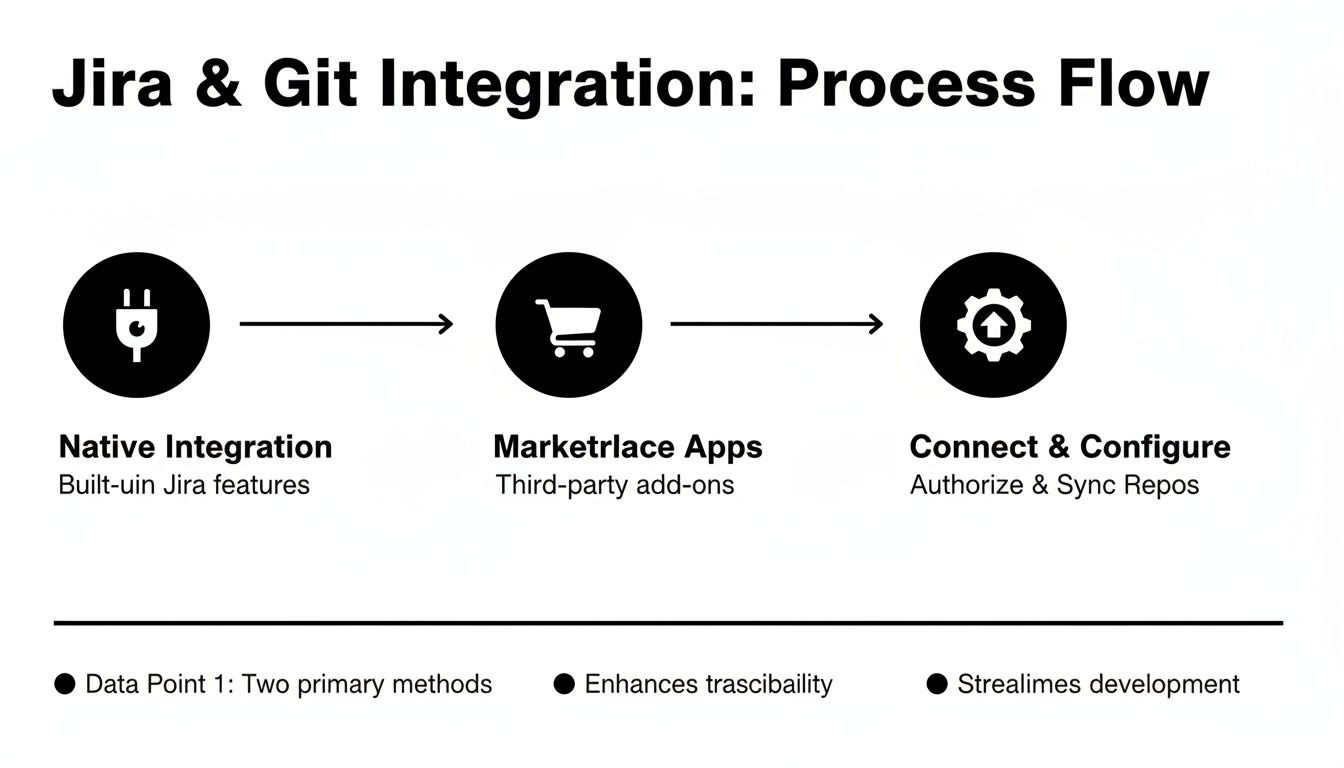
Whether you opt for a native connector or a Marketplace app, the end goal is always to unlock powerful automations like Smart Commits.
Taking Automation to the Next Level with Webhooks
While Smart Commits are fantastic for actions driven by developers, webhooks open up another dimension of automation. Think of webhooks as automated notifications sent from one app to another when a specific event happens. In our case, your Git provider can ping an external system—like a CI/CD server—whenever something new occurs.
For example, you could set up a webhook in GitHub to trigger a build in Jenkins every time a pull request gets merged into the main branch. This creates a fully automated pipeline from code commit to deployment, all orchestrated by your integrated toolset. If you want to dive deeper, check out our guide on how to create reusable GitHub Actions to build out your own powerful and repeatable CI/CD workflows.
Adopting Best Practices for High-Performing Teams
A slick integration between Jira with Git is a fantastic start, but the real magic happens when your team adopts habits that capitalize on it. Technology is just the enabler; consistent, disciplined practices are what separate high-performing teams from the rest.
This is your playbook for building a culture of transparency and efficiency.
It all begins with how you handle branches. A chaotic branching strategy leads directly to a messy repository and widespread confusion. For the sake of clarity and traceability, implementing a standardized naming convention is non-negotiable.
Establish a Bulletproof Branch Naming Convention
A simple yet effective convention instantly links every branch to its purpose and its corresponding Jira ticket. This small step creates immediate, scannable context for anyone browsing the repository.
Try a format like this: <type>/<issue-key>-<short-description>
*   `feature/PROJ-789-user-auth-rework`
*   `bugfix/PROJ-812-fix-login-redirect`
*   `hotfix/PROJ-820-critical-api-exploit`
This structure makes it incredibly easy to see what’s being worked on at a glance. You can then take this a step further by using branch protection rules in GitHub or GitLab to enforce this pattern, flat-out preventing non-compliant branches from ever being pushed.
A disciplined branch naming strategy is the first line of defense against chaos. It ensures that every piece of work starts with a clear connection to a specific, trackable Jira issue.
Mandating this connection is crucial. For teams aiming for seamless DevOps workflows, implementing sound Continuous Deployment Best Practices is a huge part of high performance, and this discipline ensures every code change has a documented reason for existing.
Make Linked Issues Mandatory for Pull Requests
Never allow a pull request to be created without a linked Jira issue. This simple rule is a cornerstone of a transparent workflow, guaranteeing that no "shadow work" slips into the codebase undocumented.
When a PR is linked, the Jira ticket becomes the central hub for all conversations, reviews, and status updates. This is incredibly valuable for non-technical stakeholders, like product managers or designers. They get a real-time pulse on development progress without ever leaving Jira or having to interrupt a developer.
They can see the PR status, who's reviewing it, and when it gets merged—all from the comfort of the Jira issue view. A great pull request is the core of this workflow, and you can learn more by mastering the pull request GitHub workflow in our detailed guide.
This level of visibility is becoming even more important as AI coding assistants gain traction. A recent analysis of over 146,000 Jira tickets found that developers using GitHub Copilot merged 10% more pull requests per week than their peers. This suggests they are tackling more complex tasks, and one team even saw its PR cycle time drop by 15%. Tightly coupling this AI-assisted output to Jira issues ensures that accelerated development remains fully transparent and traceable.
Troubleshooting Common Integration Problems
Even a perfectly tuned integration can hit a snag. When your Jira with Git connection decides to act up, it can bring your entire automated workflow to a screeching halt. This is your field guide for diagnosing and fixing the most common (and frustrating) problems that pop up.
The most frequent complaint I hear is pretty straightforward: "My Smart Commits aren't updating my Jira tickets!" When this happens, it's almost always one of a few simple culprits. Before you start digging through complex logs, run through a quick mental checklist to rule out the basics.
Diagnosing Smart Commit Failures
First things first, check your commit message syntax. A single misplaced character can break the whole command. Make sure the Jira issue key (like PROJ-123) is correct, fully capitalized, and right at the start of your message.
Next up, verify your email address. The email you use for your Git commits must be associated with your Jira user account. Jira needs this match to know who's performing the action. If you juggle different emails for work and personal GitHub accounts, this is a super common tripwire.
Here’s a quick diagnostic checklist to run through:
*   **Correct Syntax:** Is the issue key exact? Is the command itself (`#in-progress`, `#time`) spelled correctly?
*   **Email Mismatch:** Does the email in your `git config user.email` match an email address on your Jira profile?
*   **Repository Sync Status:** Is the repository fully synced? Pop into the DVCS accounts section in Jira and check for any sync errors.
A broken integration can feel like a major roadblock, but most issues are rooted in simple configuration details. Methodically checking syntax, user permissions, and email settings will resolve the vast majority of problems without needing to escalate.
When Pull Request Data Goes Missing
Another headache is when branches and commits show up in Jira’s development panel just fine, but pull request data is nowhere to be found. This usually points to a webhook or permissions problem. Your Git provider uses webhooks to send real-time updates to Jira whenever a PR is opened, updated, or merged.
If a firewall is blocking these webhooks or if the integration's permissions are too restrictive, that data will never arrive. The best place to start is your Git provider's webhook delivery logs. These logs will tell you if notifications are failing to reach Jira's servers and should give you an error code. From there, you can work with your network team to unblock the traffic or tweak the integration’s permissions.
Keeping these troubleshooting steps in your back pocket is crucial for workflow integrity. Platform reliability is a huge factor—Jira alone accounted for 2,390 hours of disruption in the first half of a recent year. For teams relying on a tight Jira with Git integration, outages like that can stall development by delaying merges tied to specific issues. You can dive deeper into this and find more insights on GitOps resilience in GitProtect's recent incident report.
While you can't prevent every outage, knowing how to quickly fix your side of the connection is key. And for more complex, code-level issues, you can also check out our practical guide on how to resolve conflicts in Git.
Got Questions? We've Got Answers
When you're knee-deep in setting up a Jira with Git integration, a few questions always seem to pop up. Let's tackle some of the most common ones I hear from teams to help you iron out the wrinkles and get your workflow humming.
Can I Connect One Jira Project to Multiple Git Repositories?
Yes, you absolutely can, and frankly, it’s how most teams work these days. Jira is built for this exact scenario.
You can easily link a single Jira project to a whole bunch of repositories, even if they’re scattered across different platforms like GitHub and Bitbucket. Whether you're working with a microservices architecture where code lives in dozens of repos or just have a few key projects, Jira’s DVCS settings let you link entire organizations or add repositories one by one.
Once it's set up, the development panel on any Jira issue neatly rolls up all the related branches, commits, and pull requests into a single, clean view. No more bouncing between tools to see the full picture.
What's the Real Difference Between Native Integration and a Marketplace App?
The main difference boils down to features and cost. A native integration is the free, out-of-the-box connector that Atlassian provides for major players like GitHub, GitLab, and Bitbucket. These get the job done for all the core stuff—linking commits, branches, and PRs to Jira issues—and they do it perfectly well.
Marketplace apps, on the other hand, are third-party add-ons that take things a step further. They often pack in more advanced features, like two-way comment syncing between Jira and GitHub, more powerful automation rules, or support for self-hosted Git servers that the native connectors don't touch.
My advice? Always start with the native integration. It's powerful, it's free, and it covers what 90% of teams need. Only start browsing the Atlassian Marketplace if you hit a wall and have a very specific, advanced need the standard connector can't solve.
Why Did My Smart Commits Suddenly Stop Working?
When Smart Commits go on the fritz, it's almost always one of three simple things. Before you start tearing your hair out and digging through logs, check these first.
- Sloppy Syntax: Take a second look at your commit message. The Jira issue key (like
PROJ-123) has to be perfect—fully capitalized and right at the beginning of the message. A lowercase letter or a misplaced space will break it. - Email Mismatch: Jira needs to know who you are. It maps your Git activity to a Jira user based on your email address. The email in your local
git configmust be an address associated with your Jira user profile. - A Sync in Progress: If you just connected the repository, Jira might still be busy indexing everything. You can check the sync status in Jira’s DVCS accounts section to see if there are any pending tasks or errors holding things up.
Seriously, these three checks will fix the problem 9 times out of 10, getting your automated workflow back online without a massive debugging headache.
Tired of noisy pull request notifications flooding your Slack channels? PullNotifier cuts through the chaos, delivering concise, real-time PR updates directly where you need them. See how over 10,000 engineers are cutting review delays and accelerating their development cycles at https://pullnotifier.com.