- Published on
A Practical Guide to Using a Git Mirror Repository
- Authors

- Name
- Gabriel
- @gabriel__xyz
A git mirror repository is an exact, identical copy of another repository. It includes everything—all branches, every tag, and the complete commit history. It's not a working directory like a standard clone; think of it as a perfect backup or a geographically distributed replica built for speed, disaster recovery, and seamless migrations. For teams needing high availability and peak performance, this strategy is a must.
Why a Git Mirror Might Be Your Best Move

While the technical definition is simple, the real value of a git mirror repository shines when you see the practical problems it solves. This isn't just another backup strategy; it's a strategic tool for keeping development velocity high and ensuring your business doesn't skip a beat.
Let's dig into a few real-world scenarios where mirroring becomes a game-changer.
Boosting Global Team Performance
Imagine you have developers spread across continents. A dev in Sydney trying to clone a massive repository from a server in London is in for a long wait. That kind of latency can turn a quick task into a frustrating, hour-long ordeal, killing productivity before the day even starts.
A git mirror repository set up in a closer region acts as a local cache. The developer in Sydney can pull from an Australian mirror, slashing clone and fetch times from hours down to minutes. It’s a simple change that removes a major bottleneck and keeps distributed teams in sync and moving fast.
Creating a Bulletproof Disaster Recovery Plan
What happens if your main Git hosting service goes down? An outage, data corruption, or even an accidental repo deletion could bring your entire development operation to a grinding halt for hours—or worse, days. Relying on a single provider means you have a single point of failure.
A mirror serves as a hot standby, a complete and up-to-date replica of your codebase ready to be switched over at a moment's notice. It’s a core component of comprehensive and robust IT disaster recovery solutions, ensuring your most valuable digital asset—your code—is always safe and accessible.
This isn't just about having a backup; it's about having an actionable recovery plan that minimizes downtime and protects you from catastrophic data loss.
Simplifying Complex Platform Migrations
Moving from one Git platform to another, like from a self-hosted GitLab instance to GitHub Enterprise, can be a massive headache. You have to migrate every single branch, tag, and the full commit history, all without disrupting your team's workflow.
A mirror makes this process remarkably smooth. You can set up a git mirror repository on the new platform and keep it automatically synced with the old one. Your team can keep working in the original repository while you test integrations and permissions on the new setup behind the scenes. When you're ready to make the switch, the final sync is quick, and the transition is virtually seamless for everyone involved.
Creating Your First Mirror Repository Manually
To really get a feel for how Git mirroring works, nothing beats doing it by hand the first time. It's a simple two-step dance: a special clone command followed by a unique push command. This approach gives you total control and is perfect for one-off migrations or for setting up a baseline before you start automating things.
Unlike a standard git clone that just gives you a working copy of one branch, the mirror clone grabs everything. It creates a bare repository, which means you won't see any of your project files—just the raw .git directory data. This makes it a perfect, lightweight vehicle for copying a repository's entire history.
Standard Clone vs Mirror Clone
It's easy to mix up a standard clone with a mirror clone, but they serve completely different purposes. A standard clone is for development, while a mirror clone is for replication.
Here's a quick breakdown of the key differences:
| Feature | git clone (Standard) | git clone --mirror |
|---|---|---|
| Purpose | Active development and collaboration | Exact replication and backup |
| Repository Type | Non-bare (includes a working directory) | Bare (only .git data, no working files) |
| Refs (Branches/Tags) | Clones default branch and remote-tracking branches | Clones all refs, including remote-tracking branches, tags, and notes |
origin Remote | Configured to point back to the source repository | No origin remote is configured by default |
| Updates | git pull fetches changes from the source | git remote update is used to fetch all ref updates from the source |
Understanding these distinctions is key. Using a standard clone for mirroring can lead to a messy, incomplete copy, while trying to develop inside a mirror clone is just not going to work.
Cloning an Exact Replica
First up, you need to create a complete, bare-bones copy of the source repository. The magic here is the git clone command with the --mirror flag. This is what tells Git you want a true, identical replica.
Let's say you want to mirror a project from its source. The command is straightforward:
git clone --mirror https://github.com/source/project.git
This command creates a new directory on your machine named project.git. Inside, you'll find a byte-for-byte duplicate of the original repository's Git data—every remote branch, tag, and ref is preserved.
Key Takeaway: The
--mirrorflag actually implies--bare, so there's no need to specify both. This command is designed specifically for creating a perfect copy that you plan to push somewhere else, not for day-to-day coding.
Pushing to a New Remote
With your local mirror ready, the next step is pushing it to its new home. This could be a fresh repository on GitHub, GitLab, or your own self-hosted Git server.
First, navigate into the directory you just created:
cd project.git
Next, add your new destination as a remote. We'll call it mirror-destination for this example:
git remote add mirror-destination https://gitlab.com/destination/project.git
Finally, use the git push --mirror command. This sends every single ref—all your branches and tags—from your local mirror up to the new remote.
git push --mirror mirror-destination
That one command ensures the new repository becomes an identical twin of the original. All history, all branches, all tags—everything is now in the new location.
This manual process has become a lifesaver for distributed teams. A massive 5GB repository that might take an hour to clone the old-fashioned way can be mirrored and accessed in just a few minutes. This lets developers in different offices get to work without the frustrating wait. It's a massive deal for the 150 million+ developers on GitHub, where mirroring can slash deployment times by an average of 30%. You can learn more about how Atlassian uses mirroring for enterprise teams.
Once the push is done, it's always a good idea to double-check your work. Clone the new repository in a separate directory (this time without --mirror) and poke around. Check the branches and logs to make sure the history matches the source. This quick verification gives you peace of mind that your mirror is a success.
Putting Your Mirroring on Autopilot with CI/CD
Manually creating a Git mirror is a great way to get a feel for the mechanics, but let's be real—the real power comes from putting it on autopilot. Continuous synchronization is what makes a mirror truly reliable, ensuring it's always a perfect, up-to-the-minute replica without you having to lift a finger. This is where a Continuous Integration/Continuous Deployment (CI/CD) pipeline becomes your best friend.
When you automate the process, you eliminate the risk of "drift" between your primary repo and its mirror. That's absolutely critical for disaster recovery and for keeping a single source of truth. With a CI/CD workflow in place, every single push to your main repository can automatically trigger an update to the mirror.
The whole process, whether manual or automated, boils down to a few core steps.
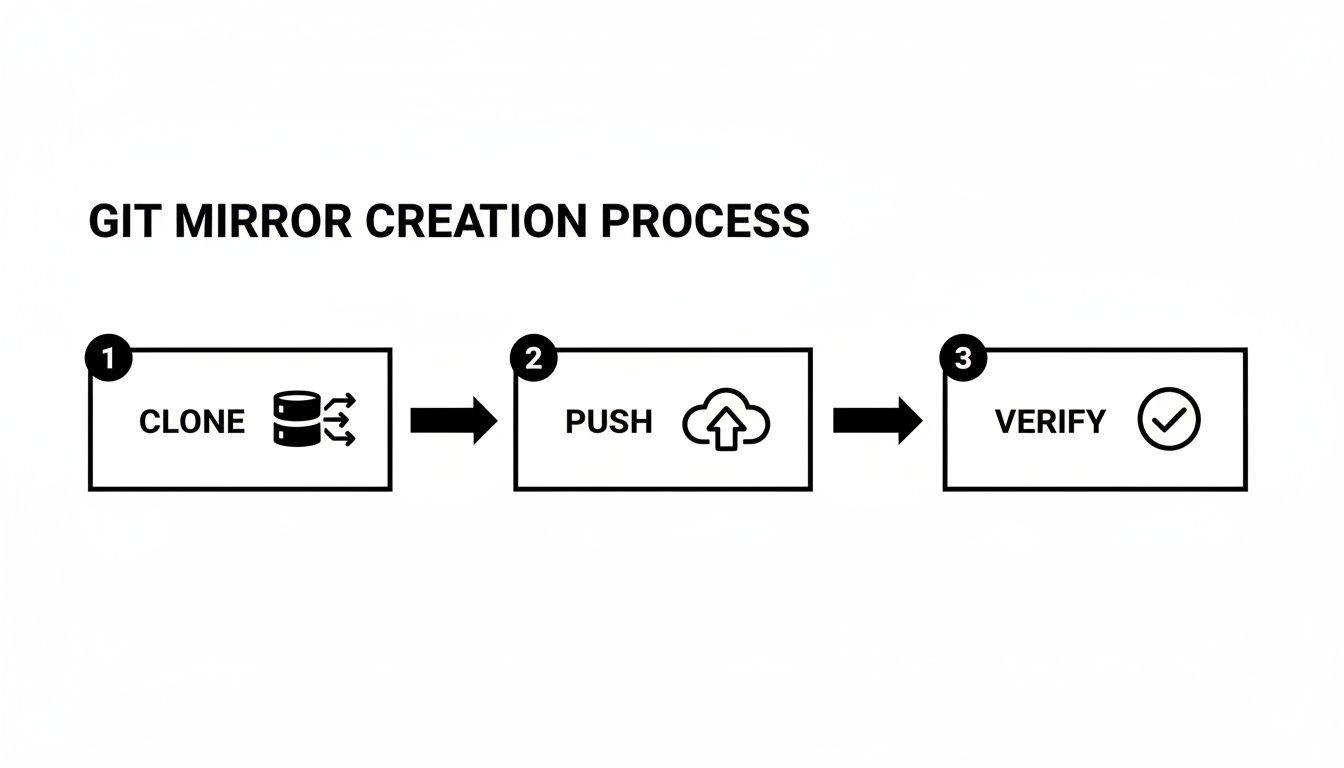
This is the fundamental flow—clone, push, and verify. Your CI/CD pipeline will simply execute these actions for you on every update.
Building an Automated Workflow with GitHub Actions
GitHub Actions is an incredibly handy tool for this job, mainly because it’s baked right into your repository. You just need to create a simple workflow file that listens for push events and runs the mirroring commands for you.
Here’s a practical example of what a workflow file, let's call it .github/workflows/mirror.yml, might look like:
name: Mirror to GitLab
on: push: branches:
- '**'
jobs: mirror-repo: runs-on: ubuntu-latest steps:
name: Checkout Repository uses: actions/checkout@v4 with: fetch-depth: 0
name: Push to Mirror env: MIRROR_URL: MIRROR_URL"
This configuration tells GitHub Actions to fire off the job on any push to any branch. The fetch-depth: 0 part is super important—it makes sure the action pulls the entire Git history, which is non-negotiable for a true mirror. If you want to dive deeper into optimizing your CI pipelines, we've got a great guide on how to create reusable GitHub Actions.
The most critical piece here is handling your credentials safely. The MIRROR_URL contains a personal access token but is stored as an encrypted secret in your GitHub repository settings. It’s never exposed in your logs.
Pro Tip: Never, ever hardcode credentials like access tokens directly in your workflow files. Always use the encrypted secrets feature your CI/CD platform provides. A leaked token could give an attacker full write access to your repositories in a heartbeat.
Exploring Other Automation Methods
While GitHub Actions is a fantastic choice, it’s certainly not the only game in town. Depending on your setup, other tools might be an even better fit for automating your Git mirror.
*   **GitLab's Native Mirroring:** If your source or destination repository lives on [GitLab](https://about.gitlab.com/), you're in luck. GitLab has a powerful, built-in repository mirroring feature that you can configure right in the settings. You can set it to pull from or push to another remote automatically. It handles the authentication and scheduling for you, making it one of the simplest ways to get a mirror up and running.

*   **Server-Side Git Hooks:** For those running self-hosted Git servers, Git hooks are a robust, old-school solution. You can set up a `post-receive` hook, which is just a script that runs on the server after a successful push. This script can trigger the `git push --mirror` command to your backup location. This method gives you granular control and works directly within your Git environment, no external CI/CD platform needed.
The right automation method really depends on where you host your code, your technical comfort level, and what you need the mirror for. If you're on GitHub, Actions is a no-brainer. For GitLab users, the native feature is almost always the easiest path. And if you're managing your own infrastructure, Git hooks offer a level of control that's hard to beat.
Navigating Advanced Scenarios and Security
Setting up a basic git mirror repository is pretty straightforward, but real-world projects throw curveballs. Suddenly you're dealing with massive binary assets or navigating strict security policies, and what seemed like a simple sync can quickly become a major headache if you haven't planned for it.
When you get into these more complex situations, the standard clone and push commands just won't cut it. You have to think about the entire ecosystem around your repository—its assets, its access controls—to build a mirror that’s not just reliable, but also secure.
Handling Git Large File Storage LFS
Does your project use Git LFS for things like graphics, videos, or datasets? If you answered yes, then a simple git push --mirror is not going to be enough. That command only mirrors the core Git objects. It leaves your LFS pointers aimed at the original storage, meaning the actual large files never get transferred.
To mirror a repository with LFS correctly, you need to add a couple of extra steps to your process.
- First, fetch all the LFS objects. After your initial mirror clone, you have to pull down all the LFS files tied to every version of the repository.
git lfs fetch --all - Then, push all LFS objects to the new mirror. Once fetched, you can send these files to the new LFS storage connected to your mirror destination.
git lfs push --all <mirror_destination_url>
Forgetting this is a classic mistake that leads to a broken mirror. Sure, the code will be there, but anyone trying to use the repo will hit errors the moment they check out a branch that depends on those missing LFS assets.
Securing Your Mirroring Process
Security needs to be front and center, especially when you start automating repository access. Using a personal access token (PAT) with full repository permissions in your CI/CD pipeline is a huge security risk. If that token ever gets compromised, an attacker could gain complete control over your entire codebase.
To build a solid security posture for your Git mirror, it's helpful to understand the core differences between cybersecurity versus network security. This knowledge helps you create layers of defense that go beyond just managing tokens.
A much safer way to handle credentials is to follow the principle of least privilege. Here are a couple of better options:
*   **Deploy Keys:** These are SSH keys that grant access to a single repository. For a push mirror, a deploy key with write access is the perfect, tightly-scoped credential.
*   **Machine User Accounts:** You can create a dedicated, non-human user account (think of it as a service account) with access limited *only* to the specific repositories it needs to touch.
In security-focused environments, these measures aren't just suggestions—they're essential. Consider that 12.4% of sampled repos have faced deletions due to security exposures. And with 81.5% of contributions happening in private repositories, mirrors are key for ensuring data sovereignty. This is a massive concern for projects like Microsoft's 300GB monorepo, which handles an incredible 8,421 pushes every single day.
Managing Bi-Directional Synchronization
So, what if you need changes to flow in both directions? This setup, known as bi-directional or active-active mirroring, is complex but incredibly powerful. It's often used for things like a gradual platform migration or a high-availability failover system. The big catch? It introduces a high risk of merge conflicts and history divergence if you're not extremely careful.
Successfully pulling off a bi-directional sync requires a rock-solid strategy to avoid a "split-brain" scenario where your two repositories drift apart. This usually means designating a single, authoritative source of truth or building sophisticated conflict resolution logic directly into your automation.
For large codebases, particularly monorepos, your syncing strategy has to align with your development workflow. It's worth exploring different monorepo branching strategies for teams to figure out how to keep your history clean and avoid chaos.
Troubleshooting Common Mirroring Issues
Even the most well-oiled git mirror repository setup can hit a snag. When a sync job fails, it’s easy to feel a jolt of panic, but don't worry—most issues are surprisingly common and have straightforward fixes. Let's walk through the usual suspects.
One of the most frequent culprits is an authentication failure. Your CI/CD runner suddenly starts screaming about "permission denied," and your mirror flatlines. This almost always points back to an expired or revoked credential.
Diagnosing Authentication and Connection Problems
Before you start digging through endless logs, always check the basics. Has the personal access token expired? Was the SSH deploy key accidentally removed from the destination repository? These simple oversights are behind more sync failures than you’d think.
Another common pain point is a connection timeout, especially when you're dealing with massive repositories or pushing over a sluggish network. If your sync process is timing out, try these quick fixes:
*   **Increase Timeout Settings:** See if your CI/CD platform or Git client has a timeout setting you can bump up.
*   **Use SSH Instead of HTTPS:** For large data transfers over less-than-stable networks, SSH connections often prove more reliable.
If you’re stuck on a persistent "permission denied" error and you’ve already ruled out an expired token, the permissions are likely wrong. Make sure your deploy key has write access enabled, or that your access token has the necessary
reposcope.
Handling Divergent Histories and Sync Conflicts
Now for the issue everyone dreads: the "split-brain" scenario. This happens when your source and mirror repositories have gone their separate ways, usually because someone pushed commits directly to the mirror. Suddenly, your automated push fails because the histories are no longer compatible.
When this happens, you have to re-establish the source as the single source of truth. First, pull the latest changes from your primary repo into your local mirror clone with git remote update. This step makes sure you’re working with the correct, up-to-date history.
Next, it's time to overwrite the incorrect history on the mirror. This is one of the rare times when a force push isn't just acceptable—it's necessary.
git push --mirror --force <mirror_destination_name>
This command tells the mirror to forget its conflicting history and accept the source's version as the absolute truth. But be warned: force pushing is a destructive action, so use it with extreme caution. Navigating this can be tricky, but learning how to resolve conflicts in Git is a vital skill for managing any complex repository, mirrors included.
The best defense here is a good offense. Regular checks and strict access controls on the mirror repository will help you avoid this headache altogether.
Common Git Mirroring Questions, Answered
When you're working with Git mirrors, a few common questions always seem to pop up, especially when trying to tell them apart from other Git features. Let's clear up some of that confusion right now.
Think of this as your quick reference for those "what's the difference?" moments.
What Is the Difference Between a Git Mirror and a Fork?
This is probably the most common point of confusion. A fork is your own personal, server-side copy of someone else's repository. You create a fork when you want to experiment with changes or contribute back to the original project by opening a pull request. The whole point of a fork is to have a space for independent development.
A git mirror, on the other hand, is a completely identical clone. It’s an exact replica that includes every single branch, tag, and internal reference (ref). You'd create a mirror for things like backups, creating a faster local copy for a distributed team, or migrating a repository from one service to another. A mirror's job is to stay in perfect sync with its source, not to diverge from it.
In short: You fork a repository to work on it. You mirror a repository to back it up or make it more accessible.
Can I Push Commits Directly to a Mirror Repository?
Technically, yes, you can push commits directly to a mirror if you have write access. But you absolutely should not. It defeats the entire purpose of a mirror.
A mirror is designed to be a passive, read-only replica that only gets updates from its main source repository. If you start pushing unique commits directly to it, you're creating a divergent history. The next time an automated sync runs from the primary repo, it will either fail with an error or, if someone force-pushes, it will wipe out the commits you made.
How Do I Update an Existing Git Mirror Repository?
Updating a mirror is all about fetching everything new from the original source and then pushing all of that to your mirror destination.
*   **For a local mirror clone:** The simplest way is to run `git remote update`. This command fetches all the ref updates from the original repository without trying to merge anything into your working branches.
*   **For pushing to a remote mirror:** After updating your local copy, you push all those changes to the remote mirror using `git push --mirror`.
If you've set up an automated CI/CD pipeline, that git push --mirror command is the heart of the whole operation. It’s what keeps your mirror perfectly in sync with every change.
Does Mirroring Also Copy Git LFS Objects?
No, not automatically. This is a classic "gotcha" that catches a lot of people by surprise. Standard mirroring commands like git clone --mirror and git push --mirror only deal with the core Git data. They copy the tiny text pointers for Git LFS files, but not the actual large files themselves.
To properly mirror a repository that uses LFS, you have to add a couple of extra steps to your process. You'll need to explicitly run git lfs fetch --all to download the large files and then git lfs push --all to upload them to your mirror. If you forget this, your mirror will be incomplete.
Ready to eliminate pull request notification noise and speed up your code reviews? PullNotifier integrates seamlessly with GitHub and Slack to deliver clear, actionable PR updates right where your team works. Start your free trial today and cut review delays by up to 90%.