- Published on
A Practical Guide to Your GitLab Self Hosted Deployment
- Authors

- Name
- Gabriel
- @gabriel__xyz
Running a GitLab self hosted instance gives you the keys to the kingdom. You control the entire DevOps platform—your infrastructure, your data, and your security policies. For any organization with ironclad compliance rules, unique integration needs, or the desire for total operational control, this is the way to go.
Why Choose a Self Hosted GitLab Instance

Before we start firing off installation commands, let's talk about why you’d even want to manage your own GitLab. Sure, the GitLab.com SaaS offering is powerful and convenient, but a self-hosted deployment puts you squarely in the driver's seat. This isn't just about technical preference; it's a strategic move, usually driven by critical business and security requirements.
The number one reason I see teams make this choice is data sovereignty. If you're in finance, healthcare, or government, you’re likely operating under strict data residency laws like GDPR or HIPAA. Self-hosting is often the only way to guarantee your source code, CI/CD artifacts, and sensitive project data never leave your own controlled environment.
Before you go any further, it's worth taking a moment to see how the two options stack up. This can help solidify whether self-hosting truly aligns with your needs.
GitLab Self Hosted vs GitLab SaaS A Quick Comparison
Here's a high-level comparison of the key differences between GitLab's self-hosted and SaaS offerings to help you decide which is right for your team.
| Feature | GitLab Self Hosted | GitLab SaaS |
|---|---|---|
| Control | Complete control over infrastructure, data, and security | Managed by GitLab; limited customization |
| Compliance | Ideal for strict regulations (GDPR, HIPAA) | Compliant with major standards, but data resides on GitLab's servers |
| Customization | Deep integrations with internal systems (LDAP, AD) | Standard integrations, less flexibility for custom tools |
| Maintenance | Your team handles updates, backups, and scaling | GitLab manages all maintenance and infrastructure |
| Security | Can be fully air-gapped; you define the security posture | Robust security, but dependent on GitLab's policies |
| Initial Setup | Requires infrastructure planning and installation | Instant setup; just create an account and start |
| Cost | Infrastructure and operational costs plus license fees | Predictable subscription-based pricing |
Ultimately, the choice comes down to a trade-off: convenience versus control. If your organization's security and compliance needs are non-negotiable, self-hosting is the clear winner. For teams that prioritize speed and want to offload infrastructure management, GitLab's SaaS offering is a fantastic option.
Gaining Full Control and Customization
Another massive advantage is the power to build a completely tailored environment. A GitLab self hosted setup lets you deeply integrate with your existing infrastructure. You can hook directly into internal authentication systems like LDAP or Active Directory, plug in your own monitoring tools, and connect to private networks without ever exposing a single endpoint to the public internet.
This control extends right down to performance and operations. You get to call the shots on hardware specs, network configuration, and resource allocation. If a specific project needs a beast of a CI/CD pipeline, you can throw powerful, dedicated runners at it without worrying about shared resource limits you’d find on a SaaS platform.
You also own the update and maintenance schedule. This is huge. It means you can spin up a staging environment, test new GitLab versions thoroughly, and roll out upgrades on your timeline, ensuring absolute stability for your development workflows.
Meeting Unique Security Requirements
For many, security is the bottom line. With a self-hosted instance, you can run GitLab in a completely air-gapped environment, totally disconnected from the public internet. This is a non-negotiable requirement for many organizations in defense, sensitive research, and critical infrastructure.
By managing your own instance, you control every aspect of the security posture—from network access rules and firewall configurations to the specific security protocols and encryption methods used. It’s the ultimate way to build a DevOps platform that aligns perfectly with your organization’s unique threat model.
The industry trend backs this up. The global self-hosting market was valued at a whopping 85.2 billion by 2034. This growth is overwhelmingly driven by enterprises that are doubling down on security and control. You can dive into the full self-hosting market research to see these trends for yourself.
In the end, choosing a self-hosted GitLab is about building a platform that meets your precise operational and security needs, no compromises allowed.
Planning Your GitLab Infrastructure
A successful GitLab self hosted deployment starts long before you ever touch a server. It really begins with a solid plan—a blueprint that lines up your technical choices with what your team actually needs. Getting this right from the start is the best way to prevent performance bottlenecks, budget overruns, and those late-night troubleshooting sessions we all dread.
First things first, you need a realistic estimate of your resource requirements. This isn't just guesswork; it's about taking a hard look at your team's size and development habits. A small team of ten pushing code a few times a day has completely different needs than a 500-person organization running hundreds of CI/CD jobs in parallel.
Sizing Your Server Resources
To get a concrete idea of where to begin, I always point people to GitLab's own reference architectures. They provide a fantastic starting point for different user counts, but remember, you have to adjust for your specific workload.
*   **For Up to 500 Users:** A server with **4 cores** and **16 GB of RAM** is a pretty safe baseline. This setup can handle moderate CI/CD usage and a reasonable number of projects without breaking a sweat.
*   **For Up to 1,000 Users:** You should be aiming for **8 cores** and **32 GB of RAM**. At this scale, CI/CD performance becomes a huge factor, so faster CPUs and more memory are crucial.
*   **For Up to 2,000 Users:** GitLab recommends bumping that up to **16 cores** and **64 GB of RAM**. Storage performance also becomes critical here; fast SSDs are non-negotiable at this point.
Just a heads-up, these are starting points. If your team leans heavily on massive repositories or runs thousands of CI/CD jobs daily, you'll need to beef up your CPU and RAM to match. My advice? Always plan for growth. It’s far easier to start with a bit more power than to tackle a complex migration later on.
Choosing Your Deployment Method
Your next big decision is how you're going to install GitLab. This choice has a massive impact on scalability, maintenance, and the skills your team will need down the line. Each method comes with its own set of trade-offs, tailored to different operational styles.
The official GitLab installation page gives a clean visual breakdown of the recommended paths.
This little guide is great because it quickly points you toward the most common and well-supported installation methods. Stick to these, and you'll save yourself the headache of dealing with less-traveled paths that might lack community support.
The main options you'll see are:
*   **Omnibus Package:** This is, by far, the most popular and straightforward method. It bundles all of GitLab's components into a single, easy-to-manage package. If you want stability and simplicity on a dedicated Linux server, this is your best bet. If you're looking for guidance, you might be interested in our expert step-by-step guide on how to build a home server, which covers similar foundational concepts.
*   **Docker:** For teams already comfortable with containerization, deploying GitLab with Docker offers fantastic isolation and portability. Using a `docker-compose` file makes it simple to manage GitLab and its dependencies—like Redis and PostgreSQL—as separate but connected containers.
*   **Kubernetes (Helm Chart):** If your organization is already all-in on Kubernetes, then using the official Helm chart is the only way to go. It delivers unmatched scalability and high availability, letting GitLab run as a true cloud-native application. This is the ideal choice for large, dynamic environments.
The Business Case for Planning
Thoughtful planning isn't just a technical box-ticking exercise; it has a direct financial impact. It's why so many large enterprises invest heavily in their self-hosted solutions, a trend clearly reflected in GitLab's strong financial performance. By Q3 of fiscal year 2025, the company reported quarterly revenue of $196 million, a 31% year-over-year jump, driven largely by enterprise adoption. Their dollar-based net retention rate of 119% also shows that customers aren't just staying—they're expanding their use. You can learn more about GitLab's latest financial results and enterprise growth to see the full picture.
Ultimately, designing a robust network infrastructure is a fundamental piece of the puzzle. By carefully selecting your hardware and deployment method, you’re creating a stable foundation for your team’s most critical work.
Alright, you've done the prep work and have a solid plan. Now it's time for the fun part: bringing your self-hosted GitLab instance to life. This is where we move from theory to the command line. We'll walk through the most common ways to get GitLab running, covering the commands and configs you'll actually need.
Think of it this way: a good plan is the foundation for a smooth installation. The choices you made about resources and your preferred method will directly shape the steps we're about to take.
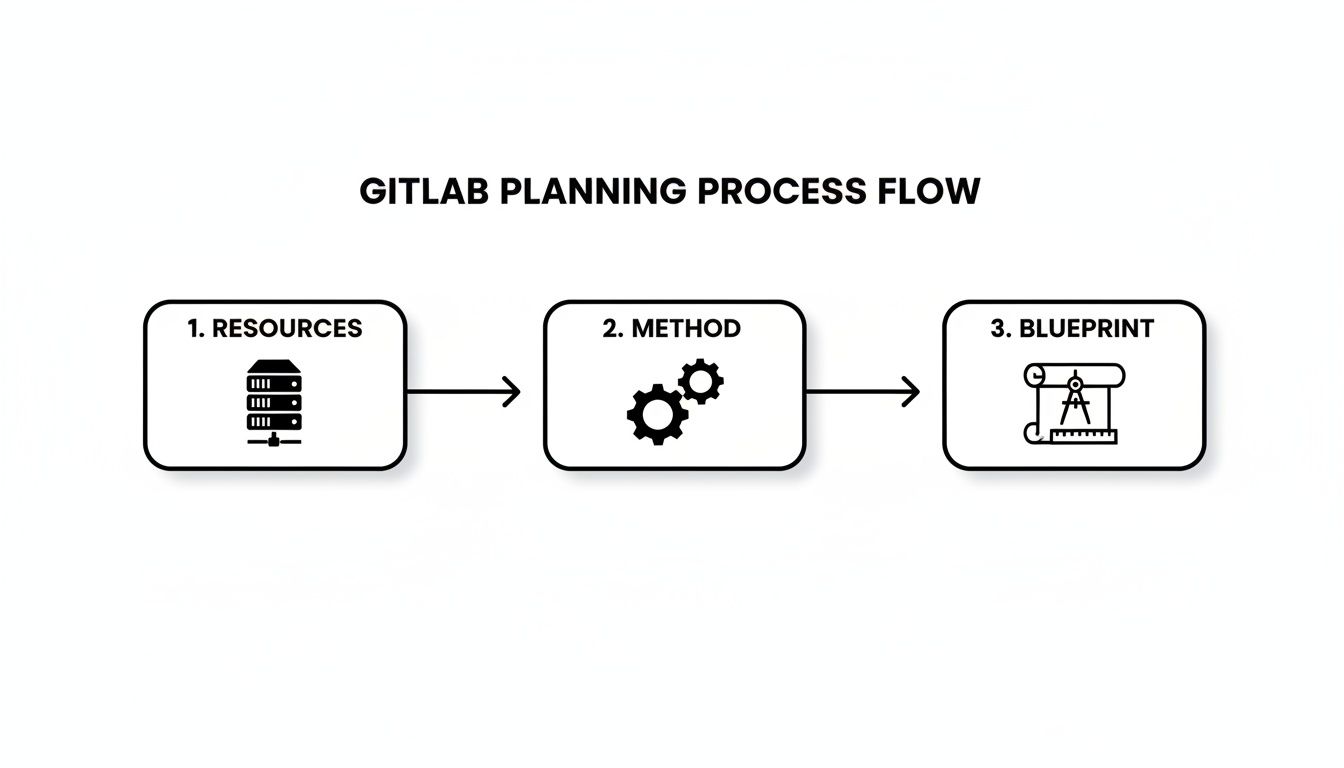
This flow isn't just a diagram; it's the reality of a successful deployment. Solid planning turns your blueprint into a functioning, stable GitLab instance.
The Omnibus Package on Ubuntu
The Omnibus package is the tried-and-true workhorse of GitLab installations. It's a self-contained, battle-tested method that bundles every single service you need into one package. Honestly, for most teams starting out on a dedicated VM or bare-metal server, this is the way to go. It's incredibly reliable and just plain easier to manage.
Let's get this running on a fresh Ubuntu server. First up, we need to install a few dependencies like curl, ca-certificates, and postfix (for email notifications).
sudo apt-get update sudo apt-get install -y curl ca-certificates tzdata postfix
Next, add the official GitLab package repository. This script handles all the configuration to tell your server where to pull the Omnibus package from.
curl -sS https://packages.gitlab.com/install/repositories/gitlab/gitlab-ee/script.deb.sh | sudo bash
Now for the main event: installing the GitLab package itself. You'll notice it's gitlab-ee (Enterprise Edition), but don't worry. Without a license key, it runs as the free, open-source Core version. You can always add a license later if you need the extra features.
sudo EXTERNAL_URL="http://gitlab.example.com" apt-get install gitlab-ee
Critical Tip: Pay close attention to the
EXTERNAL_URLvariable. This is the most important part of the command. It must be the exact URL you'll use to access GitLab. Getting this right from the start will save you from a world of configuration headaches down the road.
The installation can take a few minutes, so grab a coffee. Once it's done, your instance is live! Just navigate to your EXTERNAL_URL. The first time you visit, you'll be prompted to set the password for the root user. Keep this password somewhere safe—it's the master key to your kingdom.
Deploying with Docker Compose
If your team is already comfortable with containers, deploying GitLab via Docker is a fantastic option. It offers great process isolation and makes managing dependencies a breeze. I'd strongly recommend using Docker Compose to manage the multi-container setup, especially for a production-ready instance.
The single most important thing here is persistent data. You absolutely must mount volumes for your configuration, logs, and application data. If you skip this, you'll lose everything—repos, users, all of it—the moment you restart or update the container.
Here’s a solid docker-compose.yml file to get you started:
version: '3.7' services: web: image: 'gitlab/gitlab-ee:latest' restart: always hostname: 'gitlab.example.com' environment: GITLAB_OMNIBUS_CONFIG: | external_url 'http://gitlab.example.com'
Add other gitlab.rb configurations here
ports:
- '80:80'
- '443:443'
- '22:22' volumes:
- '$GITLAB_HOME/config:/etc/gitlab'
- '$GITLAB_HOME/logs:/var/log/gitlab'
- '$GITLAB_HOME/data:/var/opt/gitlab' shm_size: '256m'
Before you run docker-compose up -d, you have to set the $GITLAB_HOME environment variable to a directory on your host machine (e.g., /srv/gitlab). This ensures all that critical data is stored safely on your host's filesystem, surviving any container shenanigans.
Using the Kubernetes Helm Chart
When you need serious scalability and high availability, running your self-hosted GitLab on Kubernetes with the official Helm chart is the gold standard. This approach treats GitLab as a true cloud-native application, letting you scale different components like Gitaly or Puma independently as your needs grow.
Getting started with the Helm chart boils down to a few key steps:
- Add the GitLab Helm Repository: First, you need to tell your local Helm client where to find the official chart.
- Create a Namespace: It's always a good idea to install GitLab in its own namespace. This keeps its resources nicely isolated from everything else in your cluster.
- Configure
values.yaml: This file is your control panel. You'll define your domain, set up persistent storage withPersistentVolumeClaims, and fine-tune resource requests and limits for all the different GitLab services. - Deploy with Helm: Once your values are set, a simple
helm installcommand kicks off the deployment.
The Helm chart is incredibly powerful, but it can also feel complex. My advice? Start with a minimal configuration that nails the essentials:
*   **Domain and TLS:** Set your external domain and get TLS configured right away. Using cert-manager for automatic certificate renewal is a lifesaver.
*   **Persistent Storage:** Make sure you have a default `StorageClass` in your cluster, or explicitly define `PersistentVolumeClaims` for GitLab's stateful components.
*   **Initial Root Password:** The initial password for the `root` user gets stored as a Kubernetes secret. You'll need to retrieve it after installation to log in for the first time.
After deploying, run kubectl get pods -n gitlab to watch the magic happen. It can take a little while for all the containers to spin up and become ready. Once they're all running, you can hit the domain you configured and grab the initial root password from the gitlab-gitlab-initial-root-password secret to log in.
Taming Your New GitLab Instance: Critical First Steps
Alright, you’ve got GitLab installed. That’s the easy part. Now, the real fun begins: turning that vanilla installation into a secure, production-ready powerhouse for your team. An out-of-the-box GitLab instance is functional, sure, but skipping these next few steps is like building a house and forgetting to install locks on the doors.
These initial configurations are all about plugging GitLab into your ecosystem, protecting your data, and making sure it can actually talk to your team. Let's walk through the essential tweaks that will set you up for success from day one.
Integrating User Authentication
Manually creating user accounts is a non-starter for any team bigger than a few people. It’s tedious and a security nightmare. The very first thing you should do is hook GitLab into your existing identity provider. This doesn't just make life easier; it enforces your company's security policies like password complexity and MFA.
You've got two main routes here:
*   **LDAP/Active Directory:** This is the go-to for most established companies. By connecting GitLab to your AD or LDAP server, users can log in with the credentials they already use for everything else. You can map user groups, manage permissions, and make onboarding (and offboarding) completely seamless.
*   **Single Sign-On (SSO):** If your organization uses a provider like [Okta](https://www.okta.com/), Azure AD, or [Auth0](https://auth0.com/), setting up SSO with SAML or OAuth2 is the way to go. It offers a buttery-smooth login experience where users authenticate through a familiar portal without needing yet another password.
Getting this set up typically involves editing the gitlab.rb file for Omnibus installs or tweaking environment variables in your docker-compose.yml. You'll need to provide server details, bind credentials, and map user attributes. It’s meticulous work, but the time you'll save on admin tasks is massive.
Automating Your Backup Strategy
A backup strategy isn't optional—it's everything. Without one, a single server failure or an "oops" moment could vaporize years of your team's hard work. GitLab comes with some powerful built-in Rake tasks that create a full backup of your instance, covering repos, databases, and configs. The trick is to automate it.
A classic and highly effective approach is to run a nightly cron job.
Example cron job to run a backup daily at 2 AM
0 2 * * * /opt/gitlab/bin/gitlab-backup create
But just having a backup isn't enough. It needs to live somewhere safe, durable, and preferably off-site. Best practice is to have GitLab automatically upload these backup archives to an external object storage service like AWS S3, Google Cloud Storage, or a self-hosted solution like MinIO. This decouples your backups from your server, giving you a real disaster recovery plan.
Configuring External Object Storage
One of the fastest ways a self-hosted GitLab instance gets into trouble is running out of disk space. CI/CD artifacts, container registry images, and Large File Storage (LFS) objects can chew through hundreds of gigs shockingly fast. Relying only on the server's local disk is a recipe for a future outage.
To get ahead of this, configure external object storage for these data types. By offloading artifacts and other large files to an S3-compatible service, you keep your server's primary disk free for core application data. This single change dramatically improves scalability and reliability.
This configuration is one of the most impactful changes you can make for long-term stability. It turns storage from a constant headache into a scalable, on-demand resource, letting your instance grow without hitting a hard physical limit.
The demand for robust, self-hosted solutions is a huge reason for GitLab's growth. For fiscal year 2025, the company reported revenue around $675 million, a nearly 33% jump from the previous year, driven largely by subscriptions for both SaaS and self-managed instances. You can discover more about GitLab's market performance to see the enterprise trends fueling this.
Setting Up SMTP for Email Notifications
Finally, for GitLab to be a useful collaboration tool, it needs to send emails. Password resets, merge request pings, and CI/CD pipeline alerts all rely on a working email delivery system. By default, GitLab tries to use a local sendmail service, which is often unreliable or not even configured.
You absolutely need to configure GitLab to use an external SMTP server. This could be a service like SendGrid or Mailgun, or just your company's own email relay. It's a simple matter of adding your SMTP server credentials, address, and port to gitlab.rb.
After you've added the details, run a quick gitlab-ctl reconfigure and test it by triggering a notification. Getting notifications dialed in is also a must if you plan to integrate GitLab with Slack for more streamlined team communication. Proper alerts ensure your team stays in the loop and your development workflow doesn't grind to a halt.
A quick aside: if some of your teams work on GitLab.com rather than your self-managed instance, PullNotifier now delivers smart merge request notifications to Slack — one live-updating message per MR, with approvals and comments as thread replies. It's currently in Beta and supports GitLab.com only, so it won't connect to the self-managed deployment we're building here.
Scaling Your CI/CD with GitLab Runners

Your GitLab self hosted instance is the command center, but the real work—building, testing, and deploying your code—happens on GitLab Runners. Think of Runners as the engines of your CI/CD pipelines. Getting your Runner strategy right is absolutely critical for a fast, scalable, and secure development lifecycle.
Without a solid Runner setup, even the most powerful GitLab server will feel sluggish and bottlenecked. The pipelines just won't keep up with your team.
Connecting a Runner is pretty straightforward. You just install the GitLab Runner agent on a server, VM, or Kubernetes cluster, then run a simple register command. This command uses a registration token to link the agent back to your self-hosted instance, effectively turning that machine into a dedicated worker for your CI/CD jobs.
The real decision comes down to choosing the right executor. This is a big one. It defines how the Runner executes jobs, and each option comes with major trade-offs in isolation, performance, and scalability.
Choosing the Right Runner Executor
Your choice of executor directly impacts what your CI/CD pipelines can do. It's definitely not a one-size-fits-all decision; you'll likely use different executors for different jobs. Let's walk through the most common options and where they really shine.
*   **Shell Executor:** This is the simplest of the bunch. It runs jobs directly on the host machine where the Runner is installed. While it’s incredibly fast and easy to set up, it offers poor security and almost no isolation. I generally only recommend this for trusted, internal projects or for specific tasks that *must* interact with the host OS, like managing system services.
*   **Docker Executor:** For most teams, this is the workhorse. The Docker executor spins up a fresh, clean container for each CI/CD job using an image you define in your `.gitlab-ci.yml` file. This gives you fantastic dependency management and isolation, ensuring one job's environment can't possibly mess with another's. Need to build a container image? This executor lets you do it in a pristine, repeatable environment every single time.
*   **Kubernetes Executor:** When you're dealing with large-scale or bursty workloads, the Kubernetes executor is the ultimate solution. It taps into your [Kubernetes](https://kubernetes.io/) cluster to spin up a new pod for each CI/CD job. This offers incredible scalability because your cluster can automatically provision and tear down resources to meet demand. You only pay for the compute you use, making it extremely cost-effective.
A common pattern I've seen succeed time and again is using a mix of executors. You might have a few dedicated Shell Runners on hardened machines for deployment tasks, while the bulk of your build and test jobs are handled by a fleet of Docker or Kubernetes Runners. This hybrid approach gives you the best of both worlds: security and scalability.
Advanced Scaling with Auto-Scaling Runners
Once your team starts pushing dozens or hundreds of pipelines a day, manually managing a fleet of Runners becomes a full-time headache. This is where auto-scaling saves the day. By configuring Runners to scale automatically, you can handle peak workloads without paying for idle machines during quiet periods.
The Docker Machine and Kubernetes executors were built for this. With the Kubernetes executor, GitLab can dynamically create new Runner pods on demand and terminate them the moment a job is complete. If ten developers push code at the same time, ten pods spin up instantly. When those jobs finish, the pods vanish, freeing up your cluster's resources.
This approach keeps your CI/CD pipelines responsive without forcing you to maintain a massive, expensive fleet of always-on virtual machines. It's a foundational strategy for building a cost-efficient and powerful CI/CD platform on your GitLab self hosted instance.
Securing Your CI/CD Pipelines
Finally, as you scale your Runners, security has to be top of mind. An unsecured Runner can easily become a backdoor into your entire infrastructure.
One of the most critical best practices here is using tags. You can assign specific tags to Runners (e.g., production-deploy, docker-build) and then configure your CI/CD jobs to only run on Runners with a matching tag.
This lets you create a much more secure operational model. For example, you can restrict jobs that handle sensitive secrets—like deployment credentials—to a small set of locked-down Runners sitting inside a protected network. This simple step prevents your most valuable secrets from ever being exposed on a general-purpose build machine, dramatically cutting down your security risk.
A self-hosted GitLab instance isn't a "set it and forget it" kind of application. I've learned that the hard way. It’s a living system that needs regular care to perform well and stay secure, much like the engine in your car. Proper maintenance is what separates a reliable, high-performing platform from a constant source of technical debt and unexpected downtime.
This ongoing attention ensures your instance remains stable and ready to support your team's most critical work. If you neglect maintenance like upgrades and security checks, you're setting yourself up for performance degradation, vulnerabilities, and some seriously frustrating outages.
The GitLab Upgrade Process
Keeping your GitLab instance up to date is the single most important maintenance task you can perform. Upgrades deliver new features, sure, but more importantly, they bring critical security patches and essential performance improvements.
But you can't just jump from a year-old version to the latest release. GitLab requires you to follow a specific upgrade path to prevent database migrations from clashing and causing catastrophic failures. Trust me, you don't want to learn this lesson firsthand.
Before you even think about running an upgrade command, you need a solid pre-flight checklist:
*   **Check the Official Upgrade Path:** Always consult GitLab's official documentation. It will show you the required intermediate versions you have to hit first. Skipping a required version is a guaranteed way to break your instance.
*   **Take a Full Backup:** This is non-negotiable. Before starting, run `/opt/gitlab/bin/gitlab-backup create` and make sure that backup file is safely stored on a completely separate system. This is your safety net.
*   **Review the Release Notes:** Pay close attention to any "breaking changes" or deprecated features mentioned in the release notes for *every* version you're passing through on your upgrade path.
Once you’ve upgraded, the job isn't done. You need to perform post-upgrade verification. Can you log in? Are pipelines running? Are key integrations still working? Don't just assume everything is fine.
Essential Security Hardening
An unhardened instance is an open invitation for trouble. GitLab includes several powerful, built-in security tools that you should configure right away. One of the most effective is Rack Attack, a middleware that helps protect against brute-force login attempts and other abusive requests.
You can configure Rack Attack directly in your gitlab.rb file to automatically block IP addresses that make too many failed login attempts within a short period. This one simple change drastically reduces the risk of credential stuffing attacks.
Think of security hardening as an ongoing process, not a one-time task. With each new GitLab version, review the security recommendations. A well-maintained and secure instance is a trustworthy foundation for your entire software development lifecycle.
Additionally, GitLab has a built-in firewall you can use to control access to various services, adding another layer of defense. And when it's time to retire old hardware, don't forget that maintaining security extends to the entire infrastructure lifecycle. It's vital to follow a secure server decommissioning guide to prevent data leaks from old disks.
Monitoring and Troubleshooting
You can't fix what you can't see. Your GitLab self hosted instance comes bundled with a powerful monitoring stack, including Prometheus for metrics collection and Grafana for visualization. These tools are enabled by default in the Omnibus package and give you immediate insight into the health of your system.
The pre-configured Grafana dashboards are your first stop for diagnosing problems. They provide real-time visibility into key metrics like:
*   **CPU and Memory Usage:** Spot resource exhaustion before it causes an outage.
*   **Request Latency:** Identify slow endpoints that are degrading user experience.
*   **Gitaly Performance:** Monitor the service responsible for all Git operations.
For more immediate, hands-on troubleshooting, the gitlab-ctl command is your best friend. If users are reporting slowdowns or 502 errors, one of the first things I always do is run gitlab-ctl tail. This command streams the logs from all of GitLab's components in real-time, letting you see errors and exceptions as they happen. It’s an incredibly direct way to pinpoint which service—Puma, Sidekiq, or Gitaly—is the source of the trouble, cutting your debugging time significantly.
Frequently Asked Questions About GitLab Self Hosted
Even with the best guide in hand, making a big infrastructure decision like self-hosting GitLab is bound to bring up some questions. Let's walk through some of the most common ones I hear from teams, covering everything from cost to the day-to-day reality of keeping it running.
How Do GitLab License Costs Compare to the SaaS Version
This is a classic question, and the answer is surprisingly simple: the license costs are identical. GitLab offers its Free, Premium, and Ultimate tiers for both self-hosted and SaaS deployments at the same price.
The real difference isn't the license fee, but the total cost of ownership (TCO). When you self-host, you're on the hook for all the underlying infrastructure. That means you're paying for:
*   The servers themselves, whether they're physical machines or VMs.
*   All the storage and networking gear needed to support your instance.
*   The operational overhead—the time your engineers spend on maintenance, upgrades, and monitoring.
This approach gives you ultimate control, but it requires a solid budget for both the hardware and the engineering talent needed to manage it all effectively.
What Are the Most Common Challenges
In my experience, the biggest headaches with self-hosted instances almost always boil down to three things: upgrades, scaling, and high availability.
Upgrades are a delicate dance. They demand careful planning to follow the official upgrade path precisely, all while trying to minimize downtime. It's a process that can feel like walking a tightrope.
Then there's scaling. Keeping your CI/CD runners and server resources aligned with fluctuating demand—without massively over-provisioning and wasting money—is a constant balancing act. Finally, creating a bulletproof backup and disaster recovery plan is entirely your team's responsibility, and it's one you absolutely can't afford to get wrong.
The most successful teams I've seen treat their self-hosted GitLab instance like a product, not just a tool. It gets a dedicated owner, a maintenance schedule, and proactive monitoring, which prevents most "common" challenges from ever becoming critical incidents.
Can I Migrate from GitLab SaaS to Self Hosted
Absolutely. Migrating from GitLab.com to your own self-hosted instance is a well-trodden path. GitLab provides built-in project export and import tools that handle moving your repositories, issues, and merge requests. For a more white-glove service, GitLab Professional Services offers tools for a more complete transfer.
Just know that this isn't a weekend project. It requires meticulous planning, especially when it comes to mapping user accounts and carefully migrating CI/CD variables and secrets. It's a significant undertaking but completely doable. A firm grasp of version control concepts is a huge help here; you can brush up on the nuances between a pull request vs merge request to sharpen your Git knowledge.
Are you tired of noisy notifications and slow code reviews? PullNotifier integrates seamlessly with your Git workflow, delivering concise, actionable pull request updates directly in Slack. Cut through the noise, accelerate your review cycles, and keep your team focused on what matters most. Start for free on pullnotifier.com and see why over 10,000 engineers trust us to streamline their development process.