- Published on
GitLab and Slack Integration A Practical Guide
- Authors

- Name
- Gabriel
- @gabriel__xyz
Hooking up your GitLab and Slack workspaces is a game-changer. It pulls all your important development updates—like merge requests, pipeline statuses, and new issues—directly into the channels where your team is already talking. This means less app-switching and more focus.
Ultimately, it shifts your team from being reactive to proactive.
Why Connect GitLab and Slack in Your Workflow
Beyond just saving a few clicks, integrating GitLab and Slack fundamentally changes how a development team communicates and gets work done. It creates a single source of truth where code changes and team chats live side-by-side. This shared space gives everyone incredible visibility into the entire development lifecycle, making your team's process feel much smoother and more agile.
But this isn't just about dumping notifications into a channel. It turns Slack into an interactive command center. With the GitLab for Slack app, developers can use powerful slash commands to take action without ever leaving their chat window.
Fostering Proactive Collaboration
Instead of someone having to manually check on a pipeline's status or hunt down feedback on a merge request, alerts pop up right where the team is working. That real-time visibility is huge. A developer can jump on a failed build immediately or review a new merge request the second it's ready. It’s a simple way to break down information silos and keep momentum going.
Bringing critical development events into your main communication hub drastically cuts down on context switching. This immediate awareness creates faster feedback loops and helps unblock team members quicker—a core principle of shipping software efficiently.
This kind of integration is a staple in modern software development. The same principles apply to other platforms, too. In fact, if you're curious, we have a guide on how the GitHub Slack integration improves code reviews that digs into similar benefits.
Streamlining Developer Workflows
If you're familiar with the ideas behind DevOps automation, you'll immediately see why this connection is so powerful. It’s all about removing friction and making information flow automatically.
Here's the familiar GitLab logo, the source of all these powerful development updates.

When you connect this robust DevOps platform to Slack, it becomes even more accessible. The integration allows for interactive commands like /gitlab issue and /gitlab merge, which are massive time-savers. It’s no surprise that with over 50% of Fortune 100 companies using GitLab, many of them rely on this integration to keep their delivery pipelines optimized.
Setting Up Your First GitLab and Slack Integration
Connecting GitLab to Slack is pretty straightforward, but doing it right the first time makes all the difference. Get it right, and your team gets a smooth flow of valuable updates. Miss a step, and you’re left wondering why notifications aren't showing up. Let's walk through the initial setup, focusing on what each step does so you can build a rock-solid foundation for your development workflow.
Everything kicks off in Slack, where your team already lives. The first thing you need to do is install the official GitLab for Slack app from the Slack App Directory. This app acts as the bridge between the two platforms, letting them talk to each other securely. Once you start the installation, Slack will ask you to authorize the connection, which gives the app the permissions it needs to post messages and create slash commands in your workspace.
Authenticating and Linking Your Accounts
With the app installed, the next critical step is authentication. This is where you formally link your personal GitLab account to your Slack identity, ensuring that when you perform an action, it's actually you doing it.
Just type the /gitlab slash command in any Slack channel to get started. The app will immediately reply with a prompt to connect your account.
Clicking the link will bounce you over to a GitLab authorization screen. You'll simply confirm that you want to grant the Slack app access to your GitLab account. This is a crucial security checkpoint. Once you authorize it, you’re all set to start connecting specific projects to your channels.
Configuring Notifications in a Slack Channel
Now that your accounts are linked, you can tell GitLab exactly where to send its updates. Head over to the Slack channel where you want the notifications to appear—this might be a dedicated channel like #dev-team or #project-phoenix.
Once you're in the channel, you’ll use another slash command. This one specifically links a GitLab project to that channel. The command format is pretty simple:
/gitlab <group-name>/<project-name> alias set <your-alias>
For example, if your project is named "frontend-app" under the "acme-corp" group, and you want a shorthand alias like "frontend," your command would look like this: /gitlab acme-corp/frontend-app alias set frontend. Trust me, setting an alias is a massive time-saver for running slash commands later on.
This simple infographic shows how information flows from GitLab, through the Slack integration, and directly to your team.
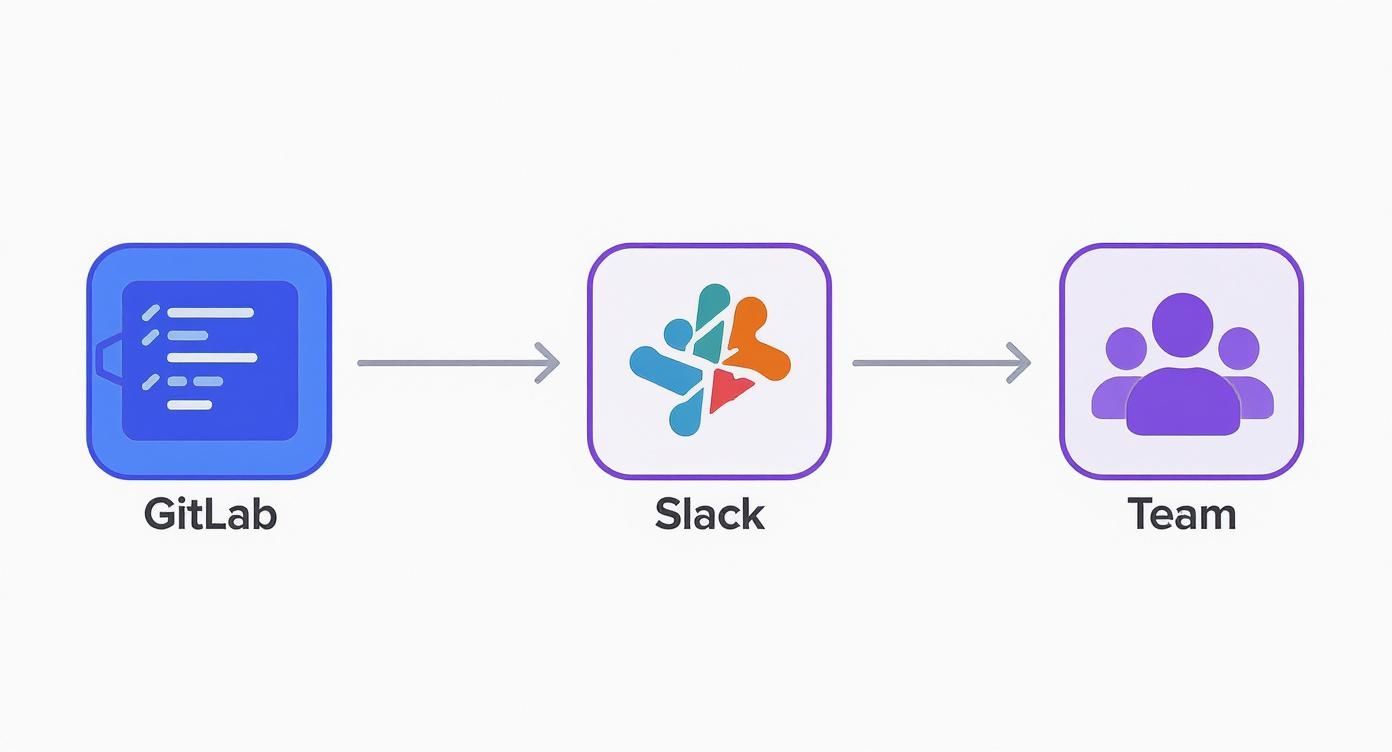
The visual drives home the main point: this integration pulls development events right into your team's main communication hub, dramatically shortening the feedback loop.
Enabling Key Events in GitLab
The last piece of the puzzle is handled inside your GitLab project settings. Go to your project, then find your way to Settings > Integrations and click on the Slack notifications service. This is where you’ll select the Slack workspace you just authorized and pick the channel you want notifications sent to.
This is also where you define what gets sent. You'll see a long list of trigger events, but the trick is to start with the ones that provide the most immediate value.
Pro Tip: Don't turn on every single notification at once. Start with a core set of events and add more as your team gets used to the flow. Flooding a channel with too many alerts is the fastest way to make sure they get ignored.
To get started, here is a breakdown of the most common and useful events to enable first for improved project visibility.
Core GitLab Events for Slack Notifications
| GitLab Event | Description | Primary Benefit |
|---|---|---|
| Push | Sends an alert for new commits pushed to the repository. | Keeps the team aware of code changes as they happen. |
| Issue | Notifies when new issues are created, updated, or closed. | Ensures bugs and tasks are addressed promptly. |
| Merge Request | Informs about new merge requests and status changes. | Speeds up the code review and merging process. |
| Pipeline | Provides real-time updates on CI/CD pipeline runs. | Instantly flags failed builds so they can be fixed fast. |
By carefully choosing these initial events, you'll create a high-signal, low-noise communication channel from day one. This makes your first GitLab and Slack integration an incredibly powerful addition to your team's workflow, not just another source of noise.
How to Customize Notifications and Reduce Noise
So, you've got your GitLab and Slack integration live. That first wave of real-time updates is exciting, but it doesn't take long for the novelty to wear off. Pretty soon, the constant pinging for every single push, comment, and pipeline run becomes a firehose of noise, and the important messages start getting lost in the shuffle.
The secret to a successful, long-term integration isn't just flipping the switch; it's about being a curator. You need to carefully prune the notifications your team receives. The goal is a high-signal, low-noise feed where every single alert is actually something you can act on. Let's ditch the chaotic, all-in-one channel and start routing information to dedicated spaces. This is how you turn your integration from a distraction into a genuine productivity booster.
Fine-Tuning Your Notification Triggers
Your first move should be to head right back into your GitLab project's settings. Navigate to Settings > Integrations > Slack notifications. This is your control panel. It’s time to get ruthless and uncheck the boxes for any event that doesn't demand immediate, team-wide attention.
Here are a couple of practical tweaks I've seen work wonders:
*   **Pipeline Status:** Instead of hearing about every single pipeline run, flip the switch to only notify you on **failed pipelines**. This is a game-changer. Your team is immediately alerted when something breaks and needs fixing, without their channel being spammed with success messages.
*   **Push Events:** Let's be honest, unfiltered push notifications are the worst. A great place to start is by restricting these alerts to only your most critical branches, like `main` or `develop`. That way, you're only getting a heads-up when changes are merged where it really counts.
By being this selective, you transform the channel from a raw, unfiltered log into a curated digest of what actually matters.
Usage data shows that configuring selective event notifications can reduce notification noise by up to 40%. That's a huge win for team focus and faster decision-making. You can explore more about these findings on how to properly configure your GitLab Slack integration.
Routing Alerts to Dedicated Channels
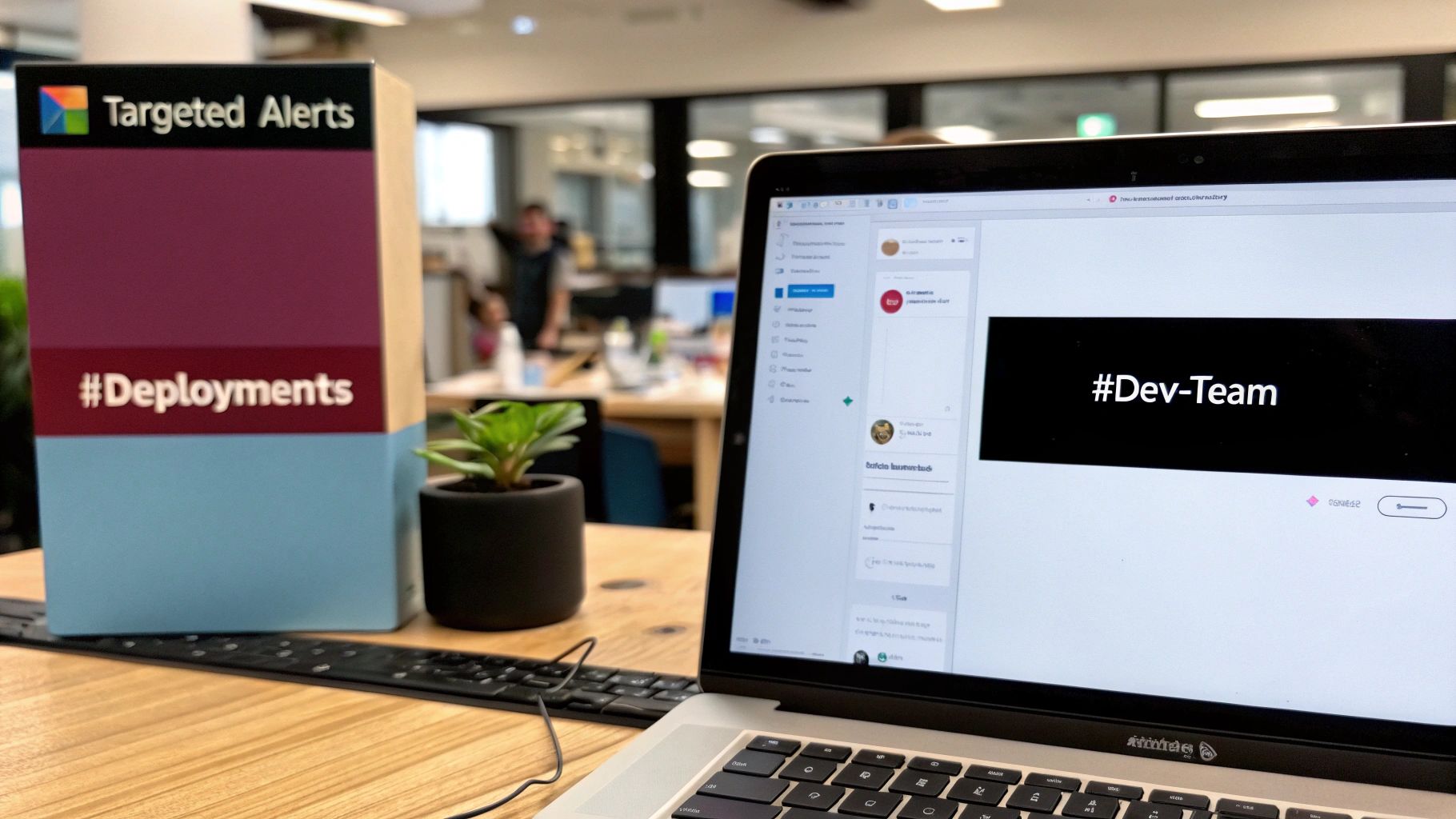
One of the most powerful strategies for cutting through the noise is sending different types of notifications to different Slack channels. It’s all about context. This routing ensures the right people see the right information without bothering everyone else. You can actually set up multiple instances of the integration for the same GitLab project to make this happen.
Let's walk through a real-world scenario:
- #deployments Channel: Set up one integration instance to send only pipeline status notifications here. This channel instantly becomes the single source of truth for build and deployment health, making it the perfect spot for on-call engineers or release managers to hang out.
- #dev-team-reviews Channel: Configure a second instance to route only merge request events to this channel. Now, all the code review discussions, approvals, and comments are neatly organized in one place, completely separate from the deployment chatter.
This multi-channel approach makes your GitLab and Slack integration infinitely more organized and effective. It's a common practice, especially on complex projects like monorepos, where notification management can quickly become a nightmare. If you're wrestling with a massive codebase, check out our guide on 7 tips for managing PR notifications in monorepos for some more advanced strategies. The bottom line is, when you tailor your setup like this, you ensure every single alert serves a clear purpose.
Turn Slack Into Your GitLab Command Center
Once you’ve dialed in your notifications for a high-signal environment, it's time to transform the GitLab and Slack integration into a true command center. This is where you graduate from passive alerts to actively managing your development workflow—all without leaving your chat window.
We're shifting Slack from a simple notification tool into an interactive hub for your entire DevOps process. That's where the real productivity gains kick in, helping you cut down on context switching and keep your team’s momentum flowing.

Unlocking Actions with Slash Commands
GitLab slash commands are your secret weapon here. These are simple, text-based commands that let you perform critical GitLab actions directly from any Slack channel. Think of it as turning your chat into a powerful control panel.
Instead of clicking through the GitLab UI, you can execute tasks in seconds. This is a lifesaver for actions that need to happen right now in response to a team conversation.
Imagine your team is discussing a new bug in a dedicated channel. Instead of someone needing to switch tabs, find the project, and create an issue, they can just type:
/gitlab [project-alias] issue create "Fix login button bug on mobile"
Boom. A new issue is instantly created in the right project, complete with the title you provided. This tiny action saves time and guarantees that important tasks discussed in Slack are immediately captured in GitLab. It's a simple but incredibly effective way to keep your workflow centered.
The real magic of slash commands is their ability to close the loop between discussion and action. A conversation about a feature can immediately lead to creating a merge request or deploying a change, all from the same interface.
A Practical Slash Command Cheat Sheet
Getting started with slash commands is easy once you know a few key moves. Here are some of the most impactful ones your team can start using today:
*   **Create an Issue:** `/gitlab [alias] issue new <title>` - Instantly captures bugs or tasks from a conversation.
*   **Search for Issues:** `/gitlab [alias] issue search <query>` - Quickly find and reference existing issues without leaving Slack.
*   **Deploy to an Environment:** `/gitlab [alias] deploy <from> to <to>` - Kick off a deployment—say, from `staging` to `production`—right after getting team approval in the channel.
These commands aren't just about convenience; they’re about maintaining focus and velocity. The principles are similar across different platforms. If you're curious about how other systems handle this, our guide on using GitHub Actions to send Slack notifications offers a great parallel perspective.
Going Further with Custom Scripts
For teams looking to squeeze even more out of their integration, custom scripts are the next logical step. By combining webhooks with a little bit of scripting, you can create highly specific, automated workflows tailored to your team's exact needs.
One of the most valuable custom integrations I've ever implemented is sending detailed CI/CD pipeline failure logs directly to a dedicated #dev-ops-alerts channel. When a pipeline breaks, a script can trigger, grab the last 100 lines of the log, format them, and post them right into Slack. This gives engineers immediate context on what went wrong without them needing to dig through GitLab.
This kind of advanced automation has a huge impact. In fact, DevOps teams that send full pipeline logs to Slack have reported a decrease in mean time to detection (MTTD) of pipeline errors by approximately 35%. That directly translates into faster recovery times and more efficient deployment cycles. By embracing these advanced features, you transform a simple notification system into a core part of your productivity toolkit.
Troubleshooting Common Integration Issues
Even with a flawless setup, your GitLab and Slack integration can hit a snag every now and then. A notification goes missing, a slash command spits out an error, or a new team member just can't get authenticated. Don't sweat it—these hiccups are usually simple to fix once you know where to look.
Most problems fall into just a few buckets, and with a methodical approach, you'll be back up and running in no time.
The first place I always check is the most obvious: permissions. If a single user can't perform an action, take a look at their roles in both GitLab and Slack. It's a simple step, but you'd be surprised how many integration headaches it solves.
Diagnosing Silent Failures
One of the most maddening issues is when your notifications just… stop. The integration looks like it’s active, but your designated channel is a ghost town. This "silent failure" usually points to a configuration change or a shift in permissions somewhere along the line.
Start your investigation inside GitLab. Head over to your project's Settings > Integrations and find the Slack notifications service.
*   **Is the Webhook URL still correct?** It's easy for these to get accidentally changed or deleted.
*   **What about the active triggers?** Make sure the events you care about, like **"Failed pipeline"** or **"Merge request"**, are still checked.
*   **Have you tried a test notification?** The "Test settings" button is your best friend here. Use it to see if a test message actually lands in your Slack channel.
If that test fails, the problem is likely with the connection itself—maybe an issue with the Slack workspace permissions or a bad webhook. But if the test succeeds while real events are still AWOL, then the issue is with the specific event triggers you've selected.
Resolving Authentication and Permission Errors
Authentication errors are more direct, but they can still be a bit confusing. A user might run a slash command and get hit with a "404 not found" or "permission denied" error. This is almost always a sign of a mismatch between their GitLab account permissions and what they're trying to do.
For example, a developer with the "Developer" role in GitLab who tries /gitlab [alias] deploy is going to see an error. Why? Because their role doesn't grant them the permissions needed to kick off a deployment.
The key takeaway is to treat your GitLab permissions as the single source of truth. The Slack integration respects your GitLab role-based access control (RBAC) completely. A user can never perform an action via Slack that they wouldn't be able to do directly in the GitLab UI.
Here's the Slack logo, representing the platform where these errors often first appear.
When you're troubleshooting, always start by checking the user's project or group role in GitLab. This one diagnostic step can clear up the vast majority of permission-related errors and keep your team's workflow humming along smoothly.
Common Questions About GitLab and Slack
Even with a solid guide, you're bound to have questions when you start tweaking a new workflow. Let's tackle some of the most common things people ask about the GitLab and Slack integration.
Can I Route Notifications to Different Channels?
Absolutely. This is honestly one of the best parts of the integration. You have granular control on a per-project basis, letting you decide exactly where specific alerts should land.
For example, you could have Project A send all its pipeline status updates to a dedicated #project-a-deploys channel. At the same time, Project B could route its merge request discussions and comments to #project-b-reviews. This kind of control is a lifesaver for keeping conversations organized and making sure notifications are always relevant to the people in the channel.
How Do GitLab Slash Commands Work?
Slash commands are slick little shortcuts that let you interact with GitLab without ever leaving Slack. Once you've authorized the app, you can fire off key actions just by typing a command into any channel.
For instance, typing /gitlab [project-alias] issue create <title> will instantly pop open a new issue in your specified GitLab project. These commands are a massive time-saver, cutting out the constant app-switching for routine tasks. It basically turns your chat window into an interactive command center for your entire dev workflow.
Can I Only Get Alerts for Failed Pipelines?
Yes, and I highly recommend it. This is one of the best ways to cut down on notification fatigue. Getting pinged for every single successful pipeline quickly turns into background noise, and your team will start tuning out important messages.
By filtering notifications to show only failures, you ensure that every alert is actionable. This small tweak transforms the channel from a simple activity log into a critical incident response tool, making each notification more meaningful and urgent.
Setting this up is easy. Just head over to your GitLab project's integration settings. From there, you can pick and choose which events trigger a notification. Simply uncheck the box for 'Successful pipeline' and make sure the 'Failed pipeline' option is still selected. Now, your team will only get an alert when something has gone wrong and needs their attention—a crucial step in optimizing any GitLab and Slack integration.
Tired of noisy, disorganized pull request notifications? PullNotifier cleans up the chaos by consolidating all your GitHub PR updates into a single, clean Slack thread. Reduce noise, speed up code reviews, and keep your team focused. Get started for free at PullNotifier.com.