- Published on
How to Auto-Assign Reviewers in GitHub: CODEOWNERS, Round Robin & Actions
- Authors

- Name
- Gabriel
- @gabriel__xyz
The 4 ways to auto-assign reviewers in GitHub
Automating GitHub code reviews saves time, ensures balanced workloads, and keeps your team organized. Here's how you can do it:
Use CODEOWNERS: Automatically assign reviewers based on file paths or extensions. Example:
/src/frontend/ @frontend-team
*.js @javascript-developers
Enable Team Auto-Assignment: GitHub's built-in feature distributes reviews evenly across team members using round robin or load balancing.
Set Up GitHub Actions: Create workflows to assign reviewers dynamically based on file changes, labels, or conditional rules.
Enable Slack Notifications: Tools like PullNotifier send pull request updates directly to Slack, ensuring timely responses. For the wider context on connecting these tools, see our complete guide to the github slack integration.
Why Automate?
- Faster Reviews: Cuts manual tasks and speeds up cycles.
- Balanced Workloads: Prevents reviewer burnout.
- Clear Accountability: Ensures ownership of code changes.
Quick Comparison
| Tool | Purpose | Key Features |
|---|---|---|
| CODEOWNERS | Static reviewer assignment | File-based rules for automatic assignment |
| Team Auto-Assignment | Even distribution within teams | Round robin or load balance modes |
| GitHub Actions | Dynamic reviewer assignment | Conditional rules based on file changes, labels |
| PullNotifier | Slack notifications for PRs | User mapping, channel-specific alerts |
GitHub: How to Auto-Request PR Reviews with Code Owners
The following video walks through setting up CODEOWNERS for automatic pull request review assignment in GitHub:
GitHub Review Request Basics
GitHub's review request system plays a crucial role in effective code reviews. As teams grow and codebases become more complex, manually selecting reviewers can become inefficient and error-prone. This is where automation steps in to simplify the process.
Repository administrators can configure specific review requirements, such as setting a minimum number of approvals. However, managing these requirements manually can lead to delays and inefficiencies. Automation helps by ensuring reviewer notifications are sent promptly and consistently.
Why Automate Reviewer Assignments
Automating reviewer assignments shifts the review process from a tedious manual task to a smoother, more efficient workflow. Teams that adopt automated reviewer assignment systems commonly report several key benefits:
- Faster Reviews: Automatic notifications help speed up review cycles.
- Balanced Workloads: Automation ensures reviews are distributed evenly, reducing the risk of burnout.
- Improved Oversight: Team leads can track review progress more easily and spot potential delays.
Here’s a quick look at the main benefits of automated reviewer assignment:
| Benefit | Impact |
|---|---|
| Time Savings | Removes the need for manual reviewer selection |
| Consistency | Ensures the right reviewers are assigned based on established rules |
| Team Efficiency | Cuts down on communication overhead and accelerates review timelines |
| Accountability | Keeps ownership and responsibilities for reviews clear and organized |
Setting Up CODEOWNERS
GitHub's CODEOWNERS feature helps automate reviewer assignments by mapping file paths in your repository to specific team members or groups. Once set up, it ensures the right people are automatically notified to review changes in their areas, reducing manual effort and improving coverage.
How to Set Up a CODEOWNERS File
Follow these steps to configure your CODEOWNERS file:
File Location Place the CODEOWNERS file in one of these locations. GitHub searches in this order and uses the first one it finds:
.github/CODEOWNERS(highest priority)- Root directory (
/CODEOWNERS) docs/CODEOWNERS
Structure Example
Define ownership rules using this format:/src/frontend/ @frontend-team *.js @javascript-developersVerify the Setup
Ensure the file:- Resides on your default branch
- Uses UTF-8 encoding
- Contains valid user or team names
- Is accessible to specified reviewers
Common CODEOWNERS Patterns
Here are examples of typical ownership patterns:
| Pattern Type | Example Rule | Purpose |
|---|---|---|
| Global Default | * @core-team | Assigns all files to core maintainers |
| Directory Specific | /api/ @backend-team | Routes API changes to backend developers |
| File Extension | *.css @ui-team | Directs CSS files to UI specialists |
| Nested Paths | **/tests/ @qa-team | Assigns test directories to the QA team |
| Multiple Owners | /security/ @security-team @compliance | Requires reviews from multiple teams |
Example: Here's what a typical CODEOWNERS file looks like for a project with separate compiler and documentation teams:
# Assign core team to compiler
/src/compiler/ @my-org/compiler-team
# Assign docs team to markdown files
*.md @my-org/docs-team
Tips for Effective Use
Understand Last-Match-Wins CODEOWNERS uses a last-match-wins rule — when multiple patterns match a file, only the last matching pattern in the file determines the owner. Place your most general rules at the top and more specific rules at the bottom:
# General fallback (first)
* @maintainers
# More specific overrides (last = wins)
/src/auth/ @security-team
If you reversed the order above,
@maintainerswould own everything including/src/auth/, because*would be the last match.Use Team-Based Assignments Assign entire areas to relevant teams:
/.github/workflows/ @devops-team
/docker/ @platform-engineering
Protect Critical Files Add stricter review requirements for sensitive files:
/config/ @senior-engineers
package.json @lead-developers
Pairing CODEOWNERS with branch protection rules ensures that no changes are merged without the necessary reviews and approvals. To enable this, go to your repository's Settings > Branches > Branch protection rules, then check Require a pull request before merging and Require review from Code Owners. This setup strengthens code quality and safeguards critical areas of your project.
GitHub's Built-in Team Auto-Assignment
Before reaching for GitHub Actions, consider GitHub's native auto-assignment feature for teams. This is a built-in setting that automatically assigns individual team members when the team is requested for review, distributing reviews evenly across the team.
To enable it:
- Go to your organization's Teams page and select the team.
- Click Settings > Code review.
- Enable Auto assignment and configure the number of reviewers to assign.
- Choose between Round robin (rotates through members) or Load balance (assigns to members with the fewest recent reviews).
This feature works well when you want even distribution within a team that's already assigned via CODEOWNERS. For example, if CODEOWNERS assigns @my-org/frontend-team to a PR, auto-assignment can automatically pick 2 individual members from that team rather than notifying everyone.
GitHub Actions for Reviewer Assignment
GitHub Actions takes automation a step further by offering advanced tools for managing reviewer assignments. While CODEOWNERS and team auto-assignment handle most common scenarios, GitHub Actions allows for more dynamic options like conditional rules based on file changes, labels, or PR size.
Setting Up a Workflow File
To create a workflow file, you'll need:
- Event triggers for pull requests
- Job configurations with the necessary permissions
- Steps that define how reviewers are assigned
Here's a basic example:
name: Assign Reviewers
on:
  pull_request:
    types: [opened, ready_for_review]

permissions:
  pull-requests: write

jobs:
  assign:
    runs-on: ubuntu-latest
    steps:
      - uses: hkusu/review-assign-action@v1
        with:
          reviewers: 'team-lead,senior-dev'
          max-num-of-reviewers: 2
This setup assigns up to two reviewers from the specified list. If you need more advanced rules, check out the example below.
Advanced Action Configuration
For more complex scenarios, here's an upgraded configuration that assigns different reviewers based on which files were changed:
name: Smart Review Assignment
on:
  pull_request:
    types: [opened, ready_for_review, labeled]

permissions:
  pull-requests: write

jobs:
  assign:
    runs-on: ubuntu-latest
    steps:
      - uses: actions/checkout@v4
        with:
          fetch-depth: 0

      - name: Check Changes
        id: changes
        run: |
          echo "frontend=$(git diff --name-only origin/${{ github.base_ref }}...HEAD | grep -c 'src/frontend' || true)" >> "$GITHUB_OUTPUT"
          echo "backend=$(git diff --name-only origin/${{ github.base_ref }}...HEAD | grep -c 'src/backend' || true)" >> "$GITHUB_OUTPUT"

      - name: Assign Frontend Reviewers
        if: steps.changes.outputs.frontend > 0
        uses: hkusu/review-assign-action@v1
        with:
          reviewers: ${{ vars.FRONTEND_REVIEWERS }}
          max-num-of-reviewers: 2
          bot-accounts: 'dependabot[bot],renovate-bot'

      - name: Assign Backend Reviewers
        if: steps.changes.outputs.backend > 0
        uses: hkusu/review-assign-action@v1
        with:
          reviewers: ${{ vars.BACKEND_REVIEWERS }}
          max-num-of-reviewers: 2
A few important notes about this workflow:
actions/checkoutwithfetch-depth: 0is required so the runner has the full git history needed forgit diffto compare branches.$GITHUB_OUTPUTis the current way to set step outputs in GitHub Actions (the older::set-outputsyntax was deprecated in 2022 and removed in 2023).|| trueprevents the step from failing whengrepfinds zero matches (which returns exit code 1).
| Feature | Purpose | Benefit |
|---|---|---|
| Change Detection | Identifies modified files | Assigns relevant reviewers |
| Bot Filtering | Skips automated PRs | Reduces unnecessary reviews |
| Team Variables | Uses pre-set configurations | Adds flexibility |
| Workload Limits | Caps reviewers per PR | Avoids overloading anyone |
Teams using automated reviewer assignment workflows have reported significant reductions in PR cycle times, with quick reviewer notifications and balanced workloads playing a big role in this improvement.
For urgent updates or security fixes, you can apply priority-based rules:
- name: Emergency Review Assignment
  if: contains(github.event.pull_request.labels.*.name, 'urgent')
  uses: hkusu/review-assign-action@v1
  with:
    reviewers: 'cto,security-lead'
Using PullNotifier for Review Management
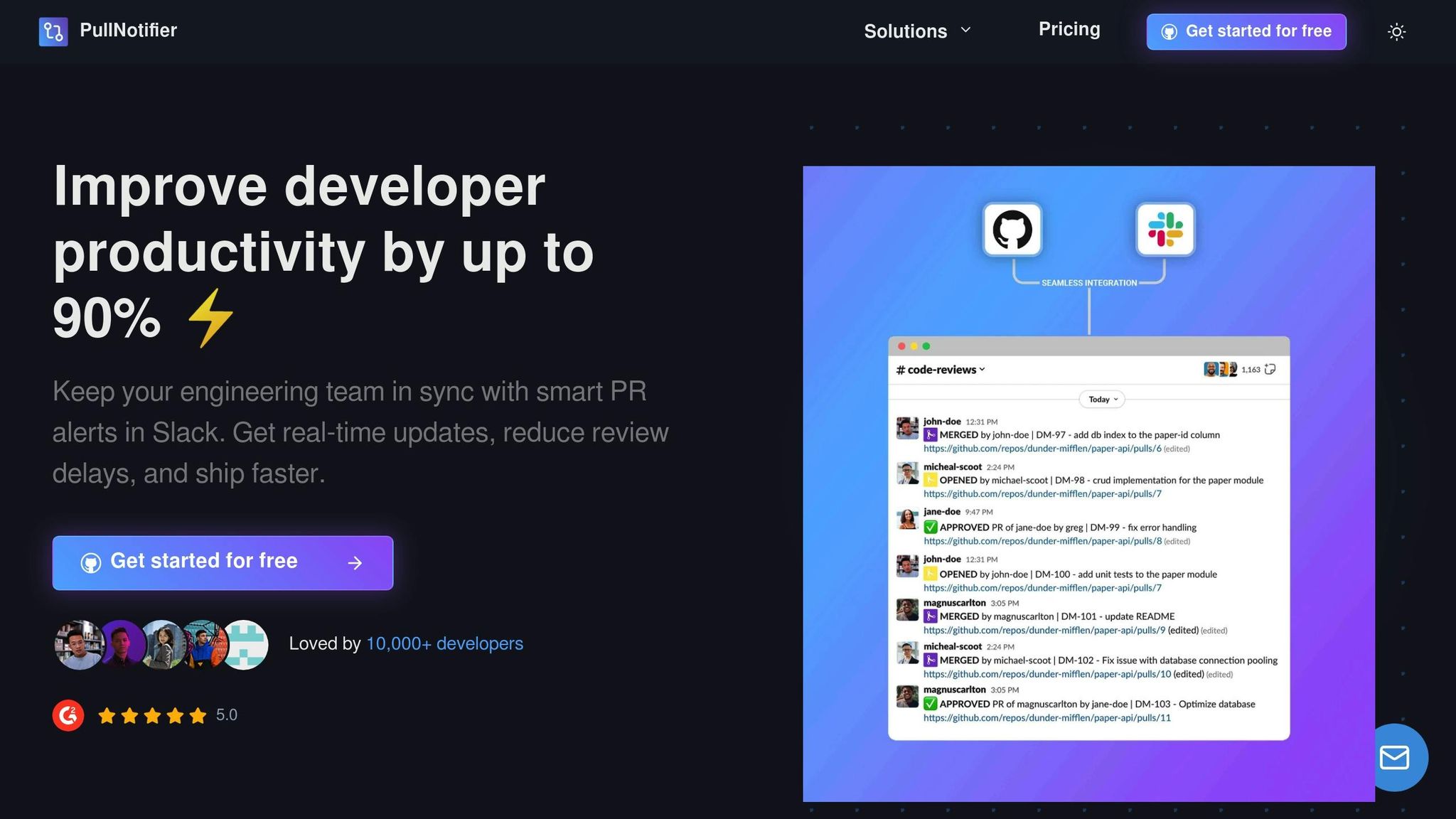
Clear communication in Slack is just as important as automated reviewer assignments. While GitHub Actions handles assigning reviewers, managing notifications effectively is key to keeping review workflows running smoothly. PullNotifier simplifies this by sending pull request notifications directly to Slack, ensuring teams stay informed without drowning in unnecessary messages.
This tool makes sure reviewers see requests promptly. PullNotifier’s notification system offers several useful features:
| Feature | Function | Benefit |
|---|---|---|
| Smart Routing | Sends PR notifications to specific channels | Cuts down on noise |
| User Mapping | Links GitHub users to Slack handles | Ensures timely alerts |
| Status Updates | Shares PR status directly in Slack messages | Keeps channels organized |
| Custom Rules | Filters notifications by labels or authors | Reaches the right people |
Here’s how to set it up:
- Initial Configuration
Start by linking your GitHub repositories to Slack through PullNotifier. - Channel Mapping
Assign specific repositories to Slack channels. This ensures that updates land in the correct channels, keeping communication organized - especially helpful for larger teams managing multiple projects. - User Association
Match GitHub usernames with Slack handles. This step guarantees that when reviewers are assigned through GitHub Actions, they’re notified quickly in Slack.
PullNotifier’s simple setup and smart notification features make it easier to manage reviews efficiently without overwhelming your team. A 2-week free trial is available to get started.
Reviewer Assignment Tips
Assigning reviewers effectively requires thoughtful planning and regular updates to keep workflows running smoothly as your team grows or changes. Here are some strategies to help you fine-tune automated assignments over time.
Managing Review Workload
Use tools like repository-to-channel mapping to streamline notifications. For instance, PullNotifier can link repositories to specific Slack channels, ensuring review alerts are well-organized and sent to the right people. Pair this with GitHub's team auto-assignment (set to Load balance mode) to keep workloads even and manageable.
Maintaining Assignment Rules
Keep your CODEOWNERS file up to date to reflect changes in team roles. As your project evolves, make adjustments to ownership patterns, file paths, and team members — removing inactive contributors and adding new hires promptly. Remember that CODEOWNERS uses last-match-wins ordering, so review the pattern order whenever you add new rules. PullNotifier also offers customizable rules to automate notifications based on PR labels, authors, or reviewers, making it easier to manage assignments.
Conclusion
Automating reviewer assignments simplifies GitHub code reviews by integrating CODEOWNERS, team auto-assignment, GitHub Actions, and PullNotifier. This setup ensures pull requests are routed to the right reviewers automatically while sending timely Slack notifications. The process reduces the need for manual intervention and helps maintain consistent code review quality.
Teams using these automated workflows consistently report better review visibility, more balanced workloads, and stronger collaboration. By removing the friction of manual reviewer selection and ensuring timely notifications, the entire development cycle becomes more efficient — from pull request creation to merge.
FAQs
How do I set up automated reviewer assignments in GitHub using CODEOWNERS and GitHub Actions?
To set up automated reviewer assignments in GitHub, start by creating a CODEOWNERS file in your repository. This file specifies individuals or teams responsible for reviewing changes to specific files or directories. Place the file in the .github/ directory (recommended), the root directory, or the docs/ directory of your repository.
Next, integrate GitHub Actions to automate the assignment process. Use workflows to trigger reviewer assignments based on events like pull request creation. For example, you can configure an action to automatically assign reviewers listed in the CODEOWNERS file whenever a pull request is opened or updated.
By combining CODEOWNERS and GitHub Actions, you can streamline your code review process, ensuring the right team members are notified promptly for faster and more efficient collaboration.
How can Slack notifications improve pull request reviews on GitHub?
Integrating PullNotifier with GitHub and Slack enhances your code review process by sending real-time pull request (PR) notifications directly to your team. This ensures everyone stays updated on PR statuses without being overwhelmed by excessive messages.
With timely and relevant notifications, teams can collaborate more efficiently, boost productivity, and speed up the code review process. PullNotifier simplifies tracking PRs, helping you focus on what matters most - writing and reviewing great code.
How can I use GitHub Actions to assign reviewers for urgent or complex pull requests?
To handle complex reviewer assignments, such as urgent security fixes, you can customize GitHub Actions workflows. By using conditions and triggers in your workflow YAML files, you can automate reviewer assignments based on specific criteria like labels, branch names, or file paths.
For example, you can configure a workflow to assign security team members when a pull request is labeled as security-fix. Pair this with the CODEOWNERS file to ensure the right reviewers are automatically added based on ownership of specific code areas. This setup streamlines the process and ensures critical fixes are reviewed promptly.
If you want real-time notifications for these assignments, tools like PullNotifier can help by sending updates directly to Slack, keeping your team informed without unnecessary noise.