- Published on
Integrate Slack with Bitbucket: Practical Guide to Notifications
- Authors

- Name
- Gabriel
- @gabriel__xyz
Connecting your Bitbucket repositories to Slack is a straightforward way to keep your team in the loop. You can use the official Bitbucket Cloud app for a direct, easy setup, or go with webhooks if you're on Bitbucket Server or Data Center. Either way, you're piping real-time updates on pull requests and commits right into your team's conversations, which is a huge step toward a faster, more transparent workflow.
Why Integrating Bitbucket and Slack Is a Game-Changer

When you link your code repository to your team's main communication channel, it's about more than just getting notifications. You’re creating a central, live feed of your entire development lifecycle. It’s a simple change that completely transforms how teams collaborate by tearing down the walls between code and conversation.
Eliminate Context Switching
Instead of developers constantly bouncing back to Bitbucket to check on a PR or see if a build passed, they get instant pings right where they're already working: Slack. This keeps everyone locked in and focused. The productivity boost is real, too. A survey from Slack and Atlassian found that a massive 96% of IT leaders saved at least two hours a week with these kinds of integrations.
That time adds up fast when you replace manual checks with automated updates on what really matters:
- Pull Request Approvals: Get a heads-up the second a PR gets the green light or needs changes.
- Build Statuses: See CI/CD pipeline results—pass or fail—as they happen.
- Merge Confirmations: Keep the whole team aligned when code hits a main branch.
By piping critical development events directly into your chat workflow, you create a more transparent and efficient engineering culture. This directly contributes to faster, higher-quality software delivery.
Accelerate Your Development Cycle
This connection keeps everyone, from engineers to project managers, on the same page. When a pull request is opened, for example, the right reviewers can be tagged immediately in a dedicated channel, kicking off the code review process without any delay.
Ultimately, this integration helps improve team communication and boost performance, which is essential for shipping better software, faster. For a broader look at how these tools fit into the bigger picture, it can be useful to see how other platforms handle Project Management in Jira.
To help you decide which path to take, here’s a quick breakdown of your options.
Bitbucket Integration Options at a Glance
A quick summary of the primary methods available for connecting Bitbucket to Slack, helping you choose the best path for your team's needs.
| Integration Method | Best For | Key Feature | Setup Complexity |
|---|---|---|---|
| Bitbucket Cloud App | Teams on Bitbucket Cloud looking for a quick, official integration. | Direct, out-of-the-box notifications for PRs, commits, and builds. | Low |
| Bitbucket Server Plugin | Teams on Bitbucket Server needing a managed, feature-rich solution. | Pre-built notification templates and channel management. | Low |
| Custom Webhooks | Teams on any Bitbucket version needing highly customized alerts. | Full control over payload and message formatting. | Medium |
| Third-Party Apps | Teams wanting advanced features like smart routing and message threading. | Consolidated, real-time updates and granular notification rules. | Low |
Each method has its place, depending on whether you're using Bitbucket Cloud or Server and how much control you want over the notifications.
Connecting Bitbucket Cloud With Slack The Official App
For teams on Bitbucket Cloud, the quickest way to get notifications flowing into Slack is with the official app built by Atlassian. It’s a clean, no-fuss solution designed to get repository updates into your channels with minimal effort. This approach lets you skip the manual setup of webhooks and gives you a simple interface managed entirely from within Slack.
Think of it as the "plug-and-play" option. You won't need to fiddle with JSON payloads or copy-paste webhook URLs. The app uses simple slash commands to handle authentication and channel subscriptions, making it easy enough for anyone on your team to set up.
Finding and Installing the App
Getting started is as simple as adding any other app to your Slack workspace.
- Head to the Slack App Directory from your Slack client. Just find the "Apps" section and search for "Bitbucket Cloud."
- Hit the "Add to Slack" button to kick off the authorization process.
- You'll be asked to grant the app permission to access your workspace. Give the requested scopes a quick review and approve them to finish the installation.
This initial step just connects the Bitbucket app to your Slack workspace. The next part is linking it to your actual Bitbucket account.
Here’s a look at the official Bitbucket Cloud app page in the Slack App Directory.
The page gives you a good overview of the app's core functions, like getting notifications and acting on pull requests right from Slack.
Authenticating Your Account
With the app installed, you need to connect your Bitbucket account. This is done with a quick command inside any Slack channel.
Just type /bitbucket login and hit enter.
The app will slide into your DMs with a private message containing an authorization link. Clicking it takes you to Bitbucket to approve the connection, which securely links your identity to the Slack app using OAuth.
This one-time authentication is a key security step. It ensures that only you can manage subscriptions for repositories you have access to, preventing anyone from setting up unauthorized notification feeds.
Subscribing Channels to Repositories
Once your account is linked, you can start telling Bitbucket which updates to send and where they should go. This is all managed on a per-channel basis.
First, you have to invite the app into the channel where you want the notifications. Just type /invite @Bitbucket.
Then, use the subscribe command to connect a repository: /bitbucket subscribe my-workspace/my-awesome-repo
This single command sets up a default subscription, pushing notifications for pull requests, commits, and build status changes from my-awesome-repo straight into that channel. You can repeat this to subscribe one channel to multiple repos or hook up different channels to the same one, creating dedicated feeds for specific projects.
The synergy between these platforms has genuinely reshaped how teams handle code reviews. In fact, Atlassian's apps have been shown to drive 69% faster software releases in remote settings, which really speaks to the efficiency you gain when developer alerts are baked into your daily communication tools. You can read more about how to integrate Bitbucket Cloud with Slack.
While this setup is great for Bitbucket, the same principles apply to other platforms. Our guide to Slack GitHub integration walks through a very similar process for GitHub users.
Integrating On-Premise Bitbucket Server And Data Center
If your team is running a self-managed instance of Bitbucket Server or Data Center, the integration path with Slack looks a little different than the Cloud version, but it's just as powerful. Instead of a direct app from the Slack directory, your go-to method will be incoming webhooks.
This approach gives you complete control over what information gets sent and exactly how it looks in your channels. You can also turn to third-party apps from the Atlassian Marketplace, which can simplify the process with pre-built features and slick user interfaces.
Using Slack Incoming Webhooks
The most direct way to get Bitbucket talking to Slack is with an incoming webhook. Think of a webhook as a unique, secure URL that Bitbucket can post messages to. When something happens in your repository—like a new comment on a pull request—Bitbucket sends a notification to that URL, and it instantly shows up in the right Slack channel.
Setting one up is surprisingly quick.
- In your Slack workspace, jump into the channel where you want the notifications to appear.
- Head to the channel's settings, click on Integrations, and find the Incoming WebHooks app.
- Click "Add to Slack," choose your channel, and Slack will generate a unique webhook URL for you to copy.
Once you have that URL, you're ready to tell Bitbucket where to send its updates. The general flow for connecting apps to get notifications is pretty standard.
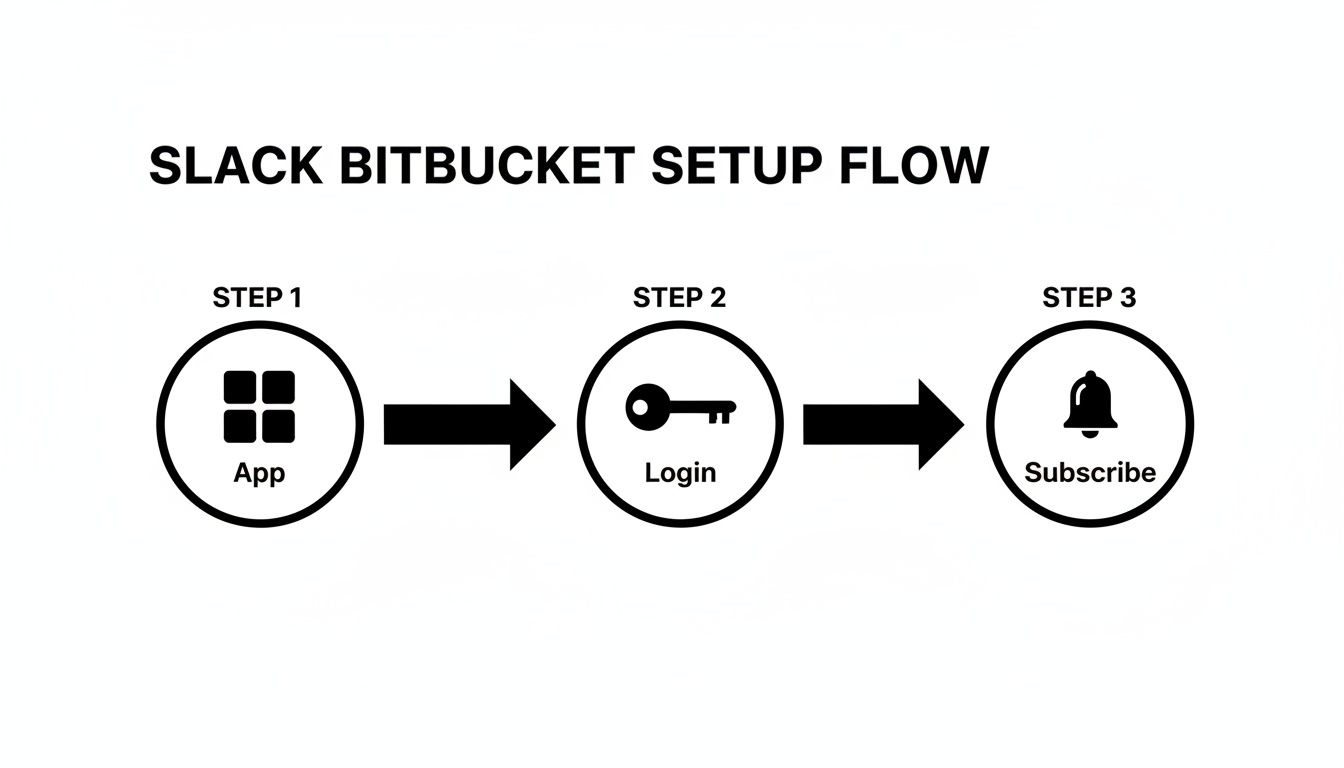
This visual breaks down the core steps: installing the app, handling authentication, and subscribing to a channel. It’s a common pattern you'll see with most integrations like this.
Configuring the Webhook in Bitbucket
With the webhook URL copied, pop over to your Bitbucket Server or Data Center instance. Find the repository you want to connect, then navigate to Repository settings and select Webhooks.
From there, click "Add webhook" and paste the Slack URL you just grabbed. This is also where the real magic happens—you get to define exactly which events should trigger a notification. You can get super specific, choosing triggers like:
- Pull request opened, commented, or merged: Perfect for keeping the code review cycle moving.
- Commit pushed: Instantly see when new code lands in a branch.
- Branch or tag created: Stay on top of changes to your repository's structure.
By carefully selecting these triggers, you can integrate Slack with Bitbucket to create valuable signals for your development team without flooding them with noise.
Treat your webhook URL like a password. Anyone who has it can post messages to your channel, so store it securely in Bitbucket's settings and never expose it in public code repositories.
Exploring Atlassian Marketplace Apps
If you'd rather not deal with manually crafting JSON payloads and prefer a more guided experience, the Atlassian Marketplace is full of apps designed for this exact purpose. These plugins often provide a friendly interface for setting up notifications right inside Bitbucket.
Popular options usually come with pre-formatted messages, sophisticated channel mapping based on projects or repositories, and much easier management for larger organizations. While webhooks give you maximum control, a marketplace app can get you up and running faster with a polished, feature-rich solution that handles all the heavy lifting for you.
Advanced Customization And Workflow Optimization

Getting basic notifications is just the start. The real magic happens when you integrate Slack with Bitbucket in a way that truly fits how your team works. This is about moving past the default pings and building a smart, context-aware system that actually cuts through the noise.
For example, you can set up sophisticated routing to get updates to the right people, every time. Imagine sending pull requests for the main branch to a #releases channel where project managers can see them, while all feature/* branch PRs go straight to a team-specific channel like #dev-team-alpha. This keeps conversations focused and ensures stakeholders only see what’s relevant.
Implementing Smart Notification Routing
Smart routing isn't about more notifications; it's about better ones. The goal is simple: deliver the right information to the right people at the right time.
You can pull this off by creating multiple, highly specific webhooks or by using apps that support conditional logic. This lets you build rules based on branch names, repository projects, or even keywords in a pull request title.
Here are a few practical examples:
- Release Branches: All activity on
release/*branches gets piped into the#qa-teamchannel, signaling that a build is ready for testing. - Bugfix Branches: Pull requests from
bugfix/*branches can alert a#support-engineeringchannel, keeping them in the loop on critical fixes. - Team-Specific Features: Work on a
feature/new-billing-apibranch could have its updates routed directly to the#backend-devschannel.
This level of filtering is absolutely essential for preventing notification fatigue. When every alert is relevant and actionable, your team pays closer attention. That leads to faster response times and a much smoother workflow.
Don't just take our word for it. Studies show that well-defined cross-team workflows have a massive effect, with 63% of users reporting a "very positive impact" on their productivity. In busy workspaces with over 100 integrations, smart routing becomes a necessity. We've seen real-world Data Center setups use pattern overrides like master->#bb-master,bugfix->#bb-bug-prs to channel PRs with precision and kill the noise.
Going Further With Third-Party Tools
While the built-in options are a great start, specialized third-party tools can take your workflow to a whole new level. Solutions like PullNotifier were built from the ground up to solve notification spam and improve the code review process.
When you bring in the right tool, following code review best practices becomes much easier, leading to higher-quality code and faster development cycles.
These tools offer advanced features that go way beyond what you get out of the box:
- Message Consolidation: Instead of getting a new notification for every single comment or commit, these tools smartly bundle updates into a single, clean message thread. No more channel spam.
- Automatic @Mentions: They can parse PR descriptions or review requests to automatically tag the correct reviewers, making sure no request ever gets lost in the shuffle.
- Deeper Analytics: Get real insights into your team’s code review velocity. You can finally spot bottlenecks and celebrate quick turnarounds with actual data.
For teams that want to completely master their communication stack, you could even build your own solution. Our guide on how to make a Slack app from scratch is a great place to start.
Troubleshooting Common Integration Problems
Even with the best setup, an integration can suddenly go quiet. You’re expecting a stream of pull request updates in your Slack channel, but all you get is silence. It’s a frustrating moment, but the fix is usually simpler than you think. More often than not, the culprit is a small permission or configuration mismatch between Bitbucket and Slack.
Before you dive deep, always start with the basics. Is the app or webhook still active? Did someone change a setting in the repository or the Slack channel? The answer is often just a few clicks away.
Notifications Not Showing Up
When your notifications just stop, it’s time to play detective. The connection between the two platforms can break for a handful of reasons, and your job is to retrace the steps to find the weak link.
For those using the official Bitbucket Cloud app, the solution is usually pretty straightforward.
- Check the Channel Invitation: This is the most common oversight. The Bitbucket app needs to be invited into the channel before it can post messages. Just type
/invite @Bitbucketin your target channel, and that often solves the problem instantly. - Verify Your Subscriptions: Run the
/bitbucket managecommand in the channel. This will show you a list of all active subscriptions. It's easy for a subscription to get accidentally removed or misconfigured, so this is a great way to confirm everything is as it should be.
If you’re using a webhook with Bitbucket Server or Data Center, your troubleshooting checklist is a bit different.
- Validate the Webhook URL: Go into your Bitbucket repository settings and make sure the webhook URL matches the one Slack generated exactly. A single typo can cause the connection to fail silently.
- Review Trigger Events: In Bitbucket’s webhook settings, you have to tell it which events to send. Double-check that the boxes for events like "Pull request: created" are actually ticked.
A great trick for testing a webhook is to use the "Test Connection" button right inside Bitbucket's webhook settings. It sends a sample notification to Slack, giving you immediate confirmation that the pipeline is open and working correctly.
Persistent Authentication Errors
Authentication problems tend to pop up either during the initial setup to integrate Slack with Bitbucket or when a security token eventually expires. If you're using the Bitbucket Cloud app and get slammed with an authorization error, the quickest fix is usually just to re-authenticate.
It's a simple two-step process. First, run /bitbucket logout in Slack, and then follow it up with /bitbucket login. This forces the app to generate a fresh authentication link, letting you re-establish a secure connection to your Bitbucket account. This little reset dance often clears up any token-related glitches that can happen over time.
For webhook-based setups, direct authentication isn't really a thing, since the connection relies on that secret URL. However, if your Bitbucket instance sits behind a corporate firewall, you need to make sure its outbound traffic can actually reach Slack's servers. A quick chat with your network admin to confirm no new firewall rules are blocking the connection can save you a massive headache. Keeping these access pathways clear is key to a smooth development workflow.
Answering Your Top Questions
When you start connecting Bitbucket and Slack, a few questions always pop up. Teams often wonder about sending alerts to private channels or how to keep the notification noise down. Getting these details right from the start makes a huge difference.
Let's walk through the most common scenarios we see, so you can get your integration dialed in perfectly and let your team focus on shipping code.
Can I Send Bitbucket Notifications To Private Slack Channels
Yes, and you absolutely should. Sending notifications to private channels is a common and smart way to keep team-specific work confidential. The setup is almost identical to a public channel, with just one small but critical extra step.
For the official Bitbucket Cloud app, you just need to invite the bot into your private channel first. Simply type /invite @Bitbucket in the channel. Once it's in, you can run the /bitbucket subscribe command just like you would anywhere else.
If you're using webhooks with Bitbucket Server or Data Center, the process is even more direct. Go into the private channel's settings in Slack, generate an incoming webhook URL, and paste it into your webhook configuration in Bitbucket. That's it. Since the connection is direct, as long as the URL is correct, your notifications will show up securely.
How Can I Reduce Notification Spam From The Integration
Taming the firehose of notifications is probably the most important thing you'll do. The goal is to create a high-signal feed, not a wall of noise that everyone learns to ignore. The key is being ruthless about which events trigger an alert.
The official Bitbucket Cloud app offers great control right from Slack with the /bitbucket manage command. This brings up a menu where you can check or uncheck specific events for each repository subscription. For example, a great starting point is to disable alerts for every single commit push but keep them on for pull request creations, comments, and merges.
For Bitbucket Server webhooks, you'll find this control in your repository settings right where you configure the webhook. You'll see a list of triggers—just pick the ones that are truly important for your team to see immediately.
A pro tip for fighting notification fatigue is to use a third-party tool. The best ones are designed to consolidate multiple updates into a single, clean message. Instead of five separate pings for five new PR comments, you get one updated notification. It keeps your channels scannable and actionable.
What Are The Security Implications Of This Integration
Security should always be top of mind, and thankfully, both methods are built with strong safeguards. The official Bitbucket Cloud app uses the OAuth 2.0 standard, which is the industry benchmark for secure authentication. When you install it, just make sure to review the permissions it requests so you know exactly what data it can access.
With webhooks, security boils down to one thing: the secrecy of your Slack Incoming Webhook URL. You have to treat this URL like a password or a private API key. Anyone who gets their hands on it can post messages to your channel.
Stick to these best practices and you'll be set:
- Store it securely in Bitbucket’s settings, never in your code.
- Never, ever commit it to a Git repository, public or private.
- Use different URLs for different channels to limit the blast radius if one ever gets exposed.
By following the principle of least privilege—only giving the integration the bare minimum permissions it needs to work—you can build a setup that’s both powerful and secure.
Tired of notification spam from the default Bitbucket integration? PullNotifier consolidates pull request updates into a single, clean Slack message, cutting through the noise and helping your team ship code faster. Start your free trial today and see the difference.