- Published on
Merge Master Into Branch A Modern Developer's Workflow
- Authors

- Name
- Gabriel
- @gabriel__xyz
Keeping your feature branch in sync with the master branch isn't just a Git chore—it's a critical workflow habit that prevents massive merge conflicts down the line. The process is simple: you pull the latest changes from master and integrate them directly into your working branch. Doing this ensures your new feature is always built on the most stable version of the codebase, saving you a ton of time and frustration later.
Why Merging From Master Is a Non-Negotiable Habit
Staring down a tangled mess of merge conflicts right before a deadline is a nightmare every developer wants to avoid. Regularly merging the master branch into your feature branch is your best defense against this exact scenario, often called "merge hell." But let's move beyond the textbook advice and look at why this is so critical in the real world.
Imagine a teammate just updated a shared API that your new feature depends on. If you delay merging from master, you're essentially building on top of outdated code. The integration bugs won't surface until you finally create your pull request, turning what should be a straightforward code review into a painful, last-minute debugging session.
Keeping Your Feature Branch Relevant
Think of this process as preventative maintenance for your code. It ensures your new work is always built upon the latest, most stable foundation. This proactive approach pays off in several ways:
*   **Smoother Integrations:** By frequently pulling in updates, you resolve tiny conflicts incrementally instead of tackling one giant, complicated conflict at the very end.
*   **Faster Code Reviews:** Your reviewers can focus purely on your feature's logic, knowing it's already been tested against the latest version of master.
*   **Fewer Surprises:** You eliminate the risk of discovering at the last minute that your feature is completely incompatible with recent changes made by others on the team.
Adopting a regular sync schedule transforms your workflow from reactive to proactive. You're no longer just putting out fires; you're preventing them from starting in the first place. This is the key to maintaining development momentum and avoiding those late-game roadblocks that can derail an entire sprint.
A disciplined merge strategy is a core part of any efficient and secure development workflow. It contributes to a more stable and reliable codebase, which is a cornerstone of robust Security in the Software Development Life Cycle. This habit is especially vital right before you start a major refactor or implement a complex new feature, as it gives you a clean and predictable starting point.
To help you decide when to sync up, here’s a quick reference for common situations where merging from master is a good idea.
When to Prioritize Merging From Master
A quick reference for common situations where syncing your feature branch with master is crucial for a stable workflow.
| Development Scenario | Why You Should Merge Now | Risk of Delaying the Merge |
|---|---|---|
| A core dependency or shared library was updated | Your feature might rely on the old version, leading to compatibility issues or bugs. | Your feature could break unexpectedly upon merging, requiring significant rework. |
| Your feature branch has been open for > 1-2 days | Master has likely received multiple updates. The longer you wait, the more your branches diverge. | A massive, complex merge conflict that is difficult and time-consuming to resolve. |
| Before starting a large or complex implementation | You need a stable, up-to-date foundation to avoid building on shifting ground. | Discovering halfway through that your new code is incompatible with recent changes, forcing a major refactor. |
| Your CI build fails on the pull request | The failure is often due to an incompatibility with the latest code in master that you haven't integrated yet. | Wasted CI/CD resources and delays in the review process while you debug an easily preventable integration issue. |
| A teammate merges a related feature | Their changes could directly impact the files you're working on, creating an immediate potential for logical conflicts. | Overwriting their logic or creating subtle bugs that automated tests might not catch. |
Staying on top of these scenarios helps you avoid the last-minute scramble and keeps your development process smooth and predictable.
A Practical Guide to Merging Locally
Alright, let's get our hands dirty with the local workflow. This is a battle-tested process you can rely on every single time you need to sync up your feature branch. We'll walk through the exact Git commands you'll use, but more importantly, I'll explain the why behind each one. The goal is to build your confidence so you're not just copying and pasting commands without understanding what they do.
The whole idea boils down to one simple concept: make sure your local machine knows about all the latest changes from the remote server before you try to combine them with your own work. This little bit of prep work is your best defense against merging old code and creating a mess of unnecessary conflicts.
Preparing Your Local Workspace
First things first, you need to pull the most current version of the master branch from your remote repository (like GitHub) down to your local computer. This guarantees you're merging against the absolute latest, stable code.
You'll start by hopping over to your local master branch.
git checkout master
Once you're on master, it's time to pull down the latest changes. The git pull command is actually a neat little shortcut for two other commands: git fetch (which downloads all the new stuff from the remote) and git merge (which integrates it).
git pull origin master
With that one command, your local master is now a perfect mirror of what's on the remote. Your local environment is officially up-to-date with all the recent commits from your teammates.
Performing the Merge into Your Feature Branch
Now that your local master is fresh and updated, you can switch back to your feature branch to do the actual merge. Let's imagine your branch is called feature/user-profile-update.
git checkout feature/user-profile-update
This next command is the main event. It's where you'll integrate all those recent changes from master right into your current branch.
git merge master
When you run this, Git creates a new "merge commit" that neatly ties the histories of both branches together. If there are no conflicting changes between your branch and master—which is often the case if you sync up regularly—the process will finish automatically. You'll see a quick summary of the merge right in your terminal.
For a deeper dive into the different merge strategies and commands at your disposal, you can check out our complete guide to merging GitHub branches.
This whole sync-up process is crucial because it turns potentially outdated code into a stable, integrated build, just like this diagram shows:
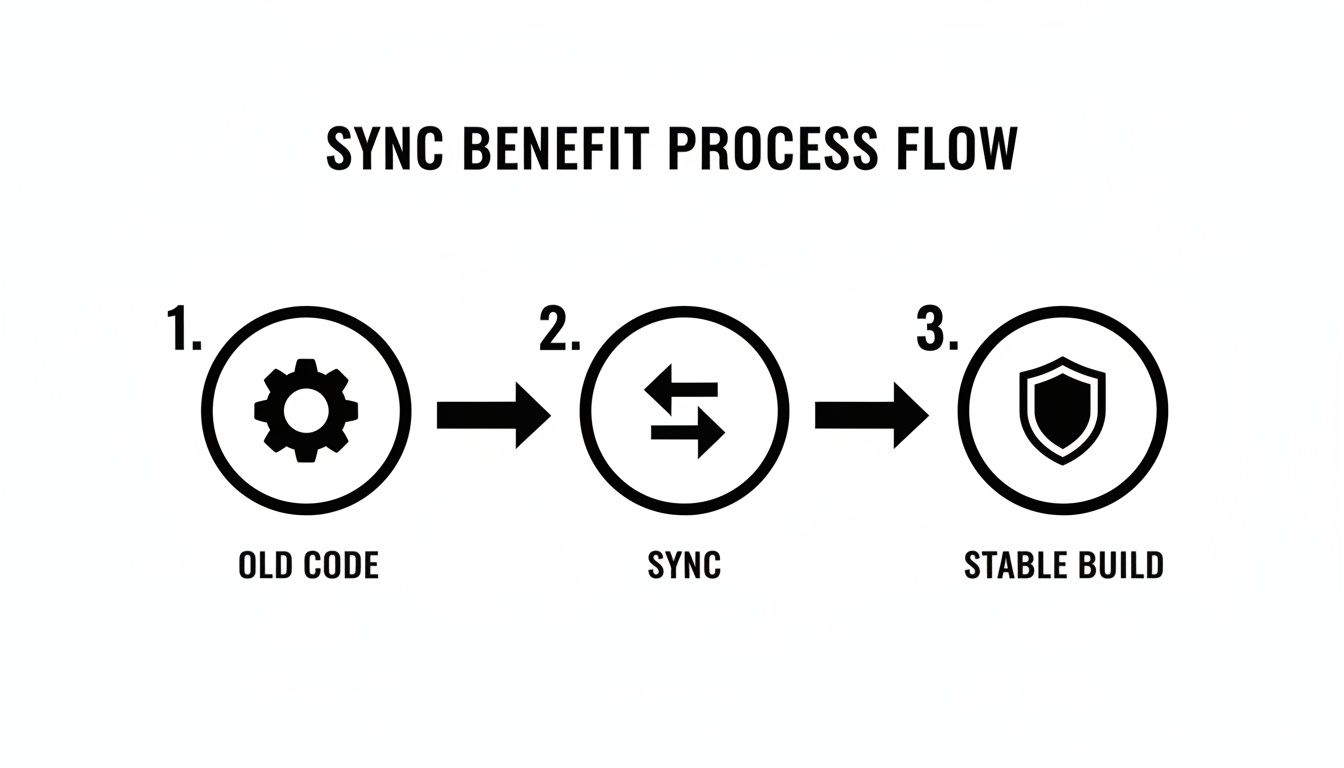
As you can see, the merge acts as a critical checkpoint. It ensures your new feature is being built on a solid, current foundation before you push it any further.
Verifying the Merge Was Successful
After the merge command finishes, it's always a good idea to quickly verify that everything went as planned. You don't have to spend a lot of time on this; a quick look at your commit history is usually enough.
I like to use the git log command with a couple of handy flags to get a clean, visual look at the branch history.
git log --graph --oneline --decorate
This command gives you a compact, graphical view of your recent commits. You should see a new merge commit sitting right at the top of the history, clearly showing where master was brought into your feature branch.
Pro Tip: If you ever find yourself in a nasty merge with a bunch of conflicts, don't panic. Git is designed to be safe. You can always bail out of a conflicted merge by running
git merge --abort. This command instantly returns your branch to the state it was in before you started, giving you a clean slate to figure things out.
Following these steps creates a safe and predictable routine for keeping your branches in sync. This process helps your feature branch stay current, dramatically reduces the risk of large, painful conflicts, and keeps your entire development workflow running smoothly.
Tackling Merge Conflicts Without the Panic
It’s a moment every developer knows. You run git merge master, and instead of a clean success message, your terminal lights up with a dreaded CONFLICT warning. Don't panic. This isn't a failure; it's just Git telling you it needs your human brain to make a decision.
Merge conflicts happen when Git can't automatically figure out how to combine changes. This is super common when you and another developer have edited the same lines in the same file on different branches. Git is smart, but it won’t guess which change should win.
Instead, it pauses the merge and drops special markers right into the conflicted files. Seeing these markers—<<<<<<<, =======, >>>>>>>—can be jarring, but they’re actually a roadmap to the problem.
Decoding Conflict Markers
Understanding these markers is the first step to resolving any conflict calmly. They create distinct blocks in your code, showing you exactly what went wrong and where.
*   `<<<<<<< HEAD`: This marks the start of the conflicting lines from **your current branch** (the one you're merging *into*). `HEAD` always points to the latest commit on your local branch.
*   `=======`: This is the separator. It divides the changes from your branch (above) and the changes from the branch you're merging in (below).
*   `>>>>>>> master`: This marks the end of the conflicting lines from the **`master` branch** (or whatever branch you’re pulling in).
Git is essentially showing you two versions of the same code block, side-by-side. Your job is to look at both, decide what the final version should look like, and then get rid of the markers.
Making the Right Decision
Let’s say you and a teammate both tweaked a function in a utils.js file. Your version added a new parameter, while their version, now on master, refactored the function's internal logic.
When you merge master into your branch, the conflict might look something like this:
<<<<<<< HEAD
function calculateTotal(items, discount) {
  // Your new logic with a discount parameter
}
=======
function calculateTotal(items) {
  // Teammate's refactored logic without the discount
}
>>>>>>> master
The right move here isn't to just pick one version over the other. The real solution is to manually combine the best of both worlds. You'd edit the file to create a single, correct function that includes your new discount parameter and their refactored logic, then delete all the <<<<<<<, =======, and >>>>>>> lines.
The goal of conflict resolution isn't to choose a winner; it's to synthesize the work from both branches into a single, cohesive piece of code that functions correctly.
Finalizing the Resolution
Once you’ve edited the conflicted files and you're happy with the result, you need to tell Git that you’ve fixed it. This is a critical two-step process that trips up a lot of developers.
First, you have to stage the resolved file. This signals to Git that the conflict is handled.
git add <path/to/resolved/file.js>
After staging all the files you fixed, you finalize the merge with a commit. Git often pre-populates a helpful commit message for you, like "Merge branch 'master' into feature/user-profile-update".
git commit
You can just save this default message and move on. With that, the merge is complete, the conflict is history, and your branch is up to date. For a deeper dive, our practical guide to resolving conflicts in Git covers more complex scenarios and pro tips.
Updating Your Remote Branch and Pull Request
Your local branch is now perfectly in sync with master, holding both your new feature and all the latest updates from the team. That's a huge milestone, but the job isn't done until you share those changes. The final step is to push your updated branch to the remote repository, which also cleverly updates any associated pull request.
This isn’t just a formality; it’s a critical communication signal. Pushing your updated branch tells your team—and more importantly, your automated CI/CD pipeline—that your code is now built on the most current foundation. It’s a proactive step that ensures all the automated checks, like unit and integration tests, run against a version of the code that truly reflects how it will behave once it lands in master.
Triggering CI Checks and Informing Reviewers
With your freshly updated branch ready to go, a simple push command is all you need.
git push
Because your local branch was already tracking its remote counterpart, Git knows exactly where to send the updates. If this were the first time you were pushing this branch, you'd need to be more explicit with git push -u origin <your-branch-name>, but for any subsequent push, the shorter command works just fine.
The moment you push, platforms like GitHub or GitLab automatically detect the new commits. If you have a pull request open for this branch, it instantly refreshes to include the merge commit along with all the recent changes from master.
This automatic update is a massive win for team collaboration. Reviewers can immediately see the most current code diff, and any previous review comments are preserved. It signals that your branch is healthy, up-to-date, and ready for a final look.
This entire process is a fundamental part of a healthy GitHub pull request workflow, keeping the entire team aligned and the codebase stable.
The Value of an Up-to-Date Pull Request
Keeping your pull request synced with master is one of the single best habits you can adopt to prevent nasty integration bugs. When your CI pipeline runs tests on a branch that already includes the latest master changes, you can catch potential conflicts or broken dependencies before your code ever gets merged. This saves everyone time and helps avoid those last-minute fire drills.
This workflow demonstrates a real commitment to code quality and makes the whole review process much smoother for everyone involved. For those new to this part of the development cycle, learning how to properly manage these requests is essential. There are some excellent visual guides out there on how to create compelling pull requests that clearly communicate your changes. By following this practice, you're not just updating code; you're building trust and ensuring a more stable, predictable release process.
Choosing Between Merge and Rebase
So, you need to pull the latest changes from master into your feature branch. This brings you to one of Git's classic crossroads: should you merge or rebase? Both get the job done, but they take fundamentally different paths and leave you with very different project histories. Picking the right one for your team's workflow is crucial.
The most direct route is git merge. When you merge master into your branch, Git creates a brand new "merge commit" that neatly ties the two histories together.
This approach is non-destructive, meaning your original branch history stays exactly as it happened. The commit graph will clearly show the point where your feature branch split off from master and where it rejoined, creating a complete and honest record of development.
The Case for a Clean History with Rebase
Then there's git rebase. Instead of creating that extra merge commit, rebasing essentially lifts all the commits from your feature branch and replays them, one by one, on top of the latest commit from master.
The result is a perfectly linear and much cleaner commit history. It makes it look like you started your work fresh from the most recent version of master, which can make the project's timeline a lot easier to read.
But that clean history comes with a catch. Rebasing rewrites commit history by creating new commits for each of your original ones. This is a destructive action and can get messy fast, especially if you're on a branch that other developers have already pulled. If you rebase a shared branch, you'll create a divergent history that can cause some serious headaches for your teammates.
As a rule of thumb, never rebase a public or shared branch that other developers are working on. Rebase is best kept for your own local branches before you open a pull request.
Ultimately, the best choice comes down to your team's conventions. Many teams value the explicit and traceable history that git merge offers, using the merge commit as a clear audit point. Others prioritize a clean, linear history and adopt a rebase-first workflow. When you merge master into a branch, the most important thing is that everyone on the team is on the same page.
To help you decide, here's a quick side-by-side look.
Git Merge vs Git Rebase: A Practical Comparison
When it comes to getting master's changes into your branch, merge and rebase are your two main options. They both achieve the same goal, but the way they manipulate your Git history has significant implications for collaboration and traceability. The table below breaks down the core differences to help you choose the right tool for the job.
| Aspect | Git Merge | Git Rebase |
|---|---|---|
| History | Preserves the full, non-linear history with an explicit merge commit. | Creates a clean, linear history by replaying commits. |
| Safety | Safe to use on public, shared branches as it doesn't change existing commits. | Risky on shared branches as it rewrites commit history. |
| Traceability | The merge commit provides a clear audit trail of when the branches were synced. | Can make it harder to see when upstream changes were incorporated. |
| Best For | Collaborative environments where a clear, unaltered history is valued. | Individual feature branches before a PR to maintain a clean project history. |
The "merge vs. rebase" debate isn't about finding one right answer; it's about understanding the trade-offs. Always stick to your team's established guidelines. If you don't have any, it's a great time to have a conversation about which approach best fits your project's needs.
Managing PR Noise After a Merge

Keeping your feature branch in sync with master is a fantastic habit. It means your pull request is always built on the latest foundation, which makes code reviews way smoother and helps you dodge those nasty last-minute integration surprises. But this good practice often comes with an annoying side effect: notification fatigue.
Every single time you git push your updated branch, the default integrations between GitHub and Slack tend to fire off a brand-new, separate notification. While the intention is good, this constant stream of alerts for routine syncs can quickly flood team channels. Pretty soon, critical conversations about code reviews or urgent bugs get buried.
This "PR noise" is more than just a minor distraction. It breaks everyone's focus and, even worse, trains the team to start ignoring channel notifications altogether.
The Problem with Default Integrations
The standard GitHub-to-Slack apps are great for broadcasting major PR events—think new comments, review requests, and approvals. The trouble starts when they treat every single push event with the exact same level of importance. When you responsibly merge master into a branch and push the update, the notification looks identical to one announcing a major code change.
This lack of context creates a chaotic environment where the important signals get lost. Your teammates have no way to tell the difference between a routine sync-up and a push that contains new logic needing their immediate attention.
A Smarter Approach to PR Updates
A much better way to handle this is by using tools designed to actually understand the context of PR activity. Instead of blasting out a new message for every single push, these tools can intelligently update a single, existing thread for the pull request.
Here’s how that completely changes the workflow:
*   **Initial PR:** When the pull request is first opened, a new message is posted in the channel.
*   **Subsequent Pushes:** Every `git push` that follows—including those after a merge from master—simply updates that original message. This usually just looks like a subtle edit or a small, threaded reply.
*   **Reduced Noise:** Team members can see the PR is active and up-to-date without getting a fresh, unread notification for a simple sync.
This method keeps everyone in the loop that the branch is current without creating a ton of unnecessary distractions. The main PR conversation stays clean and focused, helping everyone concentrate on what truly matters: reviewing and shipping code.
This focused approach also helps improve key development metrics. When notifications are clear and actionable, teams can reduce bottlenecks and boost their overall code velocity. Tracking metrics like review cycles and time-to-merge becomes far more meaningful when you filter out the noise from routine updates. You can find a deeper dive into general pull request metrics and tracking to see just how much a streamlined process can impact team performance. By managing notifications this way, you’re not just cleaning up a Slack channel; you’re building a more efficient and focused engineering culture.
Stop drowning in pull request notifications. PullNotifier delivers concise, real-time PR updates in Slack without the noise. Cut through the clutter and get your team focused on what matters. Get started for free today at pullnotifier.com.