- Published on
A Developer's Guide to GitHub Pull and Merge
- Authors

- Name
- Gabriel
- @gabriel__xyz
The GitHub pull and merge workflow is the backbone of how teams build software together. At its core, the process is simple: you pull the latest updates from a shared repository, then propose your own changes to be merged into the main codebase. This creates a safe, organized cycle for everyone involved.
The Foundation of Team Coding: Pull and Merge Explained
Think of the main branch as the official, gold-standard version of your project. You don't want just anyone making direct changes to it—that’s a recipe for disaster, introducing bugs or half-finished features into your stable code. The pull and merge process acts as a critical safety net.
This whole workflow is built around the concept of a Pull Request (PR). A PR is exactly what it sounds like: a formal request to merge your code into another branch. It’s a deliberate pause that allows your team to review, discuss, and approve changes before they go live.
This separation lets developers work on features or bug fixes in their own isolated spaces, known as branches. Once the work is done, the PR kicks off a conversation. This organized approach is absolutely essential for maintaining code quality, especially as a project grows.
The Core Purpose of Pull Requests
At its heart, the pull and merge system is all about communication and quality control. It turns the code review process into something transparent and trackable. No more mysterious code appearing in the main branch; every single change is now documented, debated, and signed off on.
This structured approach brings some major wins for any development team:
*   **Code Quality Assurance:** It gives senior developers and peers a chance to review code, spot potential errors, suggest improvements, and make sure everything aligns with project standards before it’s merged.
*   **Parallel Development:** Multiple features can be developed at the same time in separate branches, so no one is stepping on anyone else's toes.
*   **Conflict Prevention:** By keeping changes isolated, you can spot and fix potential merge conflicts in a controlled way, rather than breaking the main branch for everyone.
*   **Knowledge Sharing:** PRs are fantastic learning tools. Junior developers get valuable feedback, and the entire team gains insight into the "why" behind new code.
The whole pull and merge process is a cycle that protects the main codebase while still encouraging everyone to contribute. It's a fundamental concept that keeps collaborative projects moving forward smoothly.
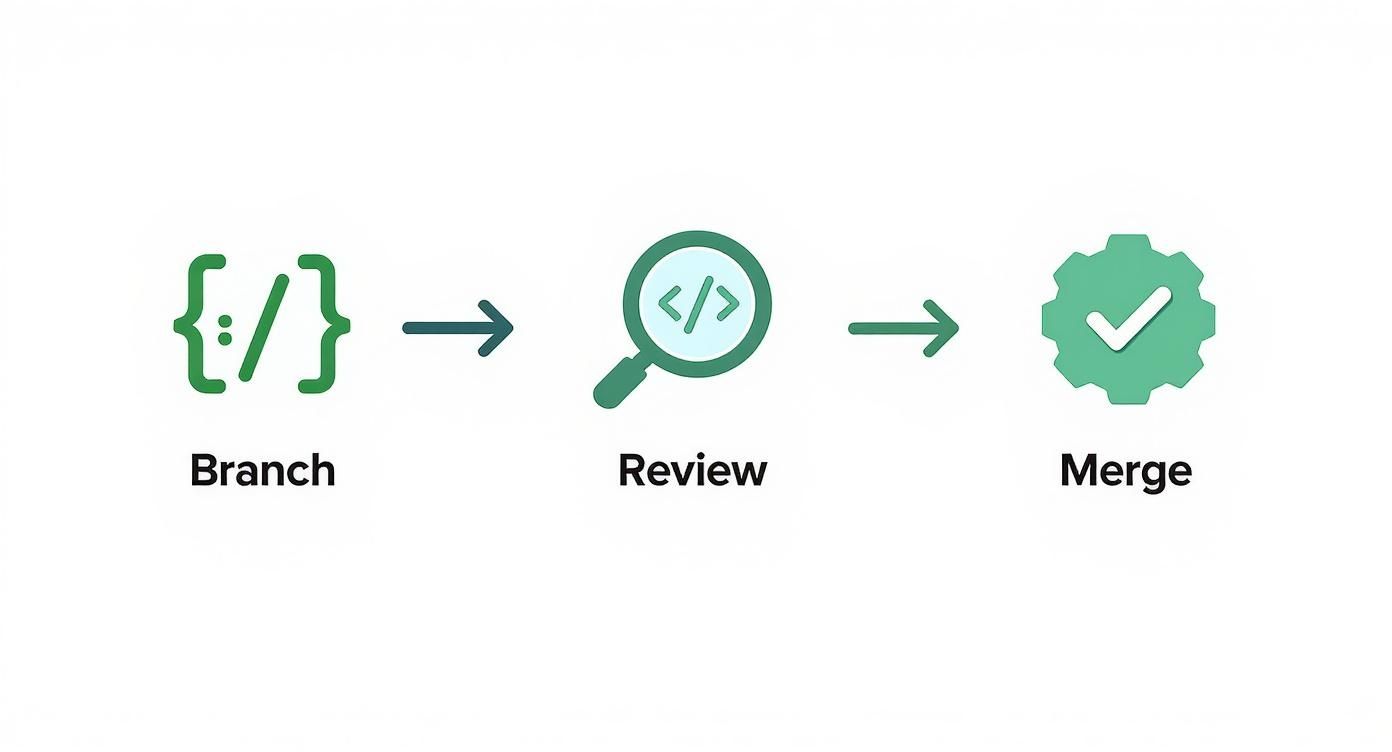
To help you get a feel for the rhythm of this workflow, here's a quick look at the key stages involved in a typical pull request lifecycle.
Core Stages of the Pull Request Lifecycle
| Stage | Objective | Primary Action |
|---|---|---|
| Branch Creation | Isolate changes from the main codebase. | Create a new branch from the main branch. |
| Development | Implement a new feature or fix a bug. | Commit code changes to the new branch. |
| Pull Request | Propose changes for review and merging. | Open a pull request targeting the main branch. |
| Code Review | Ensure code quality and adherence to standards. | Team members review the code and provide feedback. |
| Integration | Merge the approved changes into the main codebase. | The pull request is merged, and the branch is deleted. |
Mastering these stages is the first step toward effective collaboration. And if you're curious about how this terminology stacks up against other platforms like GitLab, check out our guide on the differences between a pull request vs merge request. Having this foundational knowledge down is key to mastering collaborative coding.
Managing Pull Requests Through the GitHub UI
If you’re not living in the command line, the GitHub website is likely your home base for handling pull requests and merging code. It’s a visual workflow that keeps things simple with clear buttons and all the context you need right on the screen.
You'll get started by heading to the Pull Requests tab in your repository. From there, you can kick off a new PR by selecting the branch you want to merge.
Kicking Off an Effective Pull Request
A good pull request starts with a clear title that gets straight to the point. What did you change? Follow that up with a descriptive body, maybe with a few screenshots or code snippets, to give reviewers a head start.
For instance, our ecommerce team started adding sample data tables to their PR descriptions. It sounds simple, but it saved them around 10 minutes per review because everyone knew exactly what to look for before diving into the code.
Here's what a solid PR needs:
*   **A title** that explains the scope and impact without any jargon.
*   **A description** that provides context and walks through any key decisions.
*   **A screenshot or diff** to visually show UI or code changes.
Making Sense of CI/CD Checks
Whenever a pull request is opened, GitHub automatically runs your continuous integration (CI) checks and flags them as passing or failing. These statuses are your first line of defense against merging broken code.
"Unresolved checks block merges and keep the main branch stable."
When a check fails, don't just ignore it. Expand the details to see the logs and error lines. This lets you pinpoint and fix issues directly within the GitHub UI, saving you from constantly switching between different tools.
Here’s a look at the Pull Requests dashboard, where all this information comes together.

This view gives you a quick snapshot of what needs your attention—from pending reviews and merge conflicts to the status of your CI checks.
Picking the Right Merge Option
GitHub gives you three ways to merge a pull request: Merge commit, Squash and merge, and Rebase and merge. Each one has its place, depending on whether you value a detailed history or a clean, linear timeline.
- Merge commit: This keeps every single commit from your branch and adds a merge commit on top. It’s great for audit trails where you need to see the full history.
- Squash and merge: This one bundles all of your changes into a single commit on the main branch. It’s perfect for small fixes or UI tweaks where the individual commit messages aren’t that important.
- Rebase and merge: This replays your commits on top of the base branch, creating a clean, linear history without any merge commits.
Many teams mix and match these strategies. We often use squash for small feature branches to keep the main history tidy, but we’ll use a regular merge commit for larger, more complex features.
And if you want to get reviews done faster, check out our guide on how to start automatically assigning reviewers in GitHub.
Responding to Review Feedback
When a reviewer leaves a comment, respond directly inline to keep the conversation in context. Once you’ve addressed their point, hit the Resolve Conversation button. This is a great way to signal that the feedback has been handled and keeps the PR from getting cluttered.
A few tips from experience:
*   Don't dismiss feedback too quickly. Take a moment to think through any potential edge cases you might have missed.
*   Tag the original reviewer if you need clarification or want them to take another look.
*   Once you've pushed your changes, add a summary comment to let everyone know what you did.
Building a team habit of quick, thorough reviews can drastically shrink your PR queue and keep projects moving. Our team managed to cut review cycles by 40% just by blocking off thirty minutes every day specifically for PR feedback.
This UI-centric approach works wonders for many teams. When you pair it with PullNotifier, you get real-time Slack alerts for every PR update and merge event, so you never miss a review request or merge confirmation again.
Using the Command Line for Efficient Workflows
While the GitHub UI is great for getting a visual feel for things, many seasoned developers live in the command line. It’s faster, more direct, and once you get the hang of it, you’ll find it integrates seamlessly into your coding rhythm, keeping your hands right on the keyboard.
This isn’t just about shaving off a few seconds; it’s about control and the power to script your workflow. When you master the CLI for your GitHub pull and merge process, you can automate those repetitive tasks and get back to what you do best: building great software.
It all starts with a simple habit: keeping your local environment in sync with the remote repository.
Syncing Your Local Branch
Before you write a single line of new code, make sure your local main branch is up-to-date. This one small step will save you from a world of merge conflicts down the road. Trust me.
It's a quick two-step dance:
git checkout maingit pull origin main
The git pull command is your best friend here. It’s basically a shortcut for git fetch (which grabs the latest changes from the remote) followed by git merge (which integrates them). It’s the most efficient way to get your local workspace current.
Pro Tip: Keep your local branch list clean by telling Git to automatically prune stale branches during a fetch. Run
git config --global fetch.prune trueonce, and it will tidy up local references to branches that have been deleted on the remote. No more clutter.
Once main is fresh, you're ready to create a new feature branch and start coding.
Creating a Pull Request from the Terminal
Okay, so you've committed your brilliant changes with git commit -m "Your descriptive message". Now it’s time to push them to the remote repository. Modern Git makes this dead simple.
Just run git push --set-upstream origin your-feature-branch-name. This command does more than just push your code; it also creates a tracking connection between your local branch and its new remote counterpart.
Now for the magic. Instead of clicking around the GitHub website, you can use the official GitHub CLI. It's a fantastic tool that brings GitHub right into your terminal. To open a new pull request, just type:
gh pr create
The CLI will then walk you through a few prompts for a title, body, and reviewers. For developers who are already in the terminal, this is way faster than context-switching to a browser. You can even script it completely with flags like gh pr create --title "Fix login bug" --body "Detailed description." for maximum efficiency.
Reviewing and Merging a Colleague's PR
The CLI is also a champ when it comes to reviewing a teammate’s work. Let’s say your colleague just opened pull request #123 and you need to test it locally. No need to mess around with adding their remote or figuring out the branch name.
The GitHub CLI handles it all with one command:
gh pr checkout 123
This fetches the PR and checks it out into a new local branch, letting you run tests, poke around the code, and verify everything on your own machine. It's incredibly slick.
Once you’re satisfied and all the checks have passed, you can approve and merge the pull request without ever leaving your terminal. Just use the gh pr merge command, and you've completed the entire github pull and merge cycle from the command line.
Adopting Best Practices for Smooth Collaboration
An effective github pull and merge process is about more than just typing the right commands; it’s really built on a foundation of clear communication and shared team standards. I've seen firsthand that high-performing teams treat a pull request as a conversation starter. The quality of that conversation ultimately dictates the speed and quality of the final merge.
It all begins with treating every pull request like a well-written email to your future self and your colleagues. Start with a clear, concise title. Instead of something vague like "Fix bug," try a title that gives immediate context, like "Fix: User Logout Fails on Safari." Right away, your reviewers know what they’re looking at.
This level of clarity needs to carry over into the PR description. You have to explain the "why" behind your changes. A solid template I've seen work well usually includes:
*   A quick summary of the problem you're solving.
*   A clear description of your solution.
*   Screenshots or GIFs for any UI changes (this is a lifesaver for frontend work).
*   A link to the relevant ticket in your project management tool.
Creating Small and Focused Pull Requests
If there's one habit that will immediately improve your team's workflow, it's creating small, atomic pull requests. Let's be honest, no one wants to review a PR with 1,000 lines of code. It's intimidating, and it's nearly impossible to review thoroughly. A PR with under 100 lines, on the other hand, is much easier to digest, which naturally leads to faster and more meaningful feedback.
This approach also makes rollbacks way less painful. If a small, focused change introduces a bug, it’s far easier to pinpoint and revert than a massive PR that touches multiple parts of the codebase.
The sheer scale of collaboration on platforms like GitHub highlights why this is so critical. In 2022 alone, developers made over 3.5 billion contributions to projects. With that much activity, clear and concise PRs are the only way to keep projects moving forward.
Giving and Receiving Constructive Feedback
The code review phase is where the real magic of collaboration happens. When you're providing feedback, the goal should always be to improve the code, not to criticize the author. I've found it's best to frame comments as suggestions or questions rather than demands.
A great code review isn't about finding every single mistake; it's about collaborative problem-solving and shared ownership of the codebase. It turns a potential point of friction into a learning opportunity for everyone.
And when you're on the receiving end of feedback, try to approach it with an open mind. Every comment is a chance to learn and make the final product better. Engaging in a thoughtful discussion about different approaches doesn't just strengthen the code—it strengthens the team's collective knowledge.
These principles extend beyond just code, too. The same ideas about clear communication and shared goals are crucial for any successful project, especially when you're mastering cross-departmental collaboration. By blending these technical and interpersonal best practices, you can turn your team’s pull and merge workflow into a powerful engine for building better software.
Look, the basics of the github pull and merge process are fine, but the real magic happens when you start automating things. This is how you turn a series of manual, error-prone chores into a slick, self-correcting system. When you set up automated checks and use the right tools, your workflow starts catching problems early, freeing up your team to solve bigger, more interesting challenges.
This is exactly where GitHub Actions shines. It’s a powerful automation engine baked right into GitHub, letting you build out custom workflows for any repository. You can set it up to automatically run tests, check code style with a linter, or perform pretty much any other quality check on every single pull request.
The result? Developers get instant feedback, often before a human reviewer even lays eyes on the code. If a test fails, the PR gets a big red "X," stopping a broken merge in its tracks. Think of it as a robotic bouncer for your main branch.
Setting Up Your First Action
Getting started is actually pretty simple. All you need to do is create a workflow file inside a .github/workflows directory in your repository. This file defines what triggers the automation and what steps it should run. A common setup, for instance, is to trigger a workflow on every push to a feature branch.
Here’s a typical scenario:
*   **Trigger:** Kicks off when a pull request is opened or updated.
*   **Job 1: Run Tests:** Executes your project's entire test suite (whether it's Jest, Pytest, or something else).
*   **Job 2: Lint Code:** Scans the code for style inconsistencies using a tool like ESLint.
This simple pipeline ensures a baseline of quality is met before any code even gets considered for a merge. You can also find a ton of pre-built actions in the GitHub Marketplace for just about any task you can think of. For example, the Pull Request Analytics action is great for helping teams spot bottlenecks by tracking trends in their review process. Check it out on the GitHub Marketplace to see how teams use it to analyze metrics like opened PRs and revision success rates.
The Rise of AI in Code Reviews
Automation isn't just about running tests anymore; it's also about making the human part of the process faster and smarter. AI-powered tools like GitHub Copilot are fundamentally changing how we write and review code. Copilot can suggest entire functions, help you draft documentation, and even propose improvements during the review itself.
Instead of just flagging syntax errors, these tools can identify clunky patterns or suggest more efficient algorithms. This completely elevates the code review conversation, letting developers focus on high-level architectural decisions instead of getting bogged down in minor implementation details.
By integrating automation, you shift the focus from finding problems to preventing them. This creates a feedback loop that not only improves code quality but also accelerates the entire development cycle from pull request to merge.
This proactive approach is what separates good teams from great ones. By automating notifications, you also make sure the right people are looped in at exactly the right time. In fact, you can learn more about using GitHub Actions to send Slack notifications to keep your team in sync without cluttering everyone's inbox. When you combine automated checks with intelligent assistance, the entire pull and merge workflow becomes more efficient and a whole lot less prone to human error.
Frequently Asked Questions About Pulls and Merges
As you get deeper into collaborative coding, a few questions about the github pull and merge process always seem to pop up. Team workflows and personal habits can create some confusion, so let's clear up some of the most common ones I hear from developers.
What Is the Difference Between Git Merge and Git Rebase?
Think of git merge as telling a story that includes every single detour. It combines branches by creating a special "merge commit" that ties the two histories together. It preserves the exact history of both branches, which makes it a super straightforward and safe default for most teams because it doesn't rewrite history.
On the other hand, git rebase is like editing that story into a clean, straight line. It takes the commits from your feature branch and replays them, one by one, on top of the target branch. The result is a much tidier, linear history without any extra merge commits. It looks cleaner, but it can get complicated fast if multiple people are working on the same branch.
How Do I Resolve a Merge Conflict?
A merge conflict is Git’s way of throwing its hands up and saying, "I can't figure this out on my own." It happens when it can’t automatically decide which changes to keep. When this occurs, Git pauses the merge and adds special markers (<<<<<<<, =======, >>>>>>>) to your files to show you exactly where the trouble is.
To fix it, you have to jump in and play mediator:
- Open the conflicted file in your code editor.
- Look at the code between the markers and decide what to keep—your version, the other person's, or a combination of both. Then, delete the conflict markers.
- Once the file looks right, save it.
- Stage the now-resolved file with
git add <file-name>. - Finally, finish the merge by running
git commit.
Whats the Difference Between Fetch and Pull?
This one trips up a lot of developers. git fetch is the cautious, look-before-you-leap command. It downloads all the latest changes from the remote repository but does not automatically integrate them into your local branch. It just updates your remote-tracking branches, so you can see what your team has been up to without messing with your current work.
git pull, in contrast, is basically agit fetchimmediately followed by agit merge. It grabs the remote changes and tries to merge them directly into your current local branch, which can sometimes throw you into an unexpected merge conflict if you're not ready for it.
It's no surprise that tools simplifying these workflows are gaining huge traction. Take GitHub Copilot, for example. It's now used by over 50,000 organizations to streamline how code gets written and reviewed. The high acceptance rate of its suggestions—averaging 29.73% for top adopters—shows just how valuable tools are that make the development cycle smoother. You can find more stats on GitHub Copilot's impact on WeAreTenet.com.
Stop chasing down pull request updates and start merging faster. PullNotifier delivers real-time, consolidated PR notifications directly to Slack, cutting through the noise so your team can focus. Try PullNotifier for free today.