- Published on
A Guide to Manage Slack App Installations and Permissions
- Authors

- Name
- Gabriel
- @gabriel__xyz
Managing your Slack apps effectively is about more than just clicking "install." It's about taking control of approvals, permissions, and notifications to turn your workspace from a noisy mess into a focused, secure, and productive environment. It's where your tools finally start working for you, not against you.
Why Effective Slack App Management Is Not Just Admin Work
In theory, Slack is where work happens. In reality, a workspace drowning in unchecked apps is where work grinds to a halt.
When every new tool adds another firehose of notifications, the very platform built for collaboration becomes the biggest source of distraction. This "app sprawl" isn't just an annoyance; it's a productivity killer and a gaping security hole waiting to be exploited.
This pain is especially sharp for technical teams. Imagine an engineer juggling alerts from pull requests, CI/CD pipelines, and project updates. Every ping is a context switch, shattering their focus and dragging down the entire development cycle.
The Real Cost of App Overload
App overload isn’t just about having too many channels; it's the deafening roar of dozens of integrations all screaming for attention at once. This digital chaos directly leads to some serious problems:
*   **Notification Fatigue:** Constant pings train your team to tune everything out, which means they're guaranteed to miss the alerts that actually matter.
*   **Reduced Focus:** The mental gymnastics required to filter signal from noise drains energy that should be spent on deep, creative work.
*   **Hidden Security Risks:** Every app is a potential backdoor. Without proper vetting, an integration with overly generous permissions could expose sensitive company data.
The goal isn’t to use fewer apps but to use the right apps in the right way. A thoughtful strategy ensures each tool adds value without creating friction or risk.
This is more critical than ever as the Slack ecosystem explodes. We're talking about 42 million daily active users and over 750,000 custom apps running wild. Your average user is already spending nearly two hours a day in Slack, and for engineers, that number often climbs past three.
It's no wonder specialized tools like PullNotifier exist—they can slash notification volume by as much as 90%, giving that focus right back to your team. You can get a deeper look into Slack's massive growth and what it means for modern work in this detailed statistical overview.
To help illustrate the stakes, let's break down the common struggles teams face and how a strategic approach turns things around.
Common Slack App Challenges and Strategic Solutions
| Challenge | Impact on Teams | Effective Management Solution |
|---|---|---|
| App Sprawl | A cluttered, confusing workspace where finding the right tool becomes a chore. | Implement a clear app approval process to vet all new integrations for value and redundancy. |
| Notification Fatigue | Constant, irrelevant alerts cause critical information to be ignored, leading to missed deadlines. | Configure granular notification settings and use tools to intelligently route alerts to the right people. |
| Security Vulnerabilities | Unvetted apps with broad permissions create backdoors for potential data breaches. | Conduct regular security audits of app permissions and enforce a principle of least privilege. |
| Productivity Drain | Frequent context switching between apps and notifications disrupts deep work and slows progress. | Consolidate workflows with well-integrated tools and establish clear guidelines for app usage. |
| Lack of Governance | Without clear ownership, no one is responsible for managing, updating, or removing unused apps. | Assign specific roles for app administration and create a central repository of approved integrations. |
Ultimately, treating app management as a core strategic function is non-negotiable. Just like you'd embrace comprehensive IT asset management practices, you need to build a digital workspace that empowers your team instead of overwhelming them. It's about sustainability, security, and real productivity.
A Practical Walkthrough of App Installation and Setup
Moving past the simple “Add to Slack” button is your first real step toward mastering your Slack app ecosystem. While the App Directory makes installation a breeze, a thoughtful setup is what separates a useful app from a noisy one. It's all about understanding what you’re installing and how it’s going to plug into your workspace.
For any custom-built app, the app manifest is your single source of truth. Think of this YAML or JSON file as the app's constitution—it lets you define every single detail, from its name and icon to its permissions and interactive features. Getting this right from the start saves you from massive headaches down the road.
Defining Your App's Core Functions
Before you even think about deploying, you need to lock down three critical pieces in your manifest:
*   **Scopes:** These are the permissions your app is asking for. Always, *always* follow the principle of least privilege. If your app just needs to post messages, only request `chat:write` and `channels:join`. Don't get lazy and ask for broad scopes like `chat:write.public` unless it's absolutely essential for the app to function.

*   **Bot Users:** It's almost always a good idea to give your app a bot user (`"bot_user": {}`). This lets it act as its own entity within Slack. This is way safer than having the app act on behalf of a human user because its powers are strictly limited to the scopes you've granted it.

*   **Event Subscriptions:** Here, you tell Slack exactly which workspace events your app cares about, like `message.channels` or `member_joined_channel`. Being specific prevents your app from getting slammed with a firehose of useless data, which is great for both performance and security.
Without this kind of deliberate setup, you end up with a mess. This is how unchecked app installations create a frustrating, focus-draining cycle for everyone.
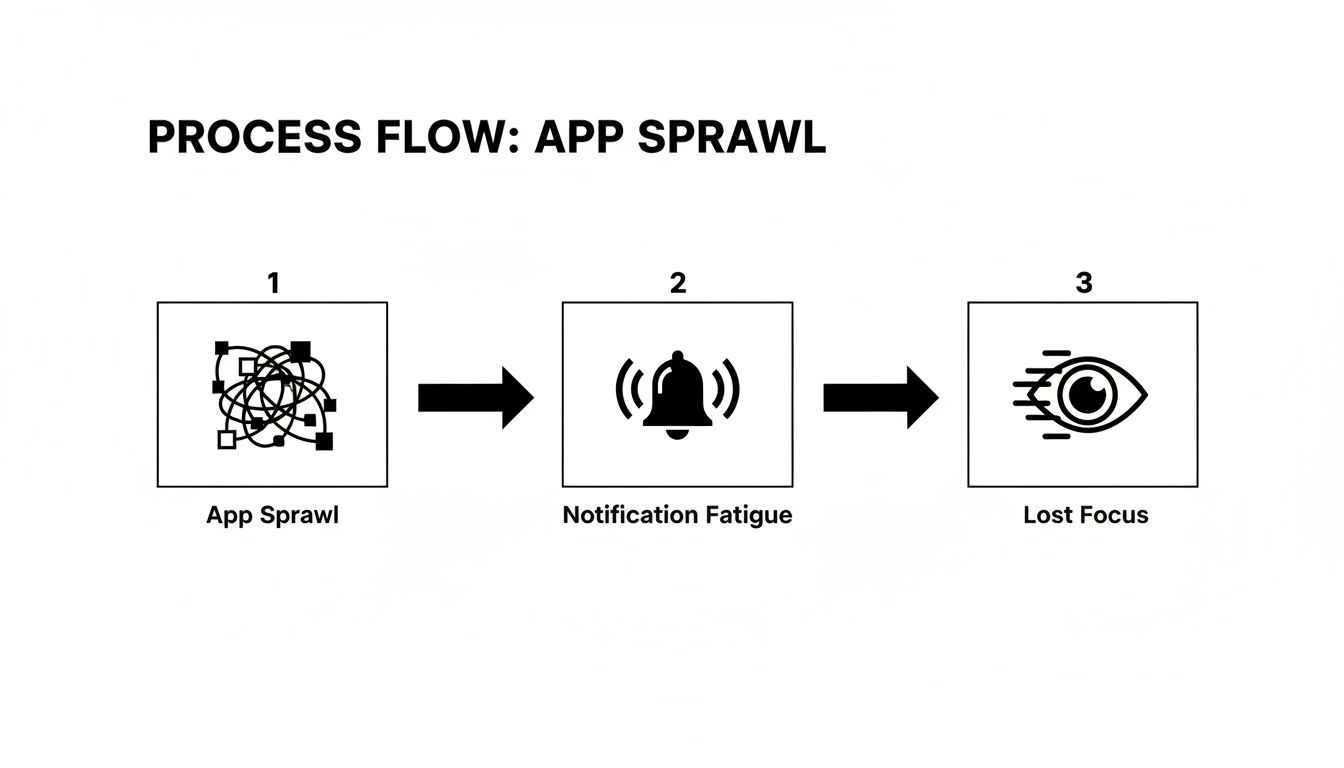
This downward spiral from app sprawl to notification fatigue is a direct result of installing apps without a clear strategy.
A Real-World GitHub Integration Example
Let's make this practical. A common goal is integrating a GitHub repository to get pull request updates without spamming the entire engineering department.
You'd start by configuring your app manifest to request only the scopes needed to read repository info and post messages. Simple enough. Then, you set up event subscriptions specifically for pull_request events. This ensures the app only wakes up when a PR is opened, updated, or merged.
But the real magic is in the routing. Instead of dumping every notification into a generic #dev-alerts channel, you create smart rules. For instance, any PR for the "frontend-app" repository gets routed to the #team-frontend channel, and the app automatically pings the assigned reviewers. This level of granular control is what effective app management is all about. You can find some great tools for this, and our guide on the best GitHub Slack integrations is a fantastic place to start.
When a user installs your app, they are taken through the OAuth flow. This is the moment of truth where Slack displays every permission your app is requesting. As an admin, your job is to scrutinize this screen and ensure every requested scope aligns perfectly with the app’s stated purpose.
This interface is your primary checkpoint for enforcing security policies before an app gets any access to your workspace. By carefully reviewing each installation and understanding its manifest, you transform a simple click into a strategic security decision.
Understanding Scopes and Permissions for a Secure Workspace
Permissions are the bedrock of a secure and well-managed Slack workspace. Every time you add an app, you're essentially handing it a set of keys. Figuring out exactly which doors those keys can open is non-negotiable if you want to protect your company's data.
At the heart of this is the principle of least privilege. An app should only have the absolute minimum permissions it needs to do its job—and not a single scope more. A weather bot, for instance, has no business reading your private messages. Following this simple rule dramatically reduces your workspace's attack surface.

This all becomes a lot clearer once you break down the different types of permissions an app can ask for.
Bot Tokens vs. User Tokens
Knowing the difference between bot and user tokens is crucial for assessing an app's risk profile. It’s one of the first things I check.
*   **Bot Tokens:** These are tied to the app's bot user. They grant permissions for the app to act on its own, like posting messages (`chat:write`) in channels it's been invited to. This is the preferred and more secure method for most app functions.
*   **User Tokens:** These grant an app permission to act *on behalf* of the user who installed it. This is far more powerful and, frankly, much riskier. A user token could potentially let an app read a user's direct messages or even send messages as them.
When you’re evaluating a new app, always lean toward those that rely on bot tokens. If an app requests extensive user token scopes, you need to stop and ask why. Make sure the functionality truly justifies that level of access. For a secure workspace, this kind of scrutiny should also involve proper vendor due diligence for any third-party tools.
Key Takeaway: An app asking for broad user scopes like
channels:historyorgroups:historycan read the entire message history of private channels it's in. A simple calendar integration should never need that level of access.
A Practical Checklist for Vetting App Permissions
Before you click "Approve," run through this mental checklist. It will help you quickly evaluate the security posture of any app, from a simple poll tool to a complex integration.
- Review Every Single Scope: Don't just skim the list during the OAuth approval flow. Read each permission and ask yourself, "Does the app's core function absolutely require this?" For example, the official GitHub integration needs certain permissions to operate, which you can see in our guide on using the official GitHub Slack app.
- Challenge Vague Descriptions: If an app's purpose is to "improve productivity" but it's asking to read all your files (
files:read), that’s a major red flag. The permissions requested must align directly with the app's stated features. - Check the Privacy Policy: Seriously, take a minute to review the developer's privacy policy. Look for how they handle your data, their retention policies, and what happens to your information if you decide to uninstall the app later.
By making this permission audit a standard part of your process, you shift from being a reactive admin to a proactive guardian of your workspace. This discipline ensures every tool you add actually enhances productivity without compromising the security of your team's communication hub.
Managing Apps in an Enterprise Grid Environment
When you’re managing a Slack app environment for a small team, the rules are pretty straightforward. But scaling that up to an Enterprise Grid—with potentially hundreds of workspaces and thousands of users—is a whole different ball game. Your job shifts from approving individual apps to building a centralized, scalable governance model that works for everyone.
Enterprise Grid adds a powerful administration layer at the Organization (Org) level. This is where you stop managing apps one by one and start setting broad, enforceable policies that apply across your entire company. It’s the secret to keeping things secure and consistent without having to micromanage every single workspace.
The most critical tool you have is the Org-level app management dashboard. Think of it as your command center for creating a definitive list of approved, restricted, or flat-out blocked applications for the entire Grid.
Establishing Org-Wide App Policies
Your first order of business should be to set up a default policy for all workspaces. Most large organizations I’ve worked with opt for a restrictive-by-default approach. This means no new apps can be installed unless they're already on your pre-approved list.
This strategy funnels all app requests through a single, streamlined approval workflow. Instead of letting individual workspace admins make decisions in a vacuum, a central IT or security team gets to vet each application for key criteria:
*   **Security Compliance:** Does the app meet our company's standards for data handling and privacy?
*   **Business Justification:** Do we actually need this tool, or does it overlap with software we already pay for?
*   **Scope & Permissions:** Are the permissions it’s asking for reasonable for what it needs to do?
This screenshot gives you a high-level look at the Slack Enterprise Grid, showing how it connects multiple workspaces under one organizational roof.
What this image really shows is the architectural backbone that makes centralized app management not just a nice-to-have, but an absolute necessity for large-scale operations.
Deploying Apps to Specific Workspaces
Just because an app is approved doesn’t mean it belongs in every single workspace. A design tool green-lit for the marketing team is probably just noise for the finance department. Enterprise Grid gets this, allowing you to install an app at the Org level and then selectively push it out only to the workspaces that need it.
A common mistake is approving an app for the entire organization when only a small subset of teams will use it. Use policy controls to grant access to specific workspaces or user groups, minimizing unnecessary app clutter and potential security exposure.
For instance, your DevOps team might need a highly specialized CI/CD integration. As an Org Admin, you can approve the app but create a policy that only allows its installation within the #engineering-workspace. This granular control is perfect for getting teams the tools they need while keeping the rest of the organization clean and secure.
Of course, creating these policies is only half the battle; you also have to communicate them. Set up a clear, internal process for users to request new apps. A dedicated Slack channel (like #app-requests) or a simple intake form can make this painless, giving employees an easy way to submit requests and admins a straightforward way to track, review, and communicate their decisions.
How to Troubleshoot Common Slack App Problems
Even the most buttoned-up Slack app will eventually hit a snag, leaving your team in the lurch. When an integration suddenly goes quiet or starts acting up, knowing where to start digging is half the battle. Resist the urge to just uninstall and reinstall; a methodical approach will get you to the root cause faster and help you prevent it from happening again.
The simplest check is often the most effective. Head straight to the app’s configuration page within Slack by navigating to Apps > Manage. Find the app that's giving you trouble and look for any warning banners at the top. It's common to see a prompt to re-authenticate, especially after a developer pushes an update or changes its scopes.

You'd be surprised how many "critical" failures can be solved with that one simple click, saving you a trip down the rabbit hole of complex logs.
Diagnosing Silent Failures and Scope Issues
One of the most maddening issues is when an app just stops working cold, with no error message in sight. We see this all the time with integrations that depend on event subscriptions, like a GitHub app that inexplicably stops posting pull request updates. This silence is almost always a symptom of a permission or configuration mismatch.
When an app goes dark, here's your game plan:
*   **Check Scopes First:** Did an admin recently tighten permissions across the workspace? If a scope like **`channels:join`** or **`chat:write`** was removed, the app might be blocked from posting in a channel where it used to live. Always cross-reference the app's required scopes with the ones it currently has.
*   **Inspect Event Subscriptions:** Pop over to your app’s settings on the [Slack API site](https://api.slack.com/) and look at the subscribed bot events. Make sure the "Request URL" is verified and responding with a **`200 OK`**. If your server fails to respond correctly after a few tries, Slack will automatically disable the subscription to protect its infrastructure.
*   **Review App Logs:** If the app has an external dashboard or logging service, that’s your next stop. These logs are a goldmine and can reveal specific API errors like **`channel_not_found`** or **`missing_scope`**, which point you directly to the problem.
A broken notification flow can grind a dev team to a halt. When your GitHub notifications suddenly aren't sending, running through these checks will tell you if the problem is with permissions, event delivery, or something in the app's own code. For a deeper dive, check out our guide on how to handle fixing GitHub Slack notifications that are not sending.
Insider Tip: I always use a dedicated, private channel like
#app-testingfor debugging. Invite the bot to this channel and try to trigger its functions. This isolates the problem from your team's main channels and lets you experiment without spamming everyone.
Proactive Monitoring and Health Checks
Instead of waiting for things to break, you can get ahead of problems by proactively monitoring your app's health. For any custom apps you’ve built, it's a great practice to implement a basic health check endpoint that you can ping to confirm the service is online and responsive.
You can also set up alerts for high rates of API errors. If you suddenly see a spike in 500 errors from Slack’s API calls to your app, you’ll know there’s an issue before your users even start to notice.
Here’s a quick-reference table to help you diagnose and solve the most frequent Slack app problems.
Common App Errors and Quick Fixes
| Symptom | Potential Cause | First Step to Troubleshoot |
|---|---|---|
| App stops posting messages entirely | Disabled event subscription or revoked chat:write scope | Go to the Slack API site and check the "Event Subscriptions" page for any error messages. |
| Slash commands return an error | Incorrect "Request URL" or server is down | Use curl or Postman to send a test request to your command URL and check the response. |
| "Permission Denied" errors | Missing scopes or not invited to a private channel | Use /invite @YourApp in the channel and verify its scopes in the app's settings. |
| App works for some users but not others | User-level token issue or workspace restrictions | Ask the affected user to try re-authenticating with the app. |
By using this table as a starting point, you can quickly narrow down the possibilities and get your tools back online.
A systematic troubleshooting process, combined with a bit of proactive monitoring, turns app management from a reactive chore into a strategic advantage. You’ll keep the tools your team depends on stable, secure, and ready to go.
Got Questions About Managing Slack Apps? We've Got Answers.
Even the most detailed guide can't cover every single scenario you'll run into. When you're in the trenches managing a Slack app environment, specific questions always come up. Here are some of the most common ones I hear from admins and developers, along with quick, no-nonsense answers.
What’s the Best Way to Control Which Apps Can Be Installed?
Hands down, the most effective method is to switch on Slack's native app approval feature. You can find it in your workspace settings under Administration > Manage apps. Just toggle on "Approve apps for your workspace," and you've instantly created a mandatory review process.
That one simple flip of a switch routes every single installation request to an administrator for review. It's your best defense against app sprawl, letting you vet each tool for security, business need, and potential overlap before it ever gets near your workspace.
If you’re on an Enterprise Grid plan, you can take this even further by setting organization-wide policies that whitelist certain apps for all or just specific workspaces.
How Can I Cut Down on Notification Noise from GitHub or Jira?
To silence the constant pings from chatty apps, your first move should be to audit their notification settings—both inside Slack and on the app's own platform. You’d be surprised how much noise comes from minor events like comment edits or label changes, and you can often disable those alerts entirely.
When it comes to developer-focused spam from tools like GitHub, a specialized tool is almost always the better solution.
A dedicated tool like PullNotifier can be a lifesaver here. It takes all the scattered GitHub pull request updates and neatly consolidates them into a single, clean thread for each PR. This approach turns dozens of individual notifications into one easy-to-follow conversation.
You can even set up smart routing rules to push updates only to relevant channels and automatically tag the right code reviewers. It’s a strategy that dramatically cuts down on channel-wide spam and helps your engineers actually focus on their work.
An App Just Stopped Working. What Should I Do?
When a trusted app suddenly goes dark, the first place to check is its page in the Slack App Directory. Look for a big button or prompt to re-authenticate. This is a super common fix, especially after a password change or when a developer pushes an update that changes the app's permissions.
If that doesn't do the trick, here's your troubleshooting checklist:
*   **Check the [Slack Status Page](https://status.slack.com/):** Sometimes, the problem is bigger than just one app. A widespread API issue could be the real culprit.
*   **Review the App's Dashboard:** If the app has its own admin dashboard or log viewer, pop in there to check for specific error messages.
*   **Try Reinstalling:** This is the "turn it off and on again" of Slack apps. Just be aware that reinstalling might wipe its configuration, so be sure to jot down any important settings first.
What's the Difference Between a Bot Scope and a User Scope?
Getting this distinction right is absolutely critical for making smart security decisions when you manage any Slack app.
A bot scope (like chat:write) gives permissions directly to the app's bot user. This lets the app act on its own, like posting messages in a channel it has been invited to. For most applications, this is the safer and preferred option.
On the other hand, a user scope (like users:read) gives the app permission to perform actions on behalf of the user who installed it. Because this can grant access to that person's private data and permissions, it carries a much higher security risk. Always lean towards apps that stick to bot scopes to limit their potential access.
Ready to kill the notification chaos and get your code review process back on track? PullNotifier plugs right into GitHub and Slack to deliver quiet, focused pull request updates, cutting review delays by up to 90%. Try PullNotifier for free and give your engineering team the focus they deserve.