- Published on
A Quick Guide: git vs github and How They Work Together
- Authors

- Name
- Gabriel
- @gabriel__xyz
The biggest point of confusion for newcomers boils down to a simple distinction: Git is the tool, and GitHub is the platform.
Think of Git as the engine and GitHub as the car built around it. Git is a command-line program that lives on your computer, meticulously tracking every single change you make to your code. GitHub, on the other hand, is the website where you can store that code online, share it, and work on it with other people.
Understanding The Core Difference Between Git and GitHub
Let's try an analogy. Imagine you're an author writing a novel.
Git is like your word processor. It runs locally on your computer, saves every draft, tracks every edit you make, and even lets you experiment with different plotlines in separate "branches" without messing up your main manuscript. It's a powerful, self-contained tool focused entirely on version control.
GitHub, in this scenario, is the cloud-based publishing house and writer's workshop. It’s the online space where you upload your manuscript (your Git repository) to share it with editors and co-authors. They can suggest changes (pull requests), leave comments about plot holes (issue tracking), and see the entire history of your work from the first word to the final draft.
Local Tool vs. Cloud Platform
The separation between Git as a local tool and GitHub as a cloud platform is fundamental to the modern developer workflow. Git is a command-line utility that handles all the heavy lifting of version control. GitHub wraps that functionality in a user-friendly web interface and adds a whole ecosystem of collaborative features on top.
This powerful combination has made GitHub a dominant force, holding a 17.56% market share in the source code management space, as noted by Datanyze.
At its core, Git is a decentralized tool. You can use it entirely offline without ever touching GitHub. GitHub is a centralized service that adds a collaborative layer and a user-friendly web interface on top of Git.
To make the distinction crystal clear, here’s a quick summary of their primary roles.
Git vs GitHub at a Glance
This table breaks down the essential attributes of Git and GitHub, showing how one is a focused tool while the other is a broad platform.
| Attribute | Git | GitHub |
|---|---|---|
| Primary Function | A command-line version control software to track changes locally. | A web-based hosting service for Git repositories. |
| Location | Installed and runs on your local machine (your computer). | Hosted on the web (in the cloud). |
| Core Purpose | Managing source code history through commits, branches, and merges. | Facilitating collaboration, code reviews, and project management. |
| Collaboration | Indirect collaboration through patches and shared repositories. | Direct collaboration via pull requests, issues, and discussions. |
| User Interface | Primarily command-line interface (CLI). | Graphical user interface (GUI) via web browser. |
Ultimately, you use Git on your computer to manage your project's history, and then you "push" those changes to GitHub to back them up and work with your team.
Mastering Git for Local Version Control
Before your code ever sees the light of day on a platform like GitHub, it starts its journey on your local machine. This is where Git lives and breathes. It's a powerful, offline system that puts you in complete control of your project's history without ever needing an internet connection. Think of Git as your personal command center for tracking changes, experimenting with new ideas, and keeping a clean record of your work.
At its core, Git works through a simple but effective three-stage process. Getting a handle on this flow is the first real step to mastering local version control and seeing where the lines are drawn in the git vs github debate.
The Three Stages of Local Version Control
Your local workflow is all about moving changes between three distinct areas inside your project folder. Each one serves a specific purpose in getting your code ready for a snapshot.
- Working Directory: This is just your project folder—all the files you're actively editing. Every new line of code you write, every file you delete, it all happens here first.
- Staging Area (Index): Think of this as the draft for your next commit. You use the
git addcommand to hand-pick changes from your working directory and move them here. It's Git's way of asking, "Are you sure you want to include this specific change in your next save?" - Local Repository (.git folder): Once you're happy with what's in the staging area,
git commitpermanently saves that snapshot to your local repository. This creates a new, timestamped entry in your project's history, complete with a unique ID and a message explaining what you did.
This staging step is one of Git's killer features. It lets you be incredibly deliberate, grouping related changes into clean, logical commits that make your project history a lot easier to read later on.
Essential Commands for Your Local Workflow
You'll use a handful of fundamental Git commands to manage this three-stage process, all typed directly into your terminal.
Let's walk through a typical scenario. You've just updated style.css and added a brand-new file called script.js.
First, you need to stage those changes.
Stage the modified style.css file
git add style.css
Stage the new script.js file
git add script.js
Next, you commit what you've staged to your local repository, adding a clear message so your future self knows what was going on.
Commit the staged files with a message
git commit -m "Add initial script and apply new styles" And just like that, you've created a permanent save point. Now you can keep coding, knowing you can always jump back to this stable version if something goes wrong. If you're new to the command line, this beginner's guide to getting started with Git is a great place to build some foundational knowledge.
Git was designed from the ground up to be a "stupid content tracker," as creator Linus Torvalds described it. Its initial purpose was simply to be an efficient way to manage snapshots of files, which is precisely what it does on your local machine.
Finally, one of Git’s most powerful local tools is branching. Branches let you create sandboxes to work on new features or fix bugs without messing with your main codebase.
Create and switch to a new branch named "feature-login"
git branch feature-login git checkout feature-login
This setup gives you the freedom to experiment. If the new feature works out, you merge it back into your main branch. If it's a dead end, you can just delete the branch, and your primary code is completely untouched. This whole cycle—adding, committing, and branching—happens right on your computer, proving just how capable Git is as a standalone tool.
Leveraging GitHub as a Collaborative Hub
While Git provides the powerful engine for version control on your local machine, GitHub is the collaborative hub where development teams bring everything together. It takes the distributed nature of Git and gives it a central, accessible home—a single source of truth for your entire project. This is where individual contributions get shared, reviewed, and merged into a cohesive whole.
Think of it this way: GitHub isn’t just a cloud backup for your Git repositories. It’s a full-fledged platform built around them, providing the web-based graphical user interface (GUI) that makes interacting with your project’s history far more intuitive. More importantly, it adds a layer of essential tools that turn solo coding into a team sport.
The Core Pillars of GitHub Collaboration
The platform's real strength lies in features that simply don't exist in Git itself. These tools are designed specifically to manage the social and logistical challenges of building software with other people.
*   **Pull Requests:** This is the heart and soul of collaboration on GitHub. A pull request is a formal proposal to merge your code changes from one branch into another, creating a dedicated forum for code review and discussion.
*   **Issue Tracking:** GitHub Issues function as a lightweight project management tool. Teams use them to track bugs, request new features, and manage tasks, linking them directly to code for complete traceability.
*   **Wikis and Documentation:** Every repository can have its own wiki, offering a space for project documentation, architectural diagrams, and onboarding guides. This ensures critical knowledge is shared and preserved.
This diagram breaks down the fundamental workflow that powers collaboration on GitHub, showing how individual code changes become a reviewed and merged final product.
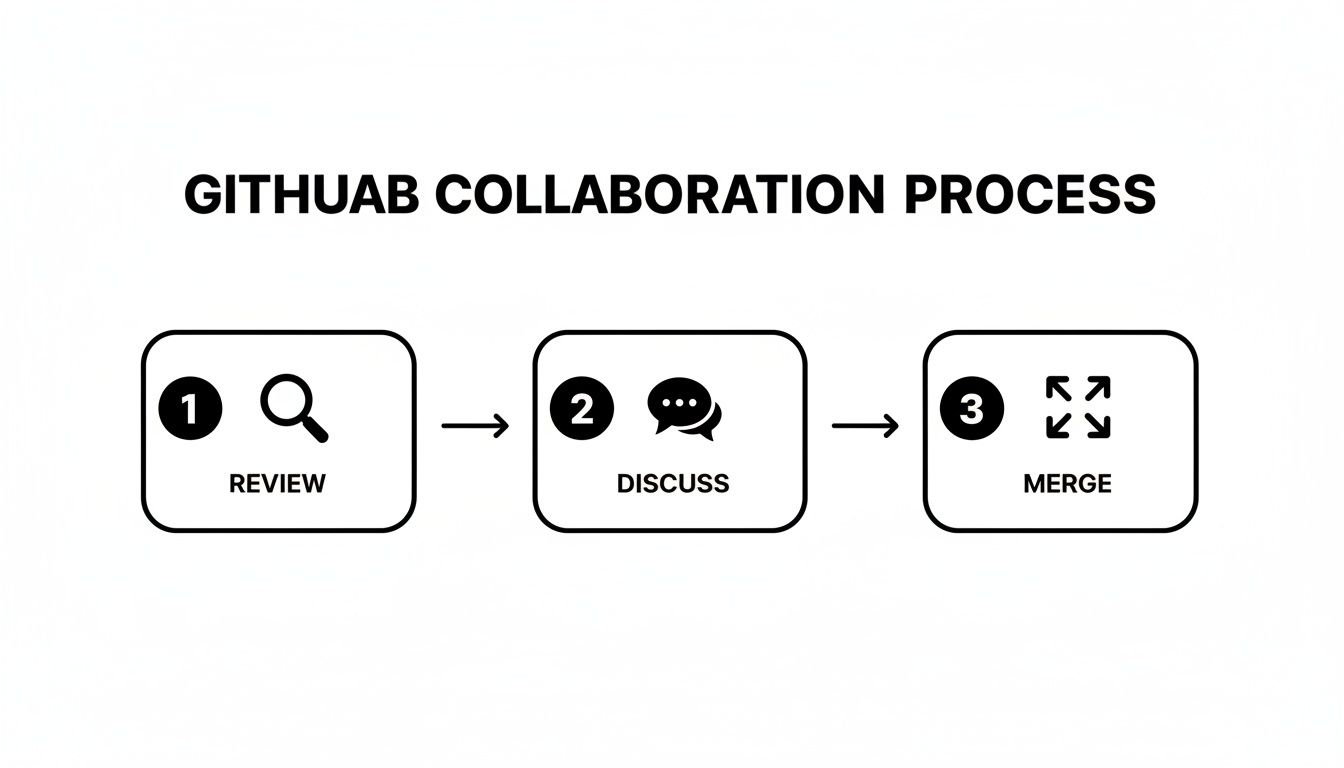
The visualization makes it clear that pull requests aren't just about merging code; they represent a structured process for ensuring quality through peer review and discussion.
Building a Global Developer Community
Beyond just internal teams, GitHub has cultivated a massive global community around open-source software. Features like forking—creating a personal copy of someone else's repository—allow anyone to experiment with and contribute back to projects they care about. This social coding aspect is a key differentiator in the git vs github comparison, turning version control into a worldwide collaborative network.
The platform's scale is a testament to its success. GitHub has blown past 100 million active developer accounts and hosts over 420 million repositories. Its widespread adoption is also clear in the corporate world, where over 90% of Fortune 100 companies use it to manage their software development lifecycle.
At its essence, GitHub operationalizes teamwork. It provides the structured communication channels and review processes necessary for multiple developers to contribute to a single codebase without causing chaos.
Understanding this collaborative layer is crucial. While you can technically use Git with other services or even host your own server, GitHub's user-friendly interface and robust feature set have made it the de facto industry standard. Mastering the GitHub pull request workflow is a fundamental skill for any modern developer, as it’s the platform’s features that truly bring a team’s Git process to life.
How Git and GitHub Work Together in a Real-World Workflow
It’s one thing to know the difference between local Git and cloud-based GitHub, but the real magic happens when you see them working in tandem. This is the daily routine for millions of developers, a fluid dance between the command line on your local machine and the GitHub interface in your browser.
Let's break down how isolated code changes become a shared, reviewed, and integrated part of a project.
Step 1: Getting the Code Locally
Everything starts on GitHub. You find the repository you need to work on, and the first order of business is getting a copy of that cloud-hosted project onto your computer.
For this, you use the git clone command along with the repository's URL, which you can grab right from its GitHub page. This single command downloads the entire project history, giving you a complete, independent repository on your machine.
git clone https://github.com/example-user/example-project.git
Once that's done, you have a fully functional local Git repository, ready for you to start coding.
Step 2: Creating a Feature Branch
You never want to work directly on the main codebase (often called main or master). Doing so is a recipe for instability. Instead, you create a new, isolated branch to contain your changes.
This is a pure Git operation, done entirely on your local machine. The git checkout -b command creates and switches to a new branch in one go. For example, if you're building a new login form, you'd run:
git checkout -b feature/login-form
Now, any code you write is safely sandboxed in the feature/login-form branch, leaving the main branch clean and untouched.
Think of it this way: You use local Git commands to package your work neatly. GitHub is where you deliver that package to your team for review.
Step 3: Committing and Pushing Your Work
After you've written your code, you use the standard Git workflow to save your progress. You add your changed files to the staging area and then commit them with a message that explains what you did.
Stage all modified files
git add .
Commit the changes with a clear message
git commit -m "Feat: Implement new user login form"
At this point, your commit exists only on your computer. To share it with your team, you need to "push" your branch from your local repository up to the remote one on GitHub.
git push origin feature/login-form This command is the critical handoff. It sends your committed changes across the network to GitHub, making your new branch visible to everyone else on the project. Pushing code can sometimes lead to issues, so knowing how to resolve conflicts in Git is a must-have skill for any developer.
Step 4: Opening a Pull Request on GitHub
With your branch now living on GitHub, the rest of the process happens in your web browser. When you visit the repository, GitHub will usually show a prompt to create a pull request from your recently pushed branch.
A pull request is a formal request to merge your code into the main branch. It acts as a dedicated forum for discussion, where teammates can review your code, leave comments, and suggest improvements. Once the code is approved and passes any automated checks, a project maintainer can merge it, and your work officially becomes part of the project.
Workflow Command Mapping Local vs Remote
To tie it all together, here’s a quick table showing how your local Git commands map to actions and goals within the collaborative GitHub environment. It clarifies what you're trying to achieve, the command you run locally, and what that command accomplishes on GitHub.
| Developer Goal | Local Git Command | GitHub Action/Purpose |
|---|---|---|
| Get a local copy of a project | git clone [URL] | Downloads the entire repository from GitHub to your machine. |
| Isolate new feature work | git checkout -b [branch-name] | Creates a new branch locally to keep changes separate. |
| Save progress locally | git commit -m "[message]" | Records a snapshot of your changes in your local repository. |
| Share work with the team | git push origin [branch-name] | Uploads your branch and its commits to the GitHub repository. |
| Request a code review | N/A (UI Action) | Open a Pull Request on GitHub to discuss and merge changes. |
| Get updates from the main project | git pull origin main | Fetches and merges the latest changes from the main branch on GitHub. |
This table illustrates the constant back-and-forth between your local environment and the shared remote. Each local command serves a purpose in preparing your work for the collaborative features that GitHub provides, like pull requests and code reviews.
Exploring the Broader GitHub Ecosystem
While the Git vs. GitHub debate usually sticks to version control, GitHub has grown into something much bigger. It's no longer just a place to host your repositories; it's a full-blown development platform designed to cover almost every part of the software lifecycle. The whole idea is to keep developers productive inside a single, familiar environment.
One of the biggest game-changers here is GitHub Actions. Think of it as an automation engine baked right into your repo. You can use it to build, test, and deploy your code automatically every time you git push. This turns GitHub from a passive code backup into an active player in your CI/CD pipeline.
Expanding Beyond Code Repositories
The platform’s muscle extends past just managing code. With GitHub Packages, teams can host and manage things like Docker containers or npm modules right alongside their source code. This is a huge win for dependency management because it keeps everything—your code and the artifacts it produces—all in one place.
Security has also become a massive focus. GitHub Security is a suite of tools that scans your code and dependencies for known vulnerabilities. Tools like Dependabot even open pull requests automatically to update outdated packages, helping you patch security holes before they turn into real problems.
GitHub's transformation reflects a wider industry shift toward integrated "DevOps" platforms. By bundling source control, CI/CD, package management, and security, it smooths out the friction across the entire development workflow.
The Rise of AI in Development
But maybe the most talked-about addition is GitHub Copilot, the AI pair programmer that suggests code and entire functions as you type. It plugs directly into your editor and uses the context of your code to generate surprisingly accurate completions. This isn't just a minor convenience; it dramatically speeds up the coding process.
The productivity boost is no joke. Research shows that developers using GitHub Copilot get their tasks done up to 55% faster than those who don't. That statistic alone shows just how valuable AI-assisted coding has become. You can dig into the numbers yourself by reading the full research on GitHub Copilot's effectiveness.
All these integrated tools—from Actions to Copilot—prove that modern GitHub is far more than just a remote server for your local Git commits. It’s an intelligent platform built to speed up how we build, secure, and ship software.
To really get the most out of your development process, you need to connect GitHub to the other tools your team relies on every day. A truly modern workflow isn't just about version control; it's about creating a connected, automated environment that elevates your team's operational game.
A common first step is integrating GitHub with a platform like Slack for real-time notifications. But this is where many teams go wrong. Default integrations can quickly flood channels with a constant stream of updates, which eventually just become background noise that everyone ignores. The goal isn't more alerts—it's getting the right information to the right people at the right time.
Reducing Notification Fatigue
This is where specialized tools come into play. For instance, an app like PullNotifier cuts through the chaos by delivering clean, concise pull request updates directly into Slack. Instead of getting blasted with separate pings for every single comment, commit, and status change, it consolidates everything into a single, easy-to-follow message thread.
The best integrations don’t just fire off notifications; they provide context and push for action. By automating reviewer mentions and bundling updates, you can dramatically cut down the time code sits idle waiting for a review.
This kind of focused approach keeps everyone in sync without creating a notification nightmare. It helps slash context-switching, gets rid of code review bottlenecks, and ensures that important pull requests don't get buried in an avalanche of alerts. You can even take it a step further with advanced setups, like using Cursor with Figma and the GitHub MCP Integration, which can automate complex design-to-code handoffs and tighten collaboration between different parts of your team.
Git vs. GitHub: Frequently Asked Questions
When you're first getting started, the line between Git and GitHub can feel a bit blurry. Let's clear up some of the most common questions developers have.
Can I Use Git Without GitHub?
Absolutely. Git is a totally self-sufficient tool that lives on your local machine. You can track changes, create branches, and manage your project's entire history without ever touching the internet or needing a GitHub account.
Many developers pair Git with other hosting services like GitLab or Bitbucket, and some even host their own private Git servers for complete control. GitHub just adds a layer of web-based collaboration on top of Git—it's a popular choice, but by no means a requirement.
Do I Need Git Commands to Use GitHub?
While you can get by using graphical tools like GitHub Desktop that wrap Git commands in a nice UI, any serious developer should get comfortable with the command line.
The command line gives you far more power, control, and troubleshooting ability than any GUI. Most professional dev teams live in the terminal, so it's a skill you'll need to build.
Relying only on a graphical interface will eventually hold you back, especially when you run into tricky merge conflicts or need to dig deep into your project's history to figure out what went wrong.
What Is a Pull Request?
A pull request (or PR) is a feature that belongs to platforms like GitHub, not to Git itself. It’s the formal way you propose merging your code changes from one branch into another, usually the main branch.
It’s where team collaboration really happens. A pull request is the central hub for:
*   **Code Review:** Teammates can look over your code line by line.
*   **Discussion:** Anyone can leave comments and suggestions directly on the proposed changes.
*   **Automated Checks:** CI/CD pipelines can run automated tests to make sure your changes don't break anything before they get merged.
Stop letting pull requests get lost in the noise. PullNotifier delivers clean, consolidated PR updates directly to Slack, cutting through the clutter and accelerating your team's review process. Streamline your code reviews today.