- Published on
Connect Jira to Slack The Definitive 2026 Guide
- Authors

- Name
- Gabriel
- @gabriel__xyz
To connect Jira to Slack, the go-to method is the official Jira Cloud for Slack app. It lets you link projects directly to specific channels and get updates in real time. The whole setup usually takes less than ten minutes—just install the app from the Slack App Directory and use the /jira connect command to link up your accounts.
Why Connecting Jira and Slack Unlocks Team Productivity

Pairing Jira and Slack is more than just a convenience; it’s a strategic move to fight one of the biggest productivity killers for modern teams: context-switching. Instead of constantly toggling between your project board and your chat client, critical updates appear right where conversations are already happening.
This immediately closes communication gaps and cuts down on the need for endless status meetings. It’s a simple change that keeps everyone, especially distributed teams, perfectly aligned on what matters.
The Real Cost of Disconnected Tools
That constant back-and-forth between apps creates a massive cognitive load. Think about it—studies show a single unplanned distraction can derail a developer's focus for over 20 minutes. All that mental energy, which could have been spent solving tough problems, is just gone.
When you connect Jira to Slack, you centralize that information flow, which helps your team stay in their "flow state" for much longer.
Just imagine how an integration solves these all-too-common headaches:
- Faster Bug Fixes: A QA engineer spots a critical bug. Instead of just updating a ticket and hoping someone sees it, the integration instantly pings the on-call developer in a dedicated
#bugs-criticalchannel with all the issue details. - Clearer Sprint Progress: A product owner no longer needs to live on the Jira board. They get an automated summary in
#product-updateswhen key stories or epics are moved to "Done." - Proactive Bottleneck Spotting: An engineering manager can set up an alert to get notified if a high-priority ticket is stuck in "In Progress" for more than two days. This lets them step in before it becomes a real blocker.
By 2025, over 70% of Fortune 500 companies using Jira reported integrating it with Slack, resulting in a staggering 45% reduction in context-switching time—those frustrating tab jumps that eat up 2.1 hours per developer daily. Learn more about these G2 integration insights.
Understanding the Automation Behind the Scenes
To really get why this integration is such a game-changer, you have to understand the basics of workflow automation. It’s all about creating rules that trigger actions based on specific events. For example, a Jira ticket's status changes (the event), and an automation rule sends a notification to a specific Slack channel (the action).
This simple cause-and-effect engine is what drives the entire efficiency gain. It's just one of many powerful automations you can build, which is why exploring the best Slack apps for developers can reveal even more opportunities to tune up your team's processes.
Setting Up the Official Jira Cloud for Slack App
To get Jira and Slack talking, your first stop is the official, free "Jira Cloud for Slack" app. Developed by Atlassian themselves, it's the most direct and reliable way to connect your tools, especially for teams on Jira Cloud.
Your journey starts in the Slack App Directory. Just search for "Jira Cloud," and you'll find the official app right at the top. Installing it is as simple as clicking a few buttons to add it to your workspace.
Here's what you'll see on the official app page in the directory.
The listing confirms its main features: creating issues, handling notifications, and unfurling Jira links right inside your conversations. This is your launchpad for the integration.
Authenticating and Linking Accounts
Once the app is installed, you’ll need to connect your Atlassian account. The app will walk you through the authentication process to grant it permission to access your Jira instance.
With your account authenticated, it's time to link your Jira project to a Slack channel. Navigate to the channel you want to use and type the slash command: /jira connect
The app will ask for your Jira Cloud site's URL. Once you enter it and confirm, your Slack workspace and Jira site are officially connected. This is a one-time setup that takes about a minute.
Configuring Your First Project Connection
Now for the powerful part: creating "subscriptions." A subscription is basically a rule you create that sends notifications from a Jira project to a specific Slack channel when certain things happen.
For example, let's say you have separate dev and QA teams. You can set up unique notification flows for each one.
- For the Development Team (
#dev-team): Set up a subscription that only alerts them when a ticket's status changes to "In Progress." This keeps the team focused on what's being actively worked on, not every new bug report. - For the QA Team (
#qa-team): Create another subscription for the same project, but this one triggers when an issue moves to "Ready for QA." Now, QA engineers get an immediate heads-up to begin testing.
You can manage these subscriptions using the /jira manage command in any channel or by visiting the Jira Cloud app's home tab in Slack. This level of control is crucial for avoiding a firehose of notifications. The idea is similar to other smart integrations, like the one we covered in our guide on how to use the official GitHub Slack app.
Pro-Tip: A common mistake is connecting an entire Jira project to a general channel. This almost always leads to notification fatigue. Instead, use JQL (Jira Query Language) filters in your subscriptions to send only the most relevant updates to the right people.
Integrating Jira Server And Data Center With Slack
For many larger organizations, Jira isn't in the cloud—it's running on-premise as Jira Server or Data Center. If this is your setup, connecting it to Slack is a different ballgame. You'll need a separate app called Jira Server for Slack, and it's critical to know that the cloud app simply won't work with your on-premise instance.
Unlike the simple, user-driven cloud setup, this integration requires a Jira administrator to get directly involved. You’ll need admin permissions to create an Application Link, which is a secure, trusted connection between your self-hosted Jira and your Slack workspace. This step is mandatory before any notifications can start flowing.
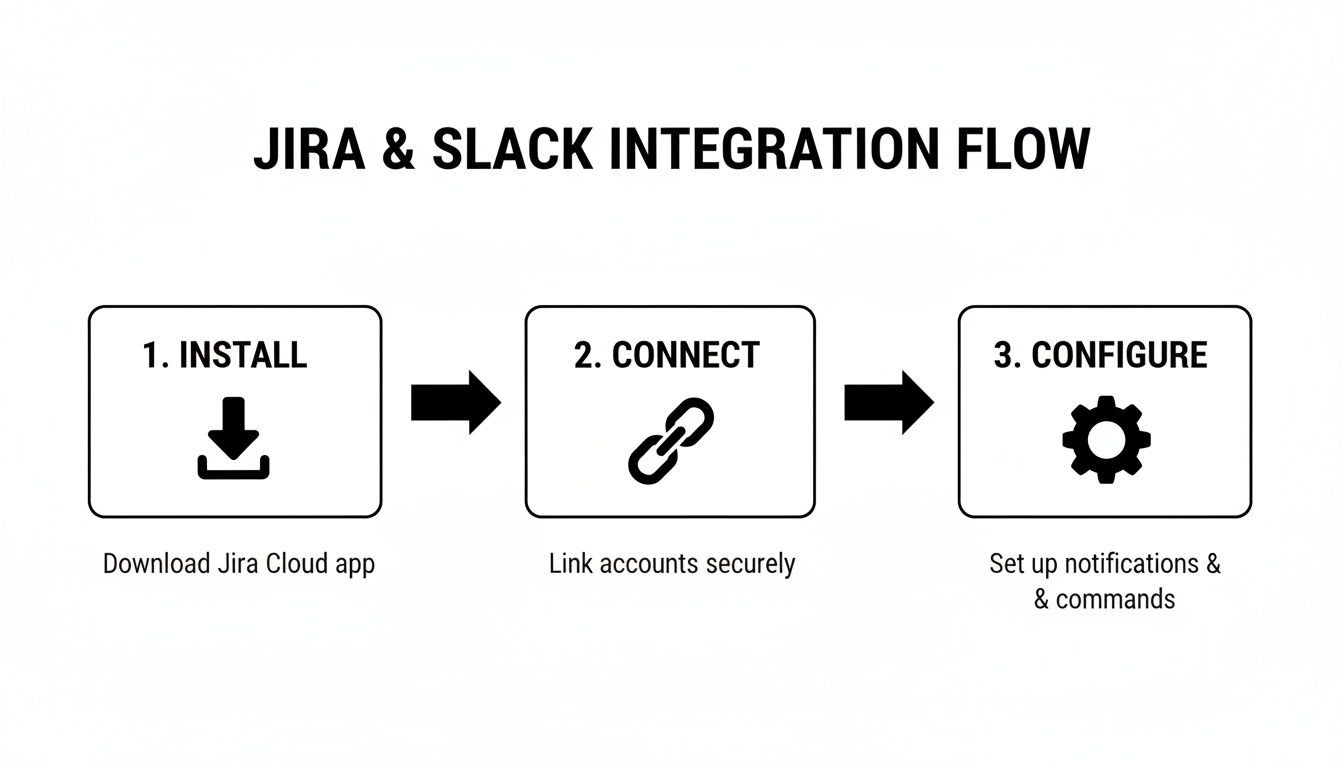
As the diagram shows, the high-level process is the same whether you're on cloud or server. You still need to install the right app, connect your accounts, and then configure what gets sent where. The devil, however, is in the details of that "connect" step.
Understanding Key Differences
The biggest difference between the cloud and on-premise integrations comes down to security and maintenance. With Jira Server or Data Center, your team is on the hook for managing the entire infrastructure, including all the network configurations that come with it.
For the integration to work, your Jira Server instance must be accessible from the public internet so Slack's services can reach it. This often means roping in your IT or security team to adjust firewalls and network rules—a step you can happily skip with the Jira Cloud integration.
A common hurdle I've seen teams run into is a misconfigured firewall blocking incoming requests from Slack, which causes the connection to fail every time. Always confirm that your Jira base URL is publicly accessible and that any necessary IP ranges for Slack are whitelisted by your network security team.
Jira Cloud vs Jira Server/Data Center Slack Integration Comparison
Choosing the right integration path depends entirely on your Jira deployment, but it’s crucial to understand what you’re getting into. The differences in setup complexity, security, and feature availability are significant. Knowing them upfront helps enterprise IT leaders plan a successful and secure rollout.
Here’s a head-to-head comparison of the two official integration types:
| Feature/Aspect | Jira Cloud Integration | Jira Server/Data Center Integration |
|---|---|---|
| App Used | "Jira Cloud for Slack" | "Jira Server for Slack" |
| Setup Process | Simple /jira connect command in Slack. | Requires a Jira Admin to create an Application Link first. |
| Security | Managed by Atlassian and Slack in the cloud. | Your team must expose the Jira instance to the internet and manage firewall rules. |
| Maintenance | Handled automatically by Atlassian. | Your team is responsible for app updates and server uptime. |
| Key Features | Rich link unfurling, advanced notifications with JQL, issue creation. | Similar core features, but feature parity can sometimes lag behind the cloud version. |
Ultimately, while the server integration demands more administrative effort and careful security planning, it delivers the same fundamental benefit: bridging the gap between your project tracker and your team's chat hub. The key is to make sure you have the right technical resources on deck to handle the initial setup and ongoing maintenance.
Customizing Workflows with Jira Automation
Okay, you've got the basic connection running. Now it’s time to unlock the real power that comes when you connect Jira to Slack. Default notifications are fine, but Jira Automation is where the magic happens. This is how you build intelligent, custom rules that fit your team's specific ways of working and turn the integration from a simple notifier into a core part of your process.
Before you jump in, it helps to understand the basics of workflow automation. At its heart, it’s all about creating "if-this-then-that" recipes. If a certain event happens in Jira, then an automated action is triggered in Slack. Simple, but incredibly powerful.
Building Your First Automation Rule
Let's walk through a common scenario. Your quality assurance team needs to know the second a bug's priority gets escalated. Instead of forcing them to live in Jira or wait for an email, you can build a rule that does the work for them.
Inside your Jira project, head to Project settings and find Automation. This is where you'll build a new rule using a simple trigger-condition-action model.
- Trigger: When an issue field is updated.
- Condition: The
Priorityfield is changed to 'Highest'. - Action: Send a Slack message to the
#qa-teamchannel.
This tiny rule ensures high-priority issues get immediate eyes on them, no manual pings required. It's a small change that can dramatically slash response times.
Using JQL for Precision Targeting
Here's the thing: generic rules create noise. The key to creating automations that people actually like—instead of instantly muting—is precision. This is where Jira Query Language (JQL) becomes your best friend. JQL lets you create super-specific filters for your automation rules.
For example, imagine you only want to bug the product owner if a ticket in the current sprint has been gathering dust for a few days. A generic "issue updated" rule would be completely useless and annoying.
Instead, let's build something smarter:
- Trigger: Scheduled (e.g., runs every morning at 9 AM).
- Condition (JQL):
sprint in openSprints() AND status = "In Progress" AND updated <= -3d - Action: Send a direct message to the Product Owner, @mentioning the ticket and its assignee.
This rule proactively flags potential bottlenecks before they can derail your sprint. It's the perfect example of moving from just connecting tools to making them work smarter for you.
A tech lead I worked with set up a similar rule. By automatically @mentioning the product owner and engineer on stalled high-priority tickets, they cut their average story cycle time by over 20% in a single quarter. Why? Because blockers were spotted and resolved almost immediately.
Real-World Automation Scenarios
The possibilities with Jira Automation are nearly endless. The real goal is to spot those repetitive communication patterns or manual checks your team does every day and automate them away.
Here are a few more ideas to get you thinking:
- End-of-Sprint Summary: Create a rule that fires when a sprint is completed. It can tally the total story points finished and post a celebratory summary to the
#product-updateschannel. - Epic Progress Updates: Set up a rule to post in a feature-specific channel every time a child issue within a particular Epic is moved to "Done." This keeps stakeholders in the loop without them having to ask.
- Customer-Facing Bug Alerts: Trigger an immediate notification to the
#support-teamchannel whenever an issue with the labelcustomer-reportedis created or gets a new comment.
Each little automation you build is another step toward a more efficient and focused team. By fine-tuning how you connect Jira to Slack, you transform a simple chat integration into a powerful workflow engine that does the boring work for you.
Avoiding Alert Fatigue with a Smart Notification Strategy
 A great Jira and Slack connection should sharpen your team's focus, not shatter it with a storm of pings. The single biggest mistake I see teams make is creating a notification firehose, turning a helpful tool into a source of constant distraction. Your goal should be a low-noise environment where every single alert is meaningful and actionable.
The most powerful first step? Smart channel routing. Instead of funneling all project updates into one noisy, overcrowded channel, create dedicated spaces for different kinds of alerts. This simple change makes a world of difference.
Smart Channel Routing Examples
Here are a few setups I've seen work wonders:
#jira-bugs-critical: This channel is your team's fire alarm. It should only get alerts for new issues with a 'Highest' or 'High' priority. Nothing urgent will ever get buried here.#jira-features-qa: Configure this to ping only when a feature ticket is dragged into the "Ready for QA" column. It creates a clean, immediate to-do list for your testers.#jira-deployments: Use this channel for high-level updates, like when an epic or release is moved to "Done" or "Shipped." This gives stakeholders a clear view of progress without drowning them in the day-to-day development noise.
This strategy instantly declutters your main team channels, letting real conversations happen. The whole point is to match the notification to the exact audience that needs to act on it.
A critical mistake is treating the integration as an all-or-nothing firehose. The true value comes from using Jira Query Language (JQL) filters within your subscription settings to surgically deliver only high-signal updates. This transforms the integration from noisy to necessary.
Leveraging Slack Features to Maintain Order
Beyond just routing, how you handle notifications inside Slack is just as important. Get your team into the habit of using threaded replies for all discussions around a Jira alert. This keeps the main channel clean and scannable, while conversations about a specific ticket stay neatly tucked away.
You can also establish a team-wide "notification etiquette." This is an informal policy ensuring that @mentions are used with purpose—reserved only for when a specific person's input is genuinely required. If you've ever wrestled with noisy alerts from other developer tools, the same principles often apply. We have some tips for fixing GitHub Slack notifications that aren't sending that touch on similar noise-reduction strategies.
The impact of getting this right is huge. Teams with refined Jira-Slack workflows report up to 90% fewer notification overloads than those still relying on a flood of emails. By managing your alerts thoughtfully, you can make sure your team gets the information they need, right when they need it, without the burnout.
Common Questions About Jira and Slack Integration
Even with a perfect setup guide, you're bound to have questions when connecting tools as powerful as Jira and Slack. Most teams run into the same handful of questions, so let's tackle them head-on with some practical, real-world answers.
One of the first things people wonder about is how to avoid creating a notification firehose. The good news is that the integration is designed to prevent exactly that.
Can I Connect One Jira Project to Multiple Slack Channels?
Yes, absolutely. This is one of the integration's best features and something you should definitely be doing. You can create multiple "subscriptions" for a single Jira project, each pointing to a different channel with its own set of rules.
This lets you route information exactly where it needs to go. For instance, imagine you have a project called Project Phoenix:
- Send all newly created bugs directly to the
#qa-teamchannel for immediate visibility. - Notify the
#phoenix-stakeholderschannel whenever an issue in the same project is moved to "Done." - Route comments on high-priority tickets with the
customer-blockerlabel straight to#support-escalations.
This kind of granular control transforms the integration from a simple, noisy feed into a strategic communication tool, ensuring the right people get the right updates.
What Are the Main Differences Between the Free App and Paid Alternatives?
For most teams, the official, free Jira Cloud app is more than capable. It nails the essentials, like creating issues from Slack and setting up detailed notification subscriptions. Frankly, it's often all you'll ever need.
Paid, third-party connectors usually come into play when you need enterprise-grade features. These premium tools typically offer:
- Deep, bi-directional syncing where updating a custom field in a Slack dialog instantly updates it in Jira.
- Advanced approval workflows that can be managed entirely within Slack.
- Sophisticated form-building for creating new tickets with complex, required fields.
If your organization has strict auditing requirements or needs complex conditional logic that goes beyond simple notifications, a paid alternative could be a smart investment.
The core difference really comes down to automation depth. The free app is fantastic at notifying you about things happening in Jira. Paid tools are built to let you perform complex Jira actions without ever leaving Slack.
How Do I Manage Permissions and Security?
This is a critical question, and the integration handles it smartly by respecting your existing Jira permissions. When a user in Slack authenticates with /jira connect, they are linking their personal Jira account. This means they can only see or interact with Jira issues they already have permission to access in Jira itself.
For channel-wide notifications, a great best practice is to create a dedicated "bot" or "service" user in Jira. You can give this user restricted, read-only permissions for only the projects you need. This approach ensures the integration isn't tied to a single employee's account and follows the principle of least privilege, keeping your data secure.
Tired of noisy notifications and manual check-ins? PullNotifier delivers clean, consolidated pull request updates from GitHub directly into Slack, cutting through the chatter so your team can focus on what matters. Start streamlining your code review process today.