- Published on
GitHub for Slack: Boost Code Reviews and Team Productivity with github for slack
- Authors

- Name
- Gabriel
- @gabriel__xyz
Connecting GitHub to Slack is more than just a technical setup; it's about fundamentally changing how your development team communicates. This simple integration pulls your GitHub repository activity out of siloed email inboxes and into the real-time conversation hub your team already lives in. Think of it as a direct pipeline for pull request updates, issue tracking, and deployment statuses, right inside your Slack channels.
Why Connecting GitHub for Slack Is a Game Changer for Dev Teams
Picture a developer's day without this integration. It’s a constant juggle: write code, push a commit, then tab over to the GitHub UI to see if CI checks passed, check for comments, or see if a pull request has been approved. This context-switching is a notorious productivity killer, breaking focus and dragging down the entire review process.
When all that critical communication is trapped in GitHub, it creates a real barrier between developers and the rest of the team.
Integrating GitHub with Slack tears down those walls. It creates a single, transparent feed of development activity that everyone can follow, not just the engineers. For example, one US-based SaaS company reported a 40% reduction in its release cycle time just by piping automated GitHub notifications into Slack. They completely eliminated the need for manual check-ins on pull requests and merges.
Before we dive into the how, let's quickly break down the why. A well-configured integration can solve some of the most common friction points in a development workflow.
Table: Key Workflow Improvements with GitHub & Slack Integration
| Pain Point | Solution with GitHub for Slack | Primary Beneficiary |
|---|---|---|
| Slow PR review times | Instant notifications for review requests, comments, and approvals | Developers & Reviewers |
| Poor project visibility | Real-time feed of commits, merges, and deployments in a public channel | Product Managers & QA |
| Constant context-switching | Developers stay in their IDE/Slack and get pushed relevant updates | Developers |
| Manual status check-ins | Automated alerts for CI/CD pipeline status (pass/fail) | DevOps & Team Leads |
Ultimately, a tight GitHub and Slack integration isn't just about sending alerts. It's about creating a living, breathing log of your team's progress that keeps everyone aligned and moving forward.
Creating a More Focused Engineering Culture
A well-oiled GitHub for Slack setup does more than just ping a channel—it helps build a more efficient engineering culture. Instead of developers constantly having to pull for updates, the information is pushed to them at the exact moment it becomes relevant.
This simple shift has some powerful ripple effects:
*   **Faster Code Review Cycles:** Reviewers get an immediate heads-up when they’re tagged on a PR. No more pull requests sitting idle for hours (or days). We explore this in depth in our guide on [how GitHub Slack integration improves code reviews](https://blog.pullnotifier.com/blog/how-github-slack-integration-improves-code-reviews).
*   **Increased Visibility for Non-Technical Stakeholders:** Product managers, designers, and QA testers can follow project velocity in channels like `#dev-updates` without ever needing to log into GitHub.
*   **Reduced Mental Overhead:** By centralizing notifications, developers can stay in their flow state longer. They only need to engage with an alert when it’s actionable and directly involves them.
The real power here isn't just seeing a commit message pop up. It's about creating an ambient awareness of the development lifecycle. This helps teams spot blockers early, celebrate wins together, and just collaborate more fluidly.
To take this a step further, many teams pair their real-time alerts with performance metrics. Exploring tools for Github Time Tracking can provide invaluable insights, giving you a complete toolkit for continuous improvement.
Choosing Your Integration: The Official App vs. Specialized Tools
When you decide to hook up GitHub to Slack, the first fork in the road is choosing the right tool. This isn't a one-size-fits-all situation. You've got the official, do-everything GitHub app on one side, and on the other, a growing number of specialized tools designed to solve very specific workflow headaches.
The right choice really boils down to what your team is trying to fix.
The official GitHub for Slack app is often the default, and for good reason. It’s a powerhouse, covering just about every event you can think of in a repository. New commits, issues, deployments, comments—you name it, the app can pipe that activity stream straight into your Slack channels.
This makes it a great fit for teams that need a bird's-eye view of a project. A product manager, for instance, could set up a #product-feed channel to see all new issues as they’re created. Or a DevOps team might want to monitor all merges into the main branch in a dedicated #deployments channel. The official app handles these use cases perfectly, acting as a general-purpose firehose of information.
If that sounds like what you need, we have a detailed guide on how to use the official GitHub Slack app.
The Case for Specialized Tools
But here's the catch: one team's "comprehensive visibility" is another team's "unbearable noise." For engineering teams trying to speed up code reviews, that constant flood of notifications for every single commit push, comment, and status check can quickly drown out a channel.
This is exactly where specialized tools like PullNotifier come in.
These integrations are built on a "less is more" philosophy. Instead of broadcasting every little thing, they zero in on a specific part of the workflow—usually pull requests—and work to make those notifications as high-signal and actionable as possible.
A specialized tool's main job is to cut through the chatter. It consolidates multiple updates into a single, clean thread, automatically mentions the right reviewers, and keeps the main channel clear for important conversations, not just bot spam.
If your team's workflow feels a bit chaotic, this decision tree can help visualize whether a more focused integration could bring some much-needed order.
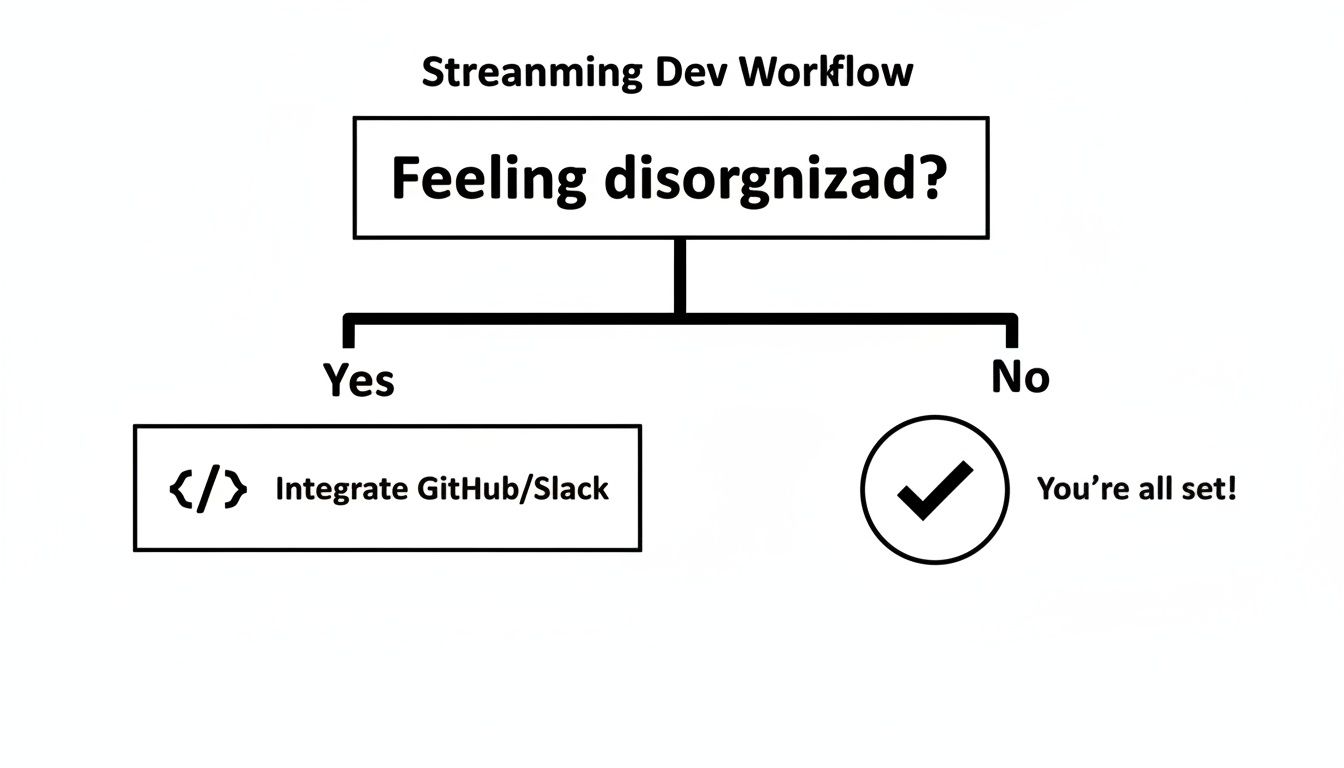
The key takeaway here is simple: once you recognize that disorganization is a problem, you can start looking for a tool that’s actually designed to fix it.
Official GitHub App vs. PullNotifier At a Glance
To help you decide which integration best fits your team's needs for noise control and security, here's a head-to-head comparison.
| Feature | Official GitHub App | PullNotifier |
|---|---|---|
| Primary Goal | Broad visibility across all repository events | Focused, low-noise pull request notifications |
| Notification Style | Sends a new message for each event (can be noisy) | Consolidates PR updates into a single, evolving thread |
| Customization | Filter by event type, branch, and labels | Granular rules by repo, labels, author, and reviewer |
| Security Permissions | Requires broad read/write access to code | Only needs minimal read-only permissions |
| Best For | Project managers, DevOps, teams needing a high-level feed | Engineering teams focused on code review speed and efficiency |
Ultimately, the official app is a great starting point for general awareness, but if your goal is to tame notification chaos and streamline pull request reviews, a specialized tool like PullNotifier is likely a better fit.
Making the Right Decision for Your Team
The choice really comes down to a single question: Are you looking for maximum visibility into everything happening in a repo, or are you trying to fix the specific bottleneck of slow, noisy pull request reviews?
The official app provides a free, broad solution that’s perfect for general updates. At the same time, the rise of alternatives proves there's a real need for tools that solve specific workflow problems beyond basic alerts.
In the end, there's no single "best" tool—only the best fit for your team's unique communication style and tolerance for notifications.
Your Step-By-Step Guide to Connecting GitHub and Slack
Getting your GitHub and Slack workspaces talking to each other is the first real step toward a less chaotic workflow. Let's walk through how to forge that initial connection and set up your first repository subscription—all without drowning your channels in alerts you don’t need.
The entire process starts right inside Slack. The GitHub integration is driven by slash commands, which are just quick shortcuts for telling apps what to do.
Kicking Off the Connection
Your journey begins with a simple command in any Slack channel. Just type /github signin and hit Enter. This tells the official GitHub app to slide into your DMs with a special link to get things started.
Clicking that link whisks you away to GitHub to authorize the connection. It's a standard OAuth process where you give the Slack app permission to peek at your GitHub account. This is the magic step that lets Slack see your repositories and listen for updates.
Once you’ve given the green light, you’ll be sent back to Slack with a confirmation message. That’s it—your Slack user is now securely linked to your GitHub identity.
Subscribing a Channel to a Repository
With your accounts linked, it's time to tell GitHub which repositories to report on and where to send the news. This is done on a channel-by-channel basis, giving you pinpoint control over who sees what.
Pop into the Slack channel you want to receive notifications in. Let's say it's #dev-team-alpha for a specific project. In that channel, you'll use the /github subscribe command.
The format is dead simple: /github subscribe owner/repo. So, if your team is working on a project named "phoenix-app" under the "acme-corp" organization, you would type:
/github subscribe acme-corp/phoenix-app
After you run the command, the GitHub app will confirm that the subscription is live. By default, this initial setup turns on a bunch of notifications for issues, pull requests, commits, and deployments.
This is the kind of confirmation you can expect after successfully subscribing a repository.
The key here is that you can immediately tweak your subscription settings right from that confirmation message. This is absolutely critical for preventing a notification tsunami later on.
Customizing Notifications from the Get-Go
Let's be honest, the default settings are almost always too noisy for a busy dev team. A constant waterfall of commit notifications can easily wash out the important stuff, like a new pull request that needs a review. That's why customizing your subscription immediately is a pro move.
You can filter what gets posted by adding feature flags right into your subscribe command. For instance, if your team only cares about new pull requests and code reviews in a particular channel, you can subscribe with a much more focused command.
Here’s how you’d subscribe only to pull requests and reviews:
/github subscribe acme-corp/phoenix-app pulls reviews
This tells the GitHub for Slack integration to ignore everything else. No more pings for new commits, issues, or deployments. Just the signal, none of the noise.
The goal isn't just to get notifications; it's to get the right notifications. By filtering events right at the subscription stage, you create a high-value channel from day one. Your team learns to pay attention because they know every alert actually matters.
And don't worry, you can always change your mind. If you've already subscribed a channel, just run the /github subscribe owner/repo command again with your new, preferred features to overwrite the old settings. This flexibility is what makes the integration so useful as your team’s workflow evolves.
Taming Notification Noise with Advanced Configurations
Getting your first GitHub notifications flowing into Slack is a great start, but the real magic happens when you start curating that flow. If you don't, a helpful tool can quickly become overwhelming noise, training your team to ignore the very alerts you set up. The key is to shift from a generic feed to a purpose-driven notification strategy.
This means thinking about your channels not just as destinations but as contexts. For instance, a high-traffic repository might need several specialized channels to keep conversations clean and actionable. This approach transforms the GitHub for Slack connection from a simple alert system into a core part of your team's communication fabric.
Implementing a Multi-Channel Routing Strategy
One of the most powerful ways to cut down on noise is to route different types of notifications to different channels. Instead of dumping every update from a single repository into #dev-team, you can create a much more organized structure. This makes sure the right information gets to the right people without distracting everyone else.
Here’s a practical, real-world setup I’ve seen work wonders for projects:
*   **`#dev-team-prs`**: This channel is strictly for pull request activity. New PRs, review requests, and comments all land here, keeping the core development conversation focused and easy to follow.
*   **`#deployments`**: Only merges into the `main` or `production` branches get posted here. This gives stakeholders and QA a clean, high-level view of what’s being shipped.
*   **`#ci-cd-alerts`**: This is a dedicated home for automated workflow statuses. Alerts for failed builds or passed checks go here, letting the on-call engineer monitor pipeline health without spamming the main dev channel.
Setting this up is straightforward. You just use focused subscription commands in each channel. For the deployments channel, the command would look something like this:
/github subscribe org/repo deployments commits:main
This simple separation of concerns makes a world of difference. Your main development channel stays a hub for collaboration, not a dumping ground for bot messages.
Using Advanced Filters for High-Signal Alerts
Beyond routing by branch or event type, you can use labels and other triggers to create even more specific notifications. This is where the integration really starts to shine, letting you build alerts around your team's unique workflow.
Imagine your team uses a bug label for critical fixes. You could set up a subscription that only fires when a pull request with that specific label is opened, immediately notifying the QA team or a senior engineer.
The ultimate goal is to create a notification environment where every alert is worth looking at. When developers trust that a ping from the GitHub app is relevant and actionable, they respond faster, review cycles shorten, and the entire development process becomes more fluid.
For teams working in complex environments like monorepos, managing this signal-to-noise ratio is even more critical. You can dive deeper with these tips for managing PR notifications in monorepos, which offer strategies tailored for large-scale projects.
Specialized tools like PullNotifier take this a step further by consolidating all activity for a single pull request—comments, CI checks, and approvals—into a single, tidy Slack thread. This keeps the main channel pristine while providing a complete, real-time history of the PR's lifecycle. It's a game-changer for busy teams who need context without the clutter, making the GitHub for Slack experience truly indispensable.
Troubleshooting Common Integration Problems

Even the most buttoned-up GitHub for Slack setup can hit a bump in the road. One minute, your channel is humming along with useful updates; the next, it’s radio silent. Or worse, it’s a firehose of duplicate alerts. These little hiccups can throw a real wrench in your team's flow.
But don't worry. Most of the time, these problems come down to a handful of common misconfigurations that are surprisingly easy to fix. Before you start thinking the whole thing is broken, a quick check of the basics usually gets everything back on track.
Solving the Silent Treatment: Why Notifications Stop
The number one complaint I hear is, "Why did my notifications just... stop?" It's a frustrating problem, but it’s rarely a deep, technical bug. More often than not, a simple permission or setting got tweaked.
Here’s a quick diagnostic checklist to run through before you go any deeper:
*   **Repository Access**: Did an admin recently tighten up organization-wide app permissions? It's possible the GitHub app simply lost its access to the repo.
*   **Private Channel Invites**: This one gets people all the time. If your notifications are supposed to go to a private channel, you have to actually invite the app. Just type `/invite @GitHub` in the channel to add it.
*   **Subscription Settings**: Your best friend here is the `/github subscribe list` command. Run it in the channel, and it will tell you *exactly* what that channel is subscribed to and which features (`pulls`, `issues`, etc.) are active. You might discover the event you're waiting for was never turned on in the first place.
Another classic culprit is when a repository's visibility changes. If someone flips a repo from public to private, the GitHub app's access can be severed instantly, cutting off the notification pipeline.
Most "broken" integrations aren't broken at all—they're just misaligned. Taking a moment to verify that the app, the channel, and the repository permissions are all in sync will solve the vast majority of notification issues without any deep technical dives.
Handling Unwanted Noise and Authentication Glitches
On the flip side, getting too many alerts can be just as bad for productivity. If your team is getting spammed with duplicate or irrelevant notifications, it’s a dead giveaway that your subscription filters need a little love.
Go back to the /github subscribe owner/repo command and get more specific with your feature flags. This is often the case when two different channels are subscribed to the same repository with overlapping settings, creating a noisy echo chamber of alerts.
Authentication errors also pop up from time to time, usually after a password change or when a security token expires. The gut reaction might be to remove and reinstall the app, but please don't! That can wipe all your carefully configured settings.
There’s a much cleaner, non-destructive fix.
Just run these two commands in Slack, one after the other:
/github signoutto safely log your account out./github signinto reconnect with your new credentials.
This simple two-step dance re-establishes the connection between Slack and GitHub without touching any of your channel subscriptions or notification rules. Problem solved.
Common Questions About the GitHub Slack App
Once you've got the GitHub for Slack integration up and running, a few common questions tend to pop up as your team starts using it day-to-day. Here are some quick answers to the queries we see most often from developers and managers.
Can You Connect a Single Slack Channel to Multiple Repositories?
Yes, absolutely. In fact, this is one of the most common and useful ways to set things up. A single team channel, say #backend-devs, can easily pull in notifications from several related repositories.
All you have to do is run the /github subscribe owner/repo command multiple times in the channel—once for each repository you want to link. This is perfect for centralizing updates for a squad that juggles a few different microservices, keeping all the important chatter in one spot.
How Does This Work with GitHub Enterprise Server?
The official GitHub app plays nice with both GitHub.com and GitHub Enterprise Server. The main difference is all in the initial setup. For Enterprise Server, your admin will need to install and configure the app on your self-hosted instance first.
After that’s handled, you'll connect your account with a slightly different command: /github signin [enterprise-hostname]. From that point on, all the subscription and management commands work exactly the same as they do for the cloud version.
Security should always be top of mind when you're hooking tools into your codebase. For teams working with sensitive code, it's smart to pick integrations that respect data privacy. Some specialized tools only need minimal, read-only permissions, which is a huge plus compared to apps that demand broader write access.
Is It Possible to Get Alerts for Specific GitHub Actions?
You bet. You can get notifications for all your CI/CD workflows. Just subscribe a channel to the workflows feature, and you'll start getting alerts on the status of your GitHub Actions runs.
You can even fine-tune it to notify on specific events, like workflow_dispatch or on completion. For instance, you could set it up to only ping the #deployments channel when the production-deploy workflow finishes successfully. This gives the whole team a clear, immediate signal when a release goes out.
Ready to cut through the noise and speed up your code reviews? PullNotifier sends focused, high-signal pull request updates right to Slack, helping teams slash review delays by up to 90%. Try PullNotifier for free and see what a difference a truly clean integration can make.