- Published on
Mastering Github to Slack Integration for Dev Workflows
- Authors

- Name
- Gabriel
- @gabriel__xyz
Connecting your GitHub to Slack is more than just setting up a few notifications. It’s a genuine shift in how your development team talks, collaborates, and ultimately, solves problems. When you bring real-time repository events directly into your team's digital workspace, you turn siloed code updates into transparent, actionable conversations.
Why Connecting GitHub to Slack Is a Game-Changer for Your Dev Team

Let's be honest, without a solid integration, development teams often live in two different worlds. Developers are deep in GitHub, while project managers, QA, and other stakeholders are coordinating in Slack. This gap creates a ton of friction. We’ve all seen it: missed updates, pull requests that sit idle for days, and the constant mental drain of switching between apps.
Every time a developer has to drop out of their code editor to check a Slack message—or vice versa—they lose precious focus and momentum. This isn't just an annoyance; it's a huge productivity killer. In fact, a recent report found that 54% of developers are actively looking for tools that bring collaboration and issue resolution into a single place. They want to escape the chaos of app-switching.
From Siloed Chaos to Streamlined Clarity
A proper GitHub-to-Slack connection changes everything. Instead of relying on easily missed email notifications or manually pasting links, your team gets instant visibility into the events that actually matter. It’s a direct line of communication that tackles some of the most common pain points head-on.
Here’s what that looks like in the real world:
*   **Faster Code Reviews:** The second a pull request is ready, reviewers get a ping in Slack. No more waiting around.
*   **Better Visibility for Everyone:** Stakeholders like PMs and QA engineers can see development progress without needing to navigate GitHub.
*   **Less Context Switching:** Keep the conversation about a specific code change right alongside the notification for it, all inside Slack.
Thinking about this integration helps frame broader DevOps automation strategies that are all about boosting efficiency through smarter communication.
In this guide, we're going to walk through the three main ways to build this bridge: using the official GitHub app, setting up custom webhooks, and leveraging specialized third-party tools. Each method offers a different balance of control and simplicity, so you can find the perfect fit for your team's workflow.
Choosing Your GitHub to Slack Integration Path
Here's a quick comparison of the three primary methods for connecting GitHub and Slack, helping you decide on the best approach for your team's workflow.
| Integration Method | Best For | Key Feature | Setup Complexity |
|---|---|---|---|
| Official GitHub App | Teams wanting a quick, straightforward setup with core features. | All-in-one notifications and basic Slack actions. | Low |
| Custom Webhooks | Teams needing highly customized, one-way notifications. | Granular control over the payload and event triggers. | Medium |
| Third-Party Tools | Teams looking for advanced features like smart routing and noise reduction. | Consolidated updates and intelligent filtering. | Low |
Whether you go for the simple official app or a more powerful third-party tool, the goal is the same: create a seamless flow of information that helps your team stay in sync and move faster.
Getting Started with the Official GitHub App
For most teams, the official GitHub app is the quickest way to get repository updates flowing into your Slack workspace. It hits that sweet spot between being easy to set up and having enough features to be genuinely useful. Honestly, you can go from installation to seeing your first notification in just a few minutes.
First things first, you'll need to find the app in Slack's App Directory. Just search for "GitHub," and it'll pop right up. From there, Slack guides you through a quick authentication process to link it with your GitHub account, granting the necessary permissions so the two can talk to each other.
Here’s what the official app listing looks like in the directory.
This page gives you a solid preview of the app's features, like the slash commands and notification types you can expect, which is nice for knowing what you're getting into before you click install.
Subscribing to Repository Events
Once the app is installed and you're all logged in, the real work begins right inside your Slack channels. You can subscribe any public or private repository you have access to with a simple slash command. This command is the heart of the integration; it tells the app which repository's updates should get piped into which channel.
To connect a repository, just head to the channel you want the notifications in and type: /github subscribe owner/repository-name
For example, if your team wanted to get updates from the official React repository in your #frontend-dev channel, you’d use /github subscribe facebook/react. That one command creates the link, and you'll start getting the default notifications almost immediately.
Pro Tip: I highly recommend creating dedicated channels for your GitHub notifications, like
#github-reviewsor#deployments-prod. This keeps important dev updates from getting buried in general chatter and makes discussions much more focused.
Customizing Your Notifications
The default settings are a good starting point, but they can get noisy fast. The real power of the official app is dialing in which events trigger a notification so you only see what actually matters to your team. For a much deeper dive, our guide on how to use the official GitHub Slack app has more advanced tips and examples.
You can customize alerts using the same subscribe command, just with a few extra keywords. Some of the most common ones include:
*   **`issues`:** Track when new issues are opened or closed.
*   **`pulls`:** Get notified about new PRs, review requests, and merges.
*   **`commits`:** See updates for new commits pushed to the default branch.
*   **`deployments`:** Monitor deployment statuses as they roll out.
Let's say you only want to see notifications for new pull requests and issues in a specific repo. Your command would look like this: /github subscribe owner/repo issues pulls
By being selective about the events you subscribe to, you create a high-signal, low-noise environment. This makes sure your team sees the critical stuff—like a new PR that needs a review—without getting spammed by every single commit. It turns the github to slack connection from just another notification source into a real productivity booster.
Go Custom with GitHub Webhooks
While the official GitHub app is a fantastic starting point, sometimes your team needs something more… specific. When you need fine-grained control over what notifications look like, when they're sent, or where they go, GitHub webhooks offer the ultimate flexibility for your integration.
Think of a webhook as an automated message sent from GitHub to Slack whenever a specific event happens. Instead of Slack constantly polling GitHub for updates, GitHub proactively pushes a JSON payload to a unique Slack URL the moment something happens in your repo. This opens up a whole world of possibilities beyond the standard alerts.
Setting Up Your Slack Incoming Webhook
First things first, you need to create an endpoint in Slack to catch the data from GitHub. This is done by adding an "Incoming Webhook" app to your workspace.
You'll choose a default channel for the notifications, and Slack will generate a special URL for you. This URL is your private endpoint—treat it like a secret, because anyone with it can post messages to that channel. Once it's set up, you can send a quick test message to the URL to make sure it's working. This is the crucial link that lets your custom logic talk directly to your Slack channel.
The whole setup process, whether you're using an app or a webhook, really boils down to three parts: find your tool, authenticate your accounts, and subscribe to the events you care about.
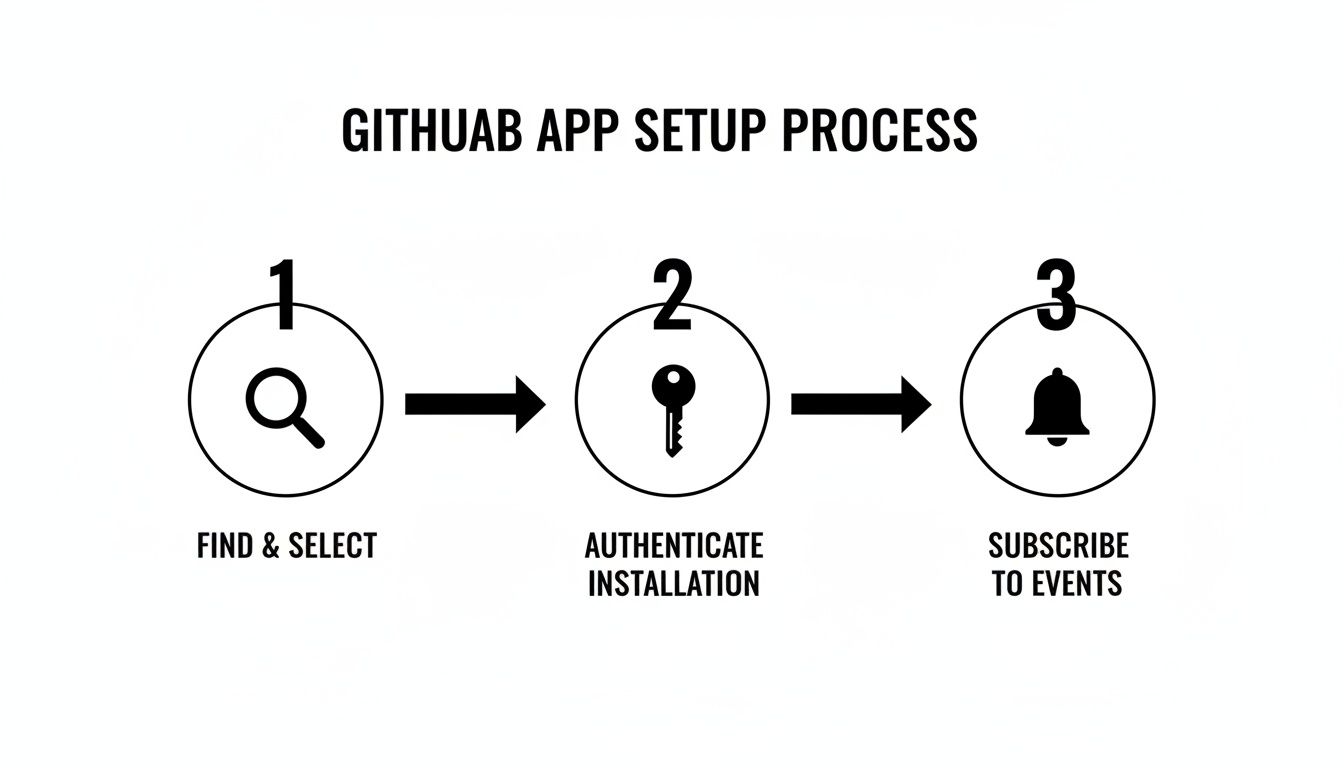
This simple flow shows that no matter which method you choose, the core principles of connecting the two platforms are the same.
Configuring the Webhook in GitHub
With your Slack URL in hand, head over to your GitHub repository’s settings. Find the "Webhooks" section and click to create a new one. This is where you'll paste the Slack incoming webhook URL into the "Payload URL" field.
Now for the important part: choosing which events trigger the webhook. You can select everything (definitely not recommended!) or pick and choose individual events. Some common ones include:
*   **`pull_request`**: For all PR-related activities like opening, closing, or requesting a review.
*   **`push`**: Fires off when commits are pushed to a branch.
*   **`deployment_status`**: Perfect for tracking the progress of your CI/CD pipeline.
Selecting only the events you actually need is the key to avoiding a firehose of useless data. This level of customization is precisely why teams turn to webhooks in the first place. For those who want this kind of control without all the manual setup, our guide on using GitHub Actions to send Slack notifications offers a great middle ground.
Validating Webhook Signatures for Security
A publicly exposed webhook URL is a security risk. To lock things down, GitHub lets you set a secret token for your webhook. With this in place, every payload GitHub sends will include a special header containing a hash of the payload body, signed with your secret.
On your server, you can then compute the same hash using your secret and compare it to the one in the header. If they match, you can be 100% certain the request came from GitHub and not a malicious actor. This validation step is non-negotiable for a secure integration.
This approach has become an industry standard for a reason. In fact, secure, custom integrations like these have helped organizations achieve an average of a 40% reduction in release cycles. By building custom alerts with secure webhooks, you create a powerful, tailored communication system that perfectly fits your team's unique workflow.
Optimizing Workflows with Specialized Third-Party Tools
While the official GitHub app is a decent starting point and webhooks offer limitless flexibility, there's a third option for teams that want advanced features without the headache of a complex setup. Specialized third-party tools are designed to fix the specific problems that generic integrations often create, like notification spam and a frustrating lack of context around pull requests.
These tools hit a sweet spot. They give you more power than the default app but don't force you to write and maintain your own code. Their whole purpose is to deliver high-signal, low-noise alerts right out of the box. For a lot of engineering teams, this is the real key to making a github to slack integration actually work.
Cutting Through the Noise with Smart Notifications
Let’s be honest, one of the biggest complaints about standard integrations is the firehose of alerts. A single pull request can trigger a dozen notifications for comments, commits, and status checks. Before you know it, important updates are buried under a mountain of channel spam.
Purpose-built tools like PullNotifier tackle this problem head-on. Instead of sending a new message for every single event, they consolidate all activity for a pull request into one clean, threaded Slack message. You get a single, evolving conversation that shows the PR's entire lifecycle at a glance.
This focused approach is incredibly effective. When you bridge these critical gaps in developer workflows with smarter tools, you can see significantly faster code reviews. In fact, some studies show that minimizing notification noise with threaded, consolidated messages can lead to up to a 90% reduction in review delays.
Actionable Information at a Glance
A great third-party integration doesn't just cut down on noise; it adds valuable context that helps your team act faster. That usually means showing critical information right inside the Slack notification.

The screenshot above is a perfect example of how a specialized tool presents a pull request—status, checks, and requested reviewers are all right there in one easy-to-read message. This immediate context means developers don't have to constantly click back to GitHub just to figure out what's going on.
By automatically tagging the right reviewers and showing CI/CD check statuses (like
pending,success, orfailure), these tools turn a simple notification into a mini-dashboard. It empowers team members to see exactly what's needed from them without ever leaving their main communication hub.
Advanced Features for Complex Workflows
Beyond smart notifications, these tools often come loaded with advanced features built for the realities of modern development.
*   **Monorepo Support:** Intelligently route notifications from different parts of a monorepo to the correct team's Slack channel. No more cross-team spam.
*   **Minimal Permissions:** Many of these tools are designed with security in mind, requesting only the read-only permissions they need to function. This is a huge plus for security-conscious organizations.
*   **Custom Rules:** Set up sophisticated rules to automatically mention specific people based on file paths, code owners, or PR labels.
If you're looking to level up your current setup, exploring the different options out there is a great next step. You can check out our guide on the 4 best GitHub Slack integrations to try in 2026 to compare different approaches. To boost your team's efficiency even further, diving into some essential marketplaces and hubs for developer productivity tools is a smart move. For teams determined to kill review delays and get better workflow visibility, a dedicated third-party solution is often the most effective choice.
Best Practices for a Quiet and Secure Integration
Getting your GitHub and Slack integration up and running is just the start. The real trick is managing it so it actually helps your team instead of burying them in notifications. If you're not careful, what begins as a useful tool can quickly turn into a noisy, distracting mess with potential security holes.
Let's walk through some battle-tested practices to keep your integration quiet, secure, and genuinely productive.
Taming Notification Overload
The biggest enemy of a useful integration is notification fatigue. When every single commit, comment, and status check floods a channel, developers just learn to tune it all out. The key is to be ruthless about what you let through.
A simple but incredibly effective tactic is to create dedicated, purpose-driven channels. Don't just dump everything into a general #engineering channel. That's a recipe for chaos.
Instead, segment your notifications. For instance:
*   Create a `#github-reviews` channel exclusively for new pull requests and review requests.
*   Use a `#github-deployments` channel for merge confirmations to `main`.
This way, actionable items get immediate attention from the right people, while general updates don't drown out what's important.
Fine-Tuning Your Subscriptions
Once you have dedicated channels, you need to get granular with the subscriptions inside them. The goal here is to only surface events that absolutely require human attention.
Here are a few specific strategies I've seen work well to cut down the noise:
*   **Focus on the PR Lifecycle:** Subscribe primarily to `pulls` and `issues`. These are the key moments in the development process that actually need team input.
*   **Ignore Individual Commits:** Ditch the `commits` subscription for active development branches. This is almost always low-signal information that just clutters the feed. It's much more useful to see commits in the context of a full pull request.
*   **Filter by Branch:** If your tool allows it, configure your integration to only report on merges to key branches like `main` or `develop`. This gives everyone a clean, high-level summary of what's been completed and shipped.
Adopting this selective approach will transform your github to slack firehose into a curated feed of development milestones that people actually want to see.
Prioritizing a Secure Connection
Okay, so we've quieted things down. Now let's talk security. A poorly secured integration isn't just a nuisance; it's a liability that could expose sensitive code or provide a backdoor for bad actors.
The most critical security principle to follow is least privilege. Your integration should only have the bare minimum permissions it needs to do its job. If a tool just needs to read repository data to post notifications, it should never, ever be granted write access. Simple as that.
Take the time to regularly audit the permissions of any app or webhook connected to your GitHub org and Slack workspace. A quick quarterly review is a great habit to get into. You'd be surprised how often you'll find outdated or overly permissive connections still active.
You also need to be careful about the tools you bring into your workflow. The recent compromise of a popular GitHub Action, tj-actions/changed-files, was a stark reminder of supply chain risks. Malicious code was injected into the tool, which then attempted to dump secrets from thousands of CI pipelines.
This incident is a perfect example of why you need to vet third-party tools and, whenever possible, pin your actions to specific, trusted commit SHAs instead of mutable tags like @v1. A security-first mindset is non-negotiable—it protects your codebase and your team's most important communication channels.
Common GitHub to Slack Integration Questions
Even with a perfect setup guide, integrating tools like GitHub and Slack can throw you a curveball. Let's walk through some of the most common questions and hurdles teams run into, so you can get unstuck and fine-tune your workflow.
How Do I Manage Multiple Repos in One Channel?
This is a classic problem. You've got a team that needs updates from a few different but related repos, and you want them all in one place. For example, your frontend team might need to see what's happening in the main app repo, a component library, and a design system repo—all inside their #frontend-dev channel.
The official GitHub app actually handles this pretty gracefully. All you have to do is run the /github subscribe owner/repo command multiple times in the channel, once for each repository you want to link.
But here’s the real pro-tip: to stop this from turning into a chaotic mess, you have to be ruthless with your notification settings for each repo. For that component library, maybe you only care about new
releases. For the main app, you might wantpullsanddeployments. This simple trick prevents one noisy repository from completely drowning out the others.
What Causes "Permission Denied" Errors During Setup?
Few things are more frustrating than hitting a "permission denied" wall when you're trying to connect an app. When this happens with the GitHub integration, it almost always comes down to one of two things:
*   **You don't have the right GitHub permissions.** The person setting up the integration needs **admin access** to the specific repositories they're trying to connect. A "write" or "maintain" role isn't enough.
*   **Your GitHub org has app restrictions.** Many organizations have security policies that block third-party app access by default. An organization owner will need to go in and explicitly approve the Slack app before anyone can use it on company repos.
First, double-check your own permissions on the repo. If you're confident you have admin rights, it’s time to have a quick chat with your GitHub organization administrator to get the app approved.
Is a Paid Tool Really Worth It?
Lots of teams hit a point where they wonder if they should stick with the free, official app or spring for a paid tool. Honestly, the answer comes down to one thing: friction.
How much pain is your current workflow causing? Are your developers complaining about constant notification spam? Are pull request review times slowly creeping up because important updates are getting buried in a sea of noise?
If that sounds familiar, then a paid tool is absolutely a worthwhile investment. These tools are built from the ground up to solve the exact noise and context-switching problems the official app just doesn't address. They introduce smart features like threaded PR conversations and intelligent routing that can directly lead to faster, more focused development cycles. When you find a tool that can demonstrably speed up your code reviews, its value almost always outweighs the cost.
Ready to eliminate notification spam and accelerate your code reviews? PullNotifier consolidates all pull request activity into clean, threaded Slack messages so your team can stay focused and ship faster. Start your free trial today and see the difference.