- Published on
Slack Bitbucket Integration: Boost Your Code Reviews
- Authors

- Name
- Gabriel
- @gabriel__xyz
Integrating Slack and Bitbucket is less of a nice-to-have and more of a necessity for modern dev teams. The whole point is to pipe important repository events—think pull requests, commits, and comments—directly into the place where your team is already talking.
This connection stops developers from having to constantly ping-pong between their IDE, email, and the Bitbucket UI just to see what's happening. The result is a much faster feedback cycle and a development workflow that’s actually transparent.
Why Your Dev Team Needs a Slack Bitbucket Integration
Let’s be real: context switching is the bane of a developer's existence. Bouncing between writing code, checking Bitbucket for PR updates, and then dropping a link in Slack creates a constant stream of tiny interruptions. These little delays pile up fast, creating serious bottlenecks that can slow down your entire deployment pipeline.

We've all seen this play out. A developer pushes their code and opens a pull request. Without an integration, they’re forced to manually hunt down reviewers and poke them in Slack. If that message gets buried, the PR just sits there, collecting dust for hours. It’s frustrating for the developer waiting on feedback, and it stalls progress for the whole team.
Accelerate Feedback and Boost Transparency
The biggest win from a Slack Bitbucket integration is creating a single, real-time feed of what's happening in your repos. Ever since Atlassian launched its native app, connecting Bitbucket Cloud and Server to Slack has been a complete game-changer. Some developer surveys have shown it can slash context-switching time by up to 50%.
When notifications pop up right in a dedicated channel, everyone sees what’s going on instantly. It builds a sense of shared ownership and encourages quick responses.
A well-configured integration brings a ton of practical benefits to the table, making the development process smoother and more collaborative.
| Area of Improvement | Specific Benefit | Impact on Team |
|---|---|---|
| Visibility | Centralized, real-time notifications for PRs, comments, and approvals. | Everyone stays in the loop without checking Bitbucket manually. |
| Review Speed | Instant alerts mean reviewers see requests immediately. | Reduces PR turnaround time, helping teams merge code faster. |
| Collaboration | Discussions happen in-thread, right below the notification. | Keeps context clear and conversations focused on the code. |
| Accountability | Public channel updates create shared ownership over the review process. | No more PRs sitting idle because nobody knew they existed. |
Ultimately, a tight integration ensures that critical updates are seen and acted upon quickly, keeping the entire development pipeline moving forward.
A well-implemented integration transforms your Slack channel into a dynamic command center for your development process. It's not just about alerts; it's about making code reviews a seamless part of the team's natural conversation.
Beyond Native Capabilities
While the out-of-the-box connection is powerful, there's always room to fine-tune the developer experience. For teams looking to really optimize their flow, exploring comprehensive developer tool solutions can unlock even greater efficiencies.
It also helps to see how similar tools work together. For instance, many of the same principles apply to the GitHub and Slack ecosystem. If you want to dive deeper, check out our guide on how a GitHub Slack integration improves code reviews: https://pullnotifier.com/github-slack-integration to see the parallel benefits.
Connecting Bitbucket Cloud with Slack
If you're using Bitbucket Cloud, the official app in the Slack App Directory is your most straightforward path. This approach skips the manual fuss of webhooks and walks you through a clean, guided setup. Seriously, you can be up and running in minutes, creating a powerful link between your code and your team's chat.
One of the best parts is that this native connection uses OAuth for authentication. That means no more passing sensitive credentials around—it's all handled securely behind the scenes. Once you've got it installed, you can start hooking up specific channels to get alerts from any repository in your Bitbucket workspace.
Finding and Installing the App
First things first, you have to find the app. Just search for "Bitbucket Cloud" in the Slack App Directory or look it up on the Atlassian Marketplace. You'll want the official one from Atlassian to make sure it's always up-to-date with both platforms.
Click "Add to Slack," and you'll be guided through a simple authentication flow. Slack will ask for permission to connect to your Bitbucket account, and you might need to log into Atlassian if you aren't already. This step is what allows Slack to see your workspaces and repositories, so it can pull the right updates.
Here’s what that initial connection step looks like:  The interface is clean and makes it obvious which workspace you're linking, which is great for avoiding any mix-ups, like connecting personal projects to your company's Slack.
Subscribing Channels to Repositories
With the app installed and authenticated, the real magic begins. Now you can tell Bitbucket exactly where to send its updates. This is all handled on a channel-by-channel basis using a simple slash command, giving you total control over where notifications go.
Let's say you want updates for a repository called project-phoenix to appear in your #dev-team channel. You’d just type this command right into that channel: /bitbucket subscribe your-workspace/project-phoenix
Bitbucket will pop back with a confirmation, and from that point on, events from that repository will flow directly into the channel.
Pro Tip: I highly recommend creating dedicated channels for different kinds of notifications. For example, a
#ci-cd-alertschannel for deployment repos and a separate#pr-reviewschannel for code review chatter. This keeps conversations focused and cuts down on the noise.
This granular control is what makes the slack bitbucket integration truly useful. Without it, a general-purpose channel connected to a busy monorepo would become an unreadable firehose of notifications in no time.
To keep track of everything, you can use a couple of other handy commands:
*   **`/bitbucket list`**: This shows you all the active subscriptions for the channel you're in.
*   **`/bitbucket unsubscribe your-workspace/project-phoenix`**: Stops notifications for that specific repository in that channel.
While this setup is fantastic for Bitbucket Cloud users, teams working primarily in GitHub can achieve a similar workflow. For a detailed walkthrough on getting that set up, check out our guide to Slack GitHub integration. Both integrations are all about bringing your development process right into the heart of your team's communication space.
For teams running a self-hosted Bitbucket Server or Data Center, the integration path looks a little different. Instead of a pre-built app from the Slack directory, you'll be setting up a manual connection using webhooks. This approach gives you direct control over the data flow but does require a bit more hands-on configuration to get right.
The magic behind this setup is an Incoming Webhook in Slack. Think of it as a unique, private URL that you generate within your Slack workspace. When your Bitbucket Server sends data to this URL, Slack knows exactly where to post it—right into your designated channel. It's a surprisingly simple yet powerful way to bridge the gap between otherwise separate systems.
Creating the Slack Incoming Webhook
First things first, you need to generate that webhook URL from inside Slack. Don't worry, this part is quick and painless.
- Head over to the Slack channel where you want your Bitbucket notifications to land.
- Click the channel name at the top, navigate to the Integrations tab, and select Add an app.
- In the search bar, type "Incoming Webhooks" and click Add.
- Just follow the on-screen prompts to select your channel and click Add Incoming Webhooks Integration.
Slack will immediately provide you with a unique webhook URL. This URL is a secret, so you need to treat it just like a password. Anyone who has this URL can post messages to your channel, so keep it secure and never, ever commit it to a public code repository.
Configuring Your Bitbucket Server Repository
With your new webhook URL copied, it’s time to switch over to your Bitbucket Server instance. You'll need to have repository admin permissions to set this up.
Find the repository you want to connect and navigate to Repository settings, then click on Webhooks. From there, hit Create webhook and start filling in the details. Paste your Slack webhook URL directly into the URL field. It’s also a good idea to give it a descriptive title like "Slack PR Notifications" so you can easily recognize it later.
The real power here is in the "Triggers" section. This is where you tell Bitbucket exactly which events should fire off a notification. Be selective here to avoid flooding your channel with noise.
A common, high-signal setup for most development teams often includes triggers for these events:
*   **Pull request:** Opened, Merged, Declined, Deleted
*   **Repository:** Pushes
*   **Comments:** Added, Edited, Deleted
This level of control is what makes the integration so valuable. It ensures you only get alerts that are genuinely relevant to your team's workflow, turning your Slack channel into a focused feed of activity instead of a source of constant distractions.
When you're connecting a self-hosted server, it's crucial to stick to strong security protocols. Brushing up on general software development security best practices will help keep your entire development pipeline safe. This webhook method offers a solid way to achieve a Slack Bitbucket integration for on-premise instances, giving you the same real-time visibility that cloud users enjoy.
Customizing Notifications to Reduce Channel Noise
So, you've connected Bitbucket to Slack. That's a great start, but the real work begins now. If you just leave it as is, you’ll flood your channels with a raw, unfiltered feed of every single repository event. It’s a classic case of too much information.
Instead of creating clarity, this constant stream of low-value alerts creates "channel noise." Pretty soon, your team starts tuning it all out, and the entire point of the integration is lost. The goal is to turn that noisy firehose into a high-signal, curated feed that people actually pay attention to.
Strategic Channel and Alert Configuration
A simple but incredibly effective strategy is to create dedicated channels for specific types of updates. This segmentation keeps conversations focused and makes sure the right people see the right information without cluttering up general-purpose channels.
For example, you could easily set up:
*   **`#dev-reviews`**: A channel subscribed only to `pullrequest:created` and `pullrequest:approved` events. This keeps all PR activity in one place for maximum visibility.
*   **`#ci-cd-alerts`**: This one is exclusively for build statuses. Subscribing it to `repo:commit_status_updated` events for *failed* pipelines gives your team an immediate heads-up on deployment issues.
*   **`#project-alpha-commits`**: Got a high-priority project? You might want a dedicated channel that tracks every single push to the main branch.
This is all about directing notifications intelligently, and the webhook setup in Bitbucket is what makes it possible.
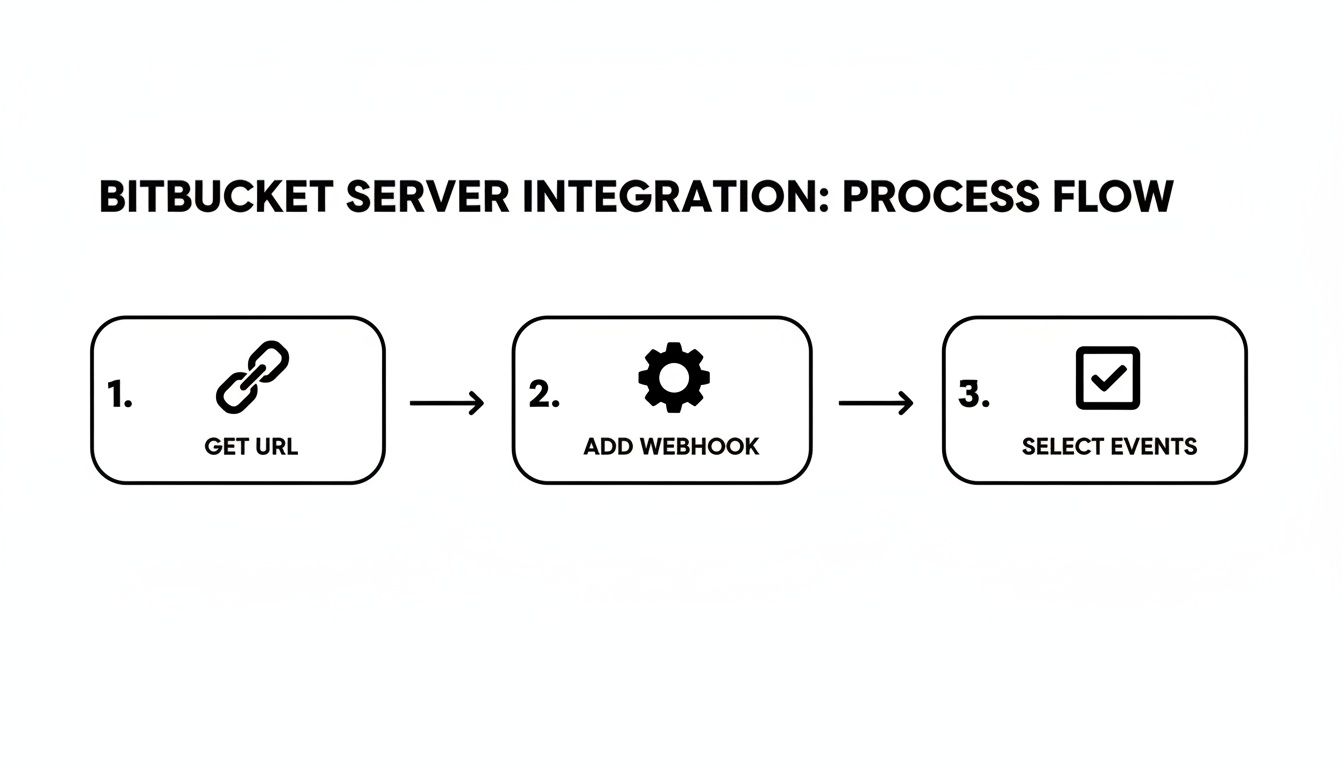
The flow is straightforward: you grab a URL, add it to Bitbucket as a webhook, and then pick the exact events you want to send over to Slack. This is how you gain control over the noise.
The goal isn't just to see Bitbucket activity in Slack; it's to create actionable alerts that drive the development process forward. If a notification doesn't require an action or awareness from the people in that channel, it's just noise.
When Native Tools Are Not Enough
While the built-in tools offer some good basic filtering, they can start to show their limits with more complex workflows. This is especially true for large teams or projects wrestling with monorepos.
Atlassian reported over 500,000 workspaces activated the integration shortly after its release, but as teams scale, overwhelming alerts become a huge headache. This is where third-party tools come in, offering the kind of intelligent routing and advanced filtering that native options lack.
For instance, a solution like PullNotifier can map specific repositories to channels and automatically mention required reviewers, which has been shown to reduce review delays by up to 90% for hundreds of organizations. It’s a completely different level of control.
Fine-tuning your notification strategy is one of the most impactful things you can do to get your team’s focus back. If you want to dive deeper into optimizing your setup, you can master Slack for developers with our ultimate guide.
How to Troubleshoot Common Integration Problems
Even a perfectly set up Slack Bitbucket integration can go quiet sometimes. When the notifications suddenly stop or an error pops up, it’s usually something simple—a permission hiccup or a configuration mismatch. Instead of tearing everything down and starting over, a few targeted checks will get you back online in no time.
The most common culprit is almost always a permissions issue. This happens a lot if the person who originally set up the integration loses their access, or if Slack app permissions get updated without a quick re-authentication. For self-hosted Bitbucket Server, another frequent offender is a misconfigured or expired webhook URL, which completely severs the communication link.
Diagnosing Notification Failures
When alerts just stop, the first thing to do is check the connection's health from both ends.
Pop over to Slack and run the /bitbucket list command in the channel that's gone silent. This will quickly confirm if the subscription is still active on Slack's side. If it is, the issue is probably hiding in Bitbucket.
Next, jump into your Bitbucket repository settings. For Bitbucket Cloud, you’ll want to look under Settings > Marketplace apps to make sure the Slack app still has the permissions it needs. Sometimes, just hitting "Sync" or "Reconnect" is enough to fix an expired authentication token without a full reinstall.
If you're on Bitbucket Server, the process is a bit more hands-on.
*   **Inspect Webhook Logs:** Go to **Repository settings > Webhooks** and click "View requests" for your Slack webhook.
*   **Check for Errors:** Scan the delivery logs. A `4xx` error, like a `404 Not Found`, usually points to an incorrect or disabled Slack webhook URL. A `5xx` error suggests a temporary problem on the server's end.
Checking the webhook delivery log first is a huge shortcut. If the logs all say "Success" but you're seeing nothing in Slack, the problem is almost certainly on the Slack side—likely a channel permission issue.
Solving Authentication Errors
Authentication problems usually show up when you’re linking a new repository or right after someone changes their password. If you see an "Authentication failed" message, the fastest fix is to simply re-authenticate the app.
Find the Bitbucket Cloud app page inside your Slack workspace. Look for an option to manage your connection or sign in again with your Atlassian account. This forces a refresh of the secure token that lets the two platforms talk to each other.
It's also worth double-checking that you've linked the correct Bitbucket workspace to the right Slack instance. This is a common trip-up for consultants or developers who are juggling multiple client accounts.
Frequently Asked Questions About the Integration
When you're plugging a new tool into your workflow, you’re bound to have questions. It's smart to think about capabilities, security, and how it’ll all work day-to-day. Getting the right answers upfront helps make sure the connection between Slack and Bitbucket actually helps, instead of just creating new headaches.
Let’s tackle some of the most common questions we hear from development teams. The good news? This integration is built to be both powerful and flexible, so it can usually bend to fit your team's specific needs.
Can I Approve a Bitbucket Pull Request Directly from Slack?
Yes, and honestly, this is one of the best parts of the official Bitbucket Cloud app for Slack. When a new pull request notification pops up, it’s not just for show—it's interactive. You’ll see buttons right in the Slack message to Approve, Merge, or drop in a comment.
This is a massive time-saver. It means developers can act on a PR the moment they see it, without context switching or even leaving Slack. That tiny bit of friction removal is huge for speeding up code reviews. For teams on a self-hosted Bitbucket Server, getting this level of interactivity will depend on the marketplace app or custom webhook you've set up.
How Do I Manage Notifications for Multiple Bitbucket Repositories?
The key here is to create dedicated, single-purpose Slack channels. Don't just dump everything into a generic #dev channel.
Instead, create something like a #project-x-reviews channel and use the /bitbucket subscribe command to link it only to the 'project-x' repository. This keeps all the notifications neatly organized and ensures they’re relevant to everyone in that channel.
This approach stops a single channel from turning into a chaotic firehose of updates from a dozen different projects. If you're wrestling with a monorepo or a huge number of repositories, the native tools can feel a bit basic. In those cases, you might want to look at advanced third-party solutions that offer more sophisticated routing rules to send notifications to the right place based on code paths or team ownership.
The core idea is simple: match the notification's context to the channel's purpose. A well-organized setup turns notifications from annoying noise into genuinely useful, actionable signals for your team.
Is the Slack Bitbucket Integration Secure for Enterprise Use?
Absolutely. Security is a top priority for both Atlassian and Slack. The official integrations are built using secure protocols like OAuth 2.0 for authentication, which means your credentials are never passed around directly.
If you’re setting up webhooks for Bitbucket Server, it’s critical to treat the webhook URL like a password. Don't expose it. For companies with strict security policies, it's always a good idea to pick solutions that follow the principle of least privilege by requesting only the minimum permission scopes needed. This limits the app's access to just pull request data, shrinking the potential attack surface.
A well-secured, efficient integration makes a real difference. Atlassian surveyed 10,000 users and found that after adopting the integration, developer satisfaction scores shot up by 54%. Teams also reported 30% fewer stale PRs, and their average merge time dropped from 5 days to just 2.2—a 56% improvement. You can dive deeper into how different tools drive these kinds of results by exploring the best GitHub Slack integrations.
Ready to eliminate notification noise and speed up your code reviews? PullNotifier integrates seamlessly with GitHub and Slack to deliver smart, threaded PR updates right where your team works. Cut through the clutter and get back to building. Get started with PullNotifier for free today.