- Published on
A Complete Guide to Jira and Slack Integration
- Authors

- Name
- Gabriel
- @gabriel__xyz
Imagine your project management tool and your team's chat hub talking to each other seamlessly. That's exactly what you get when you integrate Jira and Slack. For engineering teams, this creates a single source of truth—a mission control where project updates from Jira pop up right where the conversations are already happening.
Why This Integration Is a Game-Changer for Engineering Teams

In a fast-moving development world, context switching is a killer of productivity. Bouncing between your issue tracker and your chat app breaks your focus and kills momentum. A well-tuned Jira and Slack integration pretty much erases that friction.
Think of it like building a dedicated express lane between your team’s planning board and their digital workspace. Instead of manually checking Jira for ticket updates or pasting links into Slack, critical information just flows where it needs to go. This isn't just about convenience; it's a strategic move to shorten development cycles and get everyone on the same page, fast.
Core Benefits of Connecting Jira and Slack
Before we get into the nitty-gritty, here’s a quick look at what this integration really does for an engineering team.
Jira and Slack Integration At a Glance
| Benefit | Impact on Engineering Teams |
|---|---|
| Less Context Switching | Developers stay focused and in their flow state longer. |
| Total Visibility | Real-time notifications mean no more surprises or missed updates. |
| Quicker Resolutions | Critical alerts get immediate attention, helping teams triage faster. |
| Fewer Status Meetings | Project progress is visible in Slack, freeing up time for deep work. |
When these two powerhouses are connected, engineering workflows become far more transparent and fluid.
Here’s what that looks like in practice:
*   **Reduced Context Switching:** Developers can create, update, and comment on Jira tickets directly from inside a Slack message. No more tab-hopping.
*   **Enhanced Visibility:** Real-time pings about ticket status changes, new comments, or priority shifts hit the right channels, keeping everyone in the loop without even trying.
*   **Faster Response Times:** You can route critical alerts, like a new production bug, to a dedicated channel so the right people can jump on it immediately.
*   **Fewer Unnecessary Meetings:** When project progress is always visible in Slack, the need for those "just checking in" status meetings evaporates, giving everyone back precious time for actual work.
By connecting these tools, you transform Slack from a simple messaging app into an interactive dashboard for your projects. Every notification becomes a potential action, not just another piece of information to process.
This seamless connection is part of a bigger trend where tying tools together drives massive operational wins. The market for AI-driven collaboration has exploded, with integrations linking platforms like Jira, HubSpot, and Zendesk directly into Slack's ecosystem. Just look at Zendesk, which projected revenues around $1.7 billion for 2022, highlighting the huge economic footprint of these integrated systems. Discover more insights about this trend on kavurey.com.
How Connecting Jira and Slack Changes the Game

Connecting Jira and Slack isn't just about adding another feature—it's about fundamentally changing how your engineering team gets work done. The real magic happens when you close the gap between discussion and action. This integration turns scattered conversations into structured, trackable work without anyone having to leave their main communication hub.
Imagine a developer spots a bug during a chat in your team's Slack channel. Instead of opening another tab, logging into Jira, and manually creating a ticket, they can turn that exact Slack message into a new Jira issue with a single click. All the critical context from the conversation gets captured and assigned instantly.
This direct line between conversation and task management is where the biggest wins are, drastically cutting down on the mental load of context switching.
Key Use Cases for Engineering Teams
By bridging these two platforms, you unlock powerful workflows that tackle common engineering bottlenecks. The goal is to bring vital information to your team, not force them to go looking for it.
Here are a few game-changing scenarios:
*   **Real-Time Status Updates:** When a ticket moves from "In Progress" to "Ready for QA," a notification automatically pings the `#qa-team` channel. This kills any ambiguity about when work is ready for review.
*   **High-Priority Incident Alerts:** A new P1 production bug gets created in Jira. Instantly, an alert fires in the `#devops-alerts` channel, tagging the on-call engineer and giving them a direct link to the ticket for immediate triage.
*   **Direct Task Assignment from Slack:** A manager can assign a Jira ticket to a developer right inside a Slack thread. This gives the whole team clear ownership and visibility without needing another meeting.
The core principle is simple: transform Slack from a place where work is discussed to a place where work is done. Each notification becomes an actionable item, not just another piece of information.
Fostering a More Responsive Culture
This integration does more than just save time; it reshapes team culture by driving transparency and responsiveness. When project progress is visible to everyone in the channels they already live in, the entire team stays aligned. This is a common strategy across different version control systems, too—you can see similar benefits in our guide to GitLab Slack integration.
A study of over 6,000 professionals found that 89% believe organized teammates are the most productive. The Jira and Slack connection builds that organization directly into your communication flow.
It creates a system where updates are automatic, accountability is clear, and the barrier to creating and tracking work is almost zero. This nurtures a more agile, collaborative, and ultimately more effective engineering environment.
How to Set Up Your Jira and Slack Integration
Connecting Jira and Slack is the first step toward creating a much more connected workflow for your team. The best way to start is with the official Jira Cloud for Slack app, which guarantees a secure and robust link between the two platforms. Think of this as building the bridge that will carry all your team's project updates directly into their daily conversations.
The initial setup is quick, usually taking just a few minutes. Once you add the app to your Slack workspace, you'll authorize the connection to your Jira Cloud site. This digital handshake is what lets the two systems talk to each other, so you can create tickets, get notifications, and manage tasks without ever leaving Slack.
Connecting Projects to Channels
Once the app is installed, the real magic happens when you map your Jira projects to the right Slack channels. This is easily the most important step for keeping notifications relevant and organized. It's tempting to just dump all updates into a single, massive channel, but that's a recipe for noise.
Instead, think strategically. Create dedicated channels for specific projects, teams, or even types of alerts. This ensures the right information always finds its way to the right people.
Here’s a simple, step-by-step way to get it done:
- Hop into a Slack Channel: Go to the channel you want to connect, like
#api-development. - Invite the Jira Bot: Type
/jira connectand hit enter. This command calls the Jira Cloud bot into action to start the linking process. - Pick Your Jira Project: A dialog box will pop up, letting you search for and select the specific Jira project you want to connect, such as your "API" project.
- Set Up Notifications: After linking, you can decide which Jira events will trigger a notification in that channel. A good starting point is to get alerts for "Issue Created" and "Issue Transitioned to Done."
By thoughtfully pairing projects with channels, you move from a noisy, unfiltered firehose of information to a curated stream of actionable updates. This simple configuration is the first line of defense against notification fatigue.
To really get the most out of this setup, it's worth taking the time to explore more about integrations and what they can do. Getting the permissions right from the start is also a big deal. Make sure the Jira bot has the access it needs to post in your chosen channels, but be careful with private channels that might contain sensitive info. A little bit of thoughtful configuration on day one will create a clean, efficient, and secure pipeline between Jira and Slack.
Master Your Workflow With Smart Automation Rules
Just connecting Jira and Slack is a good start, but the real magic happens when you make them work for you. Using Jira Automation, you can set up smart, trigger-based rules that pipe specific messages to the right Slack channels. This is how you go from a noisy notification feed to a finely tuned alert system that surfaces exactly what you need to see, when you need to see it.
Forget generic pings for every single ticket update. Automation lets you build incredibly specific notifications that are almost impossible to ignore. This is how you create a low-noise, high-signal workflow where every alert is genuinely actionable.
Before you jump into building rules, though, you need to get the basic connection set up. The visual guide below walks through the simple, three-step process to get you started.
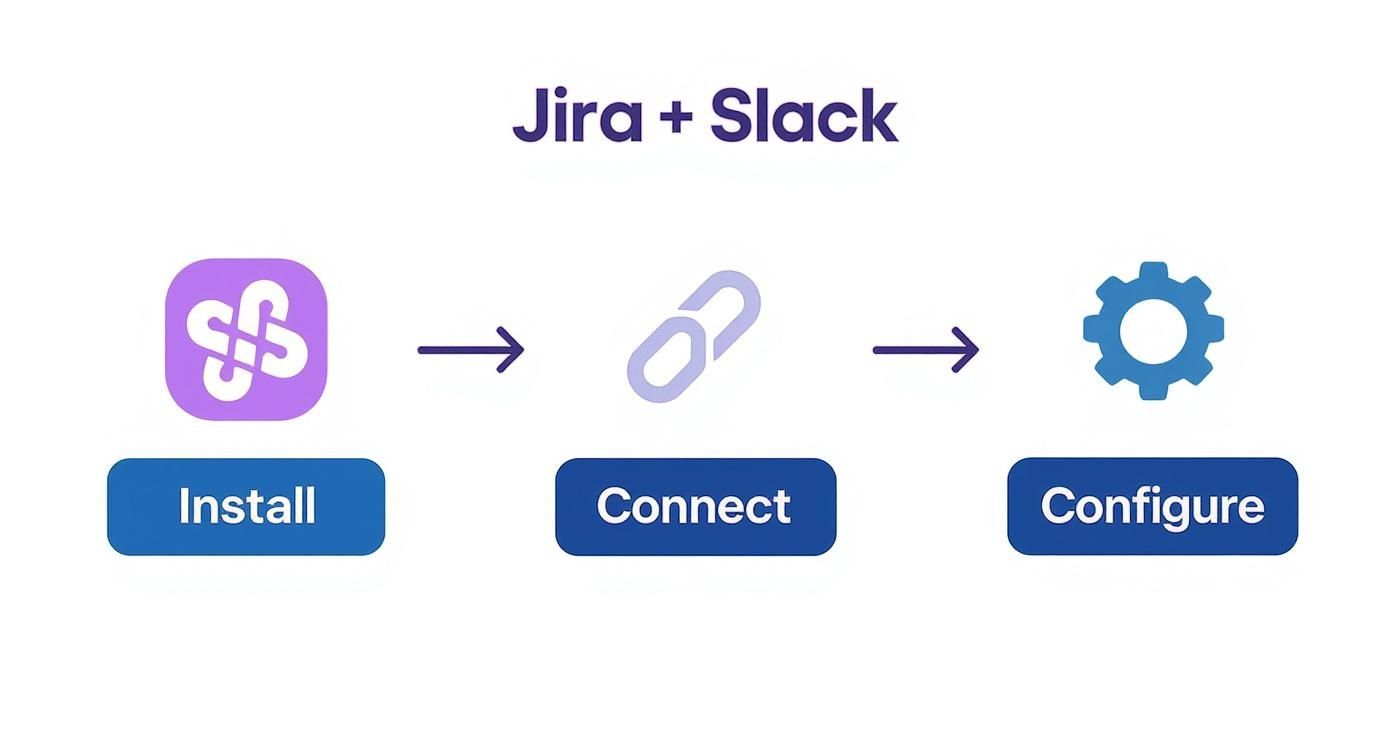
This simple flow—installing the app, connecting your accounts, and pointing it to a channel—is the foundation for all the powerful automation rules we're about to build.
Crafting Automation Rules for Slack
To really see how this works, let's build a few rules that solve common engineering problems, like making sure critical bugs get immediate attention or smoothing out the handoff between dev and QA.
These simple examples show how you can turn a manual process into an automatic, reliable alert.
Example Automation Rules for Slack Notifications
| Automation Goal | Jira Trigger | Example Slack Message |
|---|---|---|
| Instant P1 Bug Alerts | Issue created with Priority = Highest and Issue Type = Bug | P1 Production Bug Created: :fire: Summary: {{issue.summary}}Reporter: {{issue.reporter.displayName}}Link: {{issue.url}} |
| Notify QA When Ready | Issue transitioned to Status = "Ready for Testing" | Ready for Testing: :rocket: Ticket: {{issue.key}} - {{issue.summary}}Assignee: {{issue.assignee.displayName}}Link: {{issue.url}} |
| Flag Blocked Tickets | Issue transitioned to Status = "Blocked" | Ticket Blocked: :warning: Ticket: {{issue.key}}Assignee: {{issue.assignee.displayName}}Comment: {{comment.body}} |
Each rule uses Jira's smart values (the {{...}} syntax) to pull in dynamic information, giving your team all the context they need right inside Slack.
These automations create clear, smooth transitions between development stages and ensure nothing falls through the cracks. For teams wanting to apply similar optimizations to their code review process, learning how GitHub Slack integration improves code reviews can provide some great complementary ideas. And if you're looking to connect even more tools, checking out how platforms handle this with a Zapier Integration can offer more inspiration for your workflows.
Best Practices for Reducing Noise and Maximizing Signal

The biggest trap you can fall into with any Jira and Slack integration is accidentally creating a firehose of notifications. When every tiny update, comment, and status change floods your channels, your team quickly learns to tune it all out.
This is notification fatigue, and it turns a powerful tool into background noise, defeating the entire point of the integration in the first place.
To avoid this, your goal should be to build a high-signal, low-noise environment where every single alert is meaningful and actionable. The key is to be ruthless about what information you send, where you send it, and who sees it. This means stepping away from the default settings and thoughtfully designing your notification strategy from the ground up.
Create Purpose-Driven Channels
Your first line of defense against noise is a smart channel strategy. Instead of piping all Jira project updates into a generic team channel like #engineering, create dedicated, topic-specific channels. This segmentation ensures that alerts only reach the people who actually need to see them.
Consider setting up channels like these:
*   **`#p1-incidents`**: For critical, high-priority bugs that need immediate attention from the on-call team.
*   **`#build-failures`**: A dedicated space for CI/CD pipeline failure notifications, so developers stay in the loop without spamming everyone else.
*   **`#qa-ready-for-review`**: Alerts engineers when a Jira ticket moves to "Ready for Testing," creating a clear handoff.
This approach transforms Slack from a single, messy feed into a well-organized dashboard. It lets team members join only the channels relevant to their roles, giving them direct control over the information they consume.
Given Slack's widespread adoption since its launch in 2013, this strategy is incredibly effective. One survey even projects a 72% regular usage rate among tech professionals by 2025, putting it right behind Gmail and ChatGPT in overall tool usage. You can discover more insights from this state of the stack survey.
Fine-Tune Your Notification Filters
Once your channels are in place, the next step is to get granular about which Jira events actually trigger a notification. The Jira Cloud for Slack app gives you fine-grained control, letting you filter alerts based on specific criteria. Don't just notify on "all issue updates."
The guiding principle should be actionability. If a notification doesn't require someone to take immediate action or be aware of a critical change, it probably doesn't belong in Slack.
Use these filters to your advantage:
- Filter by Issue Type: Only send notifications for
BugsorTasks, while ignoring less critical types likeStoriesorSub-tasks. - Filter by Priority: Configure alerts to fire only for issues with a
HighorHighestpriority. - Filter by Status Change: Trigger notifications only for key transitions, such as an issue moving to
In RevieworBlocked, rather than every minor step along the way.
By combining dedicated channels with precise filters, you ensure every notification is relevant and valuable. This keeps your Jira and Slack integration a powerful asset for team productivity, not just another source of noise.
Troubleshooting Common Integration Issues
Even the best-laid integrations can hit a snag. When your Jira and Slack connection suddenly goes quiet, it can throw a real wrench in your team's workflow. The good news is that most of these problems are surprisingly easy to fix if you know where to look.
Most of the time, the issue boils down to one of three things: authentication problems, a misconfigured channel, or a broken automation rule. For instance, a notification might stop sending because the person who originally set up the integration had their Jira permissions changed, which is like changing the locks without telling the other platform.
Similarly, an automation rule might fail to trigger because the conditions are a little too specific, or it's trying to use a custom field that someone recently tweaked or deleted. These are simple logic errors, but they can bring your slick, automated process to a grinding halt.
A Practical Troubleshooting Checklist
When your Jira notifications stop hitting Slack, don't panic. Just run through this quick checklist to find the root of the problem. A methodical approach beats random clicking every time.
Start with the most likely suspects:
- Verify App Permissions: Head over to your Slack App Directory and take a look at the official Jira Cloud app. Make sure it still has permission to post in the channels you need it to, especially if a channel was recently switched from public to private.
- Confirm Project-to-Channel Mappings: In the Slack channel that's gone silent, type
/jira manage. This command brings up the connection settings. Double-check that the right Jira project is still linked to the channel and that your notification preferences haven't been accidentally wiped. - Inspect Automation Rule Logic: Pop open Jira Automation and find the rule that's giving you trouble. The audit log is your best friend here—it almost always has clues about what went wrong. A simple typo in a JQL query is a surprisingly common culprit.
Security is a huge piece of a healthy integration. Always stick to the official apps from the Atlassian and Slack marketplaces. Be mindful when granting permissions, especially to private channels, to keep sensitive project info safe.
Walking through these steps will fix the vast majority of integration hiccups. If you're running into similar notification headaches with other tools, our guide on how to fix GitHub Slack notifications not sending has some extra troubleshooting tips that might come in handy.
Frequently Asked Questions
When you start connecting powerhouse tools like Jira and Slack, a few questions always pop up. Getting the right answers helps you build a workflow that actually works for your team, instead of just adding more noise.
Let’s tackle some of the most common ones.
Can I Create Jira Tickets from Private Slack Channels?
Yep, absolutely. You can create Jira tickets right from a private Slack channel, but there's one small step you need to take first.
You have to invite the Jira Cloud app into that channel. Just type /invite @Jira, and once it's in, you can use slash commands and message actions just like you would in a public channel. This is perfect for turning sensitive discussions into actionable tickets without ever leaving the private space.
Is This Integration Secure for My Data?
Security is a valid concern, and the official Jira Cloud for Slack app is built with that in mind. It uses OAuth for authentication, which creates a secure handshake between the two platforms without ever exposing your login details. All the data is encrypted while it's in transit, too.
The key here is to always use the official app published by Atlassian. Be mindful of the permissions you grant it, especially when it comes to private channels or sensitive projects. This keeps you in control.
How Can I Get an Unfurl of a Jira Link in Slack?
Ever pasted a Jira link in Slack and it just... sits there? No preview, no context? It’s usually a quick fix.
This happens when the Jira Cloud app isn't a member of that channel. To fix it, just run the /invite @Jira command. From that point on, any Jira link you post will automatically expand—or unfurl—to show a rich preview with the issue summary, status, and who it's assigned to. It’s a tiny change that makes your workflow way more transparent.
Ready to eliminate notification noise and streamline your code review process? PullNotifier integrates seamlessly with GitHub and Slack, delivering concise PR updates that keep your team in sync. Start for free on pullnotifier.com and cut review delays by up to 90%.