- Published on
gitlab integration slack: Quick Setup & Notifications
- Authors

- Name
- Gabriel
- @gabriel__xyz
Connecting GitLab and Slack is about so much more than just getting another stream of notifications. It's about building a central command center for your entire DevOps workflow. When you get it right, you stop treating Slack as just a chat app and start using it as a collaborative space to discuss merge requests, triage pipeline failures, and ultimately, ship code faster.
It creates a direct line from your repository to your team's daily conversation.
Why a GitLab Slack Integration Is Essential for Modern DevOps

Let’s be honest: context switching is a productivity killer. Bouncing between your code repository and your communication platform all day is a massive source of friction in the development lifecycle. This is the exact problem a solid GitLab integration with Slack is designed to solve. It bridges the gap between where your team works and where they talk about that work.
By linking these two platforms, you create a transparent, single source of truth. Developers no longer need to manually check a build status or go hunting for feedback on a merge request—the updates come directly to them. That immediate visibility is what really accelerates feedback loops and helps you squash issues before they turn into major roadblocks.
The Power of Real-Time Collaboration
The real magic happens when this connection turns DevOps into a team sport. Imagine a pipeline fails. A notification instantly pops up in a dedicated Slack channel, pulling the right engineers into the conversation immediately. They can see the failure, talk through the cause, and coordinate a fix without ever leaving the app they already have open all day.
This synergy has been a game-changer for teams all over the world, supporting a community of over 30 million GitLab users across 60 countries. The integration links GitLab's powerful version control tools directly with Slack, enabling real-time alerts and focused discussions.
A successful integration isn't just about seeing alerts. It's about enabling your team to act on them instantly, transforming passive notifications into active, collaborative problem-solving sessions.
From Notifications to Actionable Insights
Ultimately, connecting these systems is a fundamental step toward improving your processes. It’s worth exploring the importance of workflow automation to see the bigger picture, and this integration is a perfect, practical example. It turns your CI/CD pipeline from a black box into an interactive, communicative process.
Here’s what you can do once it’s set up:
*   **Discuss Code Reviews:** You can directly address comments on a merge request (often called a pull request in other platforms) right inside the relevant Slack thread. If you're curious about the difference, we have a whole guide on the [pull request vs merge request](https://blog.pullnotifier.com/blog/pull-request-vs-merge-request).
*   **Triage Issues Faster:** Capture bugs or feature ideas as they come up in conversation by creating and assigning GitLab issues with simple slash commands from Slack.
*   **Monitor Deployments:** Keep the entire team in the loop on production deployments, rollbacks, and environment status updates in a dedicated channel.
Installing the Official GitLab Slack App
If you're looking to get GitLab notifications pumping into Slack, the official app is the quickest way to get started. It's the most direct route for bringing core GitLab features into your team's chats, designed for simplicity and ease of use. I always recommend starting here before you even think about more complex setups like custom webhooks.
The whole point of this app is to create a two-way street. You get notifications for the important stuff, but you can also fire off GitLab commands right from Slack. No more context switching.
Finding and Authorizing the GitLab App
First things first, you need to find the app in the Slack App Directory and add it to your workspace. The directory is packed with thousands of tools, and the GitLab app is a must-have for any dev team living in Slack.
Let's be real, Slack is where work happens for a lot of us. With over 54 million monthly active users and more than 750,000 custom integrations, it's the central nervous system for countless teams. Tying a critical tool like GitLab directly into it is a no-brainer for a smoother workflow. If you're curious about the numbers, recent Slack usage statistics paint a clear picture of its dominance.
Here’s what you'll be looking for in the App Directory. This is your starting line.
Just smash that "Add to Slack" button. It'll kick off the authorization process where you grant the app permission to interact with your workspace.
Connecting Your GitLab Project to a Channel
Once the app is installed, the next step is to tell it which GitLab projects should talk to which Slack channels. Thankfully, this is all handled with a few simple slash commands right inside Slack.
Pop into the Slack channel where you want the notifications to land. For example, if you have a #dev-team-alpha channel, you'll do the setup right there.
The key is to map projects to channels logically. A common mistake I see is dumping all notifications from every single project into one massive, noisy channel. Don't do that. Create dedicated channels for specific projects or teams to keep the information relevant and actionable.
To link your project, you'll use the /gitlab command. The process breaks down into a few quick actions:
*   **Sign In:** First, you’ll run `/gitlab` to connect and authorize your GitLab account with Slack.
*   **Set a Project Alias:** Next, you'll map a full project path (like `your-group/your-project`) to a shorter, easier-to-use alias. For example: `/gitlab project alias set my-cool-app your-group/your-project`.
*   **Enable Notifications:** Finally, you switch on notifications for that alias in the current channel using `/gitlab my-cool-app notifications on`.
This creates the essential link and GitLab will start pushing updates your way.
Using Slash Commands for Everyday Tasks
With the connection live, your team can now interact with GitLab without ever leaving Slack. This is where you start to see real productivity gains. Instead of breaking a conversation to open GitLab, create a new issue, and then jump back, you can do it instantly.
Some of the most useful slash commands include:
*   **/gitlab [project-alias] issue new [title]** Creates a new issue in the linked project.
*   **/gitlab [project-alias] issue search [query]** Searches for issues containing your query.
*   **/gitlab [project-alias] deploy to [environment]** Triggers a deployment job (if you've configured it in your `.gitlab-ci.yml`).
Imagine your team is discussing a bug in a thread. A developer can immediately run /gitlab my-cool-app issue new "Fix login button alignment" right there and then. This simple action captures the task before it gets lost in the shuffle, keeping momentum high and ensuring conversations lead to actual work tracked in GitLab.
An unfiltered firehose of notifications is often worse than no notifications at all. The real goal of a GitLab integration with Slack isn't just to connect two apps; it’s about creating a clear signal from all the noise. This means ditching the single, chaotic channel and building a deliberate notification strategy.
The key is to match the message to the audience. Your on-call engineers don’t need to see every single comment on a new issue, but they absolutely need to know when a production pipeline fails. By setting up notifications with intent, you make sure the right information gets to the right people, right when they need it.
Creating Dedicated Notification Channels
The single most effective strategy I've seen is creating dedicated, purpose-driven channels in Slack. Instead of one generic #gitlab-activity channel that quickly becomes overwhelming, think more granularly. This approach lets team members subscribe to the information streams most relevant to their roles, which dramatically cuts down on distractions.
Consider setting up a few specialized channels to start:
*   **`#ci-failures`**: A high-priority channel that *only* gets alerts for failed pipeline jobs. This becomes the go-to spot for on-call engineers to spot and triage build issues immediately.
*   **`#dev-deploys`**: This channel announces successful deployments to staging and production. It gives visibility to the entire team—including product managers and QA—about what features are ready for testing or have been shipped.
*   **`#merge-requests`**: A space just for developers to see new MRs and review requests. It’s a great way to foster a collaborative code review culture and keep development moving forward.
This simple separation turns Slack from a source of constant interruptions into a well-organized dashboard for your team's entire development lifecycle.
Configuring Triggers for Specific Events
Once you have your channels, you need to tell GitLab what to send and where. You'll handle this within your GitLab project's integration settings, under Settings > Integrations > Slack notifications. Here, you can add multiple Slack channels and then fine-tune a unique set of triggers for each one.
For example, your #ci-failures channel would only have the Pipeline and maybe Deployment event boxes checked. For #merge-requests, you'd select Merge request and Comment triggers. This level of control is what makes the whole setup work. You can create distinct rules for pushes, issues, confidential issues, and even wiki page creations.
The most successful teams I've worked with treat their notification settings like code—they iterate. Start with a basic setup, get feedback from your team after a week, and then refine the rules. Don't be afraid to create or archive channels as your project's needs evolve.
This granular control is especially vital for large projects or monorepos where the sheer volume of activity can be overwhelming. If you're dealing with complex repositories, it's also worth checking out these tips for managing PR notifications in monorepos, as many of the same principles of filtering and focus apply. By carefully curating which events trigger a notification, you help your team maintain focus on what truly matters, ensuring that when an alert does come through, it actually commands attention.
Using Webhooks for Custom CI/CD Alerts
Sometimes, the official GitLab Slack app just doesn't cut it. When you need more detail, more control, or just a notification that fits your team's unique workflow, webhooks are your best friend. Think of it as building your own alert system from the ground up by connecting GitLab's outgoing webhooks with Slack's incoming ones.
Instead of getting a generic "pipeline failed" message, you can create rich, informative alerts that tell your team exactly what they need to know. This is where a custom gitlab integration slack setup really proves its worth. You decide what gets sent, how it looks, and where it lands.
Crafting a Custom Deployment Notification
Let's walk through a common scenario. Your team just shipped a new version to production. A standard notification is okay, but a custom one is a game-changer. With webhooks, you can craft a message that packs in all the essential context.
For a successful production deployment, you could build a custom alert that includes:
*   **Version Number:** Pulled right from a GitLab CI/CD variable.
*   **Deployer's Name:** The GitLab user who kicked off the pipeline.
*   **Release Notes Link:** A direct link to the relevant commit or tag message.
*   **Environment Status:** A clear "Production Deployment: Success" message.
Suddenly, a simple ping becomes a valuable announcement. Project managers, QA, and other stakeholders are kept in the loop automatically—no more chasing down engineers for an update.
Debugging Failures with Formatted Log Snippets
Here's another powerful way to use custom webhooks: faster debugging. When a critical job in your pipeline fails, every second counts. Making an engineer hunt for the right log file is a waste of precious time. Instead, you can set up a webhook that triggers on failure and pushes a formatted snippet of the CI/CD logs directly into a dedicated Slack channel.
This gives developers immediate context, showing the exact error message or stack trace that broke the build. They can start diagnosing the problem straight from Slack, which dramatically slashes the mean time to resolution (MTTR).
To help you decide which path is right for you, here’s a quick comparison of the two main approaches.
Official App vs Custom Webhooks
Deciding between the native app and custom webhooks really comes down to your team's specific needs for simplicity versus control. This table should help clarify which option is the best fit.
| Feature | Official GitLab Slack App | Custom Webhooks |
|---|---|---|
| Setup Complexity | Low - simple, guided setup | Medium to High - requires scripting and knowledge of both APIs |
| Customization Level | Limited - predefined notifications and formats | Unlimited - complete control over message content, format, and triggers |
| Maintenance | Minimal - managed by GitLab | Ongoing - you own the code, so you have to maintain it |
| Use Case | Teams needing standard, out-of-the-box CI/CD alerts | Teams with specific workflows or a need for detailed, context-rich alerts |
Ultimately, if you just need the basics covered with minimal fuss, the official app is a great choice. But if you want to build a notification system that's perfectly molded to your team's process, custom webhooks are the way to go.
This chart helps visualize that decision-making process.
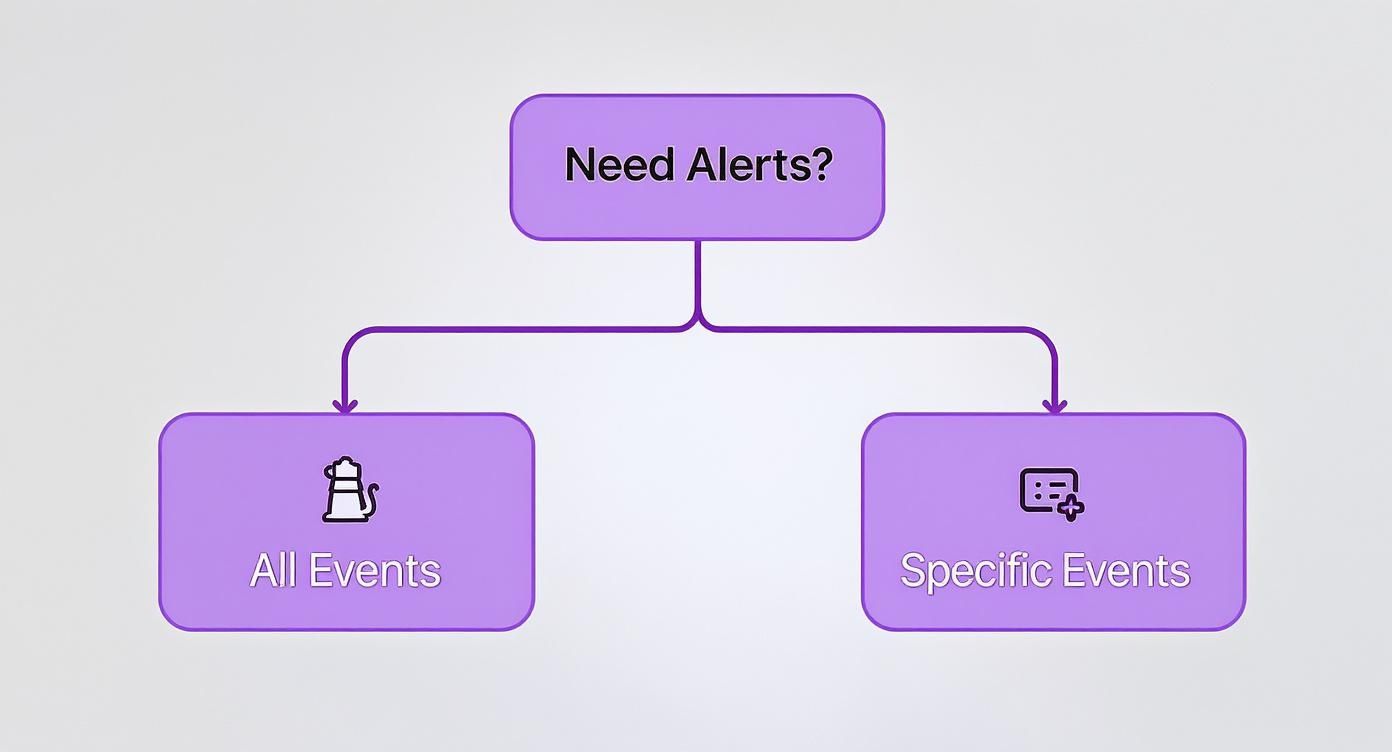
As the graphic shows, if standard event alerts are all you need, the official app is your best bet. For anything more specific or custom-formatted, webhooks give you the power you need.
Even though GitLab’s native integration covers pipeline status, many teams have built custom scripts to push full CI/CD logs into Slack. This not only enhances real-time debugging but also creates a useful audit trail, highlighting a broader trend of embedding CI/CD tools directly into team communication platforms.
This approach isn't unique to GitLab, of course. You'll find similar patterns across other CI/CD systems. If you're curious, we have a guide on https://blog.pullnotifier.com/blog/using-github-actions-to-send-slack-notifications that explores a similar philosophy. And to take your pipeline a step further, consider how integrating automated code review tools can trigger custom alerts for code quality issues, giving your team an even richer feedback loop.
Solving Common Integration Issues
Even with a perfect setup guide, hitting a snag with a GitLab integration in Slack is a rite of passage for most engineers. It’s frustrating when notifications don't show up or a slash command mysteriously fails, but the fix is usually simpler than you think.
Let’s be real, the most common issue is silent notifications. You’ve configured everything, but your channel is a ghost town. This almost always boils down to a permissions hiccup or a simple typo. Before you go down a rabbit hole, check that the user who authorized the integration has the right permissions—at least the 'Developer' role in the GitLab project.
It’s also surprisingly easy to mistype a channel name or paste an incomplete webhook URL. Seriously, just double-check those settings first. You'd be amazed how often that's the problem.
Diagnosing Slash Command Failures
When slash commands like /gitlab throw a permission error or just don’t work at all, it's typically an issue with how the app was authorized in Slack or how you set up the project alias.
First, make sure you've correctly set a project alias in the channel where you're running the command. The alias is what connects your slash commands to a specific GitLab project, so it has to be right. If that's correct, the issue might be lurking in Slack's own permissions.
A surprisingly effective fix is to simply reinstall the GitLab application in your Slack workspace. Workspace updates or subtle changes in user permissions can de-sync the app's required scopes. A fresh install often clears up these hidden permission conflicts.
When Webhooks Don't Fire
If your custom webhooks are the problem, the diagnostic process is a bit different. Your first stop should always be the webhook logs inside GitLab. Just navigate to your project's Settings > Webhooks, click on your webhook, and scroll down to the "Recent events" section.
This log is your single source of truth. It shows every attempt GitLab made to send a payload and the exact response it got back from Slack's server.
Here are the usual suspects you'll find in the logs:
*   **Incorrect URL:** A simple copy-paste error is the number one cause. Happens to the best of us.
*   **Network Issues:** Your GitLab instance might be sitting behind a firewall that’s blocking outgoing requests to Slack.
*   **SSL Verification Errors:** If you're using a self-hosted GitLab instance with a self-signed SSL certificate, the webhook can fail unless you disable SSL verification (but use this with caution).
*   **Disabled Triggers:** It’s easy to forget to select the specific event triggers, like **"Pipeline events,"** in the webhook's configuration page.
By methodically checking these common failure points, from user roles to network settings, you can solve just about any issue with your GitLab Slack integration and get your team’s communication flowing again.
Got Questions? We've Got Answers
When you're wiring up GitLab and Slack, a few common questions always seem to pop up. Nailing the setup is key—you want to unlock all the benefits without accidentally spamming your team into oblivion.
Here are some of the most frequent things people ask, along with some practical, no-nonsense answers.
Can I Send GitLab Notifications to a Private Slack Channel?
Yes, you absolutely can. It's actually a super common way to keep discussions focused on a specific team or feature. Both the official GitLab Slack app and custom webhooks are built to handle private channels just fine.
There's only one catch: the person setting up the integration has to be a member of that private channel.
*   **For the official app**, just join the private channel in Slack and run the same slash command you'd use in a public one, like `/gitlab [project-alias] notifications on`. GitLab will get the message and start piping updates directly into that locked-down space.
*   **If you're using incoming webhooks**, you just pick the private channel from the dropdown menu when you're creating the webhook URL in Slack's settings. That URL gets uniquely tied to your private channel, and you're good to go.
How Do I Filter Notifications to Reduce Channel Noise?
The secret to a quiet, useful integration is getting surgical with your notification triggers. If your channels are drowning in alerts, it's a sure sign your settings are way too broad. The place to fix this is inside GitLab, not Slack.
Head over to your project's Settings > Integrations > Slack notifications. Don't just check the box for every single event. Be selective.
A pro tip I've used for years is to create multiple integration configurations for the same project. You could set up one hook for a
#build-failureschannel that only triggers on "Pipeline" events. Then, create another for a#merge-requestschannel that only listens for "Merge request" and "Comment" events.
This strategy turns a noisy firehose of updates into a set of clean, context-specific streams that your team will actually value. It’s a fundamental part of a successful GitLab integration with Slack.
Is It Possible to Interact with Merge Requests from Slack?
Yep, the official GitLab Slack app brings some interactive capabilities right into your conversations, though it has its limits. You can't do core actions like approving or merging a request directly from a Slack message, but you can definitely keep the work moving forward.
When a new merge request notification pops up, it usually comes with buttons to quickly view the MR in GitLab or add a comment to the discussion. This is perfect for firing off quick feedback without having to switch contexts.
The slash commands are also surprisingly powerful for bridging the gap between a conversation and an action. For example, if a discussion in Slack suddenly makes it clear you need a new feature or bug fix, you can create an issue right then and there with /gitlab [project-alias] issue new [title]. This instantly captures the action item, making sure that talk translates directly into tracked work in your repo.
Tired of notification spam from noisy, default integrations? PullNotifier cuts through the chaos by delivering clean, real-time pull request updates directly in Slack. Reduce review delays by up to 90% and keep your team focused. Learn more at https://pullnotifier.com.