- Published on
A Guide to Integrating Slack and Jira for Your Team
- Authors

- Name
- Gabriel
- @gabriel__xyz
Let's be real: flipping back and forth between apps is a massive productivity drain. The constant context switching between your team's chat and your project board is a huge time-suck. Connecting Slack and Jira directly tackles this problem head-on, creating a single, unified space for your entire development workflow.
Why Hooking Up Slack and Jira Will Change Your Life
In any fast-moving agile team, speed and clarity are non-negotiable. But too often, important updates get buried in email chains or lost in the noise of a busy chat channel. Think about the classic scenario: you discuss a bug in Slack, then have to hop over to Jira to manually update the ticket. This little dance introduces delays and opens the door for human error. It’s a quiet but deadly productivity killer.
By bringing your communication and project management tools together, you give your team a serious efficiency boost. It's a similar principle to how sales teams use top sales enablement tools to streamline their own processes.
One Central Hub for All Your Projects
Picture this: a developer finds a critical bug during a code review. Instead of breaking their flow and navigating to another app, they can create a Jira ticket right from the Slack message where the bug was first mentioned.
Instantly, a notification pops up in a dedicated #dev-urgent-bugs channel, complete with a direct link to the new ticket. Just like that, you've created a single source of truth where the conversation and the action are tied together. This kind of cohesion is what keeps projects moving forward.
The payoff is immediate and clear:
*   **Less Context Switching:** Keep your developers in the zone by letting them manage Jira tasks without ever leaving Slack.
*   **Better Visibility:** Everyone involved, from engineers to product managers, sees real-time updates in the channels that matter.
*   **Faster Response Times:** Critical issues get flagged the moment they're created, allowing your team to jump on problems and resolve them way faster.
Syncing ticket details and conversations means Jira stays your single source of truth, while Slack becomes your single source of speed.
This approach isn't unique to Jira. Many dev teams get huge benefits from other tool integrations, like the various GitHub and Slack integrations that make code review notifications a breeze. At the end of the day, connecting Slack and Jira isn't just about convenience—it's a smart, strategic move toward a more transparent, responsive, and efficient workflow.
Your Guide to Connecting Slack and Jira
Alright, let's get your Slack and Jira talking to each other. It's a pretty painless process, but there’s one small catch before you start: you’ll need to be an admin in both your Slack workspace and your Jira Cloud site. That’s a non-negotiable, as you need those permissions to authorize the connection.
First things first, you need to grab the official Jira Cloud app. Just head over to the Slack App Directory and search for "Jira Cloud." You'll see a few options, but you want the one built by Atlassian. Stick with the official one to avoid headaches down the road.
Why bother? Well, this integration is all about cutting out the noise and friction of switching between apps. Instead of losing track of updates or wasting time jumping between tabs, you bring the important stuff right into your conversations.
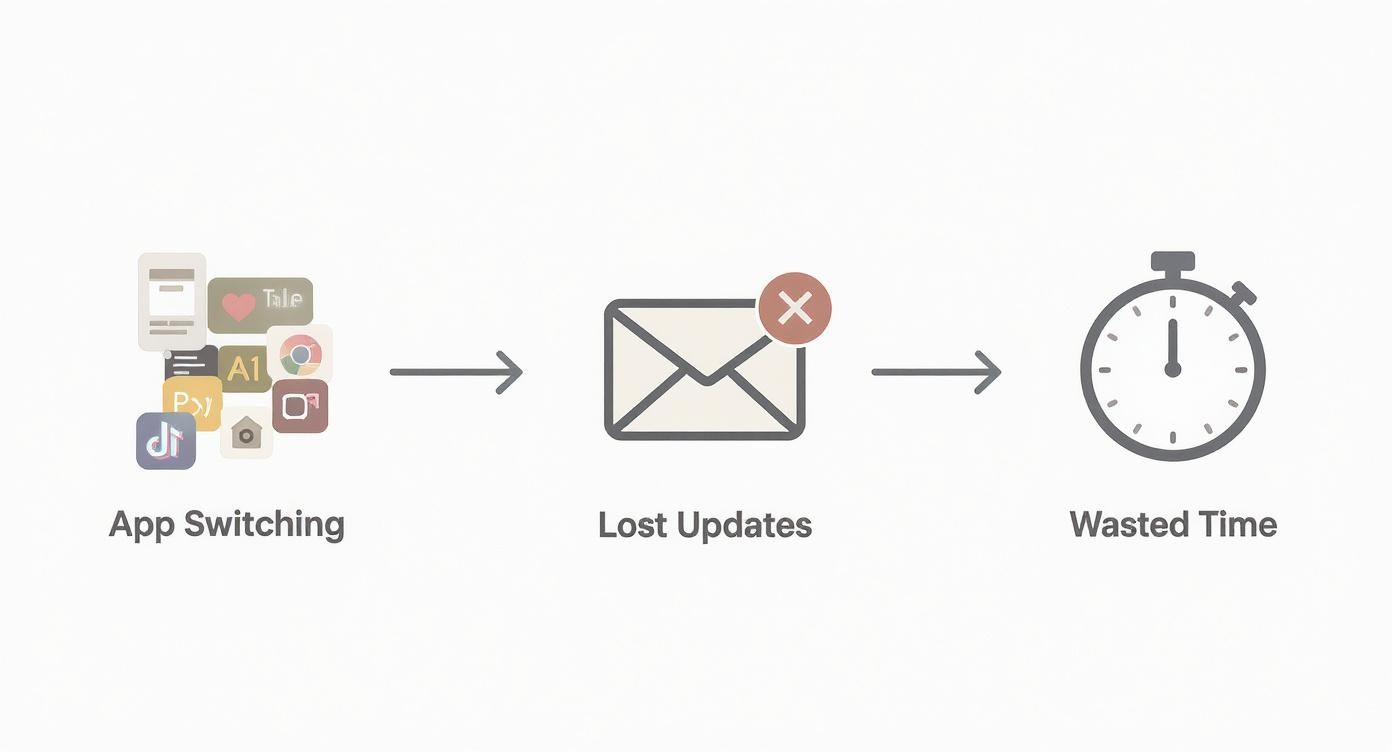
When Jira notifications pop up directly in Slack, you create a seamless flow of information that keeps everyone in the loop without the constant context switching. It's a game-changer for team alignment.
Installing and Authenticating the App
Once you’ve located the app, just hit "Add to Slack" and follow the prompts. Slack will walk you through granting the app the permissions it needs to work its magic, like posting messages and adding interactive buttons to your channels.
This is what you're looking for—the official app page where the journey begins.
That big green "Add to Slack" button is your gateway.
With the app installed, it’s time to connect your Jira account. The Jira Cloud app will prompt you to authenticate your site. You'll just need to plug in your Jira site URL (it looks something like your-company.atlassian.net) and log in. This handshake securely links the two platforms, giving Slack the green light to interact with your Jira projects.
It’s important to remember that each tool has its own strengths. Slack is king for real-time chat, while Jira is a powerhouse for structured project management, reporting, and filtering. For a deeper dive into how they stack up, ProofHub.com has a great comparison.
Key Takeaway: The idea isn't to replace Jira with Slack. It's about making Jira's best features accessible right from your Slack channels. This creates a much smoother workflow where you can act on updates the moment they happen.
Now that you've built the bridge between the two tools, you're ready for the fun part: setting up project-specific notifications and creating tasks directly from Slack. This is where you'll really start to see the benefits.
Setting Up Smart Project Notifications in Slack
A good integration gets the right information to the right people without creating a ton of noise. Once you've connected the Jira Cloud app, the real magic happens when you set up targeted notifications that help your team focus. This is how you turn a noisy feed into an actionable signal.
It all starts inside a specific Slack channel. Just type /jira connect and hit send. This little command will prompt you to link a Jira project directly to that channel, giving all its updates a dedicated home.

This initial connection is a game-changer. With Slack commanding an 18.6% market share in team collaboration software and over 40% penetration in tech startups, getting this integration right is a core skill for any modern dev team. You can dive deeper into Slack's market position at SQMagazine.co.uk.
Customizing Your Notification Filters
After you've linked a project, it's time to fine-tune what gets posted. The default settings can be a bit much, so customization is absolutely key to avoiding notification fatigue. You can filter updates based on a few different criteria to match exactly what your team needs to see.
Some of the most useful filters you can apply are:
*   **Issue Type:** Get alerts for specific types like `Bug`, `Story`, or `Task`.
*   **Event Type:** Choose to see notifications only for key actions, like `Issue Created`, `Comment Added`, or `Status Changed`.
*   **Priority:** Set up alerts for issues marked with a specific priority level, like `High` or `Highest`.
Let's say you need a channel that only flags critical bugs for the on-call engineering team. You could create a #dev-urgent-bugs channel and configure it to only receive notifications for Bug issues where the priority is set to Highest. Simple, but incredibly effective.
This level of control ensures that when a notification does pop up, your team knows it's important. It respects their focus by filtering out the routine updates and highlighting only the actionable items—a principle that also applies to streamlining other dev processes. To see another example, check out our guide on improving code quality checks with GitHub Actions and Slack.
Strategic filtering turns your Slack and Jira integration from a simple notification feed into a smart, context-aware workflow engine. It actively accelerates your team’s response time by cutting through the clutter.
How to Create and Manage Jira Issues from Slack
Let's be real—great ideas, critical feedback, and bug reports often pop up in the middle of a Slack conversation. The last thing you want is for that momentum to die in the channel. With the Slack and Jira integration, you can capture those moments and turn them into actionable tasks without ever switching windows.
It’s a game-changer for keeping work flowing.
The quickest way to get a ticket into Jira is with a simple slash command. Just type /jira create into any channel, and a dialog box will appear. From there, you can pick the project, set the issue type, and jot down a summary and description. It’s incredibly fast and keeps you in the zone.

You can also convert any existing Slack message directly into a Jira issue. Just hover over the message, click the three-dot menu, and select "Create a Jira issue." This is perfect for those "aha!" moments when a teammate flags a bug or shares customer feedback. The best part? It automatically pulls the original message into the ticket description, so no context is lost.
Interacting with Existing Jira Tickets
This integration isn't just about creating new issues; it's also a powerful way to manage tickets that are already in flight. When a Jira notification pops up in a channel, you can take action right then and there.
*   **Add Comments:** Simply reply to the notification thread in Slack, and your message gets added as a comment on the Jira ticket.
*   **Change Status:** Use the action buttons on the notification to move the issue through your workflow, like from "To Do" to "In Progress."
*   **Assign Issues:** Need to pass the ticket to someone else? You can assign it to a team member directly from the Slack notification.
This seamless back-and-forth is why so many teams love this combo. User satisfaction ratings show Slack with a 91% approval rating for its slick communication flow, while Jira scores a close 88% for its project management muscle. The integration truly gives you the best of both. You can check out more comparisons over on Crozdesk.com.
By syncing these interactions, you ensure Jira remains the single source of truth for your projects, while Slack acts as the command center for rapid action and communication.
Picture this: a support agent spots a customer message flagging a bug. In less than a minute, they can convert that message into a ticket, assign it to a developer, and add a quick comment with extra context—all without leaving the conversation. That's the kind of efficiency we're talking about.
Taking Your Integration to the Next Level
Once you’ve got the basics of the Slack and Jira integration down, it's time to move beyond the default settings. This is where the real magic happens. By tailoring the connection to your team's specific workflow, you can cut out the noise and automate away the tedious stuff. You'll transform the integration from a simple notification tool into a smart, proactive assistant.
A great place to start is with Jira Query Language (JQL). This lets you create hyper-specific notification filters. Instead of getting a ping for every single status change, you could build a filter that only alerts a channel when a Bug issue in the current sprint moves to Blocked and is assigned to a specific team member. That kind of precision makes sure every notification is relevant and actionable.

Custom Automations with Workflow Builder
Another powerful tool in your arsenal is Slack's own Workflow Builder. You can design custom automations that are triggered by specific actions right inside Slack. For instance, imagine a workflow where reacting to a message with a bug emoji (🐛) automatically pops open a "Create Jira Issue" form, pre-filling it with the content from the message. Simple, but incredibly effective.
You can also set up personal notifications directly from the Jira bot. Forget relying only on channel updates. Configure the bot to slide into your DMs for any ticket assigned to you or whenever someone mentions you in a comment. It's the perfect way to stay on top of your own tasks without getting lost in the channel chatter.
By syncing details and messages between platforms, you ensure that Jira remains your source of truth while Slack becomes your source of speed. This focused approach is key to an effective development cycle.
We've seen many teams apply these same principles to other parts of their toolchain. For example, our guide to GitLab and Slack integration explores how to do something similar with merge request notifications, cutting down even more friction. When you start combining these advanced tricks, your team becomes more focused, responsive, and efficient.
Got Questions About the Slack and Jira Integration?
Even with a smooth setup, a few questions are bound to pop up as your team starts using the Slack and Jira integration every day. Let's clear up some of the most common ones so you can get the most out of this connection without hitting any snags.
One of the first things people ask is whether you can link multiple Jira projects to a single Slack channel. The answer is a big yes. Just run the /jira connect command as many times as you need in the same channel, adding a new project each time. This is perfect for creating high-level summary channels, like one for leadership that needs a bird's-eye view of progress across different initiatives.
Another common point of confusion is figuring out which Jira app for Slack you actually need.
Jira Cloud vs. Jira Server
It's super important to install the right app for your setup. They aren't interchangeable, and grabbing the wrong one means the integration simply won't work.
*   **Jira Cloud App:** This one's for teams using [Atlassian's](https://www.atlassian.com/software/jira) cloud-hosted Jira product.
*   **Jira Server App:** This is built specifically for organizations that self-host their Jira instances on their own servers.
Finally, a top concern for almost every team is managing notification overload. If you're not careful, the constant stream of updates can quickly become more distracting than helpful.
The best way to cut through the noise is to be ruthless with your subscription filters. Instead of getting every single update, narrow your focus to only the most critical events, like "Issue Created" or "Status changed to Done." You can also filter by specific issue types, such as "Bug."
This ensures that when a notification does pop up, your team knows it’s actually worth their attention. For those who want even more control, using JQL for granular filtering is a powerful way to keep your channels focused and actionable.
PullNotifier streamlines your development workflow by bringing clear, concise GitHub pull request updates directly into Slack, cutting through the noise and accelerating your code review process. See how it works at https://pullnotifier.com.